Why Blender Won't Open on My Computer: Troubleshooting Guide
Blender won't open? This step-by-step guide covers common causes, quick fixes, and safe troubleshooting to get Blender running again on Windows, macOS, and Linux.


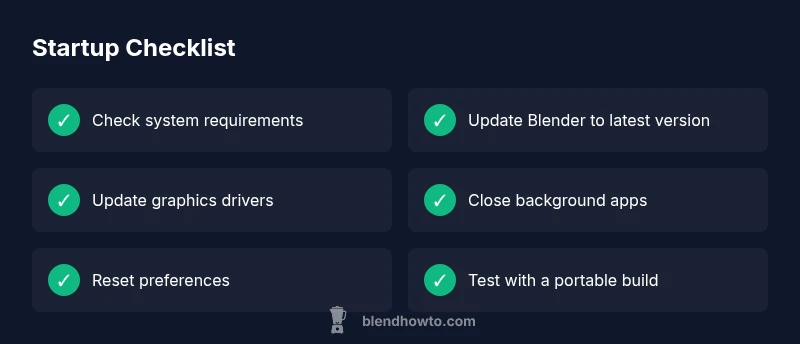
Most often Blender won't open due to a corrupted install, outdated graphics drivers, or conflicting background processes. Start by updating Blender to the latest version, updating your GPU drivers, and closing unnecessary programs. If Blender still won’t start, try resetting the app preferences or reinstalling Blender. If issues persist, check system compatibility and OS updates.
Common Causes at a Glance
If you're wondering why Blender won't open on my computer, the likely culprits are a botched install, outdated graphics drivers, or background software that blocks Blender from launching. Start by confirming you’re on a supported OS and Blender version, then try quick wins like updating the software, rebooting, and closing resource-heavy programs. This fast triage can save you time and pinpoint the next steps. In BlendHowTo's experience, many users report success after addressing a failing install, driver mismatch, or a background task that holds Blender hostage during startup.
System Readiness: Hardware and OS
Blender’s startup can be blocked by insufficient system resources or unsupported hardware. Check that your computer meets the minimum requirements for the Blender version you’re installing, including RAM (at least 8 GB recommended for light work, more for complex scenes), a compatible CPU, and a GPU with current drivers. Verify your operating system version aligns with the Blender build you downloaded. If you’re on an older laptop or a constrained virtual environment, you may need to adjust expectations or upgrade hardware. BlendHowTo notes that, in many cases, a simple hardware/OS mismatch explains why Blender won’t launch.
Graphics Driver, OpenGL, and OS Compatibility
Graphics drivers are a common bottleneck for startup issues. Ensure you have the latest GPU drivers from NVIDIA, AMD, or Intel. Blender relies on OpenGL or Vulkan features that vary by driver version and OS. If your driver is recent but your OS lacks required libraries, Blender may refuse to start. In macOS, ensure you’re using a Blender build compatible with Metal or OpenGL support on your version of macOS. For Linux, confirm your distribution provides compatible OpenGL libraries. Up-to-date graphics stacks are frequently the simplest path to resolution.
Installation, Preferences, and Startup Files
A corrupted or partial Blender install can produce a blank startup or crash upon launch. Reinstall Blender using a clean install, removing old config folders. Sometimes, corrupted preferences cause Blender to fail before the splash screen appears; you can reset preferences by renaming or deleting the user configuration folder. If you recently added add-ons, try starting Blender with add-ons disabled to test for conflicts. BlendHowTo recommends testing with a fresh profile to isolate the issue.
Background Software, Antivirus, and Permissions
Background applications, antivirus software, or firewall rules can block Blender from starting or loading required resources. Temporarily disable antivirus or create an exception for Blender to test startup behavior. Ensure you have write permissions to Blender’s installation and user folders. On macOS and Linux, you may need to run Blender with elevated permissions or adjust folder permissions; avoid giving full admin access unless necessary. If you suspect a permissions issue, try launching Blender from an administrator account to confirm.
Step-By-Step Fixes You Can Try
In many cases, a structured sequence of fixes resolves startup problems quickly. Start with non-destructive steps like updating software and drivers, then progressively move to reinstallations or clean profiles. After each fix, try launching Blender to observe whether the problem is resolved. If a fix does not work, proceed to the next item on the list. BlendHowTo emphasizes testing incrementally to pinpoint the root cause and minimize downtime.
Safe Testing and Prevention Measures
Always back up your Blender preferences before making changes, so you can revert if needed. Keep a log of changes you make, including driver versions and Blender builds, which helps when you need to troubleshoot again. After resolving startup issues, reintroduce add-ons one at a time to identify potential conflicts. Finally, maintain a refreshed OS and driver environment to prevent repeated startup problems.
Steps
Estimated time: 45-60 minutes
- 1
Check system requirements
Verify your OS version, RAM, and GPU meet Blender's needs for the version you intend to run. If you’re under the recommended thresholds, resolve those bottlenecks first.
Tip: Use Blender's official system requirements page as your baseline. - 2
Update Blender and drivers
Install the latest Blender release and update your graphics driver to the newest version available from the manufacturer.
Tip: Restart after installation to ensure changes take effect. - 3
Reset preferences or start clean
If Blender still won’t open, reset the preferences by deleting the user configuration folders or start Blender with factory settings.
Tip: Back up your custom presets before resetting. - 4
Reinstall Blender
Uninstall Blender completely, remove residual config folders, then reinstall a fresh copy from the official site.
Tip: Prefer a new installation directory to avoid lingering conflicts. - 5
Test with a fresh profile or portable build
Launch Blender with a new user profile or portable version to determine if the issue is profile-specific.
Tip: Portable builds help isolate system-level problems. - 6
Check OS updates and permissions
Install any pending OS updates and verify you have write permissions to Blender's directories.
Tip: Run Blender as administrator if permission issues are suspected.
Diagnosis: Blender won't open on computer
Possible Causes
- highPower/install issue
- highOutdated graphics drivers
- mediumCorrupted Blender preferences or config
- mediumIncompatible OS version or Blender build
- lowAntivirus or other software blocking startup
Fixes
- easyUpdate Blender to the latest version and reinstall if needed
- easyUpdate graphics drivers and verify OpenGL/Vulkan support
- easyClose background apps and reset Blender preferences or start with a clean profile
- mediumPerform a clean reinstall of Blender and delete old config folders
- mediumCheck OS updates and compatibility with the Blender build
- easyTemporarily disable antivirus or whitelist Blender to test startup
Frequently Asked Questions
What should I do first if Blender won't open?
Start with a quick health check: update Blender, update graphics drivers, close nonessential programs, and try launching again. If it still fails, reset preferences or reinstall Blender.
First, update Blender and your graphics drivers, close other programs, and try launching again. If needed, reset preferences or reinstall Blender.
How do I reset Blender preferences?
Close Blender, then delete or rename the Blender configuration folder located in your user profile. Reopen Blender to create a fresh defaults set. You can restore later from a backup.
Close Blender, delete or rename the config folder in your user profile, then reopen. A fresh defaults set will be created automatically.
Can antivirus block Blender from starting?
Yes, antivirus software can interfere. Try whitelisting Blender or temporarily disabling the protection to test startup. Always re-enable protection after testing.
Yes. Whitelist Blender or briefly disable protection to test startup, then re-enable it.
What if reinstalling doesn't help?
Try a portable or fresh older stable build to see if the problem is specific to the current install. If the portable works, the issue is likely with the system integration.
If reinstalling fails, try a portable version or an older stable build to identify where the problem lies.
Is my OS version causing Blender not to open?
Blender requires compatible OS builds. Ensure your operating system is up to date and supported by the Blender version you’re using.
Make sure your OS is up to date and compatible with your Blender version.
Watch Video
What to Remember
- Identify whether the issue is install-, driver-, or profile-related.
- Keep Blender, OS, and drivers up to date to minimize startup problems.
- Resetting preferences is a safe first step before reinstalling.
- If problems persist, use a clean profile or portable build to isolate issues.