How to Fix Blender Not Opening: Quick Troubleshooting Guide
Struggling with Blender not opening? This urgent, step-by-step guide from BlendHowTo helps you diagnose startup errors across Windows, macOS, and Linux with practical fixes, safety tips, and preventative steps.


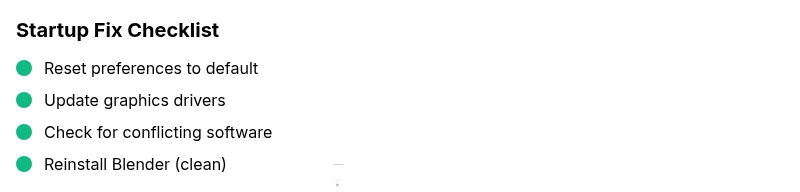
If Blender won’t start, the most likely cause is a corrupted user profile or missing dependencies. Start with resetting to factory defaults, then update graphics drivers and runtimes. If Blender still won’t open, try a clean reinstall or a portable version. This fast path covers Windows, macOS, and Linux and gets you back to work quickly.
Why Blender Not Opening Happens
According to BlendHowTo, Blender not opening is usually triggered by a mix of software and system factors. The most common culprits are a corrupted user profile, mismatched graphics drivers, missing runtime libraries, or conflicts with antivirus software. The problem can appear on any major operating system—Windows, macOS, or Linux—and often stems from changes you or a system update introduced. By understanding the typical failure points, you can triage quickly and avoid unnecessary reinstallations. This section will walk you through the root causes in plain terms, so you can recognize them when you see similar symptoms in the future. Remember: precise steps beat guesswork, especially when deadlines loom and you’re under pressure to deliver a project.
Quick checks you can do right now
If Blender won’t open, there are several fast checks you can run without installing anything new. First, try launching Blender as an administrator or with elevated permissions; on many systems, this resolves launch issues caused by permission restrictions. Next, verify Blender’s file path—avoid spaces or non-ASCII characters in the installation folder. If you recently updated your GPU drivers or the operating system, rollback to a known-good version if the problem appeared after the update. Check for antivirus or security software that might block Blender from starting, and temporarily disable it to test. Finally, examine Blender’s crash log or terminal output for error messages; these clues point directly to the failing component, whether it’s a DLL, driver, or missing runtime.
Common culprits in order of likelihood
Here are the top reasons Blender might fail to open, listed from most frequent to less common. Corrupted preferences or user configuration can prevent Blender from starting entirely; renaming the config folder often fixes this. Outdated or incompatible graphics drivers can trigger startup failures, especially on Windows and Linux where OpenGL support matters. Conflicting software, including overlay tools, screen recorders, or antivirus suites, can block Blender’s launch. A corrupted Blender installation or an incomplete upgrade is another frequent cause. If the issue persists after trying these, the problem may be with the project file itself or a rare system dependency missing from the OS.
How to reset Blender to factory settings
Resetting Blender to factory settings is a reliable way to bypass corrupted preferences. Close Blender, then locate and rename or delete the Blender configuration folder. On Windows, this is typically found under %APPDATA%/Blender Foundation/Blender; macOS stores preferences in ~/Library/Application Support/Blender; Linux uses ~/.config/blender/. After removing or renaming the folder, launch Blender again to create a fresh config. You’ll lose personal addons and preferences, but Blender will load with default settings. If you still can’t start, try launching Blender with a clean user profile or a portable version to isolate the issue from your main environment.
Check and repair dependencies
Many launch problems stem from missing or broken runtimes. Ensure you have the latest or a compatible Visual C++ Redistributable package installed on Windows, and verify that DirectX or Vulkan runtimes are up to date. For macOS, ensure your system has the proper compatibility libraries and that Blender isn’t blocked by Gatekeeper settings. On Linux, install or reinstall core system libraries that Blender depends on, such as mesa/openGL packages. If you’re unsure which runtime is at fault, run Blender from a terminal/console; errors in the output often reveal the missing dependency or library that needs attention.
Reinstall and portable options
If standard repair steps fail, perform a clean reinstall. Uninstall Blender, delete any remaining configuration folders, and reinstall the latest stable release from the official site. Consider testing a portable version to determine if the problem is tied to your OS installation or to your system libraries. Portable builds run without touching system directories, which helps isolate environmental issues. When reinstalling, avoid loading a lot of addons at first; only enable a couple to test stability before reintroducing your full toolset.
When to seek professional help
If Blender still does not open after factory reset, driver updates, and a clean reinstall, you may be facing a deeper hardware or OS issue. Seek help if you notice hardware instability, persistent driver crashes, or system diagnostics suggesting failing RAM or GPU. Document your steps, gather crash logs, and share them with a Blender-focused support forum or a local IT professional. In some cases, a fresh OS install may be the safest route to restore a clean, reliable environment for Blender.
Prevention tips to avoid future issues
Proactive maintenance minimizes future startup problems. Regularly back up Blender configurations, addons, and preferences to a separate drive. Keep graphics drivers and system runtimes updated, but test major updates in a controlled manner. Create a separate user profile or a dedicated workspace for Blender to prevent cross-application conflicts. Finally, keep a portable Blender version handy for quick testing when a full install becomes problematic. These habits reduce downtime and help you stay productive.
Bonus: common errors in logs and how to read them
If you’re comfortable with a little console work, Blender’s log output provides crucial hints. Look for lines mentioning missing libraries, failed OpenGL calls, or Python startup errors. Python-related errors often point to a broken addon or a syntax issue in user scripts. Even if you can’t fix the issue immediately, saving the log helps forums and support teams diagnose your problem more quickly.
Final note from BlendHowTo
The BlendHowTo team recommends a calm, methodical approach to Blender startup issues. Start with simple checks, then progress to configuration resets and driver updates. This structured workflow minimizes wasted time and helps you recover lost work faster. Keep your system organized, and build a small troubleshooting routine you can repeat whenever Blender behaves oddly.
Steps
Estimated time: 30-90 minutes
- 1
Close Blender and back up data
Fully exit Blender and back up your current addon list and preferences if possible. This preserves a restore point if you need to revert later.
Tip: Backups save time later if you need to revert changes. - 2
Reset to factory defaults
Navigate to the Blender config folder and rename or delete it. On Windows typically %APPDATA%/Blender Foundation/Blender, on macOS ~/Library/Application Support/Blender, and on Linux ~/.config/blender. Reopen Blender to verify a clean start.
Tip: If you don’t want to lose addons, move them to a temporary folder and reintroduce gradually. - 3
Update graphics drivers
Check the GPU manufacturer’s site for the latest drivers and install them. Restart the computer and try launching Blender again to see if the issue is resolved.
Tip: Use clean install options if available to avoid leftover driver conflicts. - 4
Check for conflicting software
Disable antivirus and overlay tools temporarily to test whether Blender opens. If yes, add Blender to the exception list and re-enable security features gradually.
Tip: Some security suites aggressively sandbox new apps; exclusions prevent false positives. - 5
Reinstall Blender
Uninstall Blender completely, remove residual folders, download the latest stable release, and install. Try a portable version if issues persist.
Tip: Install in a simple path (no spaces) to avoid path parsing issues. - 6
Test with a blank project
If Blender opens, try loading a new scene without addons or with a minimal project to confirm the baseline is stable.
Tip: Add addons back one at a time to identify any culprit.
Diagnosis: Blender won't open
Possible Causes
- highCorrupted user preferences or config
- highOutdated or incompatible graphics drivers
- mediumConflicting antivirus or background software
- lowMissing runtime libraries or dependencies
Fixes
- easyReset Blender to factory defaults by deleting/renaming the config folder
- easyUpdate graphics drivers and ensure OpenGL compatibility
- easyRun Blender as administrator and perform a clean boot to rule out conflicts
- easyReinstall Blender or try a portable version to isolate environment issues
Frequently Asked Questions
Why won’t Blender open after a recent update?
Updates can replace or alter dependencies Blender relies on. Start by resetting preferences and checking for driver compatibility. If the problem persists, roll back to a previous Blender version and test stability before reapplying updates.
Updates can break compatibility. Start with a fresh reset and check drivers; if needed, roll back Blender to a stable version and test.
How do I reset Blender preferences?
Close Blender, locate the configuration folder, and rename or delete it. Reopen Blender to regenerate a clean profile. You can import addons later if needed.
Close Blender, remove the config folder, then reopen to get a clean profile.
Can antivirus software prevent Blender from starting?
Yes. Some security suites block new apps. Temporarily disable testing, or add Blender to the exceptions list; be sure to re-enable security after testing.
Security software can block Blender; try disabling it temporarily to test, then add Blender to exceptions if it opens.
What should I do if Blender opens but crashes on load?
Test with a blank project and minimal addons. Check log messages for Python errors or missing libraries, then disable recently added addons one by one.
If it crashes on load, run a minimal project and disable addons to identify the culprit.
Is a clean OS reinstall ever necessary for Blender startup problems?
Only in rare cases where deep system dependencies are corrupted. Try all software fixes first; a full OS reinstall is a last resort.
Only in rare cases should you reinstall the OS after trying all software fixes.
Where can I find reliable Blender startup help?
Use official Blender forums, BlendHowTo guides, and reputable Blender community channels. Share crash logs and your system specs to speed up support.
Seek help on official Blender forums and trusted Blender guides, and share logs and system details.
Watch Video
What to Remember
- Identify the root cause with a methodical workflow
- Reset settings and update drivers as first steps
- Reinstall or use a portable version if needed
- Check for conflicts with antivirus or background apps
- Back up preferences to prevent data loss