Why Blender Download Is Slow: Troubleshooting Guide
Urgent, practical troubleshooting for slow Blender downloads. Learn quick checks, mirror selection, network tweaks, and step-by-step fixes to accelerate Blender's download speed.


Blender downloads slow mainly due to network bottlenecks, mirror load, and regional routing. Quick fixes: 1) switch to a faster internet connection or use a wired link; 2) choose a closer mirror or official download site; 3) pause other devices using bandwidth and resume later; 4) try a download manager or multi-source fetch; 5) clear browser cache and retry.
Why Blender Download Speed Varies
According to BlendHowTo, why blender download is slow often comes down to network paths, mirror load, and geographic routing. In practical terms, your experience depends on the distance to the download server, how many people are downloading at the same time, and the path your data travels through your ISP's network. If you notice consistently slow speeds, the cause is rarely a single bottleneck. Instead, a combination of local network conditions and remote server factors shapes throughput. On busy release days or around peak hours, even fast connections can experience noticeable slowdowns. Understanding these dynamics helps you pick the right fixes quickly, without chasing phantoms.
- Common culprits include router QoS settings, VPN usage, and anti-malware scans that throttle downloads.
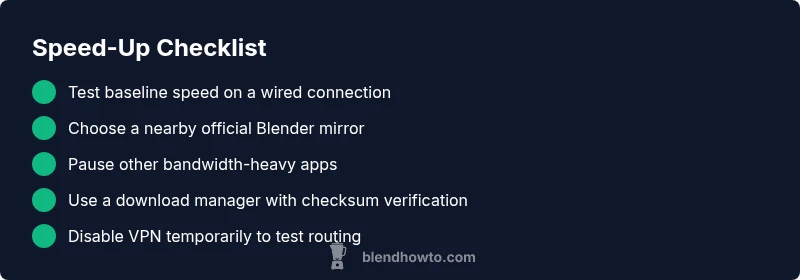
- The remedy pattern is to test baseline speed, switch to a closer mirror, and pause other devices to reclaim bandwidth.
Check Your Internet Connection First
Before blaming Blender, run a quick speed test and compare it with the plan you’re paying for. If speeds dip on all other sites, the issue likely lies with your local network rather than Blender itself. Try a wired Ethernet connection instead of Wi‑Fi to minimize interference, and reboot your router to refresh its routing tables. Disable VPNs or proxies temporarily to rule out routing bottlenecks, then re-test. If your result lags, contact your ISP to verify there are no outages or throttling affecting large downloads. Fast, stable baseline speeds are the foundation for a smooth Blender install.
- Run a speed test from a wired device.
- Ensure no other devices are saturating the link during testing.
Choose the Best Download Source
Blender’s official download page offers mirrors; selecting a nearby mirror can drastically reduce latency. If you’re in a region with a slow primary server, pick a regional mirror with good latency to your location. Ensure you’re downloading from the official site to avoid tampered files. If you routinely face slow direct downloads, consider using a multi-source approach where the downloader fetches file chunks from different mirrors in parallel. Always verify the file integrity with checksums if provided.
- Pick a mirror within your country or region.
- Avoid shady third-party download portals that might offer altered installers.
Use a Download Manager or Multi-Source Fetch
A download manager can improve Blender download speeds by multi-threading connections and resuming broken transfers. If your browser struggles with large installers, a reputable manager can split the file into segments and download them concurrently. When using multi-source fetching, ensure the tool respects the original file’s integrity and uses pause/resume features. Some managers support mirror switching automatically if one source slows down.
- Choose a manager with pause/resume and checksum verification.
- Configure the downloader to limit simultaneous connections if your hardware is older.
Optimize Your Network and Hardware
Small network tweaks can yield noticeable gains. Prioritize Blender’s download by assigning it higher priority in your router’s QoS settings, and schedule large updates for off-peak hours when your ISP’s network is less congested. If you have a router that supports 5 GHz Wi‑Fi, connect via 5 GHz rather than 2.4 GHz to reduce interference. Close or pause bandwidth-hungry applications (cloud backups, streaming services, game updates) during the download, and ensure your computer’s storage drive has enough free space for a smooth, uninterrupted transfer.
- Enable QoS for the Blender installer.
- Use a wired connection when possible for best throughput.
Bypass Common Bottlenecks with Quick Wins
If the download remains slow, try the following quick wins: disable VPNs temporarily, clear your browser cache, and retry the download from the official Blender site. Turn off antivirus real-time scanning for the duration of the download, or add the Blender installer to an exception list if your security software allows. After completing the install, re-enable protections. These steps reduce extraneous checks that can add latency to large downloads.
- Add an exception for the installer in security software.
- Reboot the PC after applying changes to ensure routes update.
Troubleshooting Scenarios You Might Encounter
- Slow only on one device: diagnose that device’s network adapter, drivers, and DNS settings.
- Slow across all devices: focus on your router, modem, or ISP-level routing.
- Slow during peak hours but fine otherwise: schedule downloads for off-peak times or use mirrors with better regional performance.
- Slow after updating your OS: ensure the download assembler isn’t blocked by firewall rules or security software.
Each scenario points to a different layer of the network stack; approach fixes sequentially from device to edge network.
When to Seek Professional Help
If you’ve exhausted the above steps and Blender still downloads slowly, consult your ISP or a local network professional to test line quality, router health, and potential outages. Persistent bottlenecks may require advanced diagnostics beyond consumer equipment, including traceroutes, DNS checks, and ISP-level routing analysis. Do not hesitate to request help when basic tweaks don’t improve throughput.
Best Practices to Prevent Slow Downloads in the Future
- Maintain updated network drivers and router firmware.
- Use reputable mirrors and default official download pages.
- Schedule large downloads during off-peak hours and maintain a clean, interruption-free system during the install.
- Periodically test your baseline speed and rerun the checks after any major network changes.
Steps
Estimated time: 20-40 minutes
- 1
Verify baseline speed
Run a speed test on a wired device to ground expectations. Compare results with your plan’s advertised speeds to determine if the issue is local or network-wide.
Tip: Use at least a 10 Mbps test to avoid measurement bias. - 2
Switch to a wired connection
If you’re on Wi‑Fi, switch to Ethernet to remove wireless interference. Reboot the router after plugging in the cable.
Tip: Avoid mixing multiple devices on the same port during testing. - 3
Choose a nearby mirror
Go to the Blender download page and pick a mirror geographically close to you. Verify that the file is from the official site.
Tip: Prefer mirrors with low latency ping constraints. - 4
Pause bandwidth-heavy activities
Pause cloud backups, streaming, and other large downloads. This frees up bandwidth for the Blender installer.
Tip: Check background syncs in the OS settings. - 5
Use a download manager
Choose a reputable download manager that supports segmented downloads and pause/resume. Configure it to fetch from multiple mirrors if available.
Tip: Enable checksum verification if offered. - 6
Test with VPN/proxy disabled
Temporarily disable VPNs or proxies to rule out routing bottlenecks. Re-test the download and monitor speeds.
Tip: If VPNs are required, connect to a different region and test again.
Diagnosis: Blender download is slower than expected
Possible Causes
- highLocal network congestion or WiFi interference
- highSlow or overloaded mirrors/servers
- mediumISP routing issues or throttling
- mediumVPN/proxy or firewall interference
Fixes
- easyTest speeds on a wired connection and reboot the router to refresh routes
- easySwitch to a closer official mirror or regional mirror
- easyPause other bandwidth-heavy devices/apps during the download
- easyUse a download manager to enable multi-source fetching
- easyTemporarily disable VPN/proxy and adjust firewall rules for the duration
- mediumContact ISP to verify no outages or throttling affecting large downloads
Frequently Asked Questions
Why is Blender download speed slow on my network?
Slow Blender downloads are usually caused by a combination of local network conditions, mirror/server load, and routing inefficiencies. Start by testing your baseline speed, then switch to a closer mirror and minimize competing bandwidth.
Blender downloads are often slow because of network and server factors. Test your speed, pick a nearby mirror, and pause other bandwidth-heavy apps.
How can I identify which mirror is fastest for Blender?
Visit the official Blender download page and select the mirror with the lowest latency or fastest response time for your location. If available, use a tool or browser extension that pings mirrors automatically and shows real-time latency.
Pick the mirror with the lowest latency shown on the Blender site or use a tool that checks mirror speed.
Does using a VPN affect Blender downloads?
Yes. VPNs can route traffic through longer paths and throttle speeds. Disable VPN temporarily to see if performance improves, then test from a different region if a VPN is necessary.
VPNs can slow things down by routing you farther away; try disabling temporarily to test speeds.
Should I use a download manager for Blender?
A reputable download manager can improve throughput and reliability by splitting downloads and resuming interrupted transfers. Ensure it verifies file integrity after download.
A good download manager can speed things up and prevent lost progress.
Can I resume a Blender download after pausing it?
Most official downloads support resuming. If your tool or browser supports it, you can pause and resume without starting over, preserving progress.
Yes, you can usually resume after pausing without losing progress.
Is there a Blender torrent or multi-source distribution?
Blender typically provides official mirrors for direct downloads. Use trusted sources; torrents are not part of the official distribution channel and may pose risks.
Blender doesn’t commonly offer official torrents; stick to official mirrors for safety.
Watch Video
What to Remember
- Test baseline speed before changes
- Choose the closest mirror for best results
- Pause other bandwidth-heavy apps during the download
- Use a download manager for multi-source speeds