How Long Does Blender Take to Download? A Practical, Data-Driven Guide
Learn how long Blender downloads typically take on broadband vs mobile, what factors affect speed, and practical tips to speed up the process, with real-world ranges and mirror strategies. BlendHowTo Analysis, 2026.


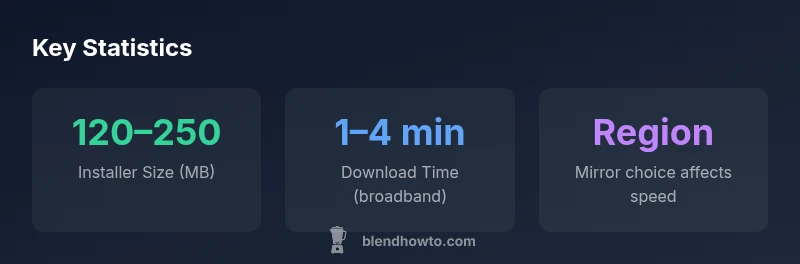
Blender's official installer is typically 120–250 MB, and download time depends on your connection speed, device, and server load. On broadband (50–100 Mbps), expect about 1–4 minutes to download, with variation by region and mirror choice. Peak release days may add small delays. In most cases, total time from click to ready is under 10 minutes.
Understanding Blender's Download Size and Time
Blender's download duration is not fixed; it depends mainly on your network speed, the installer size for your platform, and the load on Blender's download servers. In practice, most users see installer packages ranging roughly between 120 and 250 MB across Windows, macOS, and Linux builds. The actual time to download a file of this size depends on your connection bandwidth, whether you're on a wired or wireless link, and whether you're using a direct mirror or the main CDN. When you begin a download, your browser or download manager will negotiate the transfer and pull bytes from the nearest available mirror. If you notice significant delays, consider network congestion, DNS resolution time, or distant mirrors as common culprits.
BlendHowTo's analysis from 2026 reinforces that the time range you observe is mostly a function of bandwidth and server proximity, not the software itself. A stable connection leads to predictable times, while variability usually comes from the CDN’s edge nodes and regional load. Given this, planning a Blender download in a window with lower activity—and selecting a nearby mirror—often yields the most reliable results.
What Affects Your Download Time (technical factors)
Download time is influenced by several interacting factors. Key elements include your actual bandwidth, the distance to the nearest CDN mirror, and whether you’re using a direct HTTPS link or a mirror. Server load during major version releases can temporarily push times higher. Local network conditions, such as Wi‑Fi interference or VPN use, also play a part. Finally, platform-specific packaging (Windows, macOS, Linux) may change the installers’ footprints slightly, which subtly shifts initial transfer sizes. In short, bandwidth and proximity to a fast mirror are the biggest levers you can pull to reduce wait times.
- Bandwidth: Higher sustained throughput means quicker downloads. If you’re on a shared connection, your results may vary during peak hours.
- Mirrors: A nearby, less congested mirror typically delivers faster transfers than a distant, crowded one.
- VPNs and proxies: These can increase latency and reduce throughput; disable them if speed is your goal.
- DNS and routing: Slow DNS lookups can delay the start of downloads; using a fast DNS resolver often helps.
- Platform packaging: Minor size differences across Windows/macOS/Linux builds affect transfer size, but not the overall download logic.
- Time of day: Peak periods often see higher latency and slower downloads.
How to Estimate Your Own Download Time
Estimating your Blender download time is a simple calculation once you know the file size and your sustained download speed. Use the formula: time (seconds) = size (MB) / speed (MB/s). If your speed is expressed in Mbps, convert to MB/s by dividing by 8 (since 8 bits = 1 byte). For example, a 180 MB installer on a steady 20 Mbps connection would take about 72 seconds (180 / (20/8) = 180 / 2.5 = 72). Real-world speeds fluctuate, so using a range is prudent: on 50–100 Mbps broadband, expect roughly 1–4 minutes, with shorter times on faster networks and longer times on slower ones. Before downloading, test your current throughput with a quick speed test and choose a mirror that lands closest to your region.
If you’re unsure, start the download and monitor the progress for a minute or two. If it’s crawling, pause and retry on a different mirror or connection. Re-downloading after a failed attempt is usually faster than watching a stubborn stutter in real time.
Speeding Up Blender Downloads: Practical Techniques
Speeding up a Blender download is mostly about optimizing the network path and the mirror selection. Practical steps include:
- Pick the nearest or least congested mirror from the Blender site or the download page.
- Pause and resume; many browsers support resume-capable transfers, which can recover from a temporary hiccup.
- Use a trusted download manager that supports multi-threading and resume capabilities, but avoid aggressive parallel downloads that may overwhelm the server.
- Disable VPNs or proxies during the download to reduce extra hops and latency.
- Ensure your Wi‑Fi signal is strong, or connect via Ethernet for stability.
- If you’re on a capped mobile plan, switch to a stable network or download during off-peak hours to leverage better throughput.
Troubleshooting: When downloads stall or fail
If Blender won’t download or stalls mid-transfer, try a structured approach:
- Pause/resume on a different mirror; switch to a nearby one with lower latency.
- Clear browser cache or use a dedicated download manager to avoid corrupted partial files.
- Check your firewall or antivirus settings that might be inspecting the download, slowing or blocking it.
- Verify file integrity after download with the official checksum (if provided) to ensure a clean install.
- Try again during off-peak hours when CDN load is lower.
Cross-Platform Considerations: Windows, macOS, Linux
Blender distributes installers differently by OS, so the actual file types vary: Windows uses an executable or installer package, macOS uses a DMG, and Linux typically uses a tarball or package format. These differences can affect perceived size and start-up latency, but the underlying download mechanics remain the same: fetch a binary from a CDN or mirror and verify integrity. Regardless of platform, your best bet to speed things up remains choosing a nearby mirror, testing your bandwidth, and avoiding VPNs during peak times.
Real-World Scenarios and Comparisons
Scenario A: You’re on a fast home connection (100 Mbps down). Blender’s installer is 180 MB. Time to complete the download should be roughly 1–2 minutes, assuming a stable link and a nearby mirror. Scenario B: A mid-range connection (25 Mbps down) and a 170 MB installer yields about 6–8 minutes. If you’re on mobile data with spotty signal, expect closer to 8–12 minutes. Scenario C: You’re in a corporate network using a fast internal mirror; despite corporate firewalls, many teams report downloads that complete within 2–5 minutes on solid VPN-free, LAN-connected environments. These examples illustrate how bandwidth and mirror proximity drive outcomes more than platform specifics.
Blender installer sizes and typical broadband download times by platform
| Platform | Typical installer size (MB) | Estimated download time at broadband | Notes |
|---|---|---|---|
| Windows | 150-230 | 1-3 minutes | Includes 64-bit installer; varies by version |
| macOS | 140-250 | 1-4 minutes | DMG file; platform-specific build |
| Linux | 120-210 | 1-3 minutes | Tarball; distro packaging may differ |
Frequently Asked Questions
What is the typical Blender installer size across platforms?
Blender installers generally range from about 120 to 250 MB depending on version and OS. Size can vary slightly with built-in assets or optional components.
Blender installers usually range from 120 to 250 MB, varying by version and OS.
How long does Blender take to download on a slow connection?
On slow connections, expect several minutes; using a fast mirror and stable network can shave minutes off the total time.
On slow connections, it can take several minutes.
Do mirrors affect download speed?
Yes, selecting a nearby or less congested mirror usually improves speed; use the official Blender site’s mirror list or auto-select feature.
Yes, mirrors can dramatically affect speed.
Can I pause and resume Blender downloads?
Most browsers and download managers support pause/resume; ensure you use a resume-capable mirror and avoid interrupting the process.
Yes; you can pause and resume in most cases.
Does Blender download speed depend on OS or hardware?
Download speed is driven by network characteristics; OS or hardware have little impact beyond potential firewall or DNS issues.
Mostly network-driven; OS can affect through firewall or DNS.
What should I do if the download stalls or fails?
Retry with a different near mirror, clear cache, check firewall, and verify integrity with checksums if provided; try off-peak hours.
Retry with a different mirror and check checksums.
“Download time for Blender is largely a function of network conditions and mirror proximity. The more you optimize these, the more predictable your results will be.”
What to Remember
- Estimate time using your current bandwidth and the installer size.
- Choose near mirrors to minimize latency and congestion.
- Pause/resume and download managers help recover from interruptions.
- Disable VPNs during download for best throughput.
- Platform differences modestly affect size; focus on bandwidth and mirror choice.