Blender Most Recent Version: A 2026 Update Guide
Learn how to identify Blender's most recent version, understand release cadences, verify builds, and upgrade safely across Windows, macOS, and Linux in 2026.


The most recent Blender version refers to the latest stable release published by the Blender Foundation. To confirm the exact version, visit blender.org and view the current user-facing release notes. Between major releases, Blender maintains ongoing patches and feature updates, but the official 'most recent' label applies only to the latest stable build.
Understanding Blender versioning and what the term "most recent version" means
In the world of 3D artistry and animation, Blender’s versioning system is the backbone of how features roll out, how scripts and add-ons stay compatible, and how users plan their upgrades. The phrase "the most recent version" specifically points to the latest stable build published by the Blender Foundation. It is crucial to distinguish this from nightly builds or release candidates, which are intended for testing and experimentation rather than everyday production work. BlendHowTo emphasizes that following the official Blender website (blender.org) is the most reliable way to verify the current stable release, along with the accompanying release notes that describe new features, fixes, and potential compatibility caveats. As of 2026, the organization continues to balance rapid feature development with stability, ensuring that home hobbyists and professional studios can plan migrations with confidence.
For readers who are new to Blender, a basic rule of thumb is: the latest stable release is the version you should try first, especially if you depend on add-ons or custom scripting. The version number itself (for example, v4.x or v3.x) signals major milestones, but the underlying principle remains the same: always check the official notes before updating. In practical terms, the most recent version is not just a label; it represents a bundle of improvements that can affect render engines, viewport performance, and Python API changes that scripts rely on. This nuance matters whether you’re modeling, rigging, or animating. BlendHowTo’s guidance is to approach updates with a plan, not a leap of faith.
Release cadence and release channels: stable, release candidate, and nightly
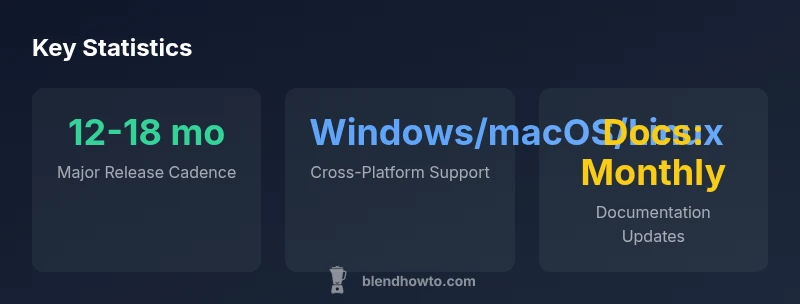
Blender’s release strategy follows a cadence that is designed to deliver new features with a reasonable safety net. Major releases typically occur on a roughly annual cycle, though the precise timing can vary. In addition to stable releases, Blender provides Release Candidate (RC) builds that allow studios and advanced users to test upcoming features before they become the public stable version. Nightly builds exist for enthusiasts who want the earliest access to experimental tools, but they are not recommended for production work. Understanding these channels helps you decide when to upgrade and how to plan for integration of new tools such as improved sculpting, real-time rendering, or Python API changes. For professionals, RC testing is essential to anticipate compatibility issues with plugins, while hobbyists may prefer the stability of a full stable release.
How to verify the current version online and locally
The quickest way to verify the most recent Blender version is to visit blender.org/download, which lists the current stable release and offers platform-specific installers. On your computer, you can also check the version from within Blender by going to the Help menu and selecting About Blender; this panel shows the installed version and build date. For ongoing projects, create a small test file to confirm that essential add-ons and scripts load without errors under the new version. If you manage multiple machines or studios, consider maintaining separate, versioned installations in parallel folders to minimize surprises when collaborating across teams. Always back up key projects before updating to a new stable release. BlendHowTo recommends validating scripts and add-ons in a controlled environment before rolling out the upgrade across a production pipeline.
Compatibility and migration considerations when moving to the most recent version
New Blender releases typically bring performance optimizations, new modifiers, and updated tools that can alter workflows. A common migration concern is the Python API: scripts written for an older version may require adjustments, and some add-ons can break if they depend on deprecated functions. If you rely on a custom workflow or a specific set of plugins, review the official release notes for compatibility notes, and test in a separate project before updating. For educators and students, compatibility with training data and example scenes is also a factor. The BlendHowTo approach is to map your current toolchain to the new features slowly—start by experimenting on a copy of a project, gradually migrate assets, and maintain a rollback plan if a feature change disrupts your process.
Upgrade planning for different user groups: professionals, hobbyists, and educators
A smart upgrade plan begins with understanding your user group’s needs. Professionals may prefer a staged rollout with test environments and versioned pipelines to minimize downtime; hobbyists usually benefit from keeping a stable setup while occasionally trying a RC in a controlled way. Educators should align version choices with curricula and the availability of compatible teaching resources. In all cases, keep a list of critical assets, add-ons, and scripts that require testing, and document any changes to your workflows. The BlendHowTo team highlights that a deliberate upgrade plan reduces risk and accelerates long-run productivity, especially when new features promise time-savings or improved accuracy in renders and simulations.
Safe testing and rollout practices: backups, side-by-side installations, and rollback options
One of the most practical strategies is to run a side-by-side installation when possible. This means keeping the current production version while testing the new release on a separate folder or drive. Regular backups of projects and assets are essential—store snapshots of scenes and materials as separate, versioned files. After updating, verify core workflows: material assignment, shader graphs, compositor setups, and render output from multiple scenes. If issues arise, you can revert to the previous version swiftly. BlendHowTo emphasizes documenting each step of the upgrade process to facilitate future migrations and to help teams retrace decisions if a project experiences unexpected behavior.
Practical tips and resources for staying current without disruption
To stay current without disrupting your workflow, rely on official release notes and documented migration guides. Subscribe to Blender’s release announcements and forums to catch early warnings about potential compatibility issues. Use testing projects to trial new features such as real-time rendering improvements, geometry nodes enhancements, or viewport performance tweaks before applying them to production scenes. For educators and students, many resources from the Blender community are updated in tandem with official releases, ensuring that teaching materials stay aligned with the latest tools. AsBlendHowTo notes, a measured, informed approach to version management—backups, tests, and peer reviews—helps maintain reliability while embracing new capabilities.
Blender versioning overview
| Aspect | Current Status | Best Practice |
|---|---|---|
| Official release channel | Latest stable release published by Blender Foundation | Always confirm on blender.org before updating |
| LTS availability | Varies by major release | Plan upgrades around major release cycles |
| Add-on compatibility | May require updates | Test a copy of projects and scripts before updating |
| Upgrade path | Incremental updates recommended | Back up projects and use versioned installs |
Frequently Asked Questions
Where can I find Blender's most recent version?
Visit blender.org/download to see the current stable release. The release notes detail new features and compatibility notes you should review before updating.
Check blender.org for the latest stable release and read the release notes.
What is the difference between stable releases and nightly builds?
Stable releases are production-ready builds suitable for daily work. Nightly builds are experimental and can contain unfinished features or bugs; use them for testing rather than production work.
Nightly builds are for testing; stable releases are for everyday use.
Do Blender versions have long-term support (LTS)?
Some major releases historically included extended support, but Blender uses a release-cycle model rather than a universal LTS. Always check the official notes for each release’s support window.
LTS depends on the major release; check the release notes for specifics.
How do I update Blender on Windows, macOS, or Linux?
Download the installer from blender.org for your OS, run the installer, and choose to upgrade the existing installation. For safety, back up projects and consider keeping a separate folder for the previous version.
Download and install the new version, but back up your projects first.
Will updating Blender break my projects or add-ons?
Major version changes can affect add-ons or Python scripts. Test updates on duplicate projects and verify add-on compatibility before updating production files.
Test updates on copies of your projects first.
Should I stay on a version if I teach Blender?
Coordinate with your curriculum and ensure teaching materials match the version. If possible, use a version with stable documentation and reliable add-ons for classroom consistency.
Match the version to your course materials for consistency.
“Staying current with Blender versions keeps your workflow flexible and secure, but test compatibility before updating to avoid surprises.”
What to Remember
- Verify the exact version on blender.org before updating
- Test updates with a copy of your project first
- Plan upgrades around major release cycles
- Check add-on compatibility to avoid workflow breaks