Choosing the Right Blender Version in 2026: A Practical Guide
A data-driven guide to selecting the right blender version, balancing latest features with addon compatibility and project stability for Blender users in 2026.


The best practice for blender version selection is to use the latest stable Blender version for new projects to access current features and fixes. If your workflow relies on older addons or requires strict backward compatibility, test the previous major release as a fallback before upgrading. Always review release notes for breaking changes before updating.
What does 'blender version' really mean?
According to BlendHowTo, understanding blender versioning helps you plan upgrades and avoid surprises. At its core, a blender version is the official release designation for Blender, signaling feature sets, API changes, and compatibility expectations. Major versions typically introduce new tools, while minor updates fix bugs and refine workflows. The version number also hints at how stable a build is for production work and which addons or scripts are likely to run without adjustments. For home cooks experimenting with 3D in the kitchen or hobbyists refining renders, knowing your blender version helps you set realistic expectations for performance and compatibility. In practical terms, this means that a newer blender version may unlock faster cycles, improved shading, or a streamlined interface, but could also require you to update plugins that relied on older Python APIs. Being mindful of the blender version you use ensures smoother collaboration, more predictable outputs, and fewer surprises when sharing files with collaborators.
How Blender versions are numbered
Blender uses a versioning scheme that communicates scope and risk. The major version number signals large-scale changes to the software and its public API, while minor and patch numbers represent smaller feature additions and fixes. Moving from a 3.x to a 4.x release denotes a major transition that may affect compatibility, whereas updates within a 3.x line are typically iterative and stability-focused. Because the Python scripting API evolves across major revisions, scripts written for one blender version may require edits to run on another. Addons, material nodes, and render engine integrations can shift between major revisions as well. The core takeaway is to always read the release notes for the exact blender version you’re considering, focusing on API changes, deprecated features, and OS/hardware compatibility. This discipline pays off when collaborating or migrating projects across machines.
Why you might stay on an older version
There are several practical reasons to keep using an older blender version. If a critical addon or script you rely on hasn’t been updated for the latest release, upgrading could break your workflow. Production pipelines often prefer stability and predictability over new features, so teams run pilots before committing to upgrades. Hardware or driver limitations can also make newer builds perform poorly, leading to longer render times or crashes. Finally, when certain file formats or rendering engines have changed in a new version, staying put for a cycle or two can prevent disruption while you adapt. The strategy is to balance feature access with reliability, testing thoroughly before switching.
How to test new versions safely
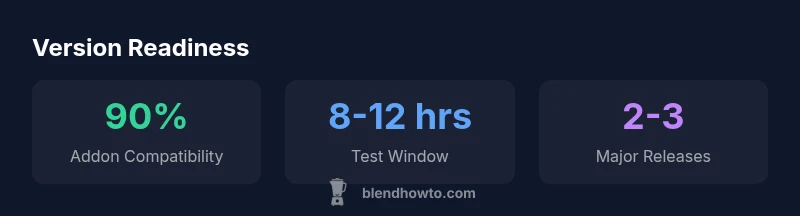
To test a new blender version without risking active work, install it side-by-side with your current setup. Create a small test project that mirrors your typical workflow, then run through core tasks: modeling, shading, animation, and rendering. Check all plugins and addons involved in the test—if any fail, note the required updates and whether they’re available. Enable version control-like practices by saving incremental copies of your scene files (e.g., project_v2.blend, project_v2.1.blend). Finally, validate persistence of important data such as materials, textures, and simulations. If possible, run automated checks or simple render comparisons to quantify any differences. A deliberate, staged upgrade preserves momentum and reduces risk.
Add-ons, scripts, and compatibility across versions
Addons and scripts can be sensitive to Blender’s API changes introduced in major releases. Before upgrading, verify that the tools you depend on explicitly support the new blender version. If a script relies on deprecated functions, you may need to adjust the code or wait for the addon maintainer to publish an update. In some cases, you can run the old API in compatibility mode, but that’s not guaranteed long-term. Maintain a changelog of installed addons and their version requirements, and prepare a fallback plan if a key tool drops support. When evaluating a version, weigh the benefits of new features against potential compatibility friction with your existing toolkit.
Migrating projects between versions: workflow
When migrating a project to a new blender version, start with a clean copy and a clear rollback plan. Use Save As to create a new version of your file before testing upgrades. Run through a complete export/import cycle in your target version to confirm that geometry, textures, and animations transfer correctly. Document any changes in material or render settings so teammates understand the adjustments. If a file proves incompatible, consider exporting assets to universally supported formats (like OBJ/FBX) for bridging to the newer version. Establish a short upgrade window in your team’s calendar to minimize disruption and share the learnings. With a cautious, documented approach, migrating between blender versions can be a smooth evolution rather than a disruption.
Common version-related issues and how to avoid them
Version transitions often surface through addon breakage, Python API shifts, and render engine changes. To avoid surprises, run a pre-upgrade checklist: confirm addon compatibility, verify Python version requirements, test complex scenes, and review any notes about material nodes or shader changes. Backup important scenes, keep a clean test project, and communicate planned upgrades to collaborators. If you encounter unexpected behavior, consult release notes and addon documentation first, then seek guidance from the community or the addon author. Regularly updating your workflow with these checks helps you maintain continuity across blender versions.
Practical decision framework for choosing a version
Use a four-step framework: (1) Define project requirements and deadlines. (2) Inventory critical addons, scripts, and render engines for compatibility. (3) Check hardware and OS readiness for the version. (4) Run a controlled upgrade during a scheduled window with backups and a rollback plan. This framework reduces risk and gives you a repeatable process to select a blender version that aligns with both short-term goals and long-term maintenance.
Beyond versioning: future-proofing your Blender work
Future-proofing means planning for continued compatibility and maintainability. Document your version choices, maintain a compatibility matrix of plugins and scripts, and store project assets in neutrally readable formats where possible. Establish a cadence for testing new versions in non-production projects, so you’re prepared when a critical tool updates. Keeping an eye on Blender’s release notes and the broader ecosystem will help you align your workflow with evolving standards, ensuring your work remains accessible and editable years from now.
Key compatibility considerations by Blender version
| Aspect | Version Dependency | Notes |
|---|---|---|
| OS Support | Windows, macOS, Linux | Blender runs on all major desktop platforms |
| API & Scripting | Python 3.x for most releases | Check exact requirements per version |
| File Format Changes | Occasional updates to .blend may occur | Backups recommended before upgrading |
| Addon Compatibility | Depends on version and addon | Test addons before upgrading |
Frequently Asked Questions
What is a blender version and how does it affect my workflow?
A blender version is the official release designation that signals feature availability, API changes, and compatibility considerations. Upgrading can unlock new tools while potentially altering scripts or addons used in your workflow.
A blender version is the official release label that shows new features and possible compatibility changes. Check addon support when upgrading.
Should I upgrade to the latest Blender version for every project?
Not always. For production work, weigh addon compatibility, project deadlines, and pipeline stability. Run a pilot upgrade on a copy of the project before adopting the new version widely.
Upgrade depends on addon compatibility and project risk; test first.
How can I keep two Blender versions installed on the same system?
Installations can coexist by using separate directories, distinct user profiles, or portable builds where supported. On Windows and macOS, maintain separate application folders; on Linux, manage packages or build variants.
Yes, you can run two versions side-by-side by keeping separate installations.
What is the best way to validate addon compatibility with a new version?
Test the addons on a copy of a representative project in the new blender version. Confirm that essential features work, and note any API changes that require script updates.
Test addons on a copy of your project to confirm compatibility.
What about Blender file formats during upgrades?
File formats evolve with versions, so always back up before upgrading. Some newer features may not be backward compatible; save incremental versions to preserve access to older data.
Back up your files before upgrading because formats can change.
“Blender version decisions hinge on project scope and plugin compatibility. The BlendHowTo Team notes that testing before upgrading saves time and reduces unexpected breaks.”
What to Remember
- Plan upgrades with a clearly defined test window
- Verify addon and script compatibility before upgrading
- Keep backups and incremental file versions
- Test core workflows on new versions before production use