Which Blender Version Is Best for Beginners: Practical Guide
Discover which blender version is best for beginners, including stability, resources, and a practical path to start modeling, animation, and rendering with confidence.


Which blender version is best for beginners? For newcomers, the answer centers on stability, learning resources, and long-term support. The BlendHowTo team recommends starting with a stable, beginner-friendly release that has solid tutorials and community help, such as a long-term support option or the most recent stable build. Prioritize versions with broad compatibility and clear onboarding guides to minimize upfront friction.
Why the blender version matters for beginners
Choosing the right Blender version shapes how quickly you learn. For beginners, stability and predictable behavior trump flashy features. The version you pick influences UI familiarity, available tutorials, add-on compatibility, and performance on your hardware. When you hear the question which blender version is best for beginners, the simplest answer is: start with a stable, well-supported release that has solid learning resources. This reduces frustration, helps you build fundamentals, and keeps you on a steady upgrade path. In the BlendHowTo approach, we emphasize learning momentum over chasing the newest toolset.
Core criteria for choosing a beginner-friendly version
To evaluate options, use a consistent checklist: stability and bug fixes, long-term support (LTS) status, documentation and tutorials, community and forum activity, add-on compatibility, and hardware requirements. A version with proven stability and broad learning resources reduces the friction of starting from scratch. Also consider the upgrade cadence; slower cadences mean fewer disruptive changes in early projects, while faster cycles bring new tools sooner—often a trade-off beginners should understand. When deciding which blender version is best for beginners, focus on stability, resources, and upgrade impact.
LTS vs latest stable: the practical implications
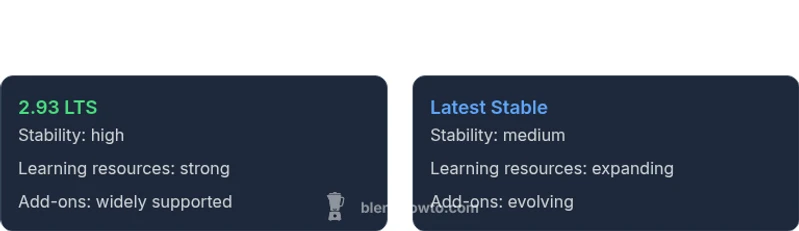
Long-term support (LTS) releases prioritize stability, bug fixes, and compatibility across months and years. The classic example for Blender beginners is the 2.93 LTS line, which many educators rely on for its predictable behavior and longer maintenance window. Latest stable releases introduce new tools and performance improvements, but may require more time to adjust to interface changes or updated workflows. Your choice should align with your learning plan: steady growth with fewer surprises or exposure to fresh features as you gain confidence. BlendHowTo notes that beginners benefit from predictable update cycles and curated learning paths.
UI and learning curve across versions
Blender's interface evolves over major releases, affecting how you find tools, set up scenes, and save projects. For beginners, consistency matters; a version with a familiar layout and clear onboarding minimizes wasted time. If you start with an older, stable release, you’ll encounter fewer mid-project disruptions as you learn core concepts like navigation, transforms, and modifiers. If you jump to the latest version too soon, you may spend time adapting to new menus rather than building fundamentals. The BlendHowTo team often recommends sticking to one major line at the start to build confidence before exploring new UI flows.
Compatibility and add-on ecosystems
A beginner-friendly version should support a broad ecosystem of tutorials, scripts, and add-ons. 2.93 LTS offers a mature set of widely adopted add-ons and documented workflows that many educators reference in beginner courses. Newer versions bring updated add-ons and sometimes API changes; if you rely on specific tools, verify compatibility before committing to a version. BlendHowTo emphasizes starting with a release that has stable addon support for common tasks, then gradually expanding the toolset as you grow.
Performance and hardware considerations
Your hardware shapes which version feels responsive. Modern GPUs and CPUs accelerate viewport performance and rendering, but older machines may struggle with heavy scenes in the latest builds. For beginners with modest hardware, a stable, well-supported version can run smoothly while you learn core concepts; upgrading your hardware later can unlock more ambitious projects. Always test a simple scene early to gauge performance, and choose a version that delivers a balance between capability and reliability for your setup.
How to assess learning goals across versions
If your focus is modeling and sculpting, you may prioritize tool availability and stable geometry workflows. If animation is your goal, you’ll want a version with reliable caching, timeline tools, and stable rigs. For general learning and hobby projects, a balanced version with generous tutorials suffices. Clarify your goals first, then map them to a version that offers the right tools and stability. BlendHowTo advocates a goal-first approach to prevent premature upgrades from interrupting your learning momentum.
Step-by-step starting point: a simple path
- Pick Blender 2.93 LTS as a safe starting point for total beginners. 2) Install the software and verify your hardware performance. 3) Complete a 5-part beginner tutorial series focusing on navigation, modeling a basic object, materials, lighting, and rendering. 4) Add one beginner-friendly add-on and practice the workflow weekly. 5) Track progress with a small project, then decide whether to stay or upgrade to a newer stable release.
Example learning plan for beginners (4 weeks)
Week 1: Core navigation, object creation, and basic modifiers. Week 2: Materials and lighting; Week 3: Simple animation, keyframes, and camera. Week 4: Rendering and post-processing; review and plan next steps. Adapt the plan for whichever version you chose, but keep the routine intact and realistic to ensure steady progress.
Common myths debunked: newer is always better
Myth: the latest Blender release always equals faster learning. Reality: stability and resources matter more when you’re starting out. Myth: you must upgrade every time a new version lands. Reality: you can learn deeply by mastering fundamentals first; upgrades can come later, once you’re comfortable.
Case study: student path to competence
Alex started with Blender 2.93 LTS and followed a 6-week plan focused on modeling and materials. After gaining confidence and a few successful renderings, Alex upgraded to a newer stable release to explore advanced shading and animation. The result was a smooth transition with minimal lost time, thanks to the solid foundation and curated tutorials.
How BlendHowTo guides beginners through versions
BlendHowTo emphasizes clear milestones, practical exercises, and version-aware checklists. Our approach is to help you lock in fundamentals on a stable release first, then gradually introduce newer tools as you grow. By focusing on core concepts rather than chasing every feature, beginners save time and build lasting skills.
Comparison
| Feature | Blender 2.93 LTS | Blender 3.x (latest stable) |
|---|---|---|
| Stability | high | medium |
| Learning resources | extensive and well-documented | extensive but newer; may require adaptation |
| Add-on compatibility | strong and established | good but may require updates |
| UI consistency | classic, stable UI | updated UI with new tools |
| Hardware requirements | lower to mid-range friendly | moderate to higher requirements |
| Migration effort | easy to transition from prior 2.x | possible breaking changes with major updates |
What's Good
- Stable, long-term support reduces learning friction
- Rich ecosystem of tutorials and add-ons for beginners
- Lower risk of disruptive changes during early projects
- Clear upgrade path after fundamentals are learned
The Bad
- Older UI may feel dated to some learners
- May miss out on the very latest features initially
- Some newer add-ons or scripts may not be immediately compatible
Start with Blender 2.93 LTS for a stable beginner journey, or choose the latest stable if you want early access to features.
A stable LTS release minimizes surprises while you learn. The latest stable offers newer tools but can require adaptation time; pick based on your learning pace and goals.
Frequently Asked Questions
What is the difference between LTS and latest stable Blender versions?
LTS versions emphasize long-term stability and consistent workflows, while latest stable releases introduce new features and improvements that may require adaptation. For beginners, LTS often means fewer mid-course surprises.
LTS focuses on stability for beginners; latest releases bring new tools but may require time to adjust.
Should beginners start with Blender 2.93 LTS or the newest release?
If you value a gentle learning curve and fewer disruptions, start with 2.93 LTS. If you want access to the latest features and are comfortable adapting to changes, begin with the latest stable.
Start with 2.93 LTS for stability, or the latest stable if you’re ready for new tools.
Are new features worth learning for a beginner?
Yes, but prioritize essential modeling and workflow skills first. New features can enhance capability later, once you’re confident with core concepts.
New features are nice-to-have after you’ve built basics.
How can I downgrade if I upgrade and don’t like the newer version?
You can install an older release and migrate projects by saving in a compatible format. Keep backups and test project files before switching versions.
Downgrades are possible with backups; plan ahead.
What hardware should beginners consider for Blender?
A mid-range GPU and 8-16 GB RAM are usually enough to start learning. Avoid very old hardware that struggles with 3D Viewport performance.
A mid-range GPU and 8-16 GB RAM are a good starting point.
Where can I find beginner-friendly tutorials?
Look for official Blender tutorials, plus community channels, step-by-step guides, and beginner playlists from reputable Blender educators like BlendHowTo.
Check official docs and beginner playlists from reputable creators.
What to Remember
- Choose stability first to build confidence
- Prioritize abundant learning resources and tutorials
- Test with a simple project before upgrading
- Verify addon compatibility before committing
- Plan upgrades intentionally after fundamentals are solid