How to Make a Model in Blender: A Beginner's Guide
Learn how to make a model in Blender with a beginner-friendly, step-by-step workflow covering planning, blocking, topology, sculpting, UVs, materials, and lighting.


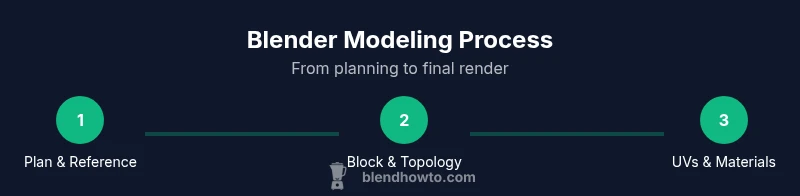
By learning how to make a model in Blender, you’ll go from concept to a clean, usable mesh. Start with a plan, gather references, and block out the form. Then refine topology, sculpt where needed, unwrap UVs, and apply materials and lighting for a polished render. This practical, repeatable workflow keeps your process organized and beginner-friendly.
Understanding the Blender modeling workflow
In Blender, a solid modeling workflow combines planning, blocking, and iterative refinement. The goal is to turn a vague idea into a usable 3D mesh that behaves well under subdivision, animation, or rendering. You’ll move from rough shapes to refined geometry, then to shading and lighting. The first step is to acknowledge the core stages: planning with reference images, base mesh blocking, topology optimization, sculpting or detailing, UV unwrapping, texturing, and final lighting. Throughout this article we’ll use the exact phrase how to make model in blender to anchor your learning, and we’ll show practical steps you can apply in real projects.
Planning your model and gathering references
Successful Blender models begin with careful planning. Start by defining the purpose of your object: is it a game asset, a product render, or a high-detail sculpture? Gather 2–3 high-quality reference images from front, side, and top angles. Create a simple mood board to lock your silhouette and proportions early. This planning phase reduces guesswork when you start blocking, and it anchors the design against real-world constraints such as thickness for 3D printing or UV space for texturing.
Blocking out the basic shape
Blocking creates a simple, low-detail version of your model to establish scale and proportions. Begin with a basic primitive (cube, sphere, cylinder) and use scale, rotate, and grab (S, R, G) to approximate the final silhouette. Keep geometry coarse and avoid tiny details at this stage. Use mirror modifiers for symmetry and enable snapping to align features quickly. The goal is a solid foundation that later steps can refine without fighting the mesh.
Topology and edge flow for clean geometry
A well-constructed topology is the backbone of a model that deforms well in animation and responds predictably to subdivision. Prefer quad-based meshes and plan edge loops around important silhouette curves and articulations. Avoid long, skinny triangles that distort under deformation, and use supporting loops to hold form. Regularly inspect your mesh in wireframe and shaded views to catch poles and awkward transitions early.
Refinement with sculpting and non-destructive modifiers
Once the base mesh is in place, sculpting lets you add surface detail without altering the underlying topology. Use a combination of dynamic topology for organic forms and smooth brushes for broad shapes, then switch back to edit mode to adjust topology as needed. Non-destructive modifiers like Subdivision Surface, Mirror, and Solidify help you experiment freely while preserving a clean base mesh. Always test edits at final resolution to ensure the silhouette remains consistent.
UV unwrapping and texture basics
UV mapping is the bridge between geometry and texture. Mark seams strategically where you want to unwrap without obvious stretching. Use a consistent texel density so textures look uniform across the model, and consider multiple UV islands for different material areas. After unwrapping, apply a simple base color and test with flat lighting to verify that the texture lays out evenly. This stage sets the foundation for realistic materials later.
Materials, shading, and lighting to sell the model
With UVs in place, switch to shading to define materials. Start with basic PBR (diffuse, roughness, metallic) maps and add normal or bump texturing where appropriate. Lighting should complement the model’s form; use an HDRI for ambient light and a few well-placed fill and rim lights to emphasize contours. Rendering with a simple 2–3 light setup will reveal surface quality and edge definition, helping you iterate quickly.
Rendering, exporting, and optimization tips
Before final output, optimize your model for its intended use. Reduce unnecessary geometry, bake textures where possible, and choose the correct export format (GLTF for web, OBJ/FBX for general use). Test renders from multiple angles and check for non-manifold edges or flipped normals. Finally, save your work with a descriptive version name and consider a final render pass that highlights the model’s best angles.
Authority sources and further learning
To deepen your understanding, consult official and reputable resources. The Blender Foundation’s documentation provides in-depth modeling guidance, while university-level resources describe fundamental 3D modeling concepts. For broader context, consider credible publications on 3D workflows and asset creation to complement hands-on practice. Here are recommended starting points to extend your learning journey.
Practical example: modeling a simple prop
Try applying this workflow to a small prop, such as a juice bottle or a kitchen utensil. Start with reference images, block the main volume, refine with topology loops to preserve roundness, unwrap UVs, and texture with basic colors. This hands-on mini-project reinforces planning, topology discipline, and shader basics, giving you tangible results you can showcase in your portfolio.
Tools & Materials
- Blender software(Use the latest stable release from blender.org for full feature support)
- Computer with 8–16 GB RAM (prefer 16 GB+)(A capable GPU helps with viewport performance during sculpting)
- Reference images or mood board(Front/side/top views are ideal for proportional accuracy)
- Graphics tablet (optional)(Helpful for organic sculpting but not required)
- External hard drive or cloud storage(Useful for backing up project files and textures)
Steps
Estimated time: 3 hours
- 1
Open Blender and configure workspace
Launch Blender, switch to the Modeling workspace, and enable the 3D Viewport. Tailor the layout for quick access to modeling tools like Move, Rotate, Scale, and the Modifiers tab. Setting up a clean, predictable workspace saves time later.
Tip: Customize a dedicated layout and save it as an startup file so you always start in the right environment. - 2
Import references and set up background images
Add reference images in the background or as image planes to guide proportions. Align them to the grid so you can evaluate silhouette from multiple angles. This step anchors your design and reduces guesswork during blocking.
Tip: Use alpha-enabled references to keep the viewport uncluttered while you model. - 3
Block out the base mesh with simple shapes
Create a low-poly version of the model using primitive shapes (cube, cylinder). Use Scale, Move, and Rotate to approximate major volumes. Keep changes non-destructive by duplicating the base mesh before edits.
Tip: Lock axes while aligning critical features to avoid skewed proportions. - 4
Refine proportions with careful scaling and symmetry
Apply a Mirror modifier for symmetry and adjust proportional relationships between major features. Use the Proportional Editing tool to blend transitions smoothly. Periodically toggle between solid and wireframe to observe edge flow.
Tip: Enable X-ray mode to view internal alignment during mid-blocking. - 5
Establish topology loops around critical features
Add edge loops that follow silhouette curves and joints to support deformation if animating. Prefer quads and avoid long, skinny triangles. Check for non-manifold edges and fix as you go.
Tip: Plan loops at least one edge away from dense areas to maintain clean topology during subdivision. - 6
Introduce detail with sculpting or subd surfaces
Switch to Sculpt mode to shape organic contours or switch back to Edit mode and add a Subdivision Surface modifier for smooth transitions. Reserve heavy sculpting for later stages to prevent topology drag.
Tip: Use reference-only sculpting and then apply changes back to the base mesh for topology control. - 7
Unwrap UVs and begin texture planning
Mark seams in logical places, unwrap, and layout UV islands with consistent texel density. Test textures under neutral lighting to assess stretching and distortion before painting detail textures.
Tip: Organize UVs by material zones to simplify texturing later. - 8
Set up materials, lighting, and initial renders
Create basic PBR materials, add an HDRI for environment lighting, and place key lights to emphasize form. Do quick renders to evaluate color, roughness, and metallic values before final tweaks.
Tip: Keep a simple light rig and gradually introduce more lights as needed. - 9
Export and review in target workflows
Choose the right export format (GLTF for web, FBX/OBJ for general use). Verify normals, scale, and animation compatibility in the target app. Save as a versioned file for traceability.
Tip: Always test the model in its intended pipeline to catch incompatibilities early.
Frequently Asked Questions
Do I need to be an artist to model in Blender?
No formal art background is required. Blender modeling is a craft you learn through a structured workflow, practice, and reference-based blocking. Start with simple shapes and gradually tackle more complex forms as you gain confidence.
No art background needed—start with simple shapes and build up through practice and references.
What is topology and why does it matter in Blender?
Topology refers to the flow of polygons on a model. Good topology ensures clean deformation, predictable shading, and efficient rendering. Focus on quads, sensible edge loops, and avoiding long triangles in areas that deform.
Topology is how your polygons flow; good topology makes animation and texturing easier.
Which file formats should I export my model to?
Common exports include GLTF for web and FBX/OBJ for general applications. Choose based on the target platform and ensure textures and normals export correctly. Always test in the destination software.
Export to GLTF for web, or FBX/OBJ for general use; test in the target app.
How long does it take to learn to model in Blender?
Learning time varies with goals. A solid beginner workflow can be mastered in weeks, with ongoing improvement through practice and project variety. Consistent practice yields the fastest results.
Weeks of steady practice usually yield strong beginner results.
Is sculpting better than box modeling for all objects?
Neither method is universally better. Sculpting excels for organic shapes, while box modeling provides precise control for hard-surface forms. Many projects blend both techniques.
Both have strengths; use sculpting for organic parts and box modeling for hard surfaces.
What should I focus on to avoid common Blender modeling mistakes?
Focus on planning, consistent topology, and regular testing in the target pipeline. Avoid over-detailing too early and keep non-essential geometry to a minimum. Regularly save versions to compare progress.
Plan, keep topology clean, and test often to catch mistakes early.
Watch Video
What to Remember
- Plan before you model to anchor proportions.
- Keep topology clean with quads and thoughtful edge loops.
- Use non-destructive workflows to iterate safely.
- Unwrap UVs early to guide texturing decisions.
- Test renders frequently to validate materials and lighting.