How to Make a 3D Model in Blender: A Complete Step-by-Step Guide
Learn how to make a 3D model in Blender from planning to rendering. This educational guide covers blocking, topology, UVs, textures, and lighting for a polished result.


By following this guide, you will learn how to make a 3D model in Blender from concept to render. You’ll plan the shape, block out the mesh, refine topology, unwrap UVs, texture, and render a final image. This step-by-step approach emphasizes non-destructive workflows, practical tips, and common pitfalls to avoid.
Understanding Blender's modeling workflow
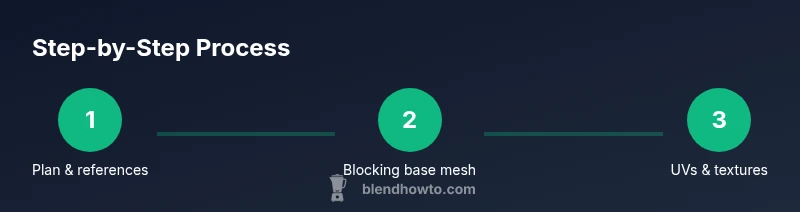
Blender's modeling workflow blends artistic intention with a non-destructive, non-linear process. If you’re asking how to make a 3d model blender, start by recognizing the five core stages most projects follow: planning, blocking, refining topology, UV mapping, and texturing before final lighting and rendering. This approach keeps changes isolated and reversible, so you can experiment without breaking your base mesh. In practice, you’ll move from rough shapes to clean, quads, then to detailed surfaces. The goal is to build a robust, editable foundation you can reuse in future projects. By embracing a clear sequence, you reduce rework and stay focused on the design intent.
Planning precedes all modeling work
A successful Blender model begins with planning. Gather references from multiple angles, identify the dominant forms, and sketch a rough silhouette. Decide on the level of detail early, because that informs topology decisions. For characters, mechanical objects, or props, map out key features and how they will deform or animate. This planning phase also sets a target resolution and base polygon budget, which helps you stay efficient as you iterate.
Setting up your Blender project for modeling
Before you start shaping geometry, configure Blender for modeling efficiency. Set the scene scale to match real-world units (meters or centimeters) and enable symmetry when appropriate using the Mirror modifier. Turn on reference images in the viewport and group related objects so you can hide or lock layers during edits. Customize a few hotkeys to speed up common actions (extrude, loop cut, and knife) and save a clean startup file to reduce setup time on future projects.
Blocking out the base mesh
Begin with simple primitives (Cube, Cylinder, or Sphere) and scale them to rough dimensions. Use Edit Mode to perform extrudes, bevels, and cuts that establish major mass and silhouette. Activate the Mirror modifier for symmetry, and keep the initial mesh low-poly to allow quick adjustments. Blocking is about capturing proportions, not detailing; you’ll refine later, once the shape reads correctly from multiple viewpoints.
Refining geometry with subdivision and sculpting
After you lock in the major forms, introduce subdivision surfaces to smooth the mesh while maintaining control over silhouette. For organic shapes, consider a multi-resolution sculpt approach to add high-frequency detail without inflating the base topology. For hard-surface models, optimize edge loops and apply bevels to maintain crisp edges under subdivision. Regularly test your model with quick renders to check lighting, shading, and silhouette clarity.
UV mapping and texture prep
Unwrap the model by marking seams where you want distortion-free textures. Use quad-based topology to simplify UVs, and keep UV islands organized to maximize texture space. Pack islands efficiently to minimize wasted texture area, and check for overlapping UVs that could cause seams in your final texture. A clean UV map is crucial for predictable texturing and shader work later in the pipeline.
Materials, shading, and lighting basics
Create sensible materials with the Principled BSDF shader to achieve realistic results. Start with neutral roughness and adjust metallic values only when necessary for your asset. Lighting should be simple yet deliberate: an HDRI for environment lighting plus a couple of auxiliary lights helps define form. By using basic PBR principles, you’ll get predictable results across different render engines and platforms.
Rendering, exporting, and iteration
Set up a camera, choose the render engine (Cycles for realism or Eevee for speed), and perform test renders at low resolution before committing to final output. Bake textures or export your mesh in common formats (OBJ, FBX) for use in other software if required. Remember, iteration is part of the process—adjust shapes, shaders, and lighting based on what you observe in your renders.
Authority sources for Blender modeling best practices
For deeper guidance, consult reputable Blender tutorials and documentation. The official Blender Foundation resources cover core workflows and shader networks, while university-level design curricula discuss topology and UV mapping concepts that apply to Blender projects. Always cross-check community tips with primary sources to avoid outdated methods.
Tools & Materials
- Blender software (latest stable release)(Download from blender.org and install the latest stable version.)
- Powerful computer(Quad-core CPU, 8+ GB RAM; a dedicated GPU improves viewport performance.)
- 2D reference images or concept art(Keep references in image planes or a separate window for easy access.)
- Mouse with precise control (or graphic tablet)(Precise editing helps with vertex placement and edge loops.)
- External storage or cloud backups(Back up work regularly to prevent data loss.)
- Keyboard shortcuts cheat sheet(Familiarize yourself with common actions to speed up modeling workflow.)
Steps
Estimated time: 4-6 hours
- 1
Prepare your Blender project
Open Blender, start a new General project, and set units to metric. Create a clean workspace by organizing the screen layout for modeling, shading, and UV editing. Save your file and enable autosave to protect your progress.
Tip: Save early and often; enable Preferences > Save & Load > Autosave to protect work. - 2
Add a reference image
Import reference images in the viewport (Image > Reference) and align them to your model’s axes. Use multiple references for front, side, and top views to preserve proportions. Lower the image opacity so the mesh remains visible beneath.
Tip: Use multiple references and lock their locations to keep proportions consistent. - 3
Block out the base mesh
Add a primitive (cube or cylinder) and adjust its proportions to match the silhouette. Enable the Mirror modifier for symmetry and use basic extrudes, scales, and bevels to establish mass. Keep the mesh low-poly during blocking to allow quick iterations.
Tip: Work with a very low polygon count at this stage; you can increase it later without reworking the foundation. - 4
Refine geometry with loops and cuts
Add edge loops to define key features and refine form. Use loop cuts (Ctrl+R) and bevels to sharpen edges where needed. Maintain quad-based topology to simplify subdivision and future edits.
Tip: Aim for even distribution of quads; avoid long skinny faces that deform under subdivision. - 5
Apply subdivision and sculpt details
Add a Subdivision Surface modifier to smooth surfaces while preserving the base shape. For organic details, switch to Sculpt mode and then retopologize if necessary to keep clean topology for texturing.
Tip: Use a multiresolution approach: make broad shapes in modeling mode, then add fine details in sculpt mode. - 6
Unwrap UVs and prepare textures
Mark seams where textures should be laid out, then unwrap the model. Organize UV islands for efficient texture space usage and check for overlaps. Apply a base texture to verify mapping before painting detailed textures.
Tip: Keep UVs evenly scaled; overly stretched areas will produce blurry textures in final renders. - 7
Set up materials, shading, and lighting
Create a Principled BSDF material and connect it to a simple lighting rig. Use HDRI lighting for realistic reflections and a couple of additional lights to sculpt shadows. Test materials in both Eevee and Cycles if possible.
Tip: Start with neutral roughness; tweak only as needed to achieve the desired look. - 8
Render, review, and export
Configure camera and render settings, then run test renders at a small resolution. When satisfied, render a final image or export the mesh (OBJ/FBX) for use in other applications.
Tip: Render at multiple resolutions to ensure the final output scales well and check for artifacts.
Frequently Asked Questions
What is the best starting object for Blender modeling?
Begin with basic primitives like a cube or cylinder to learn topology and edge flow. These shapes are predictable and easy to modify before adding detail.
Start with a simple shape like a cube to learn topology before adding details.
Should I sculpt or model from a base mesh?
Both approaches are useful. Model the base form with precise topology, then use sculpting for organic details. Retopology may be needed after sculpting to maintain clean geometry.
Model the base form first, then sculpt for detail, and retopologize if needed for clean geometry.
Which render engine is best for beginners?
EeVee is fast for previews, Cycles offers more realism. Start in Eevee for speed, then switch to Cycles for final renders if needed.
Begin in Eevee for speed, switch to Cycles for realism when you’re ready.
How long does it take to learn Blender modeling?
Learning Blender modeling depends on effort and goals. Regular practice over weeks builds familiarity with tools and workflows.
With consistent practice, you’ll pick up the basics in a few weeks and improve over months.
What are common topology mistakes to avoid?
Avoid ngons and long, skinny triangles. Strive for quad-dominated topology to ensure predictable subdivision and clean deformations.
Avoid ngons; keep mostly quads for clean subdivision and deformation.
Watch Video
What to Remember
- Plan first: gather references and define topology goals
- Model with clean, quad-based topology for easier edits
- Unwrap UVs before texturing to ensure predictable results
- Adopt a non-destructive workflow and iterative testing
- Render early and iterate to refine materials and lighting