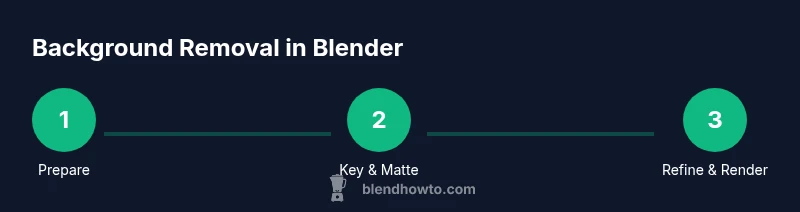
How to Remove Background in Blender: A Complete Guide
Learn practical, step-by-step techniques to remove backgrounds in Blender using chroma keying and rotoscoping. From setup to final export with alpha, this guide covers methods, tips, and troubleshooting for clean, reusable mattes.


To remove a background in Blender, choose a method based on your input: if you have a solid background, use a chroma key (Keying) with a green or blue screen in the Compositor, then extract alpha. For non-uniform scenes, apply rotoscoping with masks on the object and feather edges. Render with an alpha channel.
Overview of Background Removal in Blender
Background removal is the process of isolating your subject from the backdrop so you get a transparent or single-color background for composites, product renders, or VFX. In Blender, you can remove backgrounds either by chroma keying a known color (green or blue screen) or by rotoscoping with masks to define precise edges. BlendHowTo emphasizes practical, non-destructive workflows that use built-in tools, enabling you to reuse assets across projects. Mastering these methods unlocks cleaner renders and easier integration in scenes, whether you’re preparing a product shot for a catalog or a character for a short animation. The core idea is to create a matte that reliably represents the object’s silhouette while preserving edge detail and accurate transparency in the final render.
Methods at a Glance: Chroma Key vs Rotoscoping
Chroma keying relies on color information to remove a background automatically. It’s fastest when the backdrop is uniform and well lit, such as a green screen. Rotoscoping, by contrast, involves painting or masking the subject frame by frame to exclude the background, which is more time-consuming but essential for complex scenes or when the background colors bleed into the subject. In Blender, you can combine both methods within a single project to achieve the strongest results. A blended approach often yields the cleanest alpha when edges are irregular or when the subject has semi-transparent textures.
Preparation: Collect Footage and Set Up Your Scene
Before you start, organize your assets in a dedicated Blender project. If you’re using chroma keying, ensure the footage has even lighting, minimal color spill, and a true green or blue backdrop. For rotoscoping, choose shots with high contrast between subject and background and avoid heavy noise in the plate. Create a dedicated workspace with a duplicate of the original footage to serve as a non-destructive matte, allowing you to compare your alpha against the source. A solid prep step, including color reference cards and test renders, saves time during refinement and helps you calibrate edge softness and spill suppression later in the pipeline.
Chromakey in Blender: Step-by-Step (Compositor approach)
Chromakeying in Blender typically happens inside the Compositor. Start by enabling Use Nodes and connecting your image sequence or still to a Keying node. Sample the key color from the background and adjust the color tolerance, edge radius, and clip thresholds to carve out a clean matte. If spill appears on the subject, add a Spill Suppression pass or combine with a Color Balance node to push the tint back toward neutral. Finally, feed the keyed image into an Alpha Over node against a transparent backdrop, and preview in a viewer node to verify the alpha channel throughout the sequence. This method is fastest when your background color is uniform and lighting is consistent. Remember to output RGBA to preserve transparency.
Rotoscoping and Masking in Blender
Rotoscoping is ideal when the background is complex or when color-based keys fail. Use the Mask Editor or Grease Pencil to draw precise Mattes around the subject, then feather the edges to blend with any background you might composite later. Work on a frame range suitable to your shot, and leverage motion tracking if your subject shifts velocity or perspective. Save masks as shapes, and consider exporting a matte sequence if you’re dealing with long takes. Rotoscoping is slower but yields excellent control over edge quality and material transparency when the subject has motion blur or overlapping objects.
Edge Refinement: Feathering, Spill, and Matte Cleanup
Even a good chroma key can leave telltale borders. Feather the matte edges to reduce jagged transitions and apply a slight dilate/erode to tighten or soften the silhouette as needed. If color spill bleeds into the subject, use a combination of Hue/Saturation adjustments and spill suppression to restore natural skin tones or textures. For precise edges, use a mask or keying node with a Color Ramp to manage blacks and whites in the matte. A clean alpha channel is essential for a seamless composite in any downstream render or video edit.
Rendering with Alpha: Export and Compositing
Configure your render output to include an alpha channel. In Blender, set your file format to a compatible RGBA format (such as PNG, EXR, or a video container that supports alpha) and enable RGBA in the Output Properties. When streaming to a comp in a different package, verify that the pipeline preserves transparency and that the final render uses a transparent background only where the subject exists. If you’re rendering an animation, consider using a lossless format to minimize compression artifacts in the alpha channel, then re-pack the sequence for your final edit. This ensures a clean composite in scenes ranging from product showcases to character animation.
Troubleshooting Common Issues
If the background remains, double-check your input sequence and node connections. Common culprits include incorrect alpha matte order, improper Keying node settings, or masked frames that aren’t connected to the final composite. Lighting differences between frames can cause inconsistent keys, so re-check exposure and white balance on the plate. In rotoscoping, if masks drift, re-check keyframe interpolation and use motion blur guides to maintain edge integrity. Finally, verify that your final render pipeline preserves alpha and that your viewer node is actually showing transparency rather than a solid color.
Tips for Faster Background Removal
- Work non-destructively by duplicating layers and saving incremental versions.
- Start with chroma keying, then add roto-masks only for problem frames.
- Use reference frames to standardize color adjustments and edge feathering.
- Validate alpha on a neutral checkerboard background to spot halos early.
- Keep your project organized with a dedicated naming convention for mattes, masks, and keys.
Tools & Materials
- Blender software (v2.93+)(Install from blender.org; ensure the Compositor is enabled)
- Footage or image with background(Prefer a clean, well-lit plate for chroma key; high contrast helps rotoscoping)
- Chroma key backdrop (green or blue screen)(Optional if you are rotoscoping; useful for solid backgrounds)
- Masking tools (Mask Editor, Grease Pencil)(Essential for rotoscoping and matte creation)
- Alpha-capable render settings (RGBA, transparent background)(Output must be RGBA to preserve transparency)
- Stock footage reference/plate for color correction(Helpful for spill suppression and edge matching)
Steps
Estimated time: 60-120 minutes
- 1
Import media and duplicate layer
Open your Blender project and import the footage or image. Duplicate the input to maintain a non-destructive baseline for comparison. This secondary layer will host your keying and mask adjustments while preserving the original data.
Tip: Always keep an untouched backup; it makes it easier to revert if the key or mask needs adjustment. - 2
Enable nodes and set up the compositor
Switch to the Compositor, enable Use Nodes, and create a basic node chain. Connect your input image to a Keying node (for chroma key) or to a Mask/Grease Pencil pass (for rotoscoping). This is the foundation for building a clean alpha.
Tip: Label your nodes and group sections to stay organized as your tree grows. - 3
Apply chroma keying and sample the background color
If you’re using chroma key, sample the backdrop color to drive the Keying node. Adjust the key color, similarity, and blend to isolate the subject with a crisp matte. Watch the alpha as you scrub the timeline to ensure consistency across frames.
Tip: Use a viewer node to preview the matte in real time and spot frame-to-frame jitter. - 4
Refine the matte with edge controls
Tweak edge radius, clip, and matte softness. If spill appears, add a Spill Suppression pass or use color correction to neutralize the background bleed on the subject.
Tip: For tricky edges, combine a Color Ramp with a Glow or Blur to smooth transitions. - 5
Add a Dilate/Erode or feathering for edges
Apply a small dilate/erode to tighten or loosen the matte. Feather the edges to blend with potential future backgrounds. This step helps avoid hard borders that clash with scene lighting.
Tip: Test multiple feather radii on representative frames to find a stable setting. - 6
Set up Alpha Over compositing
Connect the keyed image to an Alpha Over node if you’re layering onto a new background, or render directly with the alpha channel if you need transparency. Ensure the backdrop layer is disabled or set to transparent where needed.
Tip: Keep a saved version of your alpha matte as a separate pass for reuse. - 7
Rotoscope for problem frames
If the key isn’t clean across all frames, switch to masking with the Mask Editor or Grease Pencil to paint out lingering background areas. Use frame-by-frame tweaks for accuracy, and interpolate masks where possible to save time.
Tip: Enable onion skinning to help track frame-to-frame changes in your mask. - 8
Render with alpha and export
Configure output to RGBA, choose a format that supports alpha (PNG or EXR), and render. For animation, render as a sequence to preserve alpha across frames. Confirm the viewer shows transparency and the final composite preserves edge integrity.
Tip: Render a short test clip to verify the alpha before committing to a full render. - 9
Quality check and cleanup
Review the final sequence against a clean background. Look for halos, jagged edges, or color spill and iterate on masks, keying, or edge refinements as needed. Save the final matte in a reusable template for future projects.
Tip: Keep a checklist of common issues (halo, spill, edge jitter) to speed up validation.
Frequently Asked Questions
What is the difference between chroma key and rotoscoping in Blender?
Chroma key uses a colored backdrop to automatically remove the background, which is fast with a clean plate. Rotoscoping involves manual masks to define the subject frame by frame, giving precise control for complex scenes. In practice, many projects combine both techniques for best results.
Chroma keying removes a solid backdrop quickly, while rotoscoping gives you frame-by-frame control for tough scenes.
How do I export a transparent background from Blender?
Set the render output to RGBA and choose a format that supports alpha, such as PNG or EXR. Ensure the background is actually transparent in the viewer and double-check the alpha channel in your chosen compositor.
Export with RGBA enabled and pick a format that supports transparency.
Can I remove the background from a rendered animation?
Yes. Keyframes for chroma key or masks for rotoscoping must be consistent across frames. You may need to apply edge refinements on tricky frames and re-export the sequence with alpha preserved.
You can remove backgrounds from animation with consistent keys or masks and preserve alpha.
What formats support alpha in Blender exports?
Common options include PNG (RGBA) and EXR (RGBA). Some video codecs support alpha under specific containers, but for reliability, prefer image sequences or OpenEXR for film/FX pipelines.
PNG and EXR commonly support alpha in Blender exports.
Do I always need a green screen to key out backgrounds?
No. You can rotoscope with masks for non-keyable scenes, such as busy backgrounds. Chroma key is fastest when a clean backdrop is available, but masks provide accuracy when color information is insufficient.
A green screen is not always required; rotoscoping works without it.
Is it possible to remove a background from a 3D render without compositing?
If your render passes include an alpha channel, you can re-compose directly in Blender’s compositor or in your editing software. However, for most projects, compositing provides more control and flexibility for final output.
Yes, if your render has alpha, you can compose within Blender or your editor.
Watch Video
What to Remember
- Choose chroma key or rotoscoping based on input complexity.
- Keying yields speed for uniform backgrounds; rotoscoping provides control for complex edges.
- Always render with an alpha channel for clean composites.
- Refine edges and suppress color spill for professional results.