How to Make Blender Background Transparent
Learn to render with a transparent background in Blender. This comprehensive guide covers Eevee and Cycles, RGBA PNG outputs, and common pitfalls for clean composites.


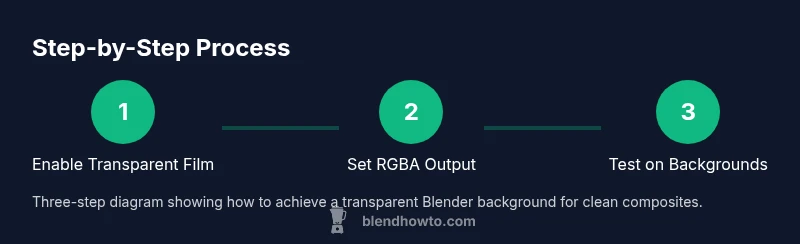
Blender can render a transparent background by enabling an alpha channel, turning on the film transparency option, and exporting with RGBA PNG or TIFF. Choose Eevee or Cycles, and ensure the World background is transparent or has zero influence. With these settings, you’ll get an image you can drop onto any background without halos or seams.
Why transparency matters
Transparency is a powerful feature for product renders, logos, and composites because it lets you place your Blender artwork over any background without visible edges or color spill. According to BlendHowTo, mastering alpha transparency unlocks flexible post-production workflows and smoother integration with marketing assets. When you render with an alpha channel, you’re not stuck with a solid backdrop; you can adjust or replace the background in seconds during editing or video editing. This capability is especially valuable for e-commerce renders, portfolio images, and motion graphics where clean, seamless composites are essential. In practice, you’ll notice crisper edges, easier color matching, and less time spent on masking in post.
Quick primer on alpha and PNG/TIFF formats
Alpha refers to the transparency channel that accompanies your color channels. PNG and TIFF are common file formats that can store RGBA data (red, green, blue, alpha). For Blender outputs intended to be overlaid on other media, RGBA is the standard. If you’re exporting a sequence for video, consider whether your pipeline accepts PNG sequence with alpha or a dedicated video codec that preserves transparency (e.g., ProRes 4444 or QuickTime formats). Remember that some online platforms or video editors may have quirks with premultiplied alpha, which Blender can handle with proper settings.
Quick note on Blender engine differences (Eeveel or Cycles)
Both Eevee and Cycles support transparent or alpha-rendering, but the workflow differs slightly. Eevee uses the Film option to set the background as transparent, while Cycles relies more on the World background and alpha channel in the output. This block emphasizes that you should choose the engine based on your scene’s requirements (speed vs. realism) and then apply the same alpha principles to ensure a clean transparent output. As you build scenes, test both engines to understand how lighting and shadows interact with transparency in your specific project.
Understanding the alpha channel in Blender renders
The alpha channel represents transparency: a value of 0 means fully transparent, while 1 (or 255 in 8-bit color) means fully opaque. When you render with alpha, Blender writes a separate alpha channel alongside the RGB channels. The audience often assumes transparency means “no background,” but it requires correct export and post-processing for the transparent areas to render correctly in other programs. Premultiplied alpha is a related concept that can affect edges if not handled properly; this guide covers how to avoid halos by using straight (non-premultiplied) alpha when appropriate.
Step-by-step approach to enable transparency in Blender
To achieve a transparent background, you must adjust render settings, World/environment, and output. The process is straightforward, but you’ll want to verify each step before rendering your final image. In this section you’ll learn how to configure Eevee, Cycles, and the output module so your alpha channel is preserved. The end result should be a clean RGBA image ready for compositing in your favorite editing software.
Step 1: Prepare your scene for transparency
Start by ensuring your scene is free of stray background colors or lights that influence the final alpha. Remove any background texture or color from the World (or set it to a neutral color with an alpha of 0). If you’re modeling glass or semi-transparent materials, verify that their alpha values are correctly defined in the material properties. A clean start reduces surprises at render time and helps guarantee a true transparent background for post-processing.
Step 2: Select the render engine and enable transparency
In Render Properties, choose Eevee or Cycles based on your needs. For Eevee, enable Film > Transparent to allow an alpha channel. For Cycles, you may rely on the Film option or World alpha depending on your version. This step is critical: without a transparent film, your background will not export as alpha, regardless of the file format. Run a quick test render to confirm the background is showing as transparent in the image viewer.
Step 3: Configure output to RGBA PNG or TIFF
Set the render output to a file format that supports an alpha channel, such as PNG (RGBA) or TIFF. Ensure Color is set to sRGB and that you’re exporting with an 8-bit or 16-bit depth according to your needs. In Blender, you’ll select RGBA in the color channels and choose a non-premultiplied alpha approach when available. This configuration ensures the alpha data is preserved in your final file.
Step 4: Render a test image and inspect the alpha
Do a quick render to verify that the background is truly transparent. Open the result in an image editor that can display the alpha channel (e.g., Photoshop, GIMP, or Affinity). If you see any background color, re-check the Film transparency setting and the World background. Small edge artifacts may appear around glossy surfaces; those can be mitigated by adjustment in materials or lighting.
Step 5: Troubleshooting common issues
If you see a background color despite enabling transparency, double-check that you are exporting RGBA, not RGB. If the viewer shows a black background, your viewer may not display the alpha channel correctly. In some pipelines, premultiplied alpha can cause fringes around edges; you may need to re-export with straight alpha or adjust your post-processing workflow.
Step 6: Advanced tips for clean edges and premultiplied alpha
Edge halos are a common issue when using transparent backgrounds, especially with glossy surfaces. To minimize halos, consider turning off premultiplied alpha in your export settings or applying a matte around objects with a solid edge color. You can also render a separate alpha matte and composite it in post to achieve perfect edge control. These practices help maintain crisp, professional results.
Tools & Materials
- Blender (any recent version)(Install the latest stable release for best alpha support)
- Computer with reasonable CPU/GPU(Faster renders reduce iteration time)
- PNG or TIFF export(Choose RGBA capable formats)
- Image editor for verification(GIMP, Photoshop, or Affinity work well)
- Test scene with plain background(Helps verify transparency quickly)
Steps
Estimated time: 30-60 minutes
- 1
Open the project and set render resolution
Launch Blender and open your project. In the Output Properties, set a reasonable resolution (e.g., 1920x1080) and frame rate that matches your final deliverable. This ensures your exported image or sequence has the correct dimensions for compositing.
Tip: Document the target resolution before you start rendering to avoid re-runs. - 2
Choose render engine and lighting setup
Decide between Eevee for speed or Cycles for realism. Set up lighting to avoid excessive backscatter that can complicate edge quality. Note that alpha quality is engine-dependent, so test a small frame first.
Tip: If testing, keep lights simple to isolate alpha behavior. - 3
Enable transparent background (Film/World)
In Render Properties, turn on Film > Transparent for Eevee, or adjust World alpha settings for Cycles. Confirm the background appears transparent in the viewport or a test render.
Tip: Make a quick screenshot of the viewport with transparency to compare later. - 4
Set output format to RGBA PNG/TIFF
In Output Properties, choose PNG (RGBA) or TIFF with alpha. Ensure you export the color channels and the alpha channel together and that no RGB-only export occurs.
Tip: Prefer PNG for 2D composites; TIFF is suitable for print workflows. - 5
Render a test and inspect the alpha
Render a test frame and open it in an editor that can display alpha. Look for a fully transparent background (checkerboard in some editors) and confirm there are no visible halos around opaque objects.
Tip: If halos appear, tweak material roughness or edge matte creation in post. - 6
Troubleshoot common issues
If transparency fails, re-check the export format (RGBA), ensure the correct film/world settings, and verify no opaque background is baked into materials. Adjust premultiplied alpha if required by your pipeline.
Tip: Run a second test with a simple object against a colored backdrop to verify the alpha layer separately. - 7
Advanced: handle premultiplied alpha
Some editors expect straight alpha. If your results look dim around edges, export with straight alpha or adjust your compositor to compensate for premultiplied data.
Tip: Test both approaches (premultiplied vs straight) to see which suits your workflow best. - 8
Optimize for production workflows
Create a small template with consistent settings for future projects. Save your render settings as a preset to speed up production runs and ensure consistent transparency results.
Tip: Keep a checklist for export steps to avoid missed alpha configurations. - 9
Validate across targets (web, video, print)
Test your transparent renders across the intended platforms. Ensure the alpha holds in video editors, web pages, and print workflows. Adjust color management as needed for the final medium.
Tip: Create a simple baseline test sheet showing alpha integrity on all targets.
Frequently Asked Questions
Can I render with a transparent background in both Eevee and Cycles?
Yes. Both engines support transparency, but the exact steps differ slightly. Eevee uses Film > Transparent, while Cycles relies more on the World and alpha channel in the output. Always run a quick test render to confirm alpha behavior in your scene.
Yes, both Eevee and Cycles support transparency. Just test to confirm alpha works in your scene.
World vs background—what should I set?
Set the World background to be transparent or disable its influence on the final render. In Eevee, use Film > Transparent; in Cycles, ensure your alpha output is active and the World doesn't override the alpha.
Make sure the world background doesn't override the alpha; enable transparency in the film settings.
What file formats support transparency from Blender?
PNG and TIFF can store alpha channels (RGBA). Some video codecs do not support alpha, so choose a format that preserves alpha when you need to composite later.
PNG or TIFF support alpha; choose those when you need a transparent background.
Background still shows in the render, why?
This usually means the Film > Transparent option isn’t enabled or the export format isn’t RGBA. Double-check render settings, world settings, and the output format, then rerun a test render.
Check the transparency settings and export format; fix any non-RGBA exports and test again.
Is premultiplied alpha a concern in Blender renders?
Premultiplied alpha can cause fringe artifacts around edges if not handled correctly in post. If you see halos, try exporting with straight alpha or adjust your compositor to account for premultiplication.
Premultiplied alpha can create edge halos; test straight alpha in your pipeline.
How can I verify the alpha channel is correct?
Open the render in an editor that shows the alpha channel or use an image viewer that supports alpha. Check checkerboard areas where background should be fully transparent and inspect edge clarity.
Use an alpha-aware viewer to confirm transparency and edge clarity.
Watch Video
What to Remember
- Enable RGBA export for transparency.
- Use Film/Transparent in the render settings.
- Test alpha with multiple editors to confirm compatibility.
- Manage premultiplied alpha to avoid edges halos.