Mastering a 3D Model in Blender: A Practical Guide
A practical, step-by-step guide to creating a clean 3d model blender in Blender. Learn reference setup, blocking, topology, UVs, materials, lighting, and exporting for renders.


Learn to build a practical 3d model blender workflow in Blender—from concept to final render. This guide covers reference setup, blocking, topology, UV mapping, texture painting, lighting, and presentation. You’ll learn how to keep geometry clean, choose the right modifiers, and iterate non-destructively so your model stays flexible for future projects.
Blender basics for 3d model blender projects
The term 3d model blender in the context of Blender refers to creating a digital object from concept to a renderable mesh. At its core, you’ll blend geometric reasoning with artistic judgment. According to BlendHowTo, success starts with a clear brief, consistent naming, and a naming convention that travels across files and revisions. This foundation keeps projects scalable whether you’re modeling a kitchen prop, a creature, or a mechanical part. Start by understanding Blender’s core tools: the Edit mode for geometry, the Sculpt mode for organic shapes, and the Modifier stack for non-destructive changes. As you progress, you’ll discover how to balance low-poly efficiency with enough detail to hold silhouette and reads in renders. The goal is a workflow that feels predictable and repeatable, not guesswork.
Setting up your workspace and preferences
A smooth modeling session begins with a clean workspace. Begin by customizing the UI to show only the panels you need, enabling the 3D Viewport, Outliner, and Properties windows in a balanced layout. Set the units to metric or imperial based on your project, and turn on key preferences that speed up modeling: snap to vertex, proportional editing, and auto-save intervals. For the 3d model blender workflow, keep a dedicated project folder structure with subfolders for references, iterations, textures, and renders. A well-organized setup reduces cognitive load and accelerates iteration. Remember to save frequently, and consider enabling scene reload on startup to recover from crashes without losing progress.
Reference gathering and blocking out the silhouette
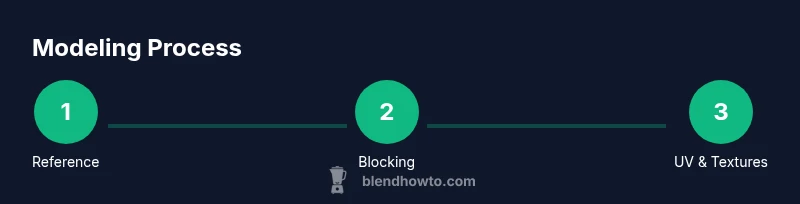
Begin with reference images and rough silhouettes to anchor proportions. Import front, side, and top views as background images to guide mood, scale, and silhouette integrity. In this blocking phase, focus on primary shapes and volume rather than precise details. Use simple primitives (cubes, cylinders, spheres) and apply the Mirror modifier for symmetry where appropriate. This approach—blocking out in simple shapes—allows you to test proportions quickly, confirm alignment with references, and set a solid foundation before committing to complex topology. Non-destructive edits are your ally here; keep the blocking as a separate, adjustable stage.
Modeling core shapes: extrusion, loop cuts, and symmetry
With a solid blocker, you’ll refine the main volumes using extrusion, loop cuts, and edge slides. Start from basic shapes and extrude the geometry to add volume while preserving clean topology. Use loop cuts to define form edges and guide edge flow, ensuring corners and transitions read well at various distances. Maintain symmetry with the Mirror modifier until the model is finalized, then apply it. Regularly switch to a quick viewport render to assess how silhouette holds up under lighting. The key is to iterate on form without overcommitting to fine details too early.
Refining topology: edge flows and subdivision
A strong topology sustains detail where you need it while keeping polygons manageable. Plan edge loops to follow natural contours and avoid long, skinny triangles. Use the Subdivision Surface modifier sparingly to smooth surfaces while maintaining control points, and consider retopology when necessary to restore clean quad-based meshes. Proactively create edge loops at key features like joints or corners to preserve shape during deformation or camera angles. Regularly inspect topology from multiple angles and apply small adjustments until you achieve predictable shading across the surface.
UV mapping and texturing workflow
Unwrapping UVs is the bridge between modeling and texturing. First, mark seams along logical boundaries that minimize distortion, then unwrap with a clean island layout. Pack islands efficiently to maximize texture resolution while avoiding overlap in critical regions. For a 3d model blender project, use UDIMS or atlas maps depending on your target rendering pipeline. After unwrapping, paint or project textures in Blender or an external tool. Maintain consistent texel density and consider texture atlases for performance in game pipelines. Finally, bake lighting or ambient occlusion maps if you’re preparing for a bake-based workflow.
Materials and shading in Blender
Materials define how your model looks under light. Start with a simple principled BSDF shader and add roughness, metallic, and specular parameters to suit the material type. Build a node network that keeps texture inputs organized, and use texture maps (albedo, normal, roughness) to add realism without excessive geometry. For color consistency, set up a small material library that you reuse across projects. Remember to test materials under different light setups to confirm that shading remains stable across camera angles and environments.
Lighting and rendering for realistic previews
Lighting sets the mood and communicates form. Use a three-point lighting setup as a reliable baseline, with fill and rim lights to separate the object from the background. Adjust exposure and color temperature to match your target scene, and consider HDR environments for natural reflections. A practical practice is to render at a modest resolution first to iterate lighting quickly, then finalize with higher samples and denoising. Keep an eye on render times and optimize by baking lighting for static scenes when appropriate.
Non-destructive workflows: modifiers and collections
Blender’s non-destructive workflow shines when you separate modeling phases using modifiers and collections. Use the Mirror modifier for symmetry, the Subdivision Surface for smoothing, and Boolean for hard-edged joins with caution. Organize objects into logical collections to simplify scene management and to isolate parts for texture and render passes. Preserve non-destructive history by keeping modifiers in the correct stack order and avoiding permanent changes until you’re ready. This approach makes it easy to revisit and revise any stage without losing work.
Export formats and game-ready considerations
Export decisions depend on the final destination of your model. For renders, prefer formats like PNG or EXR for textures and OBJ/FBX for geometry. If your project targets a game engine, ensure topology, UVs, and texture sizes meet engine requirements; bake normal maps when needed and export in a clean, engine-friendly format. Consider LODs for distant camera views and confirm unit scale alignment with the target platform. Always test imports in the destination software to catch compatibility issues early.
Case study: simple prop from concept to render
In this case study, we model a small kitchen prop—a mug—using a compact, practical pipeline. Start with reference sketches, block the mug volume with cylinders, and refine the handle using extrusions and loop cuts. Retopologize to ensure quad-based topology, unwrap UVs, and apply a ceramic-like PBR material. Light the scene with a basic three-point setup, render, and iteratively adjust textures and roughness for realism. By documenting each step and keeping a non-destructive history, you’ll develop a repeatable workflow for future props and accessories.
Next steps and learning roadmap
With the basics covered, plan a structured learning path that adds small, repeatable challenges. Move from props to more complex objects, then to organic shapes that push sculpting and topology skills. Integrate Blender’s animation and rendering features to broaden your toolkit, and participate in community projects to get feedback. By combining practice with consistent review, your 3d model blender skills will advance steadily and reliably.
Tools & Materials
- Blender software (latest stable version)(Install on a capable workstation; ensure GPU drivers are up to date)
- Artwork references (drawings or photos)(Collect front/side/top views for accurate blocking)
- Computer mouse or drawing tablet(A tablet helps with sculpting and shading precision)
- External texture references or image textures(Optional but helpful for texturing practice)
- Stable internet connection(Needed for asset imports, tutorials, and asset references)
Steps
Estimated time: 2 hours 30 minutes
- 1
Prepare references and scene
Collect reference images, set up a clean Blender scene, and establish unit scale. Create a new project folder and organize subfolders for references, models, textures, and renders. This initial setup reduces confusion during later steps and ensures a repeatable workflow.
Tip: Tip: Name your reference images clearly (e.g., mug_front, mug_side) and align them to exact axes for accurate blocking. - 2
Block out primary shapes
Add primitive shapes to rough out the form, then align to the reference silhouette. Use mirror symmetry if appropriate and avoid adding excessive detail at this stage. The goal is a convincing silhouette with correct proportions before refining topology.
Tip: Tip: Use vertex snapping to align blocks to precise reference points and check proportions from multiple angles. - 3
Refine topology with loops
Introduce edge loops to control shape definition and prepare the mesh for future details. Keep polygons in quads when possible to simplify subdivision and shading. Adjust loop placement to preserve sharp edges where needed.
Tip: Tip: Regularly toggle between perspective and orthographic views to spot topology issues that aren’t obvious in one view. - 4
Add detail with modifiers
Apply non-destructive modifiers such as Mirror, Subdivision Surface, and Boolean where needed. Order modifiers logically (Mirror -> Subdivision -> Boolean) and only apply when the result is final. This keeps the workflow flexible for later edits.
Tip: Tip: Use a simple temporary material to preview how modifiers affect shading during iteration. - 5
UV unwrap for textures
Mark seams strategically and unwrap the mesh to create clean UV islands. Pack islands to maximize texel density while avoiding overlaps in critical regions. This paves the way for consistent texturing in Blender or external tools.
Tip: Tip: Check UVs against the texture grid to detect stretching, and adjust seams to minimize distortion. - 6
Create and apply materials
Set up a principled shader with albedo, roughness, and optional normal maps. If you’re texturing in Blender, paint directly on the model or bake textures beforehand. Keep materials modular to reuse across scenes.
Tip: Tip: Start with a baseline roughness value and refine after viewing under different lighting conditions. - 7
Lighting and rendering setup
Configure a simple three-point lighting setup and test renders to check how materials read under light. Adjust color temperature and exposure to achieve the desired mood. Run iterative renders to validate shading and shadows.
Tip: Tip: Use HDRI environments to achieve realistic reflections and soften harsh shadows. - 8
Finalize and export
Apply any non-destructive edits you’re happy with, then export to your target format (OBJ/FBX for general use, GLTF for web). Include a texture map pack and a simple scene bring-up to verify import integrity in engines or viewers.
Tip: Tip: Always export a backup copy with a timestamp and keep a log of camera and render settings for reproducibility.
Frequently Asked Questions
What is the best starting mesh topology for a character model?
For many characters, start with a quad-dominant topology that follows natural muscle and bone flow. Plan edge loops around joints for clean deformation, and retopologize as needed to maintain smooth shading during animation.
Start with quad-based topology that aligns with joints and muscles, then retopologize to keep shading clean during animation.
Do I need to retopologize every model?
Retopology is essential when your base mesh becomes too dense or poorly distributed for animation or texturing. If your block-outs stay low-poly and well-organized, you may skip retopology for simple props, but plan for future revisions.
Retopology is often necessary when topology is poorly distributed or too dense for your use case.
Can Blender handle game asset pipelines?
Yes. Blender is widely used for game asset creation. Focus on clean topology, proper UVs, and optimized textures. Export formats like FBX or GLTF are commonly supported by game engines, and you can bake normal maps for performance.
Blender works well for game assets if you optimize topology, UVs, and textures and export to GLTF or FBX.
What file formats are best for exporting models?
For broad compatibility, OBJ and FBX are reliable. GLTF is increasingly preferred for web and modern engines. Always test imports in your destination app to catch compatibility issues before final delivery.
OBJ, FBX, or GLTF are common export formats; always test in the target app.
Should I texture inside Blender or use external tools?
Blender’s texture painting and node-based shading are powerful for end-to-end workflows. External tools can offer advanced painting options, but keeping textures self-contained in Blender helps speed and iteration.
Texture in Blender for speed, or use external tools if you need specialized paint features.
How long does it take to learn Blender modeling?
Learning Blender modeling is a gradual process. Start with simple objects, practice weekly, and progressively tackle more complex subjects. Consistency and project-based practice yield the best results.
It takes steady, ongoing practice; start small and build up to complex projects.
Watch Video
What to Remember
- Plan with references and blocking before detailing
- Keep topology clean with quad-based mesh where possible
- Use non-destructive workflows to stay flexible
- Unwrap UVs carefully and build consistent textures
- Render tests guide material and lighting decisions