How to Create a Blender 3d Model: A Practical Guide
Learn a practical, step-by-step approach to creating clean blender 3d model workflows—from planning and topology to UVs, textures, and export for games, film, and 3d printing.


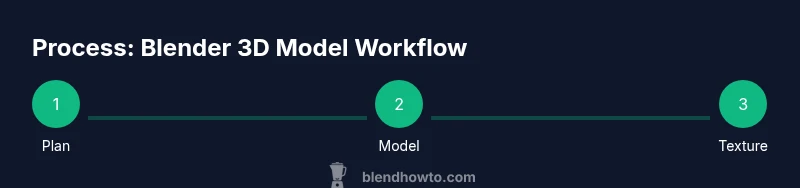
By the end of this guide, you will be able to create a clean, production-ready blender 3d model—from planning and blocking to UV mapping and texturing. You’ll follow a practical, non-destructive workflow that scales from simple objects to complex characters. This approach emphasizes topology, realism, and efficient exports for games, film, or 3d printing.
Understanding a Blender 3d Model
A blender 3d model is a digital representation created inside Blender that can be rendered, animated, or printed. At its core, a model is a mesh composed of vertices, edges, and faces that define volume. Alongside geometry, a model carries UV maps, materials, and sometimes rigs and modifiers that aid in shaping and shading. The quality of a blender 3d model depends on topology — the arrangement of polygons that determines how cleanly the surface deforms and textures. For beginners, the idea of a model can feel abstract, but it becomes concrete when you treat it as a set of decisions about form, proportion, and function. Start with a reference, a simple silhouette, and a clear purpose: is this model meant for real-time playback, high-end rendering, or 3d printing? Those choices influence polygon budgets, edge loop placement, and texture resolution. In practice, the best models use quad-based geometry because quads subdivide predictably and preserve smooth shading. Throughout this guide you will see practical steps, examples, and checks that turn an idea into a usable blender 3d model.
Planning Your Model
Successful Blender modeling starts before you touch a vertex. Begin with a plan: collect references, capture key measurements, and decide on the intended use. A simple concept sketch or silhouette helps you lock in proportions before you model. Create a checklist: expected size, major features, seams for UVs, and any hard edges that require bevels. Use Blender's grid units so dimensions translate consistently across software. This planning phase reduces rework by guiding topology decisions and texture mapping later. A well-documented plan also makes collaboration easier when you hand off work to texture artists or riggers. According to BlendHowTo, investing time in planning yields a smoother workflow and cleaner results. Once the plan is set, you can start blocking the form with basic shapes, refine the silhouette, and establish edge flow that remains stable as you add detail.
Setting Up Your Blender Workspace
Before modeling, configure a workspace that supports a smooth workflow. Start by creating a dedicated Modeling tab with a clean layout: hide unused editors, enable a consistent theme, and set up snapping for precise placement. Import reference images as image planes to guide proportion and perspective. Turn on symmetry (X-axis) to mirror changes on both sides, which halves the workload. Decide on a unit system—real-world units for product design or Blender units tailored to your target engine. Name your objects, materials, and texture maps consistently to avoid confusion later. Save your startup file with your preferred defaults so each new project starts in a proven state. Keeping a tidy workspace not only speeds up the current model but also reduces the learning curve for collaborators who will work with your blender 3d model.
Blocking Out the Base Mesh
Blocking out uses low-poly shapes to capture the general mass and silhouette. Start with a base mesh using primitive shapes (cube, cylinder, sphere) and enable Mirror or an axis-based symmetry modifier. Focus on the major volumes first; avoid over-detailing at this stage. Add simple edge loops only where you know you will need to define features. Keep topology mostly quads; avoid stray triangles that will complicate later subdivision. Compare against references from multiple angles to ensure accuracy. Save as Blockout_v1 and progressively refine as you validate proportions. When you are satisfied with the silhouette and major features, you’re ready to advance to topology refinement and surface detail.
Refining Topology for Clean Deformation
Topology matters for deformation; ensure edge loops align with muscle flow or mechanical features. Keep uniform quad density; avoid long, skinny polygons that distort shading under lighting. Place loop cuts to support bending near joints; avoid creating poles where too many edges meet. For hard-surface areas, use bevels or creases to define edges rather than pushing geometry. Use a subdivision modifier to preview smoothness, but maintain a clean lower-poly base for export. Non-destructive workflows with modifiers let you test changes without losing the original shape. Always check symmetry and edge flow after each significant edit. A well-structured topology reduces shading artifacts and makes UV mapping easier. Finally, test the model in a few light setups to catch unexpected shadows or aliasing. The result is a blender 3d model that holds form under animation and texture mapping.
UV Mapping and Texture Setup
UV mapping requires thoughtful seam placement and island layout. Start with seams along natural edges to minimize distortion and well-chosen cut lines to maximize texture space. Unwrap in multiple regions, then arrange UV islands to fit the texture atlas efficiently. Check for stretching by painting or overlaying a checker texture; adjust scale accordingly to keep detail consistent. Create texture maps such as base color, roughness, metallic, normal, and ambient occlusion depending on your render pipeline. In Blender, connect UV maps to a Principled BSDF shader to create realistic surfaces; test with different lighting to verify density and accuracy. When you bake from a high-poly source, ensure normals and cage settings are correct to avoid baked artifacts. Keeping UVs tidy makes texturing faster and renders cleaner.
Materials, Lighting, and Rendering
Materials drive appearance: a principled shader can produce a wide range of surfaces with minimal nodes. Map the UVs to base color, roughness, and normal, then adjust metallic or specular values for realism. Lighting shapes mood; begin with a three-point setup and refine to reveal form without washing out detail. Use HDRI or area lights to simulate environments, and adjust color balance to achieve the desired tone. For export-ready results, test renders at your target resolution and check color management settings to ensure sRGB color space consistency. If you anticipate animation, verify that the materials hold up under motion and that texture streaming won’t cause pop-in. Save incremental versions as you refine shaders and lighting. The goal is a cohesive look where textures and lighting reinforce the model’s forms while staying efficient for your final pipeline, whether in Blender or a production renderer.
Exporting and Reuse
When you’re satisfied with the model, prepare it for downstream workflows. Export common formats like FBX, OBJ, or GLTF/GLB depending on your target app, keeping in mind polygon budgets and texture maps. If animation is included, bake transforms and ensure the armature is correctly connected. Maintain a clean naming convention and include a basic materials set for the importing software to map textures properly. For reuse in future projects, save a separate ‘master’ version with all data layers intact, allowing for quick adaptations without starting from scratch. Create a version history with notes about design decisions and any deviations from the reference. If you’re sharing assets with teammates, include a simple readme that describes the intended use, required textures, and polygon target. Export with consistent scale and units to prevent surprises in the target engine or pipeline. The export phase closes the loop and ensures your blender 3d model remains usable across different platforms, teams, and projects.
Common Pitfalls and Troubleshooting
Modeling in Blender often runs into predictable traps. Check for non-manifold edges that can break shading or UV seams that leak textures. Keep an eye on polygon density; overly dense areas waste resources, while overly sparse areas compromise shape. Be mindful of scale differences between your model and textures, as mismatches can ruin lighting. Avoid hidden geometry and ensure modifiers are applied in the right order for consistent results. When in doubt, revert to a known good version and rework only the problematic region. Regularly test the model in the target context—render engine, game engine, or printing pipeline—to catch issues early. Finally, document your changes and save checkpoints so you can compare iterations and learn from mistakes. With careful attention to topology, UVs, and shading, you’ll reduce post-production headaches and achieve a reliable blender 3d model.
Tools & Materials
- Computer with GPU(Modern GPU with 4+ GB VRAM recommended)
- Blender software(Latest stable release installed)
- Reference images(Front/side/top views when available)
- Drawing tablet or notes(Helpful for sketching variants)
- Notepad for naming conventions(Keep a consistent naming scheme)
Steps
Estimated time: 3-6 hours
- 1
Define goal and gather references
Identify the model’s purpose and collect references from multiple angles. Create a quick concept board to guide proportions and key features. This step reduces later rework and ensures your mesh addresses real needs.
Tip: Anchor your plan with at least three reference views. - 2
Block out the base mesh
Use simple primitives to capture the overall shape and silhouette. Enable symmetry so one side drives the other, and keep the geometry low-poly.
Tip: Stay at a block-level scale; don’t chase details yet. - 3
Refine topology for smooth deformation
Add edge loops that support bending and animate without collapsing. Prefer quads and avoid long triangles that cause shading artifacts.
Tip: Check edge flow around joints early. - 4
Add detail with non-destructive edits
Subdivide gradually and use modifiers to test changes without destroying the base mesh. Keep changes non-destructive to facilitate experimentation.
Tip: Use instances or mirror modifiers for symmetry. - 5
Unwrap UVs thoughtfully
Place seams on logical edges, unwrap in zones, and pack islands efficiently. Check distortion and adjust as needed.
Tip: Test with a checker texture to reveal stretching. - 6
Texture and shade
Create base textures and connect maps to a Principled shader. Validate under varied lighting to ensure realism and consistency.
Tip: Bake normal or other maps from a high-poly version if available. - 7
Set up lighting and render tests
Establish a lighting scheme and render at target resolution. Iterate on materials and lighting until the look is cohesive.
Tip: Use a three-point lighting baseline as starting point. - 8
Export and document
Export to the required format with correct scale. Include a readme detailing usage, textures, and polygon budgets.
Tip: Keep a master version with all data for future reuse.
Frequently Asked Questions
What is a Blender 3d model?
A blender 3d model is the digital mesh you create in Blender that represents the shape of an object. It includes geometry, UV maps, and materials used for rendering or animation. A model can range from simple shapes to high-detail characters.
A blender 3d model is the shape you build in Blender, with textures and materials for rendering or animation.
Which Blender version is best for modeling?
Blender is updated frequently; use the latest stable release to access new modeling tools and stability. Older versions may lack newer features.
Use the latest stable Blender version for modeling.
How should I plan a model before starting?
Start with references, silhouettes, and a topological plan. Create a quick concept board to guide your workflow and keep scope clear.
Plan with references and a clear topology plan.
How can I optimize polygon count for real-time apps?
Begin with a low-poly block and only add detail where it’s visible. Use subdivisions selectively and maintain clean topology for real-time use.
Start with low-poly and only add detail where seen.
Can I reuse models from online libraries?
Yes, reuse assets with proper licensing. Adapt topology and textures to fit your project’s pipeline and keep track of provenance.
Asset reuse is fine with license and adaptation.
What common errors happen with UV mapping?
Stretching, overlapping islands, and seams that reveal textures are common. Fix by relaxing UVs, re-seaming, and packing more efficiently.
Watch for stretching and seams; fix with better seams and packing.
Watch Video
What to Remember
- Plan before you model to save time
- Prioritize quad topology for deformation
- Use non-destructive workflows to iterate
- Keep UVs tidy and well-packed
- Export with consistent scale and clear documentation