Blender 4.3: A Complete Practical Guide
A comprehensive BlendHowTo guide to Blender 4.3 covering installation, interface, core workflows, rendering, and practical tips for hobbyists and 3D artists.


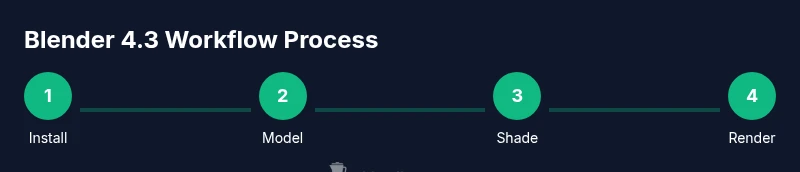
This guide will help you master Blender 4.3 by guiding you through installation, the newest features, and practical workflows for modeling, shading, lighting, animation, and rendering. You’ll learn where to download the build, how to configure preferences for a smoother workflow, and how to complete a starter project using non-destructive steps. By the end you’ll work faster and with greater confidence.
Blender 4.3 overview and what's new
Blender 4.3 represents another step forward for the open-source 3D suite. In this iteration, users can expect refinements across modeling, shading, animation, and rendering workflows, along with a more efficient viewport experience and improved stability in common production tasks. The release emphasizes non-destructive workflows, easier access to frequently used tools, and better integration with external formats. For both hobbyists and professionals, Blender 4.3 aims to shorten iteration loops and empower creative experimentation without sacrificing control. Throughout this guide, you will see how to leverage these improvements to accelerate your projects, whether you’re sculpting characters, refining materials, or setting up simple scene renders.
Installation and setup for Blender 4.3
To get started with Blender 4.3, head to the official Blender website and download the latest stable build for your operating system. Follow the installer prompts, choosing a sensible destination folder and enabling optional components if you plan to use add-ons. After installation, launch Blender and configure a few foundational preferences: set the interface language, choose a layout you’ll use most often (Layout, Modeling, or Shading), and enable GPU compute if your hardware supports it. Creating a dedicated project folder with subfolders for references, assets, and renders helps keep your work organized from the first project onward. Remember to save your startup file after configuring preferences so you don’t have to repeat setup steps.
Navigating the Blender 4.3 interface
Blender’s interface remains modular and customizable, with the 3D Viewport at the center, and essential panels like the Outliner and Properties arranged around it. In Blender 4.3 you may notice small refinements to tool placement and context menus, but the core layout remains intuitive once you understand the interaction model: left-click to select, right-click for context menus, and middle-click to rotate the view. Personalize your workspace by saving a preferred layout and enabling hotkeys for frequent actions. Use the Outliner to manage scene hierarchy and the N-key panel to access quick properties, which streamlines navigation when you’re juggling multiple objects.
Core modeling workflows in Blender 4.3
Modeling in Blender 4.3 starts with clean geometry and a plan for topology. Start with a primitive object, switch to Edit mode, and use Extrude, Bevel, and Loop Cut to shape detail. Non-destructive modeling is supported through modifiers, which you can stack and adjust to experiment without permanently altering geometry. For precision, enable snapping and set up a snapping grid suitable for your project scale. Practice with a simple object like a chair or a prop to get comfortable with transforms, proportional editing, and the Modifier stack before advancing to more complex scenes.
Texturing and shading in Blender 4.3
Texturing in Blender 4.3 relies on a node-based workflow. Begin with a base material using the Principled BSDF shader, and layer textures using Image Texture nodes. Use UV unwrapping to lay out textures efficiently and test different tiling and mapping techniques. The Shader Editor is your main workspace for materials; keep a simple, organized node graph to avoid confusion. When you export textures, ensure repetition, color management, and file paths are correct for consistent renders across devices.
Lighting and rendering basics in Blender 4.3
Lighting defines mood and realism in your renders. Start with a three-point lighting setup and adjust intensity, color temperature, and shadow softness to achieve the desired effect. Blender 4.3 supports major render engines like Eevee for real-time previews and Cycles for physically-based rendering; choose based on your needs and hardware. For faster feedback, use lower samples during the draft stage and render at higher quality for final outputs. Don’t forget to enable color management and filmic tonemapping to balance exposure in diverse scenes.
Animation and dynamics improvements in Blender 4.3
Animation in Blender 4.3 benefits from an improved timeline, better interpolation controls, and more reliable simulation pipelines. Start with a simple animation to learn keyframes, Graph Editor curves, and dope sheet timing. If your scene uses physics or cloth simulations, run a few test frames to dial in substeps and cache settings. Keep reusing animation curves for repetitive motion to maintain consistency across shots. For best results, break complex sequences into modular takes and bake actions when necessary.
Add-ons, presets, and best practices for Blender 4.3
Add-ons expand Blender’s functionality. In 4.3, focus on a concise set of well-supported tools that enhance core workflows rather than chasing every new feature. Install add-ons from trusted sources and test them on non-critical projects before relying on them in production. Save presets for materials, lighting, and render settings to speed up future projects. Finally, maintain a regular backup strategy and adopt a simple naming convention for scenes and assets to prevent confusion in larger projects.
Authority Sources
For further reading and authoritative references on Blender 4.3 and its workflow integrations, consult the official Blender manual and recognized graphics publications. See https://docs.blender.org for the official documentation, and explore credible graphics coverage at https://spectrum.ieee.org for industry insights. Additional context can be found on https://en.wikipedia.org/wiki/Blender_(software) for historical overview and community perspectives. BlendHowTo Analysis, 2026, synthesizes these sources to present practical guidance.
Tools & Materials
- Computer with a modern GPU(Essential for real-time viewport and faster renders)
- Blender 4.3 installer(Download from official Blender site)
- Stable internet connection(For downloads, docs, and add-ons)
- Mouse with middle-click or 3-button(Crucial for smooth viewport navigation)
- External storage/backup drive(Recommended for project backups)
- Notepad or digital notes app(Capture settings, shortcuts, and ideas)
Steps
Estimated time: 30-60 minutes
- 1
Download Blender 4.3
Visit the official Blender site, choose your OS, and download the latest stable build. Verify the download if a checksum is provided. This ensures you are using an authentic, uncorrupted installer.
Tip: Compare the file size with the official release notes to confirm a complete download. - 2
Install Blender 4.3
Run the installer and accept defaults or set a preferred install path. Complete the installation and launch Blender for the first run.
Tip: Install in a directory with ample space and avoid spaces in the path if possible. - 3
Open Blender and configure preferences
Launch Blender, set your startup file, and adjust Preferences for Input, System (GPU compute if available), and Add-ons. Saving these as your default startup file speeds up future sessions.
Tip: Enable GPU compute in Preferences > System if your hardware supports it. - 4
Create a simple mesh and transform it
Add a primitive object, switch to Edit mode, and practice basic transforms (G, S, R). Use Extrude to build out a simple prop. Explore snapping and proportional editing to control geometry.
Tip: Use G to grab, S to scale, R to rotate; hold Shift for precise increments. - 5
Apply a basic material
Switch to the Shader Editor, create a Principled BSDF, and connect a simple Image Texture node if available. Assign the material to the object and preview in the viewport.
Tip: Enable the Node Wrangler add-on for faster node editing. - 6
Render a quick test
Set up a basic light, choose Eevee or Cycles as the render engine, and render a draft image. Adjust sample counts for a balance of speed and quality.
Tip: Render at a lower resolution during learning, then scale up for final renders.
Frequently Asked Questions
What is Blender 4.3 known for?
Blender 4.3 emphasizes workflow refinements, improved stability, and accessible tools for modeling, shading, and rendering. It prioritizes non-destructive methods and streamlined access to core features for faster iteration.
Blender 4.3 focuses on workflow refinements and stability.
Is Blender 4.3 stable for production work?
For most users, Blender 4.3 is stable, but as with any major release, test critical projects, maintain backups, and verify addon compatibility before production work.
It's generally stable, but test before production.
What are the system requirements for Blender 4.3?
Blender runs on Windows, macOS, and Linux with a modern GPU recommended for real-time viewport and rendering. Refer to the official docs for exact minimums and recommendations.
Blender runs on Windows, macOS, and Linux with reasonable hardware.
How do I enable GPU rendering in Blender 4.3?
In Preferences > System, enable CUDA/OptiX or OpenCL depending on your GPU, then switch the render engine to Cycles or Eevee and adjust samples for your scene.
Enable GPU compute in Preferences and select Cycles or Eevee.
Can I migrate older Blender projects to 4.3?
Most projects open in 4.3, but some addons or scripts may require updates. Always test import paths and keep backups before upgrading.
Projects usually open, but check addons and scripts.
Watch Video
What to Remember
- Install Blender 4.3 from the official site to ensure authenticity.
- Configure preferences for a faster, ergonomic workflow.
- Master core modeling, shading, and rendering through a starter project.
- Leverage GPU rendering to improve speed when possible.
- Adopt a regular backup strategy and clear naming conventions.