Blender House: A Step-by-Step Modeling Guide
Learn to model a realistic house in Blender with a clear, step-by-step workflow. From planning and blocking to texturing and rendering, this guide provides practical tips for architectural visuals.


In this guide, you will learn how to model a complete house scene in Blender. Plan your layout, block the structure, refine geometry, texture exterior and interiors, light the scene, and render a polished Blender house. The workflow is reusable for future architectural projects, interior design concepts, or portfolio-ready renders.
Vision and Goals for Your Blender House
A blender house project in Blender is not just a pretty render; it’s a disciplined workflow that translates an idea into a navigable 3D space. Before touching a vertex, define the mood, audience, and use case: are you showcasing architectural concepts, planning an interior walkthrough, or creating a teaching example for students? In this section, you’ll align your goals with practical constraints such as scale accuracy, file size, render times, and material budgets. A clear brief reduces rework and speeds up iteration. According to BlendHowTo, starting with a mood board and a defined scope improves outcomes. You’ll assemble exterior references, sketch a rough floor plan, and outline essential zones such as the living area, kitchen, bedrooms, hallways, and the exterior envelope. This foundation guides blocking, modeling, texturing, and lighting decisions for a cohesive Blender house.
Planning Your Scene: References, Scale, and Layout
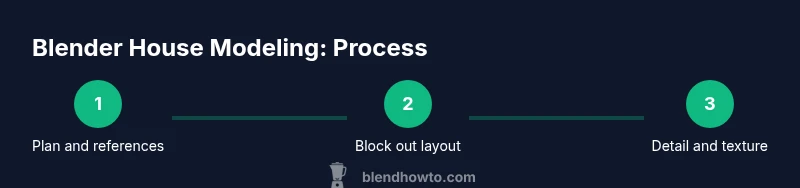
Once you have a vision, plan how the Blender house will exist in your scene. Gather high-quality reference photos or architectural drawings and decide on the target unit system (meters are common for architectural work). Create a simple storyboard that maps each room, doorways, windows, and exterior facades. Establish a baseline scale by comparing to real objects (a standard door is about 2 meters tall, ceiling heights around 2.4–3 meters). This planning phase reduces guesswork during modeling and helps you maintain proportion consistency across the entire house.
Blocking the House: Proportions and Geometry
Begin with blocking to establish the silhouette and major volumes. Use geometric primitives (cubes for rooms, extruded blocks for walls, and planes for floors) and keep the topology simple. Create a floor plan on a grid, extrude walls, and carve out openings for doors and windows. The goal of blocking is to get the overall proportions correct before detailing. As you block, maintain a clean naming convention for objects (e.g., Wall_West, Roof_Main) to streamline later steps and enable easier asset reuse.
Modeling Details: Walls, Roofs, Doors, and Windows
After blocking, refine the geometry to include architectural details. Add extruded trims, window frames, door casings, staircases, and roof ridges. Use modifiers like Mirror for symmetry and Array for repetitive elements. Keep edge loops controlled to preserve smooth shading where appropriate. A well-structured model reduces texture stretching and makes UV unwrapping more predictable. Work iteratively: block, refine, test render, and adjust.
Materials and Texturing: Exterior and Interior Finishes
Texture and material work brings the Blender house to life. Start with UV unwrapping of major surfaces, then assign PBR materials for concrete, brick, wood, glass, and metal. Use a mix of procedural textures and photo-based maps to balance realism and performance. Ensure material scales stay consistent across the scene to prevent unrealistic tiling. Organize materials with a clear naming scheme and group related textures into a single material library for reuse in other Blender house projects.
Lighting for Realism: Sun, HDRI, and Indoor Lighting
Lighting is essential for convincing renders. Use an HDRI environment map for exterior daylight and add a sun lamp for directional light. For interior spaces, blend area lights, emission planes, and light-path settings to achieve natural skin tones and shadows without noise. Tweak exposure, temperature, and bloom to match the mood defined in your planning stage. A well-lit Blender house will read correctly from camera angles and deliver more compelling visuals.
Rendering Setup: Camera, Settings, and Output
Choose camera angles that showcase architectural form and interior flow. Use focal length that preserves perspective, enable depth of field for realistic shots, and set up render passes for post-processing. Start with the default path-tracing engine (Cycles) or the real-time engine (Eevee) depending on your target quality and time constraints. Balance sampling, denoising, and resolution to achieve a clean final image without excessive render times.
Post-Processing and Final Touches
Post-processing elevates the Blender house final render. In the compositor, tweak color balance, contrast, sharpness, and vignetting. Add subtle bloom for highlights, adjust ambient occlusion for depth, and composite any texture overlays or decals. This stage helps unify materials and lighting, producing a polished, portfolio-ready Blender house.
Exporting and Reuse: Create a Workflow for Future Projects
Organize your scene with a clean outliner, group assets into collections, and bake textures where appropriate for performance. Save your materials and lighting setups as templates to accelerate future Blender house projects. Document your workflow for teammates or students, so the approach remains reusable across architecture, interior visualization, or educational content.
Tools & Materials
- Blender software (latest stable release)(Set units to meters; enable appropriate add-ons if needed (Archipack orBlender's built-in features).)
- Reference images and architectural plans(Curate exterior and interior references to guide proportions and materials.)
- Texture and image packs (optional but helpful)(Use a mix of procedural textures and real-world textures for realism.)
- Image editor or Photoshop/GIMP (optional)(For texture tweaks, color grading, and texture maps.)
- A capable workstation (CPU/GPU)(Rendering interior scenes benefits from a strong GPU; keep GPU memory in mind.)
Steps
Estimated time: 3-6 hours
- 1
Set up project and units
Open a new Blender project, switch to meters, and set up your scene scale. Create a dedicated collection for the house model and name it clearly. This ensures consistency as you add materials and lighting.
Tip: Save a template file with standard camera and light setups for reuse. - 2
Import references and plan layout
Load exterior and interior reference images. Sketch a rough floor plan using simple planes to establish room sizes and door/window placements. Verify scale by comparing to real-world dimensions.
Tip: Keep references visible in the viewport; use background images for alignment. - 3
Block out the main forms
Create walls, floors, and roofs using basic primitives. Use the Mirror modifier for symmetric halves and a lattice for roof shaping. Focus on correct silhouette and room proportions rather than details.
Tip: Name objects clearly and group related elements into collections. - 4
Refine geometry with details
Add doors, windows, stairs, and trim pieces. Use bevels where needed to soften edges. Keep topology clean to prevent shading artifacts.
Tip: Use adaptive subdivision selectively to preserve performance. - 5
Unwrap UVs and apply textures
Unwrap major surfaces and assign base materials. Create texture maps (albedo, roughness, normal) with consistent scale across surfaces to avoid tiling issues.
Tip: Organize textures in a library for reuse across projects. - 6
Set up materials and shading
Create PBR materials for brick, wood, concrete, glass, and metal. Use clean node setups and group shared materials to stay efficient.
Tip: Test materials with simple lighting before adding complex textures. - 7
Configure lighting for realism
Apply an HDRI for exterior ambience and a sun lamp for directional light. Build interior lighting with area lights or emissive panels to avoid flat results.
Tip: Balance light temperature to achieve a cohesive mood. - 8
Set cameras and render passes
Place cameras to showcase architecture and interiors. Enable depth, normal, and ambient occlusion passes if you plan post-processing.
Tip: Use focal lengths that preserve architectural perspective without distortion. - 9
Render, refine, and post-process
Render test frames, assess shadows and materials, then adjust lighting and textures. Use the compositor for color grading and subtle enhancements.
Tip: Render at a lower resolution first to iterate quickly.
Frequently Asked Questions
What is a Blender house project?
A Blender house project is a 3D scene created in Blender that models a house's exterior and interior. It emphasizes accurate proportions, materials, lighting, and renders suitable for architectural visualization.
A Blender house project is a 3D house created in Blender that focuses on realistic visuals and layout.
Which Blender version is recommended for architectural modeling?
Use a current stable Blender release with architecture-friendly features. Ensure your GPU/CPU drivers are up to date for reliable performance.
Use a current stable Blender release with up-to-date drivers for best results.
How long does it take to model a basic Blender house?
Time varies with detail, but expect several hours for a solid base model, with additional time for texturing and lighting.
Time varies, but plan for several hours for a solid base and more for texture and lighting.
Should interiors use the same textures as exteriors?
Not always. Interiors benefit from distinct textures and wear patterns, while exteriors may use weathering simulations and different lighting.
Interiors often use different textures and lighting than exteriors for realism.
Can I reuse this workflow for interior design renders?
Yes. The planning, blocking, and texturing principles apply to interior scenes and can be tailored to different spaces.
Yes, adapt planning and blocking for interiors; it works across spaces.
Do I need external textures to achieve realism?
Textures help realism, but you can start with procedural textures and only add image textures if needed for details.
Textures help realism; start with procedural textures and add image textures as needed.
Watch Video
What to Remember
- Plan first, iterate often
- Block major geometry before detailing
- Texture and lighting should align with mood
- Organize assets for reuse
- Test renders early to guide decisions