Blender Split Object: A Practical Guide to Clean Geometry
Learn how to split objects in Blender using knife, bisect, loop cuts, and booleans. Practical steps, topology-friendly workflows, and real-world examples for modeling, UVs, and materials.


In Blender, you can split an object to create distinct parts for separate materials, animation, or modeling edits. This guide covers four reliable methods: edit-mode knife, loop cut and slice, boolean operations, and separate by selection. You’ll learn when to use each and how to avoid geometry issues.
Why Split Objects in Blender?
Splitting an object is a fundamental technique in Blender that lets you treat portions of a single mesh as independent pieces. This is useful for applying different materials, assigning separate modifiers, or creating modular parts that can be animated or swapped later. When you split, you preserve the original topology while introducing distinct geometry, which helps with UV mapping, texture painting, and clean rigging. Understanding when and why to split saves time on complex scenes and reduces headaches during later edits. For beginners, think of splitting as turning one solid block into several logically separate pieces without rebuilding from scratch.
Four Core Methods to Split an Object in Blender
Here are reliable workflows you can rely on, each with a typical use case and topology outcome:
- Knife Tool: Cut along a freehand path or constrained axis to create custom splits. Best for irregular cuts that don’t align to a grid.
- Bisect: Slice along a precise plane for straight, axis-aligned cuts. Excellent for clean panel-like divisions and when you need exact placement.
- Loop Cut & Slice: Insert edge loops and slice the selected faces to produce evenly spaced partitions. Great for uniform sections and grid-like models.
- Boolean Operations: Use union or difference to create complex cavities or feature holes. Useful for hard-surface assets, but requires careful cleanup to maintain clean topology.
- Separate by Selection: After you’ve cut, detach the chosen geometry into a new object, enabling independent materials, modifiers, or animation control. This is often the final step after creating the intended partitions.
Tips for Clean Topology and Common Pitfalls
A split can easily generate messy topology if you’re not careful. Start by planning your cut lines to minimize n-gons and long, skinny faces. Prefer quads; if tris or ngons appear, split and retriangulate mindfully. Use snapping and the grid when you need precise alignment, and enable wireframe or x-ray mode to see inner edges. After splitting, recalculate normals, remove doubles, and apply a consistent scale (Ctrl/Cmd + A) to keep shading predictable. Avoid non-manifold edges unless you’re intentionally modeling a hollow object; they can cause shading and boolean headaches later.
Practical Workflows: From Concept to Finished Model
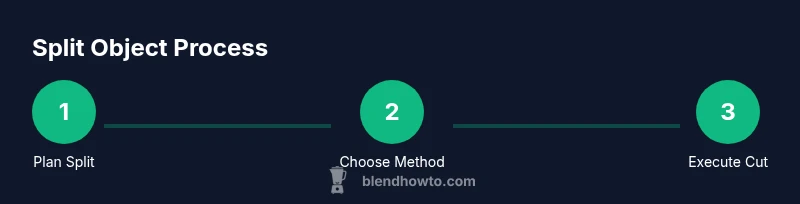
- Define your goal: Determine where splits are needed based on materials, animation, or function. This early planning reduces unnecessary cuts. 2) Choose a method: If you need a freehand carve, use Knife; for precise panels, Bisect; for a uniform grid, Loop Cut; for cavities, Boolean. 3) Execute the cut: In Edit Mode, select faces/edges/vertices, apply the tool, and keep an eye on topology. 4) Separate if needed: Use P > Selection to make a new object; this is useful when you want separate materials or separate modifiers. 5) Clean up: Recalculate normals, merge vertices, and inspect for ngons; refine with additional cuts as required. 6) Validate UVs: After major splits, check UV islands to ensure there’s no unintended stretching or seams.
Quick Reference: When to Use Each Method
- Knife Tool: Irregular shapes, artistically inset details, custom seams.
- Bisect: Planar cuts, precise panels, alignment with axes.
- Loop Cut: Regular divisions, controlled topology, even spacing.
- Boolean: Complex cavities, multiple overlapping volumes; follow with cleanup.
- Separate by Selection: Finalize your partition by creating independent objects or materials.
Use these guidelines as you model, texture, and animate; the right method often depends on your model’s intended use and required topology. Remember to keep backups and work incrementally to avoid losing earlier geometry.
Integrating Splits into UVs and Materials
Splitting objects isn’t just a modeling task—it has a direct impact on UV layouts and material assignments. After you split, you’ll often want to map UV islands for each piece separately to prevent overlapping seams. Assign materials to parts before unwrapping to keep material IDs meaningful. If you’re planning texture baking, consider how the split lines will appear in the bake map. Keeping a clean edge flow helps with seamless texturing and reduces the need for later topology retouching.
Tools & Materials
- Blender software (latest stable release)(Install from blender.org; use Edit Mode for modeling tasks)
- Mouse with precise cursor control(A standard three-button mouse helps with selection and knife operations)
- Keyboard shortcuts cheat sheet(Optional but speeds up workflow)
- Sample object to practice on (e.g., a cube)(Start simple before attempting complex topology)
- Reference images or sketches(Helpful for planning cuts and topology flow)
Steps
Estimated time: 25-40 minutes
- 1
Select the object and enter Edit Mode
Choose the model you want to split and press Tab to switch to Edit Mode. Use A to select all geometry, or select specific faces, edges, or vertices you’ll cut. Align your view with the intended cut line and enable wireframe or X-ray to better see hidden geometry.
Tip: Use 1/2/3 to switch between vertex/edge/face selection modes for precise control. - 2
Decide on the split method based on goal
Assess whether you need a freehand cut (Knife), a straight plane cut (Bisect), a uniform partition (Loop Cut), or a complex cavity (Boolean). Your choice affects topology outcomes and subsequent UVs/materials.
Tip: Plan cut lines to minimize ngons and irregular topology. - 3
Make the cut using Knife or Bisect
If using Knife, trace the desired seam and press Enter to confirm. For Bisect, define the cut plane and adjust the Y/Z/X orientation to align with the model’s geometry. Watch the edge flow to avoid creating triangles where quads are desired.
Tip: Enable 'Cut through' if you need to slice all the way through a complex mesh. - 4
Refine with Loop Cut or additional Knife actions
Use Loop Cut to insert new edge loops for even partitions, or add more Knife cuts for irregular seams. After each addition, inspect the mesh for ngons and fix them with targeted edge loops.
Tip: Use Ctrl+R for Loop Cut and toggle knife options in the operator panel for precision. - 5
Separate geometry into new objects or materials
Select the faces you want to detach, press P, and choose By Selection to create a new object. This step is essential for independent material assignment or separate modifiers.
Tip: If you need multiple separations, repeat the process on other regions. - 6
Clean up topology and verify UVs
After splitting, remove doubles, recalculate normals, and ensure the topology remains quad-dominant where possible. Unwrap UVs for each piece and test texture alignment to avoid seams.
Tip: Run a quick shading check by switching to Material Preview mode.
Frequently Asked Questions
What does splitting an object accomplish in Blender?
Splitting creates distinct parts of a single mesh for separate materials, animation control, or modular editing. It helps with topology management, texturing, and easier rigging. You can later rejoin pieces if needed.
Splitting breaks one mesh into parts for different materials or animations, making complex models easier to manage.
Which method should I use first when splitting a model?
Start with a plan: use Bisect for straight, aligned cuts or Knife for freehand seams. Loop Cut works well for grid-like partitions, while Boolean is best for cavities. Separate by Selection to finalize independent pieces.
Begin with Bisect for straight cuts or Knife for custom seams, then separate pieces as needed.
How can I prevent bad topology after splitting?
Aim for quad-dominant topology, minimize ngons, and retopologize where necessary. Clean normals, merge nearby vertices, and verify shading by using Material Preview. Regularly check for non-manifold edges.
Keep quad topology whenever possible and fix ngons early to avoid shading issues.
Can I split a model that will be unwrapped later for texturing?
Yes. Plan seams along natural edge boundaries and after splitting, unwrap each piece separately. This helps achieve cleaner textures and reduces seam visibility.
Split with texture planning in mind and unwrap each piece individually.
What should I do if I’m unsure which method to use?
Experiment on a duplicate of the object. Try Knife for irregular shapes, Bisect for axes-aligned cuts, and Loop Cut for structure. Compare topology results and select the method that yields the cleanest mesh.
Experiment on a copy and compare topology results to pick the best method.
Watch Video
What to Remember
- Plan splits before cutting to preserve topology.
- Choose the split method based on geometry and downstream needs.
- Separate by selection to manage materials and modifiers effectively.
- Always clean up topology and UVs after splitting.