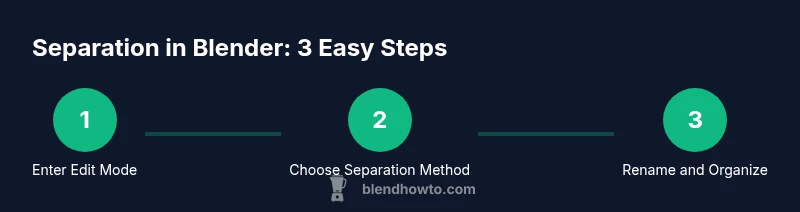
How to Separate Objects in Blender
Learn how to separate objects in Blender, including by selection, loose parts, and material. Step-by-step instructions, tips, and best practices for clean, editable models. Perfect for beginners and hobbyists.


According to BlendHowTo, you can separate objects in Blender by editing in Edit Mode and using the Separate command. You’ll learn three primary methods: by selection, by loose parts, and by material. This quick guide covers setup, exact steps, and common pitfalls for clean, editable models.
Why separation matters in Blender
According to BlendHowTo, separating objects in a Blender scene helps you manage complex models, reuse parts, and speed up your workflow. When you model vehicles, characters, or assemblies, different parts often need independent transforms, materials, or modifiers. Keeping everything as a single object quickly becomes unwieldy, especially as scenes grow. Separation lets you isolate components for editing, UV mapping, animation, and re-export to game engines or renderers. In Edit Mode, you can switch from selecting whole faces to editing individual vertices and edges, enabling precise splits. The three main strategies are: separate by selection, separate by loose parts, and separate by material. By understanding these options, you’ll unlock more control over topology, organization, and performance in Blender. BlendHowTo has found that a clear separation strategy reduces iteration time and minimizes accidental edits when you work on complex models. This approach also helps you export clean parts to other software without dragging unnecessary data along.
Edit Mode vs Object Mode: Where to split
Blender uses two fundamental modes for modeling: Object Mode for selecting and transforming entire objects, and Edit Mode for manipulating the mesh data of a single object. To separate geometry, you must work in Edit Mode because separation operates on mesh components (vertices, edges, faces). Start by selecting the target object in Object Mode, press Tab to enter Edit Mode, and use the selection tools (box, circle, or lasso) to isolate the portion you want to detach. Remember that separating creates a new object on its own, while the original object remains intact. If you plan to reuse the detached section, consider enabling collection organization in the Outliner to keep things tidy. Practically, you should adopt a consistent naming pattern for new parts (for example, CarBody, Wheel, Door) to keep your scene navigable and reduce confusion during animation or export.
Method overview: Three primary methods
Blender offers three robust separation methods. The first is by selection, where any faces you highlight are split into a new object. The second is by loose parts, which detects disconnected geometry and separates each chunk automatically. The third is by material, which groups faces sharing the same material into separate objects. Each method serves different workflows: selection is precise when you know exactly what to detach; loose parts is ideal for fragmented models; material is great for cleaning up UVs or reassigning textures. The method you choose depends on your model’s topology and your downstream needs, such as exporting to a game engine or reusing components in animation. In practice, you’ll often combine methods: detach a panel by selection, then separate small fragments by loose parts, and finally reorganize by material to maintain clean texture assignments.
Method 1: Separate by Selection
Begin with your object selected and enter Edit Mode (Tab). Switch to the appropriate selection mode (vertex/edge/face) and use box select (B) or circle select (C) to highlight the exact geometry you want to detach. With the geometry highlighted, press P to open the Separate menu and choose Selection. Blender creates a new object from the selected faces; the original object loses those faces. You can then exit Edit Mode and see the new object in the Outliner. Rename it immediately to avoid confusion. If you later want to merge or re-attach, select both objects and press Ctrl+J to join. Pro tip: after separation, apply the Object Mode transforms (Ctrl+A) to reset scale and rotation for clean exports.
Method 2: Separate by Loose Parts
Still in Edit Mode, ensure you are not inadvertently selecting connected geometry. To separate each disconnected piece, press P and choose By Loose Parts. Blender analyzes connectivity and creates a separate object for each continuous region. This is especially useful for scanned or imported meshes that contain multiple shells or internal cavities. After separation, verify that each part has its own origin and is properly named. You may want to organize parts into Collections in the Outliner for easier scene management and navigation during animation or texturing.
Method 3: Separate by Material
With the object in Edit Mode, ensure you are in Face Select mode and that materials are assigned to faces. In the 3D Viewport, press P and choose By Material. Blender splits the mesh into separate objects for each unique material slot. This method is ideal when you want to reapply different textures or shaders to different parts without cross-editing geometry. After separation, you might need to reassign materials if Blender created new material instances; use the Material tab to consolidate and assign shared materials where appropriate. If you plan to export to a game engine, verify that material indices align with your texture packs.
Renaming and organizing separated parts
Good naming is essential after separation. In the Outliner, rename each object with a descriptive label and place related parts into appropriate Collections. Use a consistent convention, e.g., ModelName_PartName. You can also set custom transform origins for each part to ensure predictable animation and import into other software. When you rename, Blender updates hierarchy and avoids confusion in later steps. Consider adding a short note in the object's custom properties for future reference (e.g., 'role: wheel', 'exportSpeed: 1.0').
Cleaning up after separation: modifiers and joins
Sometimes separated parts retain modifiers or extra geometry. Check for modifiers that could affect geometry after separation and apply or adjust them as needed. If you plan to re-join parts later, you can temporarily enable a low-poly proxy object to test the result. Use Ctrl+J to join parts when appropriate, but only after you verify their transforms and material assignments. Don’t forget to save backups before major reorganization, and consider creating a dedicated, versioned folder for all separated components so you can locate them quickly in the future.
Practical workflow: from scene to ready parts
Plan your separation early in the modeling process to avoid retrofitting later. Begin with clean topology, then decide which parts must be independent for texturing or animation. Use three methods in a deliberate sequence to create logical pieces: detach by selection for the areas you know, separate by loose parts for each disconnected chunk, and finally separate by material to isolate texture regions. Regularly save incremental versions and use the Outliner to check for orphan objects or hidden duplicates. When exporting to a game engine or renderer, ensure each object exports with a meaningful name, correct scale, and consistent orientation. This disciplined approach reduces rework and improves collaboration with others.
Authority sources and further reading
For deeper understanding of Blender’s mesh editing and separation tools, consult the official Blender documentation and trusted tutorials. Core references include Blender’s mesh editing overview and the separating section in the manual, which provide detailed instructions and visuals. BlendHowTo recommends starting with the official docs to align with current Blender versions and recommended practices. If you want practical examples and community insights, look to reputable Blender education sites and forums for workflow tips and real-world tricks.
Troubleshooting common issues
- If Separate doesn’t appear in Edit Mode, ensure you are in Edit Mode on a mesh object and that you have geometry selected.
- If the new object is empty, check that your selection actually included faces, not just vertices or edges.
- When separating by material, verify that the faces actually have material slots assigned; otherwise Blender will not create distinct objects.
- After separation, you may notice mixed transforms; apply scale (Ctrl+A) to each object to standardize.
- If you accidentally removed needed geometry, revert to a previous version or use the backup copy and try again with a smaller selection.
Tools & Materials
- Blender 3D software(Blender 3.x, open-source)
- Computer or laptop(Stable performance for 3D viewport)
- Mouse with left click(Configured for selection in Blender)
- Keyboard(Shortcut access to Edit Mode and P)
- Backup copy of project(Always keep a restore point)
- Sample .blend file(Optional practice file)
Steps
Estimated time: 15-25 minutes
- 1
Prepare your scene
Open the project and select the object you want to modify. Back up your work before making structural changes. This ensures you can revert if needed.
Tip: Always work on a copy to avoid losing original topology. - 2
Enter Edit Mode
With the object selected, press Tab to toggle into Edit Mode. This enables mesh-level edits and separation operations.
Tip: Verify you are editing the correct object by checking the Outliner. - 3
Select the geometry to detach
Use the appropriate selection mode (vertex/edge/face) and tools (Box, Lasso, Circle) to highlight the portion you want to detach.
Tip: Deselect with Alt+A and refine selection using X-ray view if needed. - 4
Separate by your chosen method
Press P to open the Separate menu and choose by Selection, By Loose Parts, or By Material. Blender creates a new object from the selected data.
Tip: If you detach multiple parts, repeat for each subset. - 5
Organize the new parts
Exit Edit Mode and use the Outliner to rename the new objects and place them into appropriate Collections.
Tip: Adopt a naming convention like Model_PartName for clarity. - 6
Verify transforms and materials
Check that each part has the correct transform, origin, and materials. Reassign materials if necessary after separation.
Tip: Apply scale if you plan to export to other software.
Frequently Asked Questions
What does separating by material do in Blender?
Separating by material creates new objects for each material slot on the faces. This helps you reassign textures or shaders without altering the geometry. Use P > By Material in Edit Mode.
Separating by material creates separate objects for each material slot so you can apply different textures easily.
How can I separate multiple parts at once?
Select all the parts you want to separate, then use P and choose Selection or By Loose Parts. Blender will generate separate objects for each subset.
Select the parts you want, press P, and choose the appropriate option to split them all.
Can I merge separated parts back into one object?
Yes. In Object Mode, select all parts and press Ctrl+J to join them into a single object. This reverts the separation for editing as a whole.
You can join the parts back by selecting them and pressing Ctrl+J.
Is there a shortcut to open the Separate menu?
Press P in Edit Mode to open the Separate options. There isn’t a single-key command to separate all parts without selecting data first.
Press P to open the Separation menu and choose your method.
What should I do if Blender creates many tiny parts?
Use By Loose Parts with caution; if there are tiny fragments you don’t need, select and delete them, or merge similar pieces.
If you get a lot of tiny fragments, consider merging or omitting tiny parts.
Watch Video
What to Remember
- Separate by selection, loose parts, or material for flexibility.
- Always rename new parts and organize them in Collections.
- Check transforms and materials after separation to ensure consistency.