Blender Separate Mesh: A Practical Guide for 3D Artists
Learn how to separate a mesh in Blender with practical steps, tips, and best practices. This guide covers methods by loose parts, by selection, and by material, plus troubleshooting for clean separated pieces. A BlendHowTo tutorial for beginners and hobbyists.


In Blender, separating a mesh means turning a single object into distinct pieces you can edit independently. You’ll typically use methods such as separating by loose parts, by selection, or by material. This helps with organization, UV mapping, or exporting cleanly to game engines or render pipelines. The key is to plan which parts become separate objects before editing.
Why separating a mesh matters in Blender
The process of separating a mesh—often phrased as Blender separate mesh—enables you to edit, texture, and export different portions of a model without impacting the entire object. For example, a character model might have clothing, hair, and armor components that you want to texture differently or export as separate pieces for a game engine. When you separate a mesh, Blender creates distinct objects or parts that you can rename, organize into collections, and apply individual modifiers or transforms. This improves workflow efficiency, reduces confusion during rigging, and helps maintain clean UV layouts by isolating troublesome sections. By understanding blender separate mesh workflows, you’ll save time during poly modeling, texturing, and animation pipelines.
Core techniques to separate a mesh in Blender
There are several reliable methods to achieve separation, each suited to different modeling scenarios. The most common are: (1) separation by loose parts, (2) separation by selection, and (3) separation by material. You can also combine methods if you’re dealing with multi-material objects or complex geometry. The choice depends on how your model is structured and how you plan to use the pieces afterward. For instance, separating by loose parts is quick for models that naturally consist of multiple connected sections, while separating by material is ideal when materials define logical pieces that need independent UV maps or texturing. This section will outline when to use each method and how they affect topology, shading, and export readiness. blender separate mesh workflows often intersect with collection management and naming conventions to keep your scene tidy.
Practical steps to identify separation opportunities
Before you start cutting, inspect your model to identify natural boundaries: loose parts, material boundaries, and logical sub-assemblies. In Blender, you can quickly assess these boundaries by switching to Edit Mode and toggling between solid and wireframe views. Look for small hidden faces, overlapping vertices, or stray edges that hint at how pieces are organized. If a mesh behaves like a single mass but represents distinct parts, separating by loose parts is usually the fastest route. If different parts share a material but should move independently, consider material-based separation. Scale and origin consistency matters, especially if you plan to export to a game engine or render farm. blender separate mesh decisions should align with downstream workflows to minimize cleanup later.
Common pitfalls and fixes when separating meshes
separation tasks can create unexpected geometry or misnamed objects if not done carefully. A frequent pitfall is creating too many tiny pieces—this complicates rigging, exporting, and scene management. Another issue is losing track of the original object’s origin, which can cause unexpected rotations or translations after separation. To avoid these problems, perform separation in Object Mode when possible, rename new pieces immediately, and organize them into Collections. After separation, apply transforms (Ctrl+A) and recheck normals to ensure consistent shading. Finally, test an export to see if the pieces retain their positions and orientations in the target application. blender separate mesh processes thrive when you maintain a clean naming and collection strategy.
Quick workflow checklist for Blender users
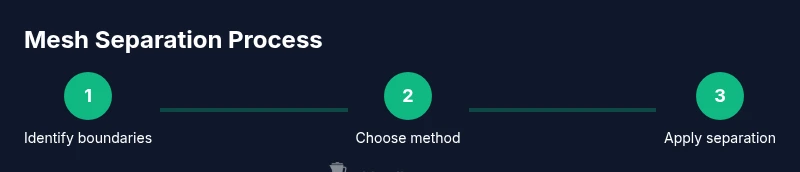
- Identify separation boundaries (loose parts, materials, selections).
- Decide on the separation method for each boundary.
- Perform the separation (P for separate in Edit Mode or mesh-specific commands).
- Rename new pieces and place them into appropriate Collections.
- Apply transforms and verify normals before exporting.
- If needed, reparent, group, or link pieces for animation and rigging.
Practical examples and best practices
Consider a vehicle model with a body, wheels, and glass panels. You might separate by loose parts for the wheel assemblies, by material for the glass, and by selection for the body panels you want textured differently. In Blender, use the appropriate separation commands, then systematically rename and organize each piece. A consistent naming convention such as ObjectName_Part or ObjectName_Material helps prevent confusion later in the pipeline. For complex assets, maintain a simple, scalable structure by using Collections for major assemblies and sub-collections for sub-parts. blender separate mesh is most effective when you apply a consistent organization strategy across all models.
Tools & Materials
- Blender (latest stable release)(Open Blender and the project you’ll work on)
- Mouse and keyboard(Efficient selection and P-key separation; middle-click to pan)
- A clean, defined model(Prefer objects with clear material or loose-part boundaries)
- Optional: Reference images or reference meshes(Helps planning separation boundaries and UV layouts)
- Scene organization tools (Collections)(Keep separated pieces in named collections for clarity)
- Backup copy of the project(Always save before major topology edits to prevent data loss)
Steps
Estimated time: 15-25 minutes
- 1
Open the Blender project and select the target object
In Object Mode, click the model you want to work with. This prepares Blender to apply separation operations on the correct object. If you’re planning multiple separations, keep a backup copy first.
Tip: Name the object clearly (e.g., CarBody) to avoid confusion later. - 2
Switch to Edit Mode and inspect geometry
Enter Edit Mode (Tab) and switch to Solid or Wireframe view to inspect the topology. Look for isolated parts, material boundaries, and potential non-manifold edges that could complicate separation.
Tip: Use J to join selected vertices before you split if you over-merged parts by mistake. - 3
Separate by loose parts
With all geometry selected in Edit Mode, use Select All Loose Parts (Ctrl+Loose Parts) and then press P to separate by loose parts. This creates one object per distinct connected region.
Tip: Preview results in Object Mode to confirm you didn’t miss hidden loose parts. - 4
Separate by selection
Deselect everything, then select the sub-mesh you need. Press P and choose 'Selection' to split that part from the rest. This is useful for isolating a sub-component that’s connected to the main mesh.
Tip: Hide other parts (H) to focus your selection and reduce mistakes. - 5
Separate by material
If different parts share a material, go to Material Properties, select the target material, and use Edit Mode > Select > Similar > Material to highlight all faces with that material. Then press P to separate by material.
Tip: After separation, confirm each new piece retains correct shading by toggling between materials in the Shader Editor. - 6
Organize and rename
Back in Object Mode, rename each new piece and move them into appropriate Collections. This keeps your scene navigable and helps export pipelines handle each piece correctly.
Tip: Group related pieces into a parent collection for easy selection during animation or export.
Frequently Asked Questions
What does it mean to separate a mesh in Blender?
Separating a mesh creates independent pieces from a single object, enabling individual editing, texturing, and exporting. You can separate by loose parts, by selection, or by material depending on your model's structure.
Separating a mesh means turning one object into multiple pieces you can edit on their own.
How do I separate by loose parts in Blender?
Go to Edit Mode, select all geometry, choose Select All Loose Parts, then press P and pick Separate by Loose Parts. Blender creates a new object for each connected region.
In Edit Mode, select all loose parts and separate them to create individual objects.
Can I rejoin separated pieces later?
Yes. In Object Mode, select the pieces you want to combine and press Ctrl+J to join them into a single object. You may need to reapply materials or modifiers afterward.
You can rejoin pieces by selecting them and pressing Ctrl+J.
How do I separate by material in Blender?
In Edit Mode, select faces by material (Select > Similar > Material) to highlight one material’s faces, then press P and choose Separation by Material. Each material can become its own object.
Select faces by material and separate to create material-based pieces.
What are common mistakes when separating meshes?
Over-separating can create many tiny pieces. Forgetting to rename objects can cause confusion. Always verify normals and apply transforms before exporting.
Common mistakes include creating too many pieces and forgetting to rename objects.
Is there a shortcut for separating in Edit Mode?
The core action you’ll use is the P-key to separate after selecting the target geometry. This is complemented by Select All Loose Parts and material-based selection when applicable.
Use the P key to separate after making a selection.
Watch Video
What to Remember
- Identify natural boundaries before separating to save time.
- Choose separation method based on downstream needs (texture, export, rigging).
- Rename and organize pieces to maintain a clean project.
- Test exports early to catch topology or transform issues.