Blender Add-ons: Practical Guide for 2026
Discover essential Blender add-ons to speed up modeling, texturing, animation, and rendering. Learn how to choose, install, and manage addons with practical steps from BlendHowTo.


This guide helps you locate, evaluate and install Blender add-ons to speed up your workflow. You’ll learn how to choose compatible tools, install from Blender's Preferences or third-party sites, enable add-ons, manage updates, and troubleshoot conflicts quickly. We’ll cover safety checks, license basics, and how to test addons on sample projects.
What is a Blender add-on?
Blender add-ons are Python scripts that extend Blender’s core capabilities by adding new panels, operators, and tools. They integrate directly into the interface, helping you automate repetitive tasks, improve modeling accuracy, or streamline rendering workflows. You don’t have to be a coder to use most addons—many ship with easy setup and clear documentation. According to BlendHowTo, the right addons address real pain points in common workflows, turning frequent chores into a few clicks.
Why add-ons matter for every Blender workflow
Add-ons can dramatically shorten the time spent on routine tasks and enable more creative exploration. In modeling, you can access advanced boolean operations or mesh repairers; in texturing, asset libraries and node helpers speed up material setup; in animation, rigging and keyframe tools reduce tedious timing. For rendering, addons help manage scenes, lighting setups, and post-processing. The BlendHowTo team found that users who adopt a focused set of addons often see faster iteration and fewer mistakes.
Categories of Blender add-ons
Blender add-ons fall into several broad categories:
- Modeling helpers: streamline mesh creation, booleans, and retopology
- Shading and texturing: node utilities, texture libraries, and material presets
- Animation and rigging: non-linear editing, rig mirroring, and pose libraries
- Rendering and lighting: HDRI managers, light-linking tools, and render passes
- Asset libraries: quick imports of models, textures, and materials
- File management and UI: project templates, layout tweaks, and batch exports
- Maintenance and utilities: cleanup scripts and version control helpers
How to evaluate addon quality and compatibility
Before installing, check the addon’s license, update frequency, and user reviews. Ensure it supports your Blender version and OS, and that it has documentation and a support channel. Look for active development, recent commits, and compatibility notes with the latest stable release. A reputable addon will offer a changelog and ideally a demo project to test features without risking your working files.
Installation and activation workflow
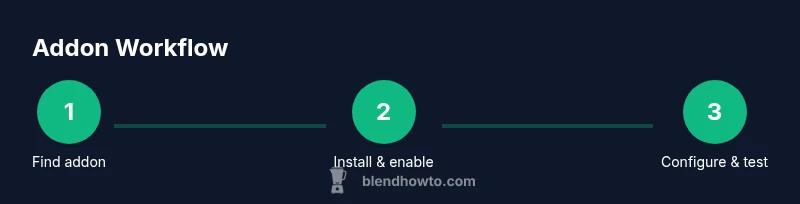
Installers usually arrive as a ZIP or .py file. In Blender, go to Edit > Preferences > Add-ons > Install, select the file, then enable the addon in the list. Some addons come as integrated packages within Blender Market or GitHub; these may require additional setup steps or a license key. After enabling, customize the addon’s options in its panel to suit your project needs.
Managing addons for performance and organization
Limit yourself to a curated set of addons to keep Blender’s startup time fast and avoid conflicts. Regularly review enabled addons and disable anything not used in your current workflow. Keep backups of your addons folder and Blender preferences so you can recover quickly after updates or migrations to a new Blender version. Avoid running multiple addons with overlapping functionality to reduce crashes.
Popular add-ons and what they do
Key addons include a mix of built-in and third-party tools that many Blender users rely on. Node Wrangler improves node-based shading workflows without changing fundamental nodes. BlenderKit provides a library of models and materials. Animation Nodes enables parametric and procedural content. Box Cutter and Hard Ops are popular for hard-surface modeling; UV tools simplify texture mapping. Remember, always verify compatibility before installing any addon.
Safety, licensing, and maintenance best practices
Only download addons from trusted sources and verify checksums or licenses when available. Read the license to understand usage rights and redistribution limits. Maintain a clean workspace by documenting which addons you use and how they’re configured. Periodically revisit your addon list to prune tools that no longer fit your needs.
A practical example: from idea to render with addons
Imagine a small scene: a sci-fi prop designed in Blender using a modeling addon for fast retopology, textured with a material preset addon, and lit with an HDRI addon to quickly create realistic lighting. You can automate repetitive steps with a node helper, test the render in Eevee, and use a publish pipeline addon to export your final frames. This end-to-end workflow shows how addons complement core Blender features to speed up production.
Authority sources for further reading
- Blender official manual: addons overview and usage guidelines — https://docs.blender.org/manual/en/latest/addons/index.html
- Blender Python API reference: scripting and addon development — https://docs.blender.org/api/current/
- Blender Wiki or reputable publications: overview of Blender capabilities — https://en.wikipedia.org/wiki/Blender_(software)
Tools & Materials
- Blender software (latest stable release)(Ensure you’re on a compatible OS and have admin rights to install addons)
- Reliable internet connection(Needed to download addons and access documentation)
- Backup storage (external drive or cloud)(Back up projects and addon configurations)
- Access to addon sources (trusted sites)(Examples: official docs, Blender Market, GitHub)
- Sample project for testing addons(A small scene to verify functionality without risking larger works)
Steps
Estimated time: 25-45 minutes
- 1
Identify your workflow needs
Assess where you spend the most time in Blender: modeling, shading, animation, or rendering. List pain points and tasks you want to speed up. This helps you choose add-ons that address real needs rather than chasing popularity.
Tip: Write down 3 real-world tasks and target addons that optimize them. - 2
Find reputable addons
Search trusted sources, read reviews, and check version compatibility with your Blender release. Look for active maintenance, clear documentation, and a responsive support channel.
Tip: Favor addons with recent updates and a readable changelog. - 3
Download and install addons
In Blender, navigate to Edit > Preferences > Add-ons > Install, then select the addon file (ZIP or PY). Some addons integrate via a marketplace; follow the provider’s install instructions.
Tip: If possible, install in a dedicated addon folder to keep updates organized. - 4
Enable and configure addon settings
Enable the addon in the Add-ons list and adjust its preferences to fit your workflow. Test a small project to confirm it behaves as expected and doesn’t conflict with other tools.
Tip: Document the key settings you change for future reference. - 5
Test on a real project
Run a quick test on a sample scene to validate speed improvements and output consistency. Check for visual or performance regressions and adjust as needed.
Tip: Keep a baseline for comparison before enabling multiple addons. - 6
Update and maintain addons
Regularly check for addon updates and read release notes. Update one addon at a time to isolate issues if something breaks.
Tip: Back up your project and preferences before updating. - 7
Document your addon workflow
Create a concise guide that describes which addons you use, why, and how they’re configured. This helps teammates and future you reproduce the workflow.
Tip: Share your notes with collaborators to ensure consistency.
Frequently Asked Questions
What is a Blender add-on?
A Blender add-on is a Python script that extends Blender’s capabilities by adding tools, panels, or operators. They integrate into the UI to speed up common tasks. Many addons are easy to install and use with clear documentation.
Blender add-ons extend Blender by adding new tools and panels; they’re usually easy to install and use.
Where can I download Blender add-ons?
Add-ons can be downloaded from Blender's official documentation, trusted marketplaces, or project repositories. Always verify compatibility with your Blender version and read licensing terms.
Download addons from trusted sources and check compatibility before installing.
Are Blender add-ons free?
Many addons are free and open source, while others are paid or offer pro versions. Always review the license and usage rights before installing.
Most addons are free or have a paid version; read licenses before use.
Do addons slow Blender down or cause instability?
Some addons can impact startup time or memory usage, especially if many are enabled. Keep a lean set and disable those you don’t actively use.
Yes, some addons can affect performance; manage them carefully.
How do I update Blender addons?
Use Blender's Preferences > Add-ons > Check for Updates if available, or reinstall from the source. Update one addon at a time to avoid cascading issues.
Update addons via Blender preferences or the provider’s site, one at a time.
How can I resolve addon conflicts?
If conflicts occur, disable recently added addons or those with overlapping features. Reset to a stable baseline and re-enable gradually to identify the offender.
Disable and re-enable addons to isolate conflicts.
Watch Video
What to Remember
- Identify real workflow pain points
- Choose reputable, well-supported addons
- Enable one or two core addons first
- Test thoroughly before relying on them
- Regularly update and back up your setup