How to Manage Blender Addons
Learn to evaluate, install, organize, update, and troubleshoot Blender addons. A practical, step-by-step approach to maintain a lean, compatible, and secure addon setup for consistent Blender workflows.


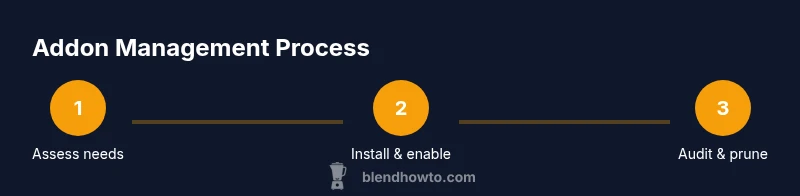
Addon management in Blender starts with intentional selection, trusted sourcing, and disciplined organization. Evaluate needs, install from reputable sources, enable only what you require, keep versions aligned with Blender, and prune unused add-ons to stay lean. This quick guide also highlights safe installation and update practices for reliable workflows.
Why addon management matters
Blender shines when you leverage its broad addon ecosystem, but sloppy management turns that strength into a liability. A clear addon strategy reduces conflicts, speeds up startup, and keeps project dependencies under control. According to BlendHowTo, effective addon management begins with a well-defined toolkit: know what you need, where it comes from, and how it fits your Blender version. The BlendHowTo team found that projects run more smoothly when users maintain a documented addon plan and regular audits. In this section we’ll connect the why to actionable steps you can implement tonight, guiding you from a casual shelf of tools to a curated, reliable toolkit that scales from hobby projects to production pipelines.
Assessing addon necessity and sourcing
Not every addon earns a permanent spot in Blender. Start by listing essential tasks for your current and upcoming projects, then map each task to candidates that truly enhance outcomes. Focus on addons with documented compatibility notes, active development, and reputable sources. Our guidance here, reflected in BlendHowTo Analysis, emphasizes evaluating frequency of use, stability, and impact on file size and startup time. When sourcing addons, prefer official repositories, trusted developers, and community-maintained forks with clear license terms. Keep a running inventory that records addon name, version, source URL, and installation date. This approach gives you a living picture of your toolbox and helps you retire tools that no longer serve your workflow.
Installing addons safely
Install addons from vetted sources only, and verify integrity before enabling them in Blender. In Blender, go to Edit > Preferences > Add-ons > Install to load a zip or .py file, then enable the toggle. After installation, review the addon’s preferences panel to adjust defaults to your project needs. If you encounter installation errors, disable conflicting addons and reattempt installation with a clean Blender session. Always back up your user configuration before major changes. This reduces risk if an addon update introduces a bug. Remember to test addons individually in a small project to isolate issues before integrating into large files.
Enabling and organizing addons in Blender Preferences
Once installed, enable only what you truly need for your current project. Group addons by function—modeling, shading, animation, utilities—and label them with clear notes in your inventory. Blender’s Preferences allow you to filter, search, and export your addon list, which is invaluable when migrating to a new machine or sharing a setup with teammates. Avoid enabling every available addon; too many active tools can slow startup and increase memory usage. As you add more addons, regularly revisit their prerequisites, such as Python versions or dependent libraries, and update accordingly.
Version control and compatibility management
Blender addons are not one-size-fits-all; they must align with your Blender version and each addon’s own versioning. Create a version plan that lists your Blender release and the compatible addon versions you’ll support in a given period—especially important when you upgrade Blender. Maintain a changelog for addon updates, noting the date, new features, and any changes to settings or workflows. This practice helps you reproduce environments across devices and teams, reducing “works on my machine” frustration. The BlendHowTo Team recommends aligning addon versions with Blender’s long-term support cycles when possible.
Updating addons and handling conflicts
Regularly check for addon updates, but plan updates during a low-stakes window, such as a weekend or after a project exports. Before updating, back up your configuration and create a restore point. Update addons one at a time to isolate potential conflicts, then test in a representative scene. If an update introduces issues, rollback to the previous version and report the problem to the developer with clear steps to reproduce. Maintain a lightweight test file that exercises the core functionality of your most-used addons.
Performance and security considerations
Active addons can influence startup time, memory usage, and even security. Avoid loading addons you do not actively use; disable them when not needed, and periodically prune the inventory to reflect current needs. Only install addons from trusted sources and review licenses to ensure compliance with your projects. Keep Blender itself updated to reduce compatibility risks, but test critical addons after major Blender updates. Scan addons for known issues and enable auto-update only if you trust the source and the developer’s change-log.
Documentation and labeling for future you
Effective addon management includes documentation. Maintain a simple catalog listing addon name, source, version, installation date, and the projects where it’s used. Add brief notes about settings and typical workflows for each addon to speed onboarding for new team members or future you. Use consistent terminology and version stamps to make rollback straightforward. This documentation also supports reproducibility, especially in shared projects or teaching materials.
Pruning and regular audits to stay lean
Schedule periodic audits—quarterly or per major project—to review the addon toolbox. Remove addons you never use, archive older versions, and remove broken dependencies. Keep a clean Blender profile by exporting a minimal preferences bundle for new machines and sharing it with teammates. A lean addon setup reduces startup time, minimizes conflicts, and simplifies maintenance. As the BlendHowTo team would put it, disciplined pruning is part of professional workflow discipline and helps you stay focused on creative work.
Tools & Materials
- Blender installed (latest stable)(Ensure compatibility with addon versions; use LTS builds if available)
- Reliable internet connection(For downloading addons and updates)
- Web browser(Access official addon repositories and developer pages)
- Zip archive of addons (optional)(Offline installation or archival storage)
- Text editor (optional)(View or edit addon scripts or docs)
- Backup storage device(Backups of addons, configuration, and inventory)
- Notebook or digital doc(Maintain addon inventory with versions and sources)
Steps
Estimated time: 45-90 minutes
- 1
Catalog essential needs
List current and upcoming project tasks and map to addon capabilities. Prioritize addons that deliver tangible productivity gains and avoid redundancy. Create a short justification for each candidate, noting expected impact on workflow.
Tip: Start with 3-5 must-have addons and defer optional tools for later evaluation. - 2
Source addons from trusted places
Visit official repositories or reputable developers. Check for recent updates, clear licensing, and user reviews. Save source URLs to your addon inventory for traceability.
Tip: Bookmark trusted sources and avoid random zip files from unverified emails. - 3
Install addons in a clean session
In Blender, go to Edit > Preferences > Add-ons > Install and select the addon file. Enable the addon and review its preferences. If you encounter issues, restart Blender with a clean startup and try again.
Tip: Always back up your user config before major installs. - 4
Enable selectively and document
Turn on only the addons you need for the current project. Update your inventory with version numbers and install dates. Use consistent naming to simplify future searches.
Tip: Create short, readable tags for groups (Modeling, Animation, Shading, Utilities). - 5
Establish a version plan
Record which Blender version and addon versions you support in a changelog. Align addon versions with Blender release cycles to minimize breakage during upgrades.
Tip: Update the plan before major Blender upgrades. - 6
Test updates in a safe file
Update addons one at a time and test core workflows in a small scene. If issues arise, rollback to previous versions and note steps to reproduce for developers.
Tip: Maintain a dedicated test file with representative assets. - 7
Audit for performance and security
Evaluate startup time, memory footprint, and any security concerns. Disable unused addons and retire old versions to keep the environment lean.
Tip: Prioritize addons with active development and clear security notes. - 8
Document settings and workflows
Record your preferred settings for each addon and typical workflows. Share the doc with teammates to ensure consistent results across projects.
Tip: Use a centralized wiki or spreadsheet for easy collaboration. - 9
Prune regularly and reflect on value
Schedule quarterly reviews to remove unused addons and reorganize groups. Keep only what adds real value to your pipeline.
Tip: When in doubt, remove and re-evaluate later.
Frequently Asked Questions
What is the best source for Blender addons?
Stick to official repositories and trusted developers. Check update history, license terms, and community feedback before installing. Prefer sources that clearly document compatibility with your Blender version.
Use official repositories and trusted developers, and review history and licenses before you install.
How do I disable an addon without uninstalling?
Open Blender Preferences > Add-ons, locate the addon, and uncheck the enable box. The addon remains installed and can be re-enabled later without reinstallation.
Open Add-ons, uncheck it to disable, then re-enable later if needed.
How often should I update addons?
Review release notes and confirm compatibility before updating. In production environments, stagger updates to minimize disruption and test in a safe project first.
Update after checking notes and compatibility, and test before applying to active projects.
Can addons cause Blender to crash?
Yes, conflicts or poorly coded addons can crash Blender. Isolate issues by disabling other addons and testing in a minimal scene before committing changes.
Addons can crash Blender; isolate issues by testing one at a time.
How should I organize addons into groups?
Create functional groups (Modeling, Animation, Shading, Utilities) and label each addon with a concise note. Since Blender lacks built-in folders, rely on naming conventions and external inventories.
Group by function and keep a clear inventory so you can find tools fast.
Is there a risk in updating Blender and addons at the same time?
Yes. Update Blender first, then addons after verifying compatibility. Always back up configurations before major upgrades.
Upgrade Blender first, then addons, and keep backups.
Watch Video
What to Remember
- Audit your addon toolkit regularly.
- Install from trusted sources only.
- Enable addons selectively and document settings.
- Track versions and Blender compatibility.
- Prune and organize for a lean workflow.