Where to Install Blender Plugins: A Practical Guide
A comprehensive, step-by-step guide on where to install Blender plugins, how to install them safely, and best practices for managing add-ons to enhance your Blender workflow in 2026.


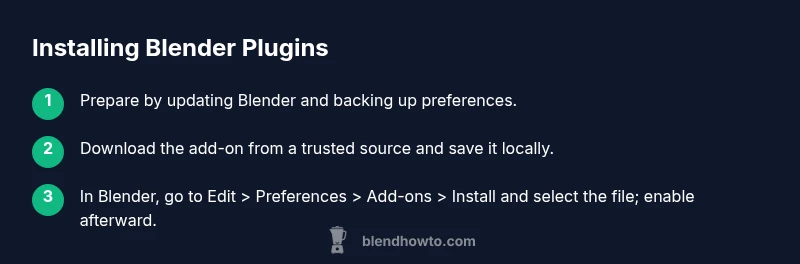
To install Blender plugins, download the add-on (usually a .zip or .py file), then install it from Blender's Preferences: Edit > Preferences > Add-ons > Install, select the file, and enable the plugin by ticking its box. Some plugins require a restart or additional setup in the Add-ons preferences. Always verify compatibility with your Blender version.
What is a Blender plugin/add-on and why it matters
Blender plugins, also called add-ons, are small Python modules that extend Blender’s core capabilities. They can automate repetitive tasks, add new import/export formats, or provide advanced modeling, shading, or animation tools. Understanding where to install Blender plugins is the first step to leveraging their power without breaking your setup. According to BlendHowTo, choosing add-ons from reputable sources reduces compatibility surprises and keeps your projects stable. Add-ons typically integrate into Blender’s interface as new panels, operators, or shortcuts, appearing in the 3D View, Shader Editor, or Timeline, depending on their function. Because plugins are scripts, they share Blender’s philosophy of extensibility: you can tailor the toolkit to your workflow without altering Blender’s base code. The key is to treat plugins as enhancements, not dependencies; install only what you will use and keep a clean, organized workspace to avoid clutter and performance hits.
Tools & Materials
- Blender software (latest stable release)(Ensure version is compatible with plugin system (2.8+).)
- Trusted plugin/add-on file (.zip or .py)(Download from official author pages or reputable repositories.)
- Internet connection(For downloading plugins and updates.)
- Zip extractor (built-in or third-party)(Needed if you download ZIP packages.)
- Blender Preferences window(To install and enable add-ons from within Blender.)
- Backup of existing preferences(Useful before major plugin changes.)
Steps
Estimated time: 30-60 minutes
- 1
Prepare Blender and plugins
Before adding plugins, update Blender to the latest stable release and back up your preferences. This reduces the risk of conflicts if an add-on relies on newer API features. Confirm you have the source and version compatibility for the plugin you intend to install.
Tip: Create a quick copy of your current preferences to restore if something goes wrong. - 2
Download a trusted plugin
Choose plugins from reputable sources and save the archive or Python file in a dedicated folder. Avoid zip files from unknown sites. Read the plugin’s documentation to understand any Python dependencies or asset packs.
Tip: Prefer official or well-reviewed repositories to limit security risks. - 3
Install the plugin in Blender
Open Blender, go to Edit > Preferences > Add-ons > Install, and select the downloaded file. Blender will place the add-on into the addons directory and refresh the list. If you install a single PY file, Blender treats it as a one-file add-on.
Tip: If ZIP, Blender will extract contents automatically during install. - 4
Enable and configure the add-on
Find the new add-on in the Add-ons list and tick the checkbox to enable it. Some plugins add their own tab or panel for configuration; adjust settings to suit your workflow. Save preferences to ensure it loads on startup.
Tip: Restart Blender if the add-on requires post-install initialization. - 5
Test the plugin in a safe project
Create a small test scene to verify the add-on’s basic functions. Check for performance issues, UI glitches, or conflicts with other active plugins. Document any quirks for future reference.
Tip: Test with a simple file to avoid risking a production project. - 6
Troubleshoot common issues
If the plugin doesn’t appear or behaves oddly, check version compatibility, inspect console messages, and look for missing dependencies. Disable other plugins one by one to identify conflicts, and consult the plugin’s issue tracker.
Tip: Keep a minimal, reliable plugin set to reduce troubleshooting time.
Frequently Asked Questions
What is the difference between a Blender plugin and an add-on?
In Blender, a plugin and an add-on refer to the same concept: an external script or package that extends Blender’s functionality. Add-ons usually come with a user-friendly interface and are managed via the Preferences panel. Plugins is a broader term used interchangeably in many communities.
A Blender add-on is a plugin that extends features; you enable it in Preferences and configure it from there.
Where do I find and install add-ons in Blender?
Add-ons are managed in Blender’s Preferences under the Add-ons tab. Use the Install button to load a ZIP or PY file, then enable the add-on by ticking its checkbox. Some add-ons appear as new panels or tabs once enabled.
Open Edit > Preferences > Add-ons, install, then enable the add-on.
Can I install multiple plugins at once?
Blender allows multiple add-ons to be installed and enabled simultaneously. There’s no single bulk install button, but you can install one after another using the Install option, then enable each one in the Add-ons list. Avoid enabling plugins with overlapping features to prevent conflicts.
Yes, you can install and enable several add-ons, but test for conflicts.
Why doesn’t an installed plugin appear in the Add-ons list?
If a newly installed add-on doesn’t show up, try refreshing the Add-ons panel, ensure you installed the correct version for your Blender release, or check for a separate configuration file. Some plugins require a restart after installation.
If it’s not visible, refresh the list and restart Blender if needed.
Do I need to restart Blender after installing plugins?
Many plugins work after a simple enable, but some require a restart to complete the integration. If you don’t see a new panel or options after enabling, try closing and reopening Blender.
Often a restart is needed for full integration.
Are there security risks when installing Blender plugins?
Yes. Install only from trusted sources, review plugin reviews or release notes, and run plugins in a test project before using them in production. Keep malware risk in mind and maintain up-to-date security software.
Only download from trusted sources and test plugins before using them in important work.
Watch Video
What to Remember
- Install from Blender Preferences to ensure proper integration
- Always verify plugin compatibility with your Blender version
- Back up preferences before major plugin changes
- Test new plugins in a safe project before production
- Keep plugins organized to simplify maintenance