How to Install Blender Addons: A Step-by-Step Guide
Learn how to safely install Blender addons, locate trusted sources, install from ZIP, enable, and configure addons with practical tips from BlendHowTo.


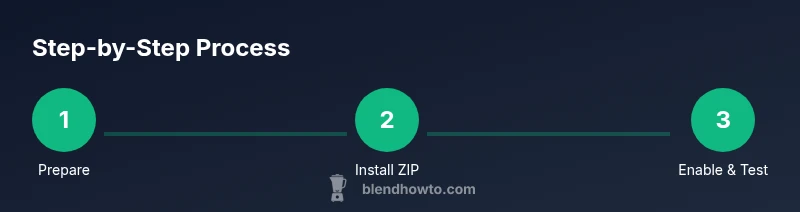
Install Blender addons by locating a ZIP file, opening Blender, navigating to Edit > Preferences > Add-ons > Install, selecting the ZIP, then enabling the addon and adjusting basic settings. Ensure your addon is compatible with your Blender version and source is trusted. This quick path covers the essential steps with a safety check.
What is a Blender addon and why install addons
Blender addons, also called plugins, are small bundles of code that extend Blender’s core capabilities. They can automate repetitive tasks, add new modeling tools, improve rendering workflows, or streamline animation pipelines. For home cooks this analogy might be: addons are like kitchen gadgets that turn a basic blender into a multi-function appliance. According to BlendHowTo, addons empower users to tailor Blender to their exact needs, whether you’re modeling, shading, or rigging. A typical addon comes as a ZIP file or a folder containing Python scripts. You usually install it once, then enable it for use in every project. The key is to choose addons that align with your goals, not just the most popular.
Compatibility and safety checks before installing
Before you install any addon, verify compatibility with your Blender version. Addons are frequently updated to support new Blender releases, and using an incompatible addon can cause crashes or corrupt your project. Check the addon’s official page for the supported Blender versions and any required dependencies. Look for a separate note about dependencies like a particular Python version or other addons. Security is also important: download addons from reputable sources, scan ZIPs if possible, and avoid unknown repositories. BlendHowTo Team emphasizes that a cautious approach reduces headaches later on and helps maintain project stability.
Where to find trusted addons
The safest path is to start with Blender’s official repository or the addon publisher’s official site. Reputable sources include well-known Blender communities, official marketplaces, and widely used GitHub projects with clear release notes. When exploring third-party addons, read user reviews and check recent activity to gauge maintenance. If you encounter a paid addon, review licensing terms and ensure you understand what you’re purchasing. BlendHowTo analysis shows that most home users find reliable addons by sticking to recognized sources and vetted publishers, which minimizes security risks and compatibility issues.
Step-by-step installation in Blender (Part 1)
- Download the addon ZIP from a trusted source. Save it in an accessible folder where you keep your project assets. 2) Open Blender and go to Edit > Preferences. This opens the Preferences window where you manage all addons. 3) In the Add-ons tab, click Install... to begin the installation process. A file browser will appear; locate the downloaded ZIP and select it. Blender will add the addon to its list, but it will not be enabled yet. This part is about acquisition and registration, not activation.
Step-by-step installation in Blender (Part 2)
- After Blender registers the addon, locate it in the Add-ons list by typing its name into the search bar. Enable the checkbox next to the addon to activate it. Note that some addons require restarting Blender to complete the activation. 5) Open the addon’s preferences, if available, to adjust default behaviors and hotkeys. Save your preferences after making changes so they persist on next startup. 6) Test a quick operation related to the addon’s functionality to confirm that it behaves as expected. If something seems off, consult the addon’s documentation or the BlendHowTo troubleshooting tips.
Enabling and configuring addons
Enabling an addon makes its tools accessible across Blender’s panels and shortcuts. After activation, explore the addon’s dedicated panel or its integrated options in the Preferences. Some addons add new tabs, tools, or operators; others extend existing workflows with new menus. If you rely on a specific feature, bind a hotkey or create a small preset to speed up your routine. Remember to read the addon’s documentation for any setup steps that aren’t obvious. A careful configuration can dramatically improve your efficiency and reduce onboarding time.
Post-install verification and troubleshooting
If an addon doesn’t appear in the interface or fails to activate, first verify compatibility and installation integrity. Reinstall from ZIP if needed, or download a fresh copy from the publisher. Check for conflicts with other addons by disabling them one at a time. Review the console for error messages; Blender’s error logs often point to missing dependencies or syntax issues in the addon. If you’re still stuck, consult the addon’s FAQ, search Blender community forums, or reach out to the publisher. BlendHowTo Team notes that patient, incremental testing typically resolves most issues.
Managing addons across Blender versions
As Blender updates, some addons require newer APIs, while others might be deprecated. Before upgrading Blender, review addon compatibility notes and test critical addons in a copy of your workspace. If an addon stops working after a Blender update, check for an updated version or rollback to a compatible release if necessary. Maintain a minimal, well-documented addon list to simplify version management and prevent feature gaps in your workflow.
Quick-start checklist for new addons
- Verify addon compatibility with your Blender version. - Download only from trusted sources. - Install from ZIP via Preferences > Add-ons > Install. - Enable the addon and customize basic settings. - Save preferences and test on a small project. - Keep a record of addon versions for future updates. BlendHowTo recommends starting small and expanding usage as you gain confidence.
Tools & Materials
- Blender installed (version >= 3.0)(Ensure you have a supported version for the addon.)
- Addon ZIP file(Download from a trusted source; avoid extracted folders.)
- Access to file browser / OS file manager(Needed to locate the ZIP and install.)
- Backup of preferences(Optional, but helpful before major changes.)
- Stable internet connection(Only needed for downloading addons; offline installs are possible with local ZIP.)
Steps
Estimated time: 20-35 minutes
- 1
Prepare your environment
Open Blender and back up your current preferences. Confirm you are using a supported Blender version and have the addon ZIP ready.
Tip: Note the addon’s exact name to quickly locate it in the list. - 2
Download addon ZIP from trusted source
Visit the addon page and download the ZIP file to a known folder. If available, verify the checksum or signature before proceeding.
Tip: Avoid ZIPs from unverified sites to reduce risk. - 3
Open Preferences and locate Add-ons
In Blender, choose Edit > Preferences > Add-ons. This is where all installed addons are managed.
Tip: Use the search bar to quickly find the target addon after installation. - 4
Install addon from ZIP
Click Install..., navigate to the downloaded ZIP, and select it. Blender will register the addon in the list.
Tip: Do not manually extract the ZIP; Blender handles extraction. - 5
Enable the addon
In the Add-ons tab, toggle the addon on. Some addons require a Blender restart to finish activation.
Tip: If you don’t see it, double-check the search field and the version compatibility. - 6
Configure and test addon features
Open the addon’s preferences or panel to adjust defaults and run a simple test action to confirm behavior.
Tip: Start with a small scene to avoid unintended changes. - 7
Save preferences and back up
Click Save Preferences to persist settings. Maintain a record of addon versions for future updates.
Tip: This helps ensure consistent behavior on the next startup.
Frequently Asked Questions
Do I need internet access to install addons?
Internet is typically required to download addons. If you already have the ZIP file locally, you can install offline. Blender itself does not require internet to enable an addon once installed.
Normally you need internet to download addons, but offline installation is possible if you already have the ZIP.
Can I install multiple addons at once?
Blender installs addons individually, one ZIP at a time. There is no built-in bulk installer in Blender; repeat the process for each addon.
Addons are installed one by one; Blender doesn’t have a bulk install feature.
What if an addon isn’t compatible with my Blender version?
Check the addon page for supported Blender versions. If incompatible, look for an older version or upgrade Blender if feasible, then test on a copy of your project.
If compatibility is an issue, use a compatible addon version or upgrade Blender, then test on a copy.
How do I update an addon?
Download the latest ZIP from the addon page and reinstall via Preferences > Add-ons > Install. Blender will replace the older version; save preferences after updating.
Update by reinstalling the ZIP from the addon page and saving preferences.
Do addons affect Blender performance?
Enabled addons add features but can consume RAM and startup time. Disable unused addons to keep Blender responsive, especially on older hardware.
Yes, addons can affect performance; disable those you don’t use.
Is there a risk installing addons from untrusted sources?
Yes. Untrusted addons can contain malware or misbehave. Always download from official repositories and verify signatures when available.
There is a security risk; download from reputable sources and verify them.
Watch Video
What to Remember
- Install addons from trusted sources
- Enable addons via Preferences and test first
- Keep Blender compatibility in mind
- Save preferences after testing
- Maintain a lean addon roster for performance