Blender 3D Animation: A Practical Step-by-Step Guide
Learn a complete Blender 3D animation workflow from planning to rendering. This educational guide covers planning, modeling, rigging, keyframes, timing, lighting, and export so you can create polished, production-ready animations.


You will learn a practical end-to-end workflow for blender 3d animation, from planning and blocking to rigging, keyframing, timing, and rendering. Expect hands-on steps: sketch a brief storyboard, set up a scene in Blender, create poses with keyframes, refine motion curves, and export a polished render. This guide emphasizes approachable, repeatable techniques.
What is Blender 3D Animation?
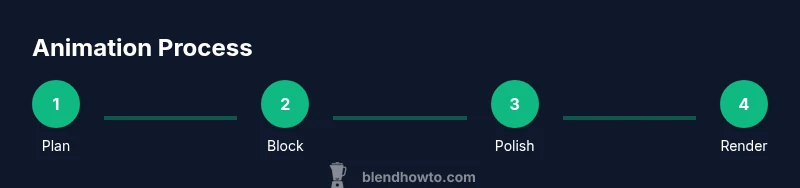
Blender 3D animation is the process of creating motion in a 3D scene using the Blender software. It combines modeling, rigging, and simulation with a timeline and graph editor to produce fluid, believable movements. The pipeline typically includes planning, blocking, fine-tuning, lighting, rendering, and compositing. BlendHowTo's approach emphasizes practical, repeatable workflows that balance creative experimentation with reliable methods.
Core Concepts You Need to Master
At its core, blender 3d animation relies on keyframes, curves, and timing. A keyframe records a moment in a property (position, rotation, scale). The Graph Editor lets you shape the interpolation between keyframes for natural motion. Understanding easing, overshoot, and hold frames helps you craft motion that reads clearly. Always work with a clean, organized timeline and label your actions clearly.
Pre-production: Planning and Storyboarding
Successful animation starts with a plan. Create a short storyboard or shot list that outlines the motion beats, camera angles, and timing. In blender 3d animation, you can sketch key poses on sticky notes or simple drawings and map them to frames. This planning saves time during blocking and prevents scope creep as you progress.
Setting Up Your Scene in Blender
Begin by configuring units, frame rate, and project organization. Import reference images, set up a camera, and place lights that match your intended mood. A clean scene with named objects and organized collections makes the workflow smoother and reduces errors during modeling, rigging, and animation. This preparation is essential for efficient blender 3d animation.
Blocking and Posing: The Foundation of Motion
Start with broad poses that convey the arc of the motion. Use simple shapes or the final meshes to block the key stages in your shot. Ensure the character's center of gravity and silhouette read well from the chosen camera angles. Blocking sets the stage for precise timing and expressive performance in blender 3d animation.
Rigging and Deformation: Making Motion Possible
If you’re animating characters, set up a rig that allows natural deformation. Weight painting, bone constraints, and IK/FK switching are common techniques. A good rig reduces unwanted deformations and accelerates the animation process. In blender 3d animation, a robust rig is the difference between stiff motion and believable performance.
Timing, Curves, and Graph Editor: Fine-Tuning Motion
The Graph Editor is where timing comes alive. Adjust interpolation curves to create smooth arcs, consistent spacing, and appropriate easing. Small tweaks in timing can dramatically improve readability and perception of weight. Regularly scrub the timeline to catch timing issues early in blender 3d animation.
Lighting, Materials, and Camera: Enhancing Perception
Lighting shapes mood and depth. Use three-point lighting as a baseline and then refine with color temperature and shadows. Material roughness and specular highlights affect realism. Camera moves, focal length, and depth of field add cinematic quality to blender 3d animation.
Rendering, Compositing, and Exporting Your Animation
Choose a render engine (Cycles or Eevee) based on quality and speed needs. Test renders at reduced resolution before final export. Compositing nodes can fix color, glow, and depth passes. Export formats and codecs should match your distribution plan, whether for web, film, or virtual reality, in blender 3d animation.
Common Pitfalls and How to Fix Them
Overly busy timing, flat lighting, or poor rigging can ruin a shot. Keep scenes simple, plan key poses, and test frequently. Use reference footage to compare motion and employ incremental saves to protect your work. These habits help you troubleshoot blender 3d animation efficiently.
Practice Projects and Next Steps
Start with short, self-contained scenes—like a character wave or a bouncing ball—to reinforce the basics. Gradually introduce rigging, camera moves, and lighting. Join community challenges and study other artists’ work. With consistent practice, blender 3d animation skills improve steadily.
Tools & Materials
- Blender software(Download from blender.org; latest stable release)
- A computer with sufficient specs(Modern CPU/GPU, adequate RAM, stable OS)
- Storyboard references(Sketches or shot lists to guide planning)
- External storage or cloud backup(Back up assets and projects)
- Graphics tablet (optional)(Helpful for posing and sculpting details)
- Reference imagery(Images of poses, lighting, and textures)
- Input devices (mouse/keyboard)(Precision input and shortcuts)
- Screen capture / recording tool(Record your playback and notes)
Steps
Estimated time: 6-10 hours
- 1
Define goals & storyboard
Clarify the shot's purpose, mood, and timing. Create a simple storyboard or shot list mapping beats to frames.
Tip: Lock the core idea early to guide all subsequent steps. - 2
Prepare Blender project
Set frame rate, units, and file organization. Import references and set up a clean scene with named objects.
Tip: Enable autosave and use incremental saves to protect progress. - 3
Block key poses
Pose the main frames to establish motion arcs. Keep silhouettes clear and ensure the main beats read from the camera.
Tip: Block with broad strokes before worrying about fine detail. - 4
Rig or import assets
Create or apply a rig for characters; ensure proper deformation and control. Test IK/FK transitions.
Tip: Aim for a robust rig that minimizes tweaking later. - 5
Refine timing in Graph Editor
Adjust curves for natural easing and consistent pacing. Iterate by scrubbing the timeline and previewing playback.
Tip: Small curve tweaks lead to big motion improvements. - 6
Polish lighting & materials
Set up lights to enhance depth and mood; adjust material roughness and reflections for realism.
Tip: Use a few key light sources and avoid over-lit scenes. - 7
Add camera movement
Introduce a subtle camera path or dynamic focus to guide viewer attention.
Tip: Keep camera motion smooth; avoid sudden jolts. - 8
Render tests & adjust
Render low-res previews to verify angles, timing, and shading. Tweak as needed before final render.
Tip: Test multiple angles to ensure clarity of motion. - 9
Final render & export
Render final sequence at target resolution and export in the desired format. Back up the project.
Tip: Choose a codec that preserves color depth and avoids artifacts. - 10
Review & iterate
Watch the complete animation critically; note adjustments for future shots or episodes.
Tip: Document settings for reproducibility.
Frequently Asked Questions
What defines blender 3d animation?
Blender 3D animation is the process of creating motion in a 3D scene using Blender, including modeling, rigging, keyframing, lighting, and rendering. It combines artistic decisions with technical steps to produce moving imagery.
Blender 3D animation is moving 3D scenes using Blender’s tools—modeling, rigging, keyframes, lighting, and rendering.
Do I need to model characters before animating?
Not always. You can animate simple shapes, or import pre-rigged models. For learning, start with basic objects and progress to characters as you gain confidence.
You can start with simple shapes or pre-rigged models before tackling complex character rigs.
What is the difference between keyframes and curves?
Keyframes store values at specific frames; curves define how those values interpolate between frames. Editing curves allows precise control over motion timing and easing.
Keyframes set values, curves control how those values interpolate between frames.
Which Blender version should I use?
Use the latest stable Blender release to access new features without experimental instability. Update regularly to benefit from bug fixes and performance improvements.
Stick with the latest stable Blender release for reliability and new features.
How long does it take to learn Blender animation?
Learning Blender animation depends on practice. Start with small projects and gradually add complexity as you gain confidence.
It takes time and practice; start small and build up skills gradually.
What are common pitfalls?
Common issues include overcomplicated timing, poor lighting, and inadequate rigs. Plan, test often, and study reference motion to avoid these traps.
Common pitfalls include bad timing and lighting; test and learn from references.
Watch Video
What to Remember
- Plan first, then animate
- Block poses before refining motion
- Use the Graph Editor for timing
- Test renders early and often
- Keep rigs clean and well-named