Blender 3D Animation Maker: A Practical Guide for Beginners
Master Blender's animation workflow with a practical, step-by-step guide covering setup, modeling/imports, rigging, keyframing, lighting, rendering, and exporting your final animation.


With Blender, you will learn to plan, model or import a scene, rig characters, animate with keyframes, and render a polished sequence. This guide covers a complete workflow for creating a Blender 3D animation maker—from project setup to exporting share-ready video. You’ll need Blender installed, basic modeling knowledge, and a simple project to practice.
What is a Blender 3D Animation Maker?
A Blender 3D animation maker refers to using Blender to produce moving visuals, from a simple object slip to fully modeled characters performing actions. In this guide we treat Blender as a complete animation tool, guiding you from project setup through blocking, keyframing, lighting, and final render. Blender's interface, animation curves, and render engines (Eevee and Cycles) work together to deliver finished sequences. BlendHowTo's community notes that beginners can achieve meaningful results by focusing on a handful of core steps rather than chasing perfection early on. This approach makes Blender approachable for home cooks who want to visualize processes and for hobbyists exploring 3D motion with confidence.
Why Blender Is a Popular Choice for Animators?
Blender is open-source, free, and packed with features for modeling, rigging, animation, and rendering. For the blender 3d animation maker, the live viewport, robust animation tools, and cross-platform workflow reduce barriers to entry. The Dope Sheet, Graph Editor, and non-linear animation capabilities let you manage timing precisely. The community-produced tutorials and official documentation provide a steady learning path. According to BlendHowTo, its consistency, regular updates, and strong YouTube tutorials make it a reliable starting point for hobbyists and aspiring artists alike.
Core Concepts You'll Master
To build convincing animations, you’ll master several core concepts:
- Keyframes: set start and end poses for objects and characters.
- Interpolation: how Blender fills the frames between keyframes (linear, Bezier, etc.).
- Rigging: creating an armature to move a character.
- Constraints: controlling motion with parent-child relationships and drivers.
- Timing and spacing: the rhythm of motion.
- Rendering: outputting your animation to video or image sequences.
As you practice, use short, repeatable exercises to cement these ideas. BlendHowTo suggests starting with a simple object and one or two keyframes to understand the basics before progressing to full rigs.
Setting Up Your Blender Project for Animation
Begin by creating a dedicated folder structure for your project. In Blender, set your frame rate (e.g., 24 or 30 fps) and resolution, then save a baseline file with a descriptive name. Use collections to organize scene elements, and enable autosave or set a reminder to back up frequently. Establish a project guide: a rough storyboard or a few reference images that define your motion goals. Customize the viewport workspace for animation (Timeline, Dope Sheet, Graph Editor) so you can switch between editing motion and refining poses quickly. Remember to save your work before major edits and set a clear output path for renders to avoid file confusion later.
Modeling vs Importing: Choosing Your Path
Your Blender animation workflow can begin with your own models or imported assets. If you’re building a quick concept, start with simple primitives and evolve toward detailed assets. For character work, you may model a basic form or import rigged assets from online resources and adjust to suit your scene. Consider the project scope, deadline, and hardware when deciding: modeling from scratch gives full control but takes longer; importing assets speeds up the process but requires compatible formats and careful rigging alignment. Organize imported items into dedicated collections and check scale consistency to prevent surprises during animation playback.
Rigging and Posing for Animation
Rigging provides the skeletons that drive motion. In Blender, an Armature with bones allows you to pose characters efficiently. Start with a simple rig: a root bone for movement, a pelvis, limbs, and a head. Parent mesh objects to the bones and use inverse kinematics (IK) for intuitive posing, especially for limbs. Create control bones to simplify animation workflows, and use constraints to keep parts in expected relations (e.g., hands staying connected to a forearm). Test poses in various frames to verify that deformations look natural when animated. Regularly save different rig variants so you can experiment without losing a working setup.
Keyframing Essentials: Timing, Interpolation, and Easing
Keyframes are the core of any Blender animation maker workflow. Place keyframes for location, rotation, and scale at critical frames to define a motion arc. Explore interpolation types in the Graph Editor: Bezier for smooth motion, Linear for constant speed, and Constant for abrupt changes. Practice easing in and out to avoid robotic movement, which makes motion feel more natural. Use hold keyframes for momentary pauses where appropriate. Remember to scrub the timeline and adjust timing to ensure your action reads clearly to the viewer.
Using the Timeline and Dope Sheet Efficiently
The Timeline gives you a quick view of all keyframes, while the Dope Sheet provides an overview of the timing across objects. Use the N-panel to set snap and keyframe steps, and enable auto-keying for steady progress. Group related actions by object in the Dope Sheet and Graph Editor to refine pacing without disturbing unrelated motion. Pro tip: switch to the Graph Editor for fine-tuning curves and to fix overshoot or jitter in transitions. Regularly save snapshots of milestone animations to compare pacing over multiple revisions.
Lighting, Materials, and Rendering for Animated Scenes
Lighting defines mood and readability in animation. Start with simple three-point lighting and adjust color temperatures to suit your scene. For fast previews, use Eevee, while Cycles offers more accurate rendering at the cost of time. Balance materials for motion by avoiding extreme roughness that hides details and ensuring reflective surfaces respond to motion in a believable way. Render settings should emphasize the final output format: for quick drafts, a lower resolution and fewer samples reduce iteration time; for final renders, increase samples and consider denoising for clean images. Always perform test renders to verify consistency across frames.
Common Animation Pitfalls and How to Fix Them
Common issues include jerky motion, unnatural timing, and floating or clipping. Jerky motion often stems from improper timing between keyframes or overshooting with interpolation. Fix by adding more keyframes and adjusting curves in the Graph Editor. Gimbal lock can cause unexpected rotations; avoid it by switching to quaternion rotations or by reorienting your bone axes. Overlapping actions may lead to scene clutter—use collections and clear naming to stay organized. If lighting changes during a sequence, ensure consistent light paths or bake lighting for stable frames.
Exporting and Sharing Your Blender Animations
When you’re ready to share, choose an output format that suits your audience. For quick sharing, export as a video file (MP4) using a compatible container and settings in the Output Properties. If you need flexibility for post-production, render as an image sequence (PNG or EXR) and composite in a video editor. Keep file naming consistent, document your render passes (diffuse, shadow, ambient occlusion), and embed basic metadata. Consider uploading to Blender-specific communities and sharing a short reel to showcase your progress.
A Simple Project Walkthrough: 5-Second Scene
Plan a tiny scene: a ball rolling across a plane, with a subtle bounce at the end. Model or import a ball and a ground plane, then create a simple armature if you want to test a basic character. Set keyframes for the ball’s X-translation, add a slight rotation on contact with the ground, and insert a final pose to stop the ball. Adjust the animation curve for natural acceleration and deceleration. Render a test sequence at 24 fps to verify motion, lighting, and shadow quality. This small project solidifies all the basics and gives you a repeatable template for future work.
Next Steps: Learning Paths and Resources
Continue by building a structured practice plan: start with fundamental shapes, progress to simple characters, then to a short storyboard-driven scene. Use Blender’s official docs for core workflows, then supplement with curated tutorials from trusted channels and courses. Create a personal repository of projects to track improvement, and participate in community challenges to expose your work to feedback. Over time, you’ll gain proficiency in modeling, rigging, animation, lighting, and rendering—your Blender animation maker skills will mature through consistent practice.
Tools & Materials
- Blender software (latest stable release)(Download from blender.org; use the latest LTS or stable build for reliability.)
- A computer with a capable GPU(A dedicated GPU helps with viewport performance and render previews.)
- Keyboard and mouse for precise keyframe control(Numpad can be handy for navigation; customize hotkeys as needed.)
- External storage or cloud backup(Back up projects regularly to prevent data loss.)
- Reference images or concept art(Use for modeling guidance and animation planning.)
- Screen recording or review software(Useful for sharing progress or creating learning materials.)
Steps
Estimated time: 6-8 hours
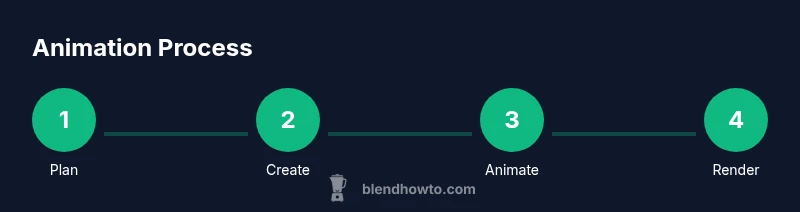
- 1
Plan your animation
Define the concept, create a quick storyboard or shot list, and set a target frame count. Decide which assets are needed and sketch the motion beats you want to achieve. This planning minimizes changes during later stages and keeps your workflow focused.
Tip: Write a one-sentence goal for the scene to guide decisions. - 2
Set up your Blender project
Open a new file, set frame rate (e.g., 24 fps) and resolution, and organize your workspace with relevant editors (Timeline, Dope Sheet, Graph Editor). Save the file with a descriptive name and create a dedicated folder structure for assets and renders.
Tip: Save early and enable autosave to guard against crashes. - 3
Create or import your assets
Model the required shapes or import pre-made assets that fit your scene. Ensure proper scale and alignment, group objects into Collections, and assign simple materials to visualize motion.
Tip: Keep a clean asset hierarchy to simplify animation later. - 4
Rig and pose characters
If you’re animating a character, create an Armature with bones, parent the mesh, and test an initial pose. Use IK for limbs to simplify motion and set up control bones for easier adjustments.
Tip: Test poses across multiple frames to check deformation. - 5
Animate with keyframes
Insert keyframes for position, rotation, and scale at crucial frames. Use the Timeline to plan timing and switch between different interpolation modes to achieve smoother motion.
Tip: Use auto-keying sparingly to avoid unintended edits. - 6
Refine motion with curves
Open the Graph Editor to adjust easing and curve tangents. Smooth out abrupt changes by tweaking handles, and ensure pacing matches the storyboard.
Tip: Play back frequently to catch odd spikes or jitters. - 7
Set lighting and materials
Add basic lighting to highlight motion and define space. Adjust materials to respond to light and avoid over-saturation that masks motion details.
Tip: Use a simple three-point setup for clarity. - 8
Render and review
Render a low-resolution preview to check timing, lighting, and motion fidelity. Iterate on issues, then render at final resolution with higher samples and denoising as needed.
Tip: Render tests at 50% scale before final runs.
Frequently Asked Questions
What is the easiest way to start an animation in Blender?
Begin with a simple scene and keyframing. Create a moving cube or sphere to learn the basics of location, rotation, and scale. Build confidence before modeling complex characters.
Start with a simple scene and basic keyframes to learn the workflow.
Is Blender suitable for short film animation?
Yes, Blender can handle short films; many indie projects use Blender for animation, lighting, and rendering, with pipelines that fit hobbyists and students.
Blender works great for short films.
Can Blender do 2D animation?
Yes, using Grease Pencil you can create 2D animation within Blender, alongside 3D content for hybrid projects.
Blender can do 2D animation with Grease Pencil.
What hardware do I need for Blender animation?
A mid-range GPU and 8-16 GB RAM cope with most tasks; complex scenes benefit from more memory and a faster CPU.
A mid-range GPU with ample RAM usually works well.
What is the difference between Eevee and Cycles for animation?
Eevee is real-time and fast for previews, while Cycles offers more realistic lighting at higher render times; use Eevee for drafts, Cycles for final renders.
Eevee is faster; Cycles is more lifelike.
Where can I find quality Blender tutorials?
Check official Blender docs, Blender Guru, and CG Cookie for structured courses; YouTube channels and user guides provide practical tips.
Blender's official docs and popular channels offer solid tutorials.
Watch Video
What to Remember
- Plan before modeling or animating
- Master keyframes and timing
- Organize assets with collections
- Render in passes for flexible post-editing
- Practice consistently to improve speed and quality