Movie Production in Blender: A Practical How-To
Learn to plan, model, animate, render, and compose a complete movie in Blender with a practical, beginner-friendly workflow. This guide covers tools, steps, and best practices to deliver a polished final film.


With Blender you can create a complete short movie: plan your storyboard, model and rig characters, design environments, animate, simulate physics, and render with the built-in compositor. This guide provides a step-by-step workflow from preproduction to final render, plus tips for organizing assets, batching renders, and exporting a polished final movie file.
Why movie in blender matters
Blender functions as an all-in-one studio for producing a movie in blender. It combines modeling, sculpting, shading, rigging, animation, physics, rendering, and a modern compositor in a single, open-source package. For hobbyists, students, or indie creators, this means you can take a concept from script to screen without switching tools. According to BlendHowTo, Blender’s integrated toolchain reduces context switching and speeds up iteration cycles, helping you stay focused on storytelling rather than software juggling. When you commit to a movie in blender workflow, you can plan, create, and review within the same file ecosystem, which improves consistency and accelerates learning. In addition, the active Blender community provides tutorials, add-ons, and asset libraries that lower barriers for beginners while still offering depth for seasoned animators. This makes Blender a practical choice for producing a full cinematic piece on a home workstation.
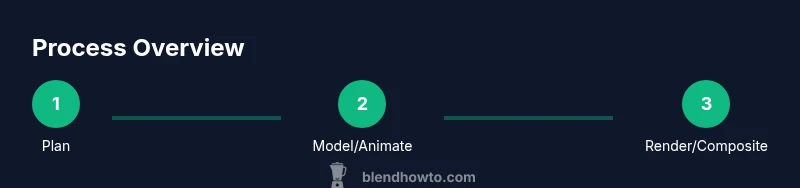
As you start, remember that realism in a movie in blender comes from deliberate planning, a clear style, and modular assets you can reuse. Your decision to work inside Blender should be guided by your goals: a short student film, a proof-of-concept for a class, or a personal passion project. This article assumes you want to reach a quality you can share publicly, whether on YouTube, a film festival, or a portfolio site. The basic premise remains the same: plan, model, light, animate, render, and compose in a tight, repeatable pipeline.
BlendHowTo’s approach emphasizes a practical balance between ambition and manageability. Start with a simple story, keep the scope realistic, and build reusable assets you can adapt for future projects. If you’re unsure about your first steps, begin with blocking a few key scenes to test timing and visual language before expanding to a full storyboard. A movie in blender thrives when you maintain momentum and keep your project accessible, organized, and aligned with your storytelling goals.
note
Tools & Materials
- Computer with Blender installed(Recommended: 8-core CPU, 16 GB RAM, GPU with 4+ GB VRAM; ensure you have the latest stable release.)
- External storage for assets(SSD preferred for faster read/write and easier asset management.)
- Storyboard references and script(Organize in folders; include shot list and mood boards.)
- Drawing tablet (optional)(Helpful for sculpting, texture painting, and fast blocking.)
- Audio assets and music licenses(Ensure licenses if you plan to publish widely.)
- Monitor with color calibration(Crucial for consistent color across renders.)
- Camera rigs or prop references(Useful if you integrate practical footage or reference.)
Steps
Estimated time: Estimated total time: 6-12 hours
- 1
Plan the story and shot list
Define your story arc, key moments, and shot angles. Create a shot list, storyboard panels, and a rough timetable for asset creation, blocking, and final render passes. This preproduction step anchors the entire movie in blender to prevent scope creep and slowdowns.
Tip: Keep the scope modest for your first project; 3–5 strong moments are better than a sprawling epic. - 2
Model characters and assets
Model the main characters, props, and environments needed for the opening act. Use simple topology for animation-friendly geometry and build a reusable asset library for future scenes. Organize assets by folder and give each item a clear, descriptive name.
Tip: Create low-poly proxies for blocking to speed up your early animations. - 3
Rig and skin characters
Create rigs for main characters with intuitive controls. Bind skinning to maintain deformations during movement, and set up basic constraints to simplify animation passes. A solid rig saves hours of tweaking in later steps.
Tip: Test deformations with quick posing to catch topology issues early. - 4
Block out animation and camera
Animate key poses for action beats and establish camera moves. Use simple shapes to block timing before refining in detail. Early camera work helps you judge pacing and storytelling rhythm.
Tip: Block in 2–3 important beats per scene to guide the final animation flow. - 5
Polish motion and timing
Refine keyframes with the Graph Editor, easing curves, and timing adjustments. Add subtle facial expressions and body language to convey character intent without overpowering the shot.
Tip: Use per-face shape keys sparingly to convey essential emotion. - 6
Lighting, shading, and mood
Set up a lighting scheme that supports mood, readability, and storytelling. Create materials with consistent PBR workflows and test renders to check color accuracy and shadow quality.
Tip: Render an occasional frame in low resolution to preview lighting fast. - 7
Render passes and compositing
Render multiple passes (diffuse, specular, shadows, ambient occlusion, depth). Use Blender’s Compositor to combine passes, color correct, and apply stylization or filmic grading.
Tip: Keep render settings moderate during blocking; escalate quality in early final passes. - 8
Audio, lip-sync, and timing
Sync dialogue and sound effects to action. Import music or sound effects, align lip-sync where needed, and prepare cues for editing in the Video Sequence Editor.
Tip: Use reference audio for timing until final voice recordings are ready. - 9
Final render, edit, and export
Do a final pass on color, timing, and pacing. Export a final movie file or a sequence suitable for festival submission or streaming. Archive assets and document decisions for future projects.
Tip: Render in passes first; then assemble in the editor to ensure you can adjust any element quickly.
Frequently Asked Questions
What does 'movie in blender' mean for beginners?
A movie in blender is a short film created entirely within Blender, from concept and layout to modeling, animation, rendering, and post-production. It emphasizes a pipeline that keeps all assets and passes in one environment. Beginners should start with a small, clear project.
A Blender-based film is a short project created from idea to final render inside Blender. Start small and learn the full pipeline step by step.
Do I need professional equipment to start a Blender movie?
No. A capable computer, Blender installed, and a clear plan are enough to begin. As you progress, you can add peripherals like a drawing tablet or better monitors, but they are optional for learning the basics.
You don’t need fancy gear to begin. A decent computer and Blender are enough to start the learning process.
How long does it take to finish a short film in Blender?
Time varies with scope, but a small 1–2 minute project could take several days to a few weeks depending on experience and assets. Plan, block, and render incrementally to stay on schedule.
It depends on scope. A short film can take days to weeks; build small milestones and render often to track progress.
Can Blender replace all external tools in a movie pipeline?
Blender covers modeling, animation, rendering, and basic post-processing. Some studios still mix external tools for audio, advanced compositing, or specialized effects, but Blender can handle core workflows for many indie projects.
Blender can handle the core parts, but some studios still use other tools for specific tasks.
Is lip-sync and dialogue editing possible entirely in Blender?
Yes, you can animate lips and edit basic dialogue in Blender’s Video Sequence Editor or using shape keys. For professional sound design, many creators pair Blender with dedicated audio software.
Yes, basic lip-sync and dialogue work can be done in Blender, but you may prefer dedicated audio tools for complex projects.
Watch Video
What to Remember
- Plan first, then model to save time
- Maintain an asset library for reuse
- Block scenes before polishing details
- Render in passes to simplify compositing
- Organize files to support collaboration