Blender Extrude Along Normals: A Practical Guide
Master Blender's Extrude Faces Along Normals to add thickness or shells. This guide covers setup, precise offset control, shading considerations, and troubleshooting for clean, consistently accurate results in Blender.


In this guide you’ll learn how to extrude along normals in Blender to push faces outward or inward along their facing direction. This technique preserves shading and is great for adding thickness or shells. You’ll start with a selected mesh, enable normal-based extrusion, and adjust offset and orientation. No scripting required—just a clean mesh and Blender’s Extrude Along Normals tool.
Overview: what blender extrude along normals achieves
blender extrude along normals lets you push faces outward or inward along the direction each face is pointing. This approach preserves shading while building thickness, shells, or hollow contours. In Blender, you trigger the operation by selecting faces and choosing the Extrude Faces Along Normals command (via F3 search or the Mesh menu). Because the extrusion follows the face normals, the resulting mesh maintains clean edge loops and predictable outer geometry, which is essential for models that will be extruded again or combined with supports and shells. This technique is particularly useful for game assets, 3D prints, and architectural mockups where uniform thickness matters more than sculpted bevels. When used correctly, extruding along normals reduces distortion at sharp corners and keeps interior volumes aligned with the model’s shading direction. For artists new to 3D modeling, this method offers a straightforward way to add depth without wrestling with manual offsets or axis constraints. The key concept to remember is that normals act as the guide for how far and in what direction each face pushes during extrusion.
Preparing your mesh for normal-based extrusion
Before you start extruding along normals, ensure your mesh is clean and ready. Messy topology, overlapping faces, or stray vertices can produce unpredictable results. Steps you should perform include recalculating normals to face outward, removing duplicate vertices, and applying the global scale so measurements are consistent. In Edit Mode, use Mesh > Normals > Recalculate Outside (or press Shift+N). Check for non-manifold edges and interior faces that could interfere with the extrusion. A quick cleanup pass now — especially on objects intended for 3D printing or precise shells — saves time later. Also, consider enabling Auto Smooth to keep sharp edges crisp after extrusion. With a stable base, the normal-based extrusion will follow the intended geometry instead of warping under stray normals.
Core workflow: extruding along normals in Blender
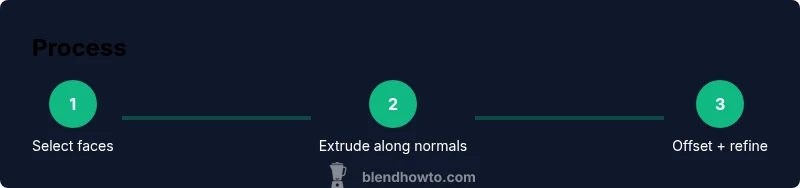
To perform a normal-based extrusion, start by selecting the faces you want to extrude. Activate the operation by either using F3 > Extrude Faces Along Normals or navigating to Mesh > Transform > Extrude Faces Along Normals. Enter the offset value in the operator panel or immediately move the mouse to visualize thickness, then confirm. The extrusion will move in the direction of each face’s normal, so irregular normals can produce uneven thickness if the mesh is not cleaned first. After extrusion, inspect the result from multiple angles and zoom levels to confirm surface continuity and edge flow. You can mid-run tweak: offset, clamp, and smoothing options to keep the geometry uniform across the entire surface. If you need to create a shell, extrude once for the wall and then extrude again on the interior faces to define a hollow cavity. Remember to save incremental versions so you can compare outcomes easily.
Handling negative and positive offsets for thickness control
Offsets can be positive (outward) or negative (inward). Positive offsets create external shells and thicker surfaces, while negative offsets produce inner cavities or wall reductions. When working with complex geometry, a small negative offset on interior faces followed by a separate outward extrusion on exterior faces can yield a balanced thickness. If you’re seeing self-intersections, reduce the offset or split the mesh into separate parts where needed. For hard-surface models, consider performing one outward extrusion, then another inward extrusion on the hollow interior to achieve uniform wall thickness across curved areas.
Normals, shading, and smoothing: keeping surfaces looking right
Extruding along normals can affect shading if normals are inconsistent. After extrusion, verify that face normals still point outward and enable Auto Smooth or set appropriate angle thresholds to preserve crisp edges. If shading artifacts appear at seams, re-calculate normals again and examine UVs or texture coordinates to ensure they align with the new geometry. For models that will be textured, you may find it helpful to apply a small bevel to edges coinciding with extrusion boundaries to reduce shading artifacts. The payoff is clean silhouettes and predictable light interaction across the entire surface.
Troubleshooting: common issues and fixes
If your extrusion looks uneven, start by rechecking normals with Shift+N and ensuring there are no interior faces or stray vertices. Non-manifold geometry often causes unpredictable extrusion paths; fix by filling holes, merging vertices, or separating problematic regions. If you can’t select faces reliably, enable X-Ray display or switch to wireframe mode to ensure you’re choosing the intended surfaces. For very dense meshes, perform a decimate or retopology pass before extrusion to maintain workable geometry. Finally, remember that you can always undo (Ctrl+Z) and retry with a smaller offset to dial in the exact thickness you need.
Practical examples: when to use normal-based extrusion
Use this technique to add a uniform shell around a model for 3D printing, create walls for a building façade, or quickly add thickness to a character’s clothing without altering its silhouette. It also helps when preparing assets for game engines where consistent wall thickness is essential. In architectural mockups, normal-based extrusion can simulate panel depth, recessed features, or window bays with clean, maintainable geometry. For practice, start with a simple box and experiment with inward and outward extrusions, then apply the same workflow to a more complex model like a vehicle hood or a character garment.
Aftercare: applying transforms and cleaning up the mesh
Once you’re satisfied with the extrusion, apply the transforms (Ctrl+A > Scale) to lock the size, then recalculate normals again to ensure consistency after any further edits. If you plan to import the model into a game engine, verify that the exported mesh preserves the extrusion thickness and edge loops. It’s good practice to run a quick geometry check (e.g., 3D printing self-checks or mesh integrity checks) to catch any lingering artifacts. Finally, save a fresh version with a descriptive name so you can trace the workflow in future projects.
Tools & Materials
- Blender software (latest stable release)(Install from blender.org; ensure Edit Mode access)
- A 3D mesh to edit(Mesh with faces; clean topology recommended)
- Mouse or input device with precision movement(Helpful for fine offset control)
- Reference images or blueprints(Optional for accurate dimensions)
Steps
Estimated time: 30-60 minutes
- 1
Select target faces
Enter Edit Mode and select the faces you want to extrude along normals. Use face/loop selection to control precision. Ensure you’re selecting the correct surface to avoid unintended results.
Tip: Use L to select linked faces and Alt+L to deselect if you grab too much geometry. - 2
Prepare normals
Recalculate normals to face outward and check for flipped faces. This ensures the extrusion follows the intended direction and reduces distortion.
Tip: Shift+N is a quick shortcut for Recalculate Outside normals. - 3
Invoke Extrude Faces Along Normals
Open the operator by pressing F3 and choosing Extrude Faces Along Normals, or navigate through the Mesh menu. This operator uses each face’s normal as the extrusion direction.
Tip: You can also access the operator from a per-face context menu for quick use. - 4
Set the offset
In the operator panel, input the offset value or move the mouse to visualize thickness. Positive offsets push faces outward; negative offsets push inward.
Tip: Start with small values (e.g., 0.1–0.5 Blender units) and scale up gradually. - 5
Review geometry
Inspect edge flow and shading from multiple angles. Look for self-intersections and ensure thickness is even across curved areas.
Tip: Toggle between Solid and Wireframe view to see interior geometry clearly. - 6
Apply transforms
If you’re happy with the result, apply transforms (Ctrl+A > Scale) to lock the thickness. Recalculate normals again if needed.
Tip: Apply transforms only after final checks to avoid losing editability. - 7
Optional cleanup
Remove any interior faces created during hollow extrusion and merge overlapping vertices if necessary.
Tip: Use Remove Doubles/Merge by Distance to clean up the interior geometry.
Frequently Asked Questions
What is extruding along normals?
Extruding along normals moves faces outward or inward along the direction of each face’s normal. This creates uniform thickness and preserves edge flow without manual axis guessing.
Extruding along normals moves each face along its own direction, giving you even thickness and clean edges.
Why extrusion may not align with normals?
If normals are inconsistent, recalc them to face outward and check for flipped faces or interior geometry. This ensures the extrusion follows the intended path.
Try recalculating normals and cleaning stray faces to realign the extrusion.
How can I set exact thickness?
Enter a precise offset in the extrusion operator or use numerical input after initiating Extrude Faces Along Normals. Small increments yield tighter control.
Use the operator panel to input an exact offset value.
Does this work on non-manifold meshes?
Extruding along normals is more predictable on manifold meshes. For non-manifold areas, clean geometry first or work on separate components.
Non-manifold areas can complicate extrusion, so clean the mesh first.
Which Blender versions support this easily?
Blender versions 2.8 and later include the Extrude Faces Along Normals operator. If you don’t see it, update to a recent release.
Any modern Blender version supports this via the Extrude Faces Along Normals command.
What are common pitfalls?
Common issues include self-intersections, flipped normals, and inconsistent edge loops. Fix by normals recalc, mesh cleanup, and staged extrusions.
Be mindful of normals and edge flow to avoid artifacts.
Watch Video
What to Remember
- Select faces and recalculate normals before extrusion.
- Use Extrude Faces Along Normals for consistent thickness.
- Control offset precisely and check shading afterward.
- Apply transforms to lock the final geometry.