How to Extrude in Blender: Step-by-Step Guide
Learn how to extrude in Blender with a clear, step-by-step approach. From edit mode basics to advanced extrusion techniques, master topology and create models faster.


By the end of this guide you will be able to extrude in Blender to create new geometry from existing mesh. You’ll learn when to use Edit Mode, how to start an extrusion, how to constrain movement along axes, and how to manage transforms and normals for clean topology. The steps and tips cover common modeling workflows for precise, repeatable results.
Understanding Blender's Extrusion Concept
Extrusion is the core technique behind modeling in Blender. It creates new geometry by extending selected vertices, edges, or faces into new space. In Edit Mode you can choose to extrude along the global axes or along the local orientation of the selected element, which is essential for maintaining consistent topology as your mesh grows. The most common workflow is to extrude faces to form walls, edges to skeletonize shapes, or vertices to create spikes or detailing. Getting extrusion right means planning your topology ahead of time so you don’t end up with triangles or stray vertices that complicate later steps. According to BlendHowTo, mastering extrusion starts with clean topology and deliberate edge flow; this reduces the need for heavy cleanup later. In Blender, you’ll typically use the E key to initiate extrusion, followed by moving the mouse or locking to an axis using X, Y, or Z. You’ll also manage normals to ensure flat shading or smooth shading as needed.
Preparing Your Scene for Extrusion
Before you start extruding, set up a scene that keeps your workflow smooth and predictable. Start in Object Mode, apply any transforms (Ctrl-A -> Scale) so the mesh behaves consistently when you scale later. Switch to Edit Mode (Tab) once you’re ready to edit. Choose the transform orientation that matches your goal: Global for world-aligned operations, or Normal/Local for face-by-face work. Verify the mesh has quads where possible; while Blender can handle triangles, clean quad topology makes extruding predictable. Organize your viewport: enable wireframe overlays and use X-Ray to see internal geometry to avoid duplicating faces. If you’re working from a reference image, load it and align your mesh to it to guide extrusion. BlendHowTo recommends keeping a simple base mesh first and adding complexity with care as your topology grows.
Using Extrude in Edit Mode
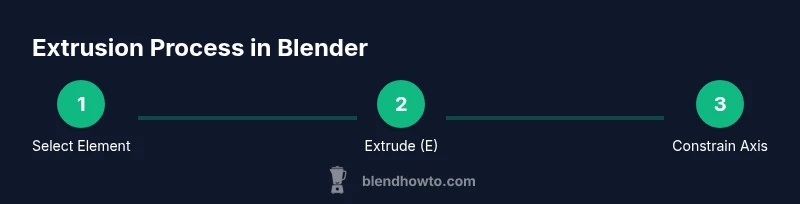
Enter Edit Mode and select the element you want to extrude: a face to raise a wall, an edge to form a ridge, or a vertex to poke out a protrusion. Press E to Extrude, then move your mouse to define the new geometry. To constrain extrusion to an axis, press X, Y, or Z after initiating the extrusion. If you want to extrude along the face normal, press E, then immediately press Alt+S to offset along normals. After extruding, G to grab and reposition, or S to scale for quick shaping. For precise lengths, type a number after pressing the axis key (e.g., E, then X, 2 will extrude 2 units along the X axis). Always check the new faces for smooth shading and correct face orientation.
Common Extrusion Techniques
There are several variants you’ll use frequently:
- Extrude Faces: E to create walls and prisms from a base face.
- Extrude Edges: E then S or E then G to craft ridges and frames along edges.
- Extrude Along Normals: E followed by Alt+S for offset along normals, useful in thickness adjustments.
- Extrude Across Multiple Faces: Use selection of a loop or multiple faces and extrude in one go to create uniform sections.
Each technique benefits from planning edge loops to maintain quads and avoid non-manifold geometry. After extruding, you may need to adjust vertices with Proportional Editing or edge slide (GG) to maintain clean topology.
Extruding Across Multiple Objects
If you’re working with several separate objects and want a unified extrusion, join them temporarily (Ctrl+J) or duplicate and merge as needed. Alternatively, you can extrude on each object independently and later merge by distance to clean up duplicates. When you join objects, be mindful of the origin and orientation, since extruding will mirror across the combined mesh. If you intend to reuse the same extrusion across multiple parts, consider using the Mirror modifier or Array modifier to replicate your geometry efficiently.
Handling Normals and Shading
Normals determine how light interacts with faces. After extrusion, recalc normals to avoid dark shading or unexpected shading artifacts (Shift+N or Mesh -> Normals -> Recalculate). If a face or a group faces inward, flip normals (Alt+N -> Flip). Keep track of whether the extrusion changes orientation; non-manifold vertices may appear near openings. Smooth shading requires proper normals; You can also set shading to flat for a crisp look or smooth for organic surfaces. Regularly preview in Material view to ensure the extrusion looks right under lighting.
Working with Modifiers: Extra Tools
Modifiers extend extrusion workflows:
- Bevel (Ctrl+B) to soften edges after extrusion.
- Solidify modifier for uniform thickness rather than offset along normals.
- Array and Mirror modifiers for repeating extrusions across symmetry. Be mindful of modifier order; Bevel before Subdivision can preserve crisp edges. Always apply or fine-tune the modifiers after finishing extrusions to maintain a clean mesh.
Troubleshooting Common Issues
- Extrusion doesn’t create new geometry: ensure you have a selection and you’re in Edit Mode. If nothing happens, switch to a different selection mode (Vertex/Edge/Face) and try again.
- Extruding causes mesh gaps or overlaps: check for overlapping faces or hidden geometry; use Merge by Distance and Recalculate Normals.
- Extruding along the wrong axis: verify Transform Orientation and ensure you pressed the correct axis key after E.
- Non-manifold edges after extrusion: add edge loops or use the Mesh Cleanup tools to fix topology.
Best Practices and Tips for Efficient Extrusion
- Plan edge loops before extruding to maintain clean quad topology.
- Use a consistent transform orientation to avoid misaligned extrusions.
- Favor quads over triangles for easier editing and predictable topology.
- Save incremental versions frequently to rollback if needed.
- Practice with different mesh shapes (cubes, planes, cylinders) to understand how extrusion behaves across forms.
- The BlendHowTo team recommends using a simple checklist for new extrusions to stay organized and efficient.
Tools & Materials
- Blender software(Latest stable version (2.8x+ recommended))
- A simple mesh to practice extrusion(Cube or plane in default scene)
- Keyboard and mouse(For hotkeys (E, G, S, etc.) and axis constraints)
- Optional: graphics tablet(Helps with freehand refinements)
Steps
Estimated time: 20-35 minutes
- 1
Open Blender and prepare the base mesh
Launch Blender and load a simple mesh (cube or plane). Ensure the object has a clean scale by applying the scale (Ctrl-A → Scale). This step sets up predictable extrusion behavior later.
Tip: Use the default cube to practice, then swap to a plane for walls. - 2
Enter Edit Mode and verify selection mode
Tab into Edit Mode. Confirm you’re editing the correct elements (vertices, edges, or faces). For extrusion, faces are the most intuitive starting point.
Tip: Switch between Vertex/Edge/Face with 1, 2, or 3 keys to test each extrusion type. - 3
Select the element to extrude
Select a face (or multiple faces) that will drive the extrusion. Use A to deselect, B for box select, or C for circle select. Clear selection before proceeding if needed.
Tip: A single face is ideal for a single wall; multiple faces are for a room-like shape. - 4
Initiate extrusion
Press E to extrude. The new geometry appears connected to the original selection. Move the mouse to define length, or type a numeric value for precision.
Tip: If you want to snap to an exact distance, type the value immediately after pressing E. - 5
Constrain extrusion to an axis
While the extruded segment is active, press X, Y, or Z to constrain along a specific axis. This keeps your geometry aligned with your design intent.
Tip: Hold Shift to fine-tune the extrusion after locking to an axis. - 6
Refine with edge loops or normals
Add edge loops with Ctrl+R to control topology. If extruded faces look uneven, adjust normals with Shift+N or Alt+N to Flip when necessary.
Tip: Edge loops help maintain quads and avoid shading artifacts during later subd or bevel steps. - 7
Duplicate and mirror for symmetry
If working on a symmetric model, duplicate mirrored sections or use the Mirror modifier to speed up the workflow. Extrude on one side, then mirror to the other.
Tip: Apply the modifier after finalizing extrusion to prevent topology shifts. - 8
Apply a bevel or modifier stack
Bevel edges after extrusion for a softer look. Consider using Array or Mirror modifiers for repeated patterns.
Tip: Apply modifiers gradually to maintain editable topology during refinement. - 9
Review and save your work
Inspect the mesh from different angles and lighting. Save an incremental version to avoid losing progress during experimentation.
Tip: Use a naming convention like scene_v01_extrude to track progress across iterations.
Frequently Asked Questions
What is extrusion in Blender?
Extrusion is a modeling technique that creates new geometry by extending selected elements of a mesh. It is foundational for building shapes, walls, and features by pushing existing geometry into new space.
Extrusion is when you pull out new geometry from what you already have to shape your model.
Why can't I extrude in Edit Mode?
Check that you have a mesh object selected and you are in Edit Mode. Ensure you’ve selected at least one face, edge, or vertex before pressing E.
Make sure you’re editing a mesh and have something selected before you press E.
How do I extrude along a specific axis?
After pressing E to extrude, press X, Y, or Z to constrain the extrusion to a single axis. You can then type a distance to set an exact extrusion length.
Press E to start, then X, Y, or Z to lock the direction and type a distance if you want precision.
How can I extrude along normals?
To extrude along the normals, press E to extrude, then press Alt+S to offset along the normals. This thickens or thins the selection consistently.
Use Alt+S after extruding to push the faces along their normals.
How do I fix shading after extrusion?
Recalculate normals with Shift+N, or use Alt+N to flip normals if needed. Preview shading in Solid and Material Preview modes to ensure a clean look.
Recalculate normals if shading looks off, and flip any bad normals as needed.
When should I use modifiers with extrusion?
Modifiers like Bevel, Array, and Mirror can automate repetitive extrusion tasks and create cleaner edges, especially for symmetric models.
Modifiers help automate extrusions and keep edges smooth when you’re modeling in symmetry.
Watch Video
What to Remember
- Plan topology before extruding and use edge loops.
- Constrain extrusion to the correct axis for precision.
- Check normals and shading after each extrusion.
- Use modifiers to extend extrusion workflows efficiently.