Blender Extrude: A Practical Guide to 3D Extrusion
Learn how to master Blender extrude operations to build complex 3D models with clean topology. This guide covers selection, extrusion along normals, maintaining symmetry, and practical tips for faster modeling in Blender.


Blender extrude is a core modeling operation that creates new geometry from selected vertices, edges, or faces. This quick guide outlines essential steps for extrusion in Blender, including working with normals, axis constraints, and common pitfalls. Use extrude in Edit mode to grow topology, while keeping your mesh clean and ready for shading.
What extrusion does in Blender
Extrude in Blender is the primary operation that creates new geometry from existing mesh elements (vertices, edges, or faces). By pushing selected geometry outward, you expand the model's form and topology. In practice, blender extrude is used to sculpt character limbs, extend architectural volumes, or add detail where topology remains quads for clean shading. Understanding how extrusion interacts with normals, faces, and edge loops is essential for predictable results.
Key concepts behind Blender extrude
Crucial ideas to master include the difference between extruding edges vs faces, the role of normals (which dictate outward direction), and how local vs global axes affect movement. Use transform orientation to lock direction, and check that your mesh has consistent face normals to avoid shading artifacts. Keep topology friendly with quad-based geometry and avoid creating skinny triangles during extrusion.
Setting up: prep geometry and transform pivots
Before you extrude, prepare your geometry by ensuring clean topology, applying scale, and choosing an appropriate transform orientation. Switch to Edit Mode (Tab) and decide whether you will extrude in Global or Local space. Align the pivot and ensure your normals point outward to prevent shading issues during and after extrusion.
Basic extrusion workflow
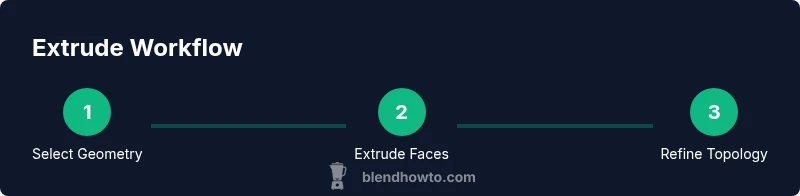
A basic extrusion in Blender starts with selecting geometry, pressing E to extrude, and moving the new geometry away from the original. Constrain movement to a particular axis with X, Y, or Z, or keep it free for organic shapes. Use numeric input for exact distances and verify the result from multiple viewpoints to ensure the form reads correctly in perspective and orthographic views.
Advanced extrusion techniques: along normals, individual origins, and face orientation
To refine control, extrude along normals so new geometry follows the surface direction, rather than a fixed axis. You can also extrude multiple faces at once using the individual origins option to prevent unintended merges. Regularly flip or recalc normals if shading looks wrong, and use edge loops to guide future extrusions for cleaner topology.
Practical modeling examples: chair, bottle, arch
Try applying extrusion to common shapes: model a simple chair by extruding seat polygons, legs, and back supports; create a bottle by extruding a profile along a path; form an arch by extruding faces and adjusting curvature. In each case, keep quads where possible and plan edge loops to support rounded transitions and clean shading.
Troubleshooting common extrusion issues
If extrusion produces overlapping faces, inverted normals, or messy topology, recalc normals, merge vertices where gaps appear, and consider adding support edge loops to maintain structure during subsequent extrusions. Always review the mesh from top, side, and perspective views to catch issues that aren’t obvious from a single angle.
Best practices for efficient extrusion in Blender
Organize workflows with named shapes and progressive detailing. Use mirror modifiers when modeling symmetric objects, and perform extrudes in logical stages to avoid large, unmanageable meshes. Save backups frequently and leverage tight snapping for consistent distances during repeated extrusions.
Tools & Materials
- Blender installed (version 2.8+ recommended)(Ensure you have the latest stable features for extrusion tools and axis constraints.)
- 3-button mouse or equivalent input(Precise extrusion controls benefit from multiple input buttons.)
- Editable mesh in Edit Mode(Enter Edit Mode (Tab) and select geometry before extruding.)
- Reference images or concept art(Optional when modeling complex shapes to guide extrusion.)
- Backup/versioned Blender file(Keep a copy before large extrudes to prevent loss.)
Steps
Estimated time: 25-40 minutes
- 1
Enter Edit Mode and select geometry
Open your Blender project, select the mesh, and switch to Edit Mode (Tab). Choose vertices, edges, or faces as your extrusion target and make a precise selection using A, B, or C. The goal is to have a clean, well-defined area ready for extrusion.
Tip: Tip: Use A to select all, then Alt+A to deselect if needed; box select with B to capture the exact region. - 2
Invoke extrusion
With the geometry selected, press E to extrude. Move the mouse to set distance, then left-click or press Enter to confirm. For exact values, type a number after initiating extrusion.
Tip: Pro tip: Use the numeric keypad for precise distances (e.g., 0.25, 1.0). - 3
Constrain direction
After extrusion begins, press X, Y, or Z to lock movement to a single axis, or press to switch to a global orientation. This keeps the new geometry aligned with your model’s framework.
Tip: Pro tip: Start with a single axis lock to build predictable geometry. - 4
Extrude along normals (optional)
If you want extrusion to steer with surface direction, ensure normals point outward and adjust the operator options to align extrusion with normals. This helps when creating rounded or organic shapes.
Tip: Pro tip: Recalculate normals if shading looks inconsistent. - 5
Repeat or refine
Select newly created faces or edges and repeat the extrusion to extend the form. Use edge loops to guide future extrusions and maintain topology quality.
Tip: Pro tip: Keep the mesh quad-dominant to simplify future edits. - 6
Clean up and finalize
After completing extrusions, check for overlapping faces or hidden gaps. Merge vertices or add bridging edges where needed, then save a backup before further modeling.
Tip: Pro tip: Use Merge by Distance to quickly clean up nearby vertices.
Frequently Asked Questions
What is Blender extrude and why is it important?
Extrude is Blender’s primary tool for creating new geometry from existing mesh elements. It expands the model’s form and allows you to build complex shapes while maintaining topology. Mastery of extrusion underpins most modeling workflows.
Extrusion is Blender’s main tool for growing your model from existing parts; it helps you build complex shapes while keeping topology clean.
What is the difference between extrude and inset in Blender?
Extrude adds new geometry by extending selected faces, edges, or vertices. Inset creates a new face inside the selected face, shrinking the area without adding external geometry. Both tools shape topology but serve different design intents.
Extrude pushes out new geometry; inset creates a smaller face inside the original area.
Can I extrude multiple parts at once?
Yes. You can select multiple regions or separate components and extrude them in a single operation. This is useful for building assemblies or extending multiple limbs at the same time.
Absolutely, select all parts you want to extrude and apply extrusion together to speed up the workflow.
Why do my extruded faces disappear or invert?
This usually indicates incorrect normals or overlapping geometry. Recalculate normals, check the orientation, and clean up any hidden or duplicate vertices to restore correct shading.
Usually it’s a normals or geometry issue; recalc normals and clean up duplicates to fix it.
How can I speed up extrusion in large projects?
Model in stages, use symmetry when possible, and build a library of reusable extrusion profiles. Regularly save versions to avoid redo work as models grow.
Work in stages and use symmetry or presets to keep the process fast as your model gets bigger.
Watch Video
What to Remember
- Select geometry precisely before extruding
- Maintain clean topology for predictable shading
- Check normals and orientation regularly
- Practice incremental extrusions for control