Blender Basics: A Practical Path for Beginners
A practical, step-by-step guide to learning Blender for beginners, with a structured path, hands-on projects, and pro tips to ease the learning curve.


Goal: you will learn Blender by following a structured plan that starts with the basics and builds to a simple project. You’ll practice daily, use short, focused tutorials, and track progress with small milestones. This method reduces overwhelm and makes blender learning approachable for beginners. Even if you think blender is difficult, the step-by-step plan keeps you moving forward.
Why Blender is hard to learn
For many newcomers, blender is so hard to learn because the software combines a deep feature set with a fast-moving workflow. The UI looks unfamiliar, there are multiple workspaces, and a vast array of tools that operate in different modes. It’s easy to feel overwhelmed by terms like vertices, edges, normals, shaders, nodes, and keyframes all at once. The truth is that mastery comes from a steady, focused approach rather than trying to absorb everything at once. The BlendHowTo team notes that a guided, project-based routine helps learners convert confusion into competence. Start by defining a single goal (for example, “create a simple chair in 30 minutes”) and build the skill around that objective. By treating each session as a mini-recipe you can repeat, you’ll begin to see how modeling, materials, and lighting fit together rather than learning in isolation. If you’re watching others glide through complex scenes, remember that real progress appears in small, consistent steps over days and weeks.
Think of Blender as a kitchen with many tools. You don’t learn all functions in a single session; you master one tool at a time and assemble your skills into small, repeatable recipes.
Common sticking points and myths
Blender's learning curve is real, but most pain points come from trying to learn too much at once. The biggest hurdles include navigating the 3D viewport, switching between Edit/Object/Sculpt modes, understanding the node-based material editor, and configuring render settings. A common myth is that you must memorize every shortcut before you can make anything meaningful. In reality, you can produce solid results with a core set of actions and then add shortcuts as you need them. Remember that Blender serves multiple disciplines—modeling, texturing, lighting, animation—so framing your study around one project at a time reduces cognitive load. The BlendHowTo framework recommends starting with a tiny, repeatable task (like modeling a mug), finishing it, then repeating with slight variations to build intuition. Finally, don’t assume Blender is only for “creative” artists; the software is used for visualization, product design, and hobbyist experimentation. A slower, steady pace beats fast, inconsistent sessions every time.
A structured learning path for Blender Basics
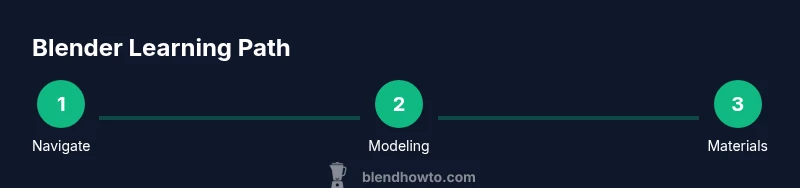
A structured plan turns an overwhelming goal into digestible steps. Consider this 8-week path:
- Week 1: Navigation and basic UI; learn orbit/pan/zoom, move/rotate/scale, and the 3D viewport layout.
- Week 2: Simple modeling; practice with a cup, mug, or chair; master extrude, loop cut, and basic proportional editing.
- Week 3: Materials and shading; create basic materials, assign textures, and understand texture coordinates.
- Week 4: Lighting and rendering; set up a simple three-point light rig and render with Cycles or Eevee.
- Week 5: Basic animation; keyframe a short movement on a prop and learn the timeline.
- Week 6: Intro to sculpting; explore brushes and basic multiresolution sculpting.
- Week 7: Compositing and post-processing; adjust color, exposure, and simple bloom or glare.
- Week 8: Mini project integration; combine modeling, materials, lighting, and a final render.
Each week should include 2-3 short tutorials and a 1–2 hour hands-on project. The goal is progress, not perfection, and daily 20–30 minute practice sessions help form a lasting habit. The BlendHowTo approach emphasizes learning by doing: tangible results reinforce the next steps and build confidence.
Practice projects to build confidence
Practice projects convert theory into memory. Start with tiny, repeatable tasks and scale up. Example projects:
- Project A: Create a simple mug with a handle. Build the mesh, apply a basic glaze material, and render with soft shadows.
- Project B: Build a small chair from primitive shapes, use subdivision on the seat, and add a wood-like material.
- Project C: Assemble a minimal kitchen counter scene with one wall, a countertop, and one object (like a fruit bowl) to practice lighting and composition.
For each project, set a 30–60 minute cap, outline the steps, and record the results. Keep a screenshot log and name files consistently to avoid confusion later. By focusing on small, well-scoped tasks, you reduce overwhelm and see steady wins that fuel motivation.
How to stay organized and track progress
Organization matters as you learn. Create a simple project folder structure: 01-setup, 02-modeling, 03-materials, 04-lighting, 05-render. Save incremental versions (scene_v01.blend, scene_v02.blend) so you can revert if needed. Keep a learning log: write 2-3 sentences after each session describing what worked and what didn’t. Schedule consistent practice times on the calendar and treat them as appointments. Review progress weekly, adjust goals, and celebrate small milestones. If you use templates or presets, you’ll fluently reuse them across projects, speeding up your early work. The BlendHowTo approach also recommends starting a small portfolio early to track growth and stay motivated.
Tools, add-ons, and resources for beginners
While Blender ships with many built-in features, a few add-ons can dramatically speed early work. Start with:
- Node Wrangler: streamline node editing for materials
- LoopTools or Tissue for geometry, depending on your goals
- Measurements and Gizmos: helps with precise modeling
- Simple animation presets to learn keyframes
Rely on official docs and reputable learning resources. You don’t need to chase every new add-on; pick 1-2 to start and master them before exploring more. BlendHowTo’s recommended resource list includes official Blender tutorials, plus curated beginner guides to ensure you’re learning the right concepts in the right order.
Getting feedback and measuring improvement
Feedback accelerates learning. Post your work on Blender Stack Exchange, Blender Artists, or the BlendHowTo community forums to receive constructive critiques. Track improvement by redoing a project after a week and comparing differences. Use a simple rubric: geometry looks correct, materials align with reference, lighting is clear, and renders meet your quality bar. Schedule monthly reviews of your portfolio to assess long-term growth and refine learning goals. The BlendHowTo team emphasizes that consistent practice and external feedback are more valuable than isolated, long sessions.
Tools & Materials
- Blender software (latest version)(Download from blender.org; install on your OS)
- A computer meeting minimum spec(At least 8 GB RAM; a capable GPU helps with viewport performance)
- Mouse with middle mouse button(Essential for smooth 3D navigation)
- Graphics tablet (optional)(Helpful for sculpting or texture painting)
- Reference assets pack(For practice scenes and material matching)
- Backup storage(Regular saves to prevent data loss)
Steps
Estimated time: 60-90 minutes
- 1
Set up a focused learning plan
Define one concrete goal for this week and map 3 mini-tasks that lead to that goal.
Tip: Write the goal on a sticky note near your workstation to stay focused. - 2
Configure a minimal Blender workspace
Load a simple layout (Modeling + Shading) to reduce switching costs.
Tip: Hide unused panels to keep the workspace uncluttered. - 3
Master basic navigation
Practice orbit, pan, and zoom; learn how to switch between Local View and Perspective.
Tip: Use the N and T panels modestly to declutter views. - 4
Complete a tiny modeling exercise
Model a cup from primitives; practice extrusion, loop cuts, and symmetry.
Tip: Start with a mirror modifier for symmetry; apply later. - 5
Experiment with materials
Create a basic glaze or plastic material and apply it to the cup.
Tip: Keep color management in Linear space to avoid odd shading. - 6
Render and reflect
Set up a simple light rig, render a test image, and compare with reference.
Tip: Render at 720p for speed; save progressively higher-res versions later.
Frequently Asked Questions
Why does Blender feel hard to learn at first?
Blender combines modeling, shading, lighting, and animation with a dense UI. Learning one project at a time and building from small wins reduces overwhelm.
Blender can feel hard at first because it covers many skills. Start with a single project and learn the basics step by step.
How long before I know the basics?
With a consistent plan and 20–30 minutes daily, you can reach a solid basic workflow within a few weeks.
If you practice a little every day, you can learn the basics in a few weeks.
Do I need to code to use Blender effectively?
No, most Blender tasks are GUI-driven. Scripting is optional for automation and advanced users.
You don't need to know programming to use Blender well at the basics.
Should I learn modeling first or shading?
Start with navigation and modeling basics; shading and materials can come after you’re comfortable moving around the scene.
Begin with moving around and shaping, then tackle materials later.
Are add-ons essential for beginners?
Add-ons are helpful but not required. Focus on 1–2 core tools and master them before expanding.
Add-ons can speed things up, but you don’t need them to begin learning.
Can Blender be used for animation work by beginners?
Yes. Start with simple keyframes and practice timing on a basic prop to build confidence.
Blender is great for beginners to explore animation with simple projects.
Watch Video
What to Remember
- Start small with core Blender concepts
- Practice daily to form a lasting habit
- Build skills through short, project-based sessions
- Use feedback to guide next steps