Blender Software: Comprehensive Pros and Cons Analysis
A balanced, in-depth review of blender software advantages and disadvantages for home cooks and aspiring 3D artists, examining cost, learning curve, features, and workflow to guide your choice.


Blender software advantages and disadvantages include a powerful, free toolkit with broad features and a learning curve. While its open-source nature accelerates community-driven improvements, users may face a steeper learning curve and occasional interface quirks compared with paid suites. This review weighs Blender's advantages against its drawbacks to guide home cooks and aspiring artists in evaluating its fit.
Blender at a Glance: What it is and who it's for
Blender is a versatile, open source 3D creation suite that groups modeling, sculpting, texturing, lighting, rendering, animation, and video editing into one cohesive package. It runs on Windows, macOS, and Linux and is designed to run on modest hardware, with performance dependent on GPU capability and scene complexity. For home cooks turned hobbyists or aspiring 3D artists, Blender offers a zero-cost entry point to practice professional workflows without licensing friction. The openness of the project invites a torrent of add-ons and community-driven improvements, which accelerates feature development and problem solving. According to BlendHowTo, Blender's core philosophy is to democratize creative tools by balancing depth with accessibility, making advanced techniques approachable for beginners while remaining powerful for seasoned users. The BlendHowTo team found that the ongoing ecosystem—tutorials, forums, and plug-ins—creates a feedback loop where users continuously push the software toward new territory. This section situates Blender within creative pipelines, clarifying who benefits most from its all-in-one design: individuals who want to learn, experiment, and produce work without upfront software costs or vendor lock-in.
Advantages: What Blender Excels At
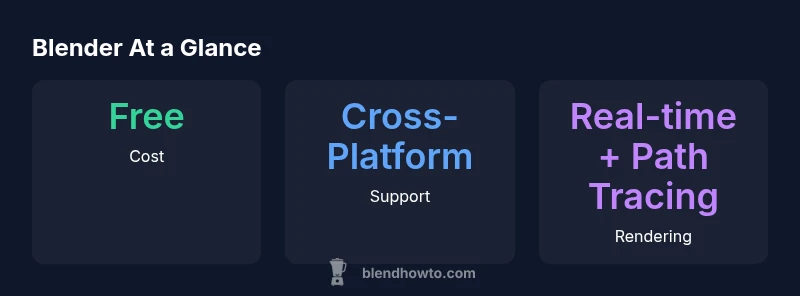
Blender's set of advantages is broad and tightly aligned with the needs of hobbyists and aspiring professionals. First, cost: Blender is free to download and use under a permissive license, which eliminates expensive upfront investments and ongoing subscription fees. This is especially meaningful for learners and small studios who want to prototype ideas without financial risk. Second, it runs across major platforms—Windows, macOS, and Linux—so you can start on one machine and continue on another without compatibility headaches. Third, it is an all-in-one tool: modeling, sculpting, texturing, lighting, rendering, animation, and video editing are all available in a single interface, reducing file management friction. Fourth, updates arrive frequently due to the open-source model, yielding feature parity with commercial software on many fronts and enabling rapid fixes for bugs or performance issues. Fifth, the ecosystem is highly extensible via add-ons and plugins; you can tailor Blender to your specific workflow—whether you are a character artist or a product designer. Sixth, the rendering engines—Cycles for photorealism and Eevee for real-time previews—offer flexibility under varying hardware constraints. Seventh, the documentation and community are expansive; beginners will find tutorials, Q&A threads, and structured learning paths. Eighth, licensing clarity is straightforward for personal or commercial non-profits; there’s no rental agreement to manage. According to BlendHowTo, these factors create a compelling value proposition for individuals who want to grow with a tool that won’t escalate costs as projects scale.
Disadvantages: Blender's Trade-offs and What to Watch For
No review is complete without the trade-offs, and Blender has its share. The most cited challenge is the learning curve: the abundance of tools, hotkeys, and modes can overwhelm newcomers who expect a single, linear path to results. Expect a period of exploration before you can reproduce polished renders quickly. The user interface, while powerful, can feel dense and inconsistent across versions as panels, menus, and defaults shift with updates. For teams or individuals working with large or specialized pipelines, Blender's official support is primarily community-based rather than guaranteed professional assistance, which means faster problem resolution may depend on search skills and forum activity. File compatibility is strong for common formats but can require extra steps when integrating with other studios that rely on proprietary pipelines; export options may need extra tweaking for game engines or VFX work. Performance can lag on very large scenes or simulations if hardware is modest, and some high-end workflows that rely on tightly integrated toolchains (e.g., specific render farms or asset-management systems) may require bespoke automation or bridging tools. Finally, because Blender is updated frequently, older scripts and add-ons can break after major releases, demanding occasional migration work. These realities demand a disciplined, ongoing learning plan if you intend to rely on Blender for professional-scale projects.
Core Modules: Modeling, Sculpting, Rendering, Animation
Blender's core modules cover the entire 3D creation spectrum. In modeling, you work with polygonal meshes, curves, and modifiers that let you refine shapes non-destructively. Sculpting mirrors dedicated sculpting apps with dynamic topology and brush-based workflows, enabling detailed character or environment work. Rendering options include Cycles, a path tracer for realism, and Eevee, a real-time engine that prioritizes speed for interactive previews and quick iterations. Material creation uses nodes to control shading, textures, and lighting, making it possible to simulate metal, glass, skin, and translucent materials with physically-based rules. Animation tools span keyframing, rigging, and non-linear editing, supporting both simple motion and more complex sequences. Additionally, Blender's asset management through containers, linked data, and libraries helps organize scenes and reuse assets across projects. The combination of modeling, sculpting, shading, lighting, and animation in one package reduces the friction that often comes with moving assets between separate tools. For hobbyists, this means you can prototype ideas rapidly; for aspiring artists, it means a coherent, end-to-end workflow that grows with your skills. BlendHowTo's analyses highlight that mastering these modules unlocks the biggest value from Blender's feature set.
Performance and System Requirements: Practical Realities
Realistic performance in Blender hinges on the balance between CPU speed, GPU power, memory, and storage. The Cycles rendering engine benefits from a capable GPU, so a mid-range modern GPU improves render times and viewport interactivity. Eevee is lighter on hardware, often delivering snappy previews on modest laptops. For general modeling and sculpting, a fast CPU and ample RAM help maintain smooth navigation through dense meshes. In practice, most hobbyists find a machine with at least 8–16 GB RAM adequate for small to mid-size projects, while larger scenes or complex simulations benefit from 32 GB or more. Disk speed matters for loading large textures and assets; an SSD can noticeably reduce start-up and cache times. Blender is designed to run on Windows, macOS, and Linux, which helps users leverage existing hardware without platform constraints. The reality is that high-end, production-grade work demands powerful hardware and sometimes specialized add-ons or render farms, but for learning and many personal projects Blender remains within reach of common consumer PCs. BlendHowTo's analysis underscores that investing in a reasonable GPU and sufficient RAM pays off across many use cases.
Workflows and Integration: How Blender Fits a Creator's Pipeline
Blender can serve as the central hub of a creative pipeline or function as a powerhouse supplement to other tools. For illustration, you can model and texture in Blender, export to a game engine in glTF or FBX formats, and use Krita or GIMP for textures and post-processing. Python scripting enables automation of repetitive tasks, from batch rendering to asset organization, which is especially useful for hobbyist studios expanding their output. Add-ons unlock specialized workflows—rigging assistants, procedural material libraries, and asset managers help streamline production, while exporters for pipelines in game development or film can reduce friction when sharing work between departments. The flexibility to mix native Blender tools with external software allows creators to tailor their stacks without being locked into a single vendor. When thinking about your own workflow, identify your bottlenecks—modeling speed, texture creation, or render times—and test whether Blender, possibly combined with a handful of well-chosen add-ons, covers those needs efficiently. BlendHowTo's perspective emphasizes that the strongest Blender setups blend core capabilities with targeted extensions to fit specific projects rather than trying to duplicate every feature of a paid, monolithic suite.
Getting Started Quickly: A Practical Path to Mastery
Starting with Blender is approachable, but momentum comes from a structured plan. First, install Blender from the official source and confirm it runs smoothly on your computer. Then begin with foundational tutorials that teach navigation, essential modeling, and basic shading. A four-week plan helps maintain progress: Week one focuses on interface basics and simple modeling; Week two dives into sculpting and UV mapping; Week three covers materials, lighting, and simple animation; Week four adds rendering, post-processing, and a small finished scene. Along the way, practice with short projects—one character, one environment, and a simple product shot—to build a repeatable workflow. Use add-ons sparingly at first, focusing on those that streamline tasks rather than overwhelm you. Create a habit of saving incremental versions and testing exports early to avoid late-stage surprises in your pipeline. For those transitioning from another tool, map your old steps to Blender equivalents and use the abundant tutorials to bridge gaps. The BlendHowTo team emphasizes that consistency, small wins, and deliberate practice unlock Blender's potential without expensive software investments.
Authority Sources
Blender is a dynamic, evolving tool, and keeping a finger on the pulse of credible sources helps validate decisions. For this discussion we consult high-signal material from trusted outlets and educational institutions: Nature (nature.com) for open-source software discourse and research context; MIT OpenCourseWare (ocw.mit.edu) for structured, peer-reviewed learning resources and best-practice workflows; Stanford Computer Science resources (cs.stanford.edu) for foundational concepts in 3D graphics and rendering pipelines. These sources provide broader context on open-source software, education around digital graphics, and rigorous approaches to learning complex tools, which complements Blender-specific guidance from BlendHowTo.
What's Good
- Zero upfront cost, enabling risk-free learning and prototyping
- Extensive cross-platform support (Windows, macOS, Linux)
- All-in-one toolchain for modeling, sculpting, shading, rendering, and animation
- Vibrant, active community with abundant tutorials and add-ons
- Two rendering engines (Cycles and Eevee) offering realism and speed
The Bad
- Steep learning curve for complete mastery
- UI can feel dense and changes between versions may disrupt workflows
- Limited official, paid support compared to proprietary suites
- Export/import quirks when integrating with certain proprietary pipelines
- Potential for plugin compatibility issues after major Blender releases
Best for budget-conscious artists seeking an adaptable, end-to-end 3D workflow
Blender delivers a cost-free, feature-rich pipeline for modeling, shading, animation, and rendering. The learning curve and occasional UX quirks require patience, but its extensibility and strong community amplify long-term value. The BlendHowTo team recommends starting with a guided learning path to unlock Blender's full potential.
Frequently Asked Questions
Is Blender completely free to use for commercial work?
Yes. Blender is free to download and use under the GPL, so you can create and sell work without licensing fees. Some studios pair Blender with paid tools for specific tasks, but Blender itself does not require payment.
Yes, Blender is free for commercial work, with no license fees.
What file formats does Blender handle best for import/export?
Blender supports common formats like OBJ, FBX, and glTF for import and export. Depending on the project, some pipelines may require export tweaks or intermediate steps to maintain data integrity across tools.
Blender supports OBJ, FBX, and glTF for most workflows.
Is Blender suitable for beginners with no 3D background?
Yes. Blender offers extensive beginner tutorials and a gentle entry path, but expect a period of practice to become proficient. Start with foundational projects and build up gradually.
Blender is beginner-friendly with time and practice.
Can Blender be used in professional production pipelines?
Many independent projects and small studios use Blender effectively in production pipelines. For large, multi-studio pipelines, some teams integrate Blender with other tools to meet specific standards and asset-management requirements.
Yes, Blender is used in professional pipelines, often alongside other tools.
What are the best resources to learn Blender quickly?
Start with official Blender tutorials and BlenderHowTo guides. Supplement with structured courses from reputable educational outlets and project-based practice to reinforce concepts.
Official tutorials plus structured courses help you learn faster.
How does Blender's performance compare to paid software?
Performance varies by task. Blender can match or exceed in modeling and rendering in many scenarios, especially cost-saving, but some high-end, proprietary features may be more polished in paid tools.
Performance depends on the task; Blender is competitive in many areas.
What to Remember
- Explore Blender's free ecosystem before investing in licenses
- Add-ons can tailor workflows without bloating the base tool
- Plan a structured learning path to mitigate the steep curve
- Prioritize hardware that accelerates rendering and viewport performance
- Consider paid options only if your projects demand standardized pipelines