How Big Is Each Square in Blender? Understanding Blender Units and Grid Size
Discover how big each Blender grid square is by mapping Blender Units to metric or imperial units. This guide explains unit systems, grid sizing, and practical sizing for modeling and rendering.


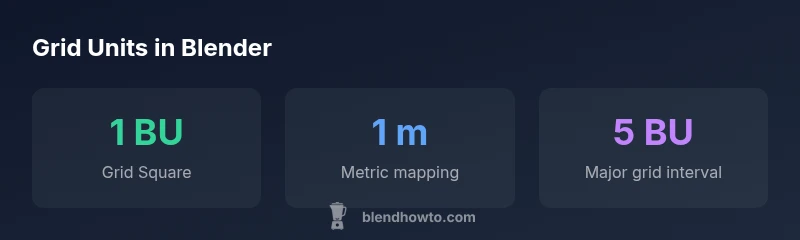
Each grid square in Blender represents 1 Blender Unit (BU) by default. The real-world size of that square depends on your Unit System and Unit Scale. If you set the Unit System to Metric and Unit Scale to 1.0, 1 BU maps roughly to 1 meter. In other setups, 1 BU can map to any unit you choose, so always check Scene > Units before modeling.
Understanding Blender Units and the Grid
In Blender, the grid floor in the 3D Viewport provides a visual cue for size and spacing. Each square represents one Blender Unit (BU) by default. This is an abstract measurement, not a fixed real-world length, until you decide which unit system to use. If you look at your grid and ask, how big is each square in blender, the answer depends on your Unit System and Unit Scale. When you start a new project, you typically work in Blender Units with a default Unit Scale of 1.0, which makes the grid intuitive for generic modeling workflows. As you switch to Metric or Imperial, Blender reinterprets those units, so a single grid square can map to meters or feet depending on your settings. This foundation is essential for accurate modeling, animations, and later export to other software.
What a Blender Unit Means in Real-World Size
A Blender Unit is a flexible container for distance. If you enable the Metric or Imperial unit system, the grid squares begin to map to real-world lengths. With Metric and Unit Scale set to 1.0, 1 BU roughly equals 1 meter; with Imperial, 1 BU could map to feet or inches depending on your scale. The exact mapping is determined in Scene > Units. This means you can model in abstract Blender Units for early concept work, then switch to a real-world mapping for precise fabrication, game design, or architectural visualization. Always verify the mapping before exporting to ensure consistency across software pipelines.
How the Grid Squares Relate to Camera View and Modeling
Grid spacing informs how you position objects, set up primary dimensions, and plan your scene. Snapping to the grid helps maintain proportional relationships, especially when creating modular assets or assembling environments. A square that is hard to gauge without a unit map can lead to oversized or undersized models once you switch to real-world units. When modeling, keep in mind that the camera frustum and clipping planes use real-world scale once units are defined, so the grid serves as a guide rather than a guarantee.
How to Check and Adjust Unit Settings
Open the Scene properties and locate the Units panel. Here you can choose Unit System (Blender Units, Metric, or Imperial) and set Unit Scale to map BU to real measurements. If you want 1 BU to represent 1 meter, select Metric and set Unit Scale to 1.0. If you prefer 1 BU to equal 0.01 meters (1 centimeter), adjust Unit Scale accordingly. This is crucial when you plan to export to other platforms or print a model to scale. After changing units, ensure objects are correctly scaled by applying scale (Ctrl-A) when necessary.
Practical Examples: Sizing Objects for Real-World Measurements
Consider a mug that you want to look plausible in a scene. If you map 1 BU to 1 meter, a typical mug might be about 0.12–0.15 BU tall in the modeling stage, which corresponds to roughly 12–15 cm tall. A standard chair might be around 0.8–1.0 BU tall. These are rough ranges and depend on the Unit System you use. For architecture-style work, you might map BU to meters or centimeters, and adjust the Unit Scale so that doorway widths and wall heights align with real-world dimensions. Using these mappings consistently helps avoid surprises during rendering or when you bring the model into a game engine.
Common Pitfalls and Quick Fixes
Common issues include modeling in Blender Units when you intend to export to metric values, or forgetting to apply the scale after transforming objects. If you export with a different unit system, sizes can become distorted. A practical fix is to set the scene to Metric or Imperial for the duration of the modeling pass, then apply scale to all objects before export. Always verify dimensions with the Measure tool and cross-check a few objects with known real-world sizes.
Tips for Working with Scale in Animation and Rendering
Animation and rendering rely on consistent scale. If objects drift in size across frames, you may have inconsistent scales thanks to nested objects or non-uniform scaling. Use the Apply Scale command (Ctrl-A) before keyframing or exporting to ensure the animation behaves predictably. Physics simulations such as rigid bodies and cloth also respond to actual size; wrong unit mapping can lead to unrealistic behavior or errors in render passes. Maintain a single, well-documented unit setup for the entire scene.
Measuring Distances with Blender's Tools
Blender offers built-in measurement tools to read distances directly in the viewport. You can enable the Measure tool from the toolbar or press N to show the side panel and use the ruler geometry to measure between two points. When you work with a defined unit system, those measurements reflect real-world sizes. This makes it easier to validate that, for example, a doorway height or a piece of furniture matches your intended scale before you finalize the scene.
Practical Workflow: Setting Up a Real-World Scene
- Decide on a unit mapping before you start modeling (e.g., 1 BU = 1 meter). 2) Set Scene > Units accordingly. 3) Build your core models at rough scale, then refine by applying scale. 4) Use the Measure tool to verify critical dimensions. 5) When exporting, re-check units in the destination application to ensure scale fidelity. This disciplined workflow minimizes size mismatches between Blender and downstream tools.
Relationship between Blender grid squares and real-world measurements
| Grid concept | Default value | What it means | How to adjust |
|---|---|---|---|
| Grid square size | 1 BU | Represents one unit in the chosen unit system | Scene Properties > Units > Unit System and Unit Scale |
| Unit System | Blender Units / Metric / Imperial | Defines how distances are interpreted in the scene | Scene Properties > Units > Unit System |
| Unit Scale | 1.0 (default) | Maps BU to real-world size when Metric/Imperial is active | Scene Properties > Units > Unit Scale |
| Measurement tools | N/A | Provides on-screen readouts of distances | Use the Measure tool in the 3D Viewport |
Frequently Asked Questions
What does a grid square represent in Blender by default?
By default, a grid square equals 1 Blender Unit. Real-world size depends on the Unit System and Unit Scale you choose in Scene > Units.
A grid square is 1 Blender Unit by default, and its real-world size depends on your unit settings.
How can I change what a grid square means in real-world units?
Open Scene Properties > Units and select Metric or Imperial as the Unit System. Then adjust Unit Scale to map BU to centimeters, meters, or feet as needed.
Go to Scene > Units, pick Metric or Imperial, and adjust Unit Scale to map Blender Units to real-world sizes.
Do grid squares affect rendering?
Grid squares are modeling references. Rendering uses the actual object sizes after applying scale and the chosen unit mapping.
Grid squares guide modeling, but rendering depends on the actual object size and unit mapping you set.
Is there a quick way to reset grid to 1 BU per square?
Reset the Unit System to Blender Units with Unit Scale at 1.0, or re-map your preferred unit in Scene > Units and re-check the grid.
Reset by selecting Blender Units and Unit Scale 1.0 in Scene > Units, then verify.
How do I measure distance in Blender precisely?
Use the Measure tool to read distances between points. Enable dot rulers and check dimensions against your unit mapping for accuracy.
Use the Measure tool to read distances; ensure your unit mapping is correct for real-world accuracy.
“Accurate unit settings are the fastest path to reliable modeling and predictable renders. Establish and document your unit mapping at the start of every project.”
What to Remember
- Start modeling with 1 BU per grid square as a baseline
- Switch to Metric or Imperial to map BU to real-world units
- Set Unit Scale to align Blender units with meters, centimeters, or feet
- Apply scale before exporting to preserve intended size
- Use the Measure tool to verify critical dimensions