How Big Is the Blender Cube? A Practical Blender Guide
Discover how big the Blender cube is in Blender Units and meters, with clear unit conversions, practical sizing tips, and step-by-step resizing workflows for consistent modeling.


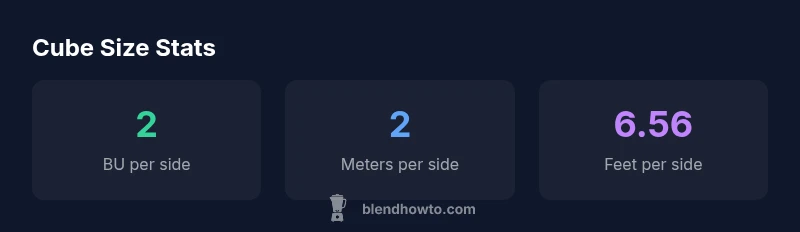
The default Blender cube measures 2 Blender Units per side, forming a 2×2×2 BU cube. In metric scenes where 1 BU equals 1 meter, that translates to a 2-meter cube per side. If you use imperial units, it remains 2 BU per side, about 6.56 feet. Resize by scaling or applying scale to match your project.
Understanding Blender Units and the Default Cube
If you're asking how big is the blender cube, the short answer depends on the unit system you choose. In Blender’s default configuration, objects are defined in Blender Units (BU) rather than real-world meters or feet. A cube created in this environment is 2 BU wide, 2 BU tall, and 2 BU deep. This is the baseline from which most modeling starts, so understanding why that size matters will save you time later. For many artists, starting with a 2 BU cube makes it easy to scale and place elements relative to one another, especially in early-stage layouts or a block-out phase. When you switch the scene to Metric or Imperial units, Blender will translate those BU values into real-world measurements, but the underlying concept is the same: size is a product of the unit system and the cube’s local scale. As a habit, always confirm your unit settings before beginning a new asset to ensure consistency across renders and exports.
The Default Cube: Size in Blender Units
The default cube is exactly 2 BU per side, giving a volume of 8 BU^3. In metric mode, if you set 1 BU = 1 meter, the cube becomes 2 meters on each side, which is a practical size for many reference models. This baseline helps you gauge proportions when you assemble scenes or props. You can use the viewport’s measurement overlay or the dimensions panel to verify exact extents while working. It’s important to note that changing the unit system does not automatically resize the object; it changes how Blender reports size. If you enable metric units, a 2 BU cube reads as 2 meters per side, aiding intuitive workflows for product designs or architectural blocks.
Reading Size in Metric and Imperial
Reading a cube’s size across unit systems is a matter of consistent conventions. With metric units, a 2 BU cube is 2 meters per side, translating to a volume of 8 cubic meters for the whole cube. In imperial terms, 2 meters per side is roughly 6.56 feet, so the cube occupies about 6.56 ft on each side. In practice, you’ll often select a unit system based on your final output (game assets, architectural renders, or product visuals). Always correlate the BU value back to the unit system you’re using so your proportions stay intact across scenes and exports.
Practical Sizing Scenarios for Modeling
Real-world modeling rarely begins with a perfect 2 BU cube. For blocking out objects, you might start with a smaller or larger base: a 0.5 BU side for tiny props, 1.0–1.5 BU for mid-sized assets, or 3.0 BU for larger structures. When you resize, do not forget to maintain proportions by scaling uniformly. For accurate measurements, switch to Metric and set 1 BU = 1 m if your project will be exported to real-world scales. These sizing choices impact camera distance, lighting falloff, and texture mapping, so it’s worth deciding early how you’ll measure your models.
Working with Unit Settings in a Project
Unit configuration is a project-wide decision. In Blender, go to the Scene Properties, turn on Unit System, and select Metric or Imperial. Then define a scale for Blender Units (for example, 1 BU = 1 m). This makes your default cube and any subsequent geometry align with real-world measurements, simplifying asset integration across Blender projects and external software. Remember, unit choices should be documented in your project notes to prevent confusion when collaborating or reusing assets later.
Resizing Workflow: From Rough to Final
To resize the cube, select it and press S to scale. You can drag to the desired size or type an exact value in the viewport. For precise dimensions, use the N panel (Transform) to set the Dimensions in BU or, if using Metric, in meters. After sizing, apply the transform (Ctrl-A > Scale) to bake the change into the geometry so it remains consistent in subsequent edits and exports. This practice avoids unexpected rescaling during animation or exporting pipelines.
Common Pitfalls and How to Avoid Them
Two frequent mistakes are assuming 2 BU always equals 2 meters and failing to maintain scale consistency after applying transforms. Always verify your unit system before starting a project. If you import from another package, align Blender’s units with the source to prevent mismatch. Finally, remember that non-uniform scaling can distort proportions; prefer uniform scaling when adjusting the cube to preserve its cubic shape.
Quick-Sizing Checklist for Blender Projects
- Confirm the active unit system (BU, metric, or imperial)
- Check that 1 BU aligns with your intended real-world unit (meters, feet)
- Use S to scale, and apply Scale to bake the final size
- Use the Dimensions/Scale in the N panel for precise control
- Document unit settings for future edits and collaborations
Common cube sizes in Blender projects
| Size label | Blender Units per side | Metric (m) per side | Imperial (ft) per side |
|---|---|---|---|
| Default cube | 2 | 2 | 6.56 |
| Half-size cube | 1 | 1 | 3.28 |
| Double-size cube | 4 | 4 | 13.12 |
Frequently Asked Questions
What unit system does Blender use by default?
Blender uses Blender Units by default. To read real-world sizes, switch to Metric or Imperial in the Scene properties and adopt a consistent scale.
Blender uses Blender Units by default. Switch to Metric or Imperial in Scene properties to read real-world sizes.
How can I reset the cube to the default 2 BU size after scaling?
The simplest approach is to re-add a default cube or reset transforms: select the cube, press Ctrl+A and choose Scale, then resize back to 2 BU per side as needed.
Reset transforms by selecting the cube and applying scale to return to the default 2 BU per side.
Can I model at different sizes without changing proportions?
Yes. Scale the cube with S to change size, then apply scale (Ctrl+A) to bake the new dimensions without altering proportions.
Yes, scale the object and apply scale to keep proportions consistent.
How do unit settings affect imports from other software?
Unit settings determine how Blender interprets imported dimensions. Enable Metric or Imperial, and ensure your source model’s units match to avoid mismatches.
If you import from other software, align Blender's units with your source to avoid size mismatches.
Is the cube dimension always fixed at 2 BU per side?
No. The cube starts at 2 BU per side, but you can freely resize it. Use the Scale tool or inputs, then apply transforms for consistency.
The cube starts at 2 BU, but you can resize it; apply transforms to lock the size.
“Understanding the Blender cube size is foundational for accurate modeling and scene planning. Always verify your unit system before starting.”
What to Remember
- Start with 2 BU cube for standard workflows
- Switch to metric to read real-world sizes
- Scale with S, then apply scale to lock size
- Always document your unit settings in the project