How to Use Blender for Beginners: Step-by-Step Guide
A practical, beginner-friendly guide to Blender basics. Learn navigation, modeling, shading, lighting, and rendering with clear steps and visuals to build confidence quickly.


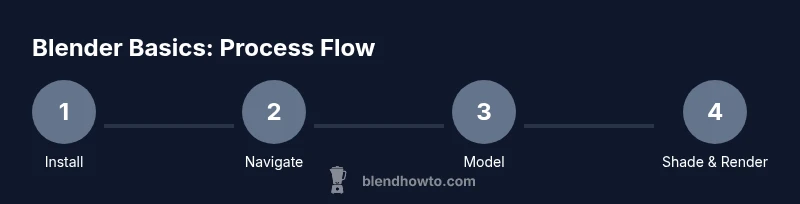
Learn how to use Blender for beginners by installing the latest release, setting up a simple workspace, and following a guided workflow: navigation, selection, transforming, and basic rendering. You’ll complete a starter project in a focused session, using built-in templates, keyboard shortcuts, and free tutorials to reinforce each step. This guide covers essentials to build confidence quickly.
What Blender is and who uses it
Blender is a free, open-source 3D creation suite that supports modeling, sculpting, texturing, animation, rendering, video editing, and even game design. It’s used by students, hobbyists, indie artists, and professionals who want a versatile tool without licensing fees. For beginners, Blender offers approachable defaults, helpful tutorials, and a large community. The BlendHowTo team has found that starting with a small, concrete project helps build confidence and momentum while you learn the interface, shortcuts, and fundamental workflows.
Getting Set Up: Installation and First Run
Getting started is straightforward. Download the latest stable Blender release from blender.org, install it on your computer, and open a new project. When you first launch Blender, you’ll notice multiple workspaces and a default scene with a camera, light, and a primitive cube. For beginners, it’s helpful to switch to the Layout workspace, review the Preferences to adjust input settings, and save a personal startup file. By configuring basic preferences—such as auto-save intervals and system performance options—you reduce friction during practice sessions. BlendHowTo recommends keeping a short cheatsheet of common actions for quick reference as you build familiarity.
Navigating the Interface: Panels, Workspaces, Shortcuts
Blender’s interface is organized into panels, editors, and docks that adapt to different tasks. Key areas include the 3D Viewport, Outliner, Properties, and the Toolbar. Learn essential shortcuts: 1) Rotate View (middle mouse button), 2) Pan (Shift + middle mouse), 3) Zoom (scroll wheel), 4) Grab/Move (G), 5) Scale (S), 6) Rotate (R). Start with a simple object, use the N panel to toggle tools, and switch workspaces (Modeling, Sculpting, Shading) as you practice. Consistent keyboard usage speeds up your workflow and helps you focus on learning concepts rather than clicking.
Essential Modeling Tools for Beginners
Modeling is foundational in Blender. Begin with primitive shapes (cube, cylinder, sphere) and use Edit Mode to modify vertices, edges, and faces. Core actions include Extrude (E) to extend geometry, Loop Cut (Ctrl+R) to add detail, and Bevel (Ctrl+B) to soften edges. Use the Subdivision Surface modifier for smooth forms and the Mirror modifier for symmetrical objects. Practice transforming selections with G, S, and R while watching how changes propagate through the mesh. Remember to apply scale before applying modifiers to ensure predictable results.
Creating Your First Project: A Simple Cup
A practical beginner project is a simple cup. Start with a cylinder, scale to form the body, and use the Extrude tool to create a hollow interior. Add a thin rim by extruding along the top edge, then switch to Edit Mode to refine the lip and handle. Assign a basic material using the Principled BSDF shader and test a few light settings to see how shadows fall. This hands-on exercise reinforces modeling fundamentals, topology awareness, and the feel of real-world proportions.
Materials, Lighting, and Rendering Basics
Materials in Blender use nodes to simulate real-world surfaces. Start with a Principled BSDF shader and adjust roughness, metallic, and specular values to achieve plausible looks. Lighting matters: a three-point setup (key, fill, back) often yields balanced scenes. For beginners, rendering with Eevee offers fast feedback, while Cycles provides more realism at the cost of longer render times. Play with exposure, color management, and denoising to improve final results. Practice saving multiple render presets so you can compare outcomes easily.
Saving, Exporting, and Common Pitfalls
Save frequently and use versioned filenames (project_v01.blend). Use Blender’s auto-save as a safety net, but never rely on it exclusively. When exporting, choose formats that fit your goal (OBJ/FBX for 3D apps, PNG/JPEG for images). Watch for common pitfalls like non-manifold geometry, inverted normals, and missing textures. Regularly back up assets and keep a tidy file structure to ease hand-offs or future edits.
Authority Sources and Continuing Learning
To deepen your understanding, consult reputable references and tutorials. Blender’s official documentation and Blender Foundation resources are invaluable starting points. For ongoing learning, seek structured courses or curated playlists from credible outlets, and participate in community forums to get feedback on your practice projects. This section provides a curated path to reliable information and emphasizes hands-on practice as the fastest route to proficiency.
Tools & Materials
- Blender software(Download the latest stable release from blender.org and install on your computer.)
- Keyboard and mouse(Comfortable navigation: middle-mrowse to rotate, scroll to zoom, and precise selection with left-click.)
- Optional graphics tablet(Helpful for sculpting or painting details.)
- Reference images(Guides proportions and aesthetics for modeling.)
- External tutorials/Docs(Blender Docs and reputable tutorial series for guided practice.)
Steps
Estimated time: 60-90 minutes
- 1
Install Blender and open a new project
Download the latest stable release from blender.org, install it, and open Blender. Create a simple startup file for consistency in future sessions so you don’t need to reset your workspace every time.
Tip: Check that you have the correct system requirements and an automatic backup enabled in Preferences. - 2
Switch to the Layout workspace and explore the UI
Change to the Layout workspace to access the 3D Viewport, Outliner, and Properties. Use the N and T panels to toggle toolbars so you can focus on the object in front of you.
Tip: Use the search (F3) to quickly find tools instead of memorizing every shortcut. - 3
Navigate: rotate, pan, and zoom the viewport
Master viewport navigation: rotate with middle-mouse, pan with Shift+middle-mouse, and zoom with the wheel. These basics will make all subsequent steps smoother.
Tip: Practice a 30-second rotate-pan-zoom drill before modeling. - 4
Add a primitive and enter Edit Mode
Add a cylinder (Shift+A > Mesh > Cylinder) and switch to Edit Mode (Tab). You’ll edit vertices, edges, and faces to shape your model.
Tip: Toggle Wireframe view (Z) to see internal topology during edits. - 5
Extrude to form a simple cup
Select the top face, extrude inward to create walls, then scale to form the rim. Use loop cuts (Ctrl+R) to add edge detail where needed.
Tip: Keep topology quads for predictable deformations later. - 6
Add a basic material
In the Materials tab, create a new material and apply a simple Principled BSDF shader. Tweak roughness for glassy or matte surfaces.
Tip: Preview the material in LookDev/Eevee to gauge real-time results. - 7
Set up a quick lighting and render
Create a basic three-point light setup (key, fill, rim) and render with Eevee for speed. Adjust exposure and color management for a clean result.
Tip: Render at a small resolution first to iterate quickly. - 8
Save and review your work
Save your file with a versioned name (e.g., cup_v01.blend). Export a PNG render to compare progress and save notes for future improvements.
Tip: Create a checklist of next improvements (topology, shading, lighting).
Frequently Asked Questions
What is Blender and what can I do with it?
Blender is a free, open-source 3D creation suite used for modeling, sculpting, animation, rendering, and more. It’s suitable for beginners and professionals due to its comprehensive toolset and active community.
Blender is a free 3D program that helps you model, shade, animate, and render scenes, with a strong community for learning.
Do I need powerful hardware to run Blender well?
Blender runs on a wide range of hardware. For beginners, a modest GPU and adequate RAM are sufficient for basic projects; more complex scenes benefit from faster GPUs and extra memory.
A modest computer will handle beginner projects; upgrading graphics and RAM helps with larger renders.
What’s the fastest way to start learning Blender as a beginner?
Begin with a guided workflow: install Blender, complete a simple project, and gradually add features like shading and lighting. Use official docs and curated tutorials to structure practice.
Start with a guided walkthrough and then practice with small, repeatable projects.
Should I use Eevee or Cycles for rendering as a beginner?
EeVee is faster and great for previews; Cycles offers more realism but needs longer render times. Begin with Eevee to iterate quickly, then try Cycles when you want higher fidelity.
Use Eevee for quick previews, switch to Cycles when you want more realism.
How long does it take to learn Blender basics?
Learning basics can take a few weeks with consistent practice. Mastery of advanced topics comes with continued, focused practice over months.
It varies, but with steady practice you can learn the basics in a few weeks.
What to Remember
- Master Blender’s basic UI and navigation
- Build a simple project to apply modeling, shading, and rendering
- Understand essential steps: model, shade, light, render
- Practice with incremental saves and versioning