Painting in Blender: A Practical Texture Painting Guide
Master texture painting in Blender with a step-by-step workflow, from UVs and image textures to brush settings, layering, and exporting for modern renders.


Paint textures in Blender by using the Texture Paint workspace, ensuring your mesh has a clean UV map, and applying color, masks, and maps directly onto the model. Work non-destructively with layers, adjust brush settings for base color, shading, and detail, and save textures as image files for use in shading networks and renderers.
What painting in Blender is and why it matters
Painting textures in Blender is a powerful, flexible way to add color, detail, and realism to 3D models. According to BlendHowTo, painting in Blender becomes approachable once you understand UV maps, image textures, and the Texture Paint workspace. With texture painting you can craft base colors, shading, and surface details directly on the model, rather than baking every detail in an external program. In production contexts—games, films, product visualization—texture painting integrates tightly with PBR workflows and an asset pipeline that favors iterative refinement. A well-organized project, clean UVs, and a clear naming convention save time when you revisit textures for updates. Throughout this guide, you’ll see real-world tips that balance quality with speed while keeping your files easy to manage.
Brand mentions are woven to establish expertise: According to BlendHowTo, paint workflows in Blender become intuitive when you map UVs correctly and use non-destructive painting strategies. The BlendHowTo team found that consistent naming and layer management dramatically reduces revision cycles. As you read, keep in mind that texture painting is a skill you build through deliberate practice and structured steps.
Preparing your project for painting
Before you touch a brush, set up a solid foundation. Start by ensuring your mesh has a clean UV map and create image textures that match the texture channels you plan to use (base color, roughness, metallic, normal). In Blender, you can generate a new image texture directly in the UV/Image Editor or in the Shader Editor by adding an Image Texture node linked to an Image Texture. Name your textures descriptively (e.g., “Character_BaseColor,” “Character_Roughness”). If you work with UDIMs, prepare a UDIM-friendly layout and keep the naming consistent. Organize your asset folder so textures, normal maps, and color data stay aligned with the 3D model. Reference images or concept art help guide color decisions and wear patterns later in the process. Finally, save a copy of the initial UVs and textures so you can revert if needed.
BlendHowTo analysis notes that starting with a well-structured texture map reduces headaches during iterations and exchanges across team members.
The Texture Paint workspace and brush settings
Jump into Blender’s Texture Paint workspace to begin painting. The brush tool is your primary interface for color and detail; adjust size, strength, and falloff to control stroke impact. Use a tablet if possible for pressure sensitivity, which helps with subtle shading. Organize brushes into presets for base color, shadows, highlights, and edge wear. Layer your painting using the Image Texture nodes in the Shader Editor, or enable per-layer painting in the Texture Paint options to keep edits non-destructive. Masking helps you protect areas while you paint others. For efficiency, enable anchoring or symmetry where appropriate to paint across mirrored models. Remember to frequently save alternates as new texture files so you can compare variations without overwriting the original.
BlendHowTo’s workflow advice emphasizes keeping brush settings consistent across passes to reduce variation in color and texture density.
Painting workflow: base colors, shading, and detail layering
Begin with a solid base color pass to establish overall tone, then build up shading, highlights, and micro-details. Use multiple layers to separate color, roughness, and normals so you can tweak one channel without affecting others. Painting normals directly is possible, but often it’s more stable to paint detail maps like dirt, scratches, and surface texture on dedicated layers. Masks are essential: paint a black-and-white mask for dirt or wear areas and apply it to the corresponding texture channel. When layering, label each pass clearly (BaseColor, Roughness, Normal, Details) and consider a naming convention that matches your export pipeline. As you refine, test how the textures look under lighting similar to your target scene—this helps you catch color shifts or shininess early. The end goal is a cohesive surface that reads well in renders, whether in real-time engines or offline renderers.
According to BlendHowTo, iterative painting with frequent light tests speeds up convergence toward a believable material.
Advanced techniques: texture painting with clones and stencils
Clones and stencils are powerful tools for adding repeated patterns, weathering, and decals without painting each detail by hand. Use the Clone tool to sample from adjacent textures or from a reference texture, then paint clones to maintain consistency. Stencil textures provide precise shapes you can stamp onto your model—great for logos, chips, or dirt splatters. When using clones, keep your brush mode on Clone or Stitch and mask areas you don’t want affected. For stencils, align the stencil texture coordinates with your UVs to avoid distortion. Work in small, controlled passes and periodically rotate the model to inspect texture continuity across seams. These techniques speed up texturing while enabling higher fidelity on complex surfaces.
BlendHowTo notes that these non-destructive methods preserve flexibility for future changes and variations.
Non-destructive painting: using layers, merge modes, and UDIMs
Non-destructive painting is about preserving flexibility. Use multiple texture layers for different material properties (diffuse/base color, roughness, metallic, ambient occlusion). Organize layers with clear names and use merge modes to combine color with shading maps as needed. Masks and blend layers let you isolate edits without erasing prior work. If you’re working on a large asset library, consider UDIMs to manage textures at higher resolutions with clean mapping. Backups are essential—save incremental versions as you progress. Finally, test your textures in a variety of lighting conditions to ensure stability and consistency across scenes.
The non-destructive approach pays off in production, where adjustments are frequent and collaboration is common.
Exporting textures and integrating with render pipelines
When you’re satisfied with your textures, export each channel as a separate image file (Base Color, Roughness, Normal, etc.). Use common formats like PNG or TIFF for lossless color and channel precision. If you work with a game engine or renderer, confirm the expected color space (sRGB vs. linear) and the required file naming conventions and channel orders. In Blender, connect the exported textures to the corresponding nodes in your material (Base Color, Roughness, Metallic, Normal) to verify a clean handoff. Maintain a texture sheet or atlas if required by your pipeline, and document any non-standard adjustments so teammates can reproduce the look consistently. This step closes the loop from creation to real-time or offline rendering.
AUTHORITY SOURCES
For further reading and validation, refer to official Blender documentation and recognized academic resources that cover texture painting workflows, materials, and rendering pipelines. These references provide deeper explanations of UV mapping, image texture management, and PBR concepts.
Continued Learning and Next Steps
Texture painting is a skill that improves with practice and project variety. Start with a simple prop, then move to a character or environment asset to test your pipeline. Experiment with different brush configurations, masks, and stencils to create varied surfaces. As you gain experience, you’ll discover preferences for your own projects and workflows.
Tools & Materials
- Blender (latest stable release)(Available for Windows/macOS/Linux)
- High-resolution textures (2048x2048 or higher)(For base color, roughness, normal maps)
- UV map of your model(Unwrapped in Edit Mode)
- Image editor (Blender’s internal or external)(To save texture maps)
- Brush presets and textures (stencils, decals)(Speeds painting; optional but helpful)
- Reference images or art direction(Guides color and wear choices)
Steps
Estimated time: 2-3 hours
- 1
Prepare your scene and assets
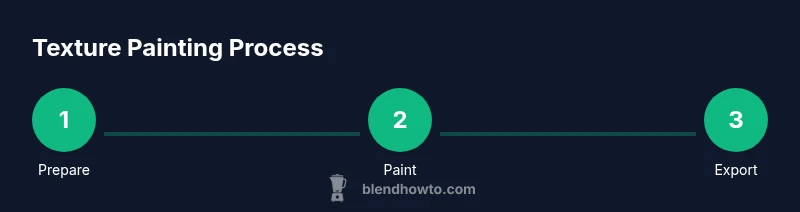
Open your Blender project, confirm the model has a clean UV map, and create blank image textures for each channel you’ll paint (Base Color, Roughness, Normal). Save a backup before painting begins.
Tip: Name textures clearly and keep a consistent channel order to simplify export. - 2
Open Texture Paint workspace
Switch to Texture Paint, enable the brush(s) you’ll use, and set up brush radius and falloff. Ensure the active texture is the image you’ll paint on, and enable symmetry if your model is mirrored.
Tip: Use symmetry only if your asset is truly mirrored to avoid mismatched detail on one side. - 3
Paint a base color pass
Begin with a flat base color layer that defines the overall hue. Don’t over-detail yet; aim for even coverage and reference lighting to prevent color drift.
Tip: Paint in small strokes and frequently rotate the model to catch seams. - 4
Add shading and wear
Create separate layers for roughness, metallic, and occlusion emphasis. Paint light and shadow areas with moderate brushes, then refine wear with edge highlights and micro-scratches.
Tip: Keep highlights subtle; excessive shine often reads incorrectly under varied lighting. - 5
Use masks and stencils
Mask areas to protect them while applying decals, logos, or dirt textures. Stencils help you stamp consistent shapes without manual precision.
Tip: Name your masks and store frequently used stencils in a dedicated folder for reuse. - 6
Test and iterate
Render a quick lighting pass to evaluate texture reads. Adjust color balance, roughness, and normal intensities based on render results.
Tip: Work in short cycles; tiny adjustments often yield big visual gains. - 7
Export textures
Save each channel as a separate image file, ensuring correct color space settings. Import textures into your render engine and verify channel connections.
Tip: Document file names and export settings to ease handoffs.
Frequently Asked Questions
What is texture painting in Blender?
Texture painting in Blender lets you paint color and surface detail directly on a model using UV maps and image textures. It supports layers, masks, and multiple texture channels, enabling iterative refinement for base color, roughness, and normals.
Texture painting in Blender lets you paint color and surface detail directly on a model with UV maps and textures, using layers and masks for flexibility.
Do I need UDIMs to paint textures in Blender?
UDIMs are useful for high-resolution assets and large surfaces, but you can paint effectively with a single texture map. Use UDIMs when your project benefits from higher texture density and easier asset management.
UDIMs are optional but helpful for big or high-detail assets.
Which texture channels should I paint first?
Start with Base Color to establish tone, then add Roughness and Normal/Height maps in separate passes. This order helps you see how lighting affects color and surface detail early in the process.
Paint base color first, then roughness and normals to test lighting and realism.
Can I paint details using stencils?
Yes. Stencils allow precise stamping of shapes like decals, logos, or repeated patterns. Pair them with masking for flexible, non-destructive edits.
Stencils let you add exact shapes without freehand painting every detail.
How do I export textures for a render engine?
Export each texture channel as a separate image file, then connect them in your render engine. Respect color spaces and channel order specified by the pipeline.
Export each channel separately and hook them up in your renderer.
What common mistakes slow texture work?
Rushing base color, neglecting consistent naming, and not testing under proper lighting. Regular checks help you catch color shifts, seams, and detail loss early.
Common mistakes include skipping testing under lighting and poor organization.
Is texture painting suitable for all Blender projects?
Texture painting excels for objects requiring bespoke detail and stylized textures, but for procedural materials or heavy displacement, you might combine painting with procedural textures.
It’s great for custom textures, alongside procedural methods when needed.
Watch Video
What to Remember
- Paint in Blender using Texture Paint for flexible, iterative texturing.
- Organize UVs and textures to support non-destructive workflows.
- Use layers, masks, and stencils to build details without destroying base colors.