Does Blender Need a High-End PC? A Practical Hardware Guide for 2026
Discover whether Blender truly requires a high-end PC. This data-driven guide covers CPU, GPU, and RAM needs by workload, plus budget-friendly tips and upgrade timing for 2026.


Blender can run on mid-range hardware; you don’t need the latest flagship PC for most tasks. GPU acceleration and adequate RAM matter most, and you can optimize workflows and viewport settings to stay productive on a sensible budget.
Does Blender Really Require a High-End PC?
A common question is does blender need high end pc, and the answer depends on what you do in Blender. For everyday tasks like modeling, texturing, and basic animation, a mid-range system with a modern GPU and sufficient RAM is typically enough. You won’t routinely stall on a well-balanced machine, as long as you avoid extremely heavy scenes with thousands of sculpted polygons and very large textures. In practice, many hobbyists run Blender on mid-range desktops or laptops and still achieve smooth interaction in the viewport. The BlendHowTo team emphasizes that the bottlenecks are usually memory limits, GPU VRAM, and storage bandwidth rather than CPU alone. Plan around your workflows and remember: does blender need high end pc is often more about scale than a fixed spec.
How Blender Uses Hardware Across Workloads
Blender leverages CPU for modeling, simulation, and many modifiers, while GPU acceleration shines in the viewport shading, texture playback, and all GPU-accelerated render engines. Viewport performance improves with faster RAM and a capable GPU, but scene complexity—polycount, modifier stacks, and texture resolution—often dominates. In Cycles and Eevee, rendering is typically GPU-bound when a modern ray-tracing capable card is used, whereas heavy CPU renders depend on CPU cores and single-thread efficiency. Understanding these patterns helps you balance a system for your dominant tasks. According to BlendHowTo, optimizing for your primary workload yields the best long-term results.
Workload-Specific Guidelines: Budget-to-Balanced Builds
If your primary tasks are modeling and texturing, start with a mid-range CPU and a GPU with at least 6-8 GB VRAM. For sculpting and high-poly work, aim for 16-32 GB RAM and a GPU with more VRAM to avoid swapping. For someone focused on final renders with Cycles, prioritize a GPU with ample VRAM and consider a CPU with multiple cores to assist when necessary. Use storage with fast read/write performance to reduce load times and improve scene switching. These ranges are designed as practical starting points and can scale with budget and ambition.
Rendering: Cycles vs Eevee and GPU vs CPU
Eeveelike real-time workflows rely heavily on the GPU, but Cycles can be substantial with CPU or GPU rendering depending on your scene and engine settings. In general, GPU rendering is faster for most mid-to-large scenes, provided you have enough VRAM. CPU rendering can still be useful for certain simulations or when GPU drivers are unstable. The key is to enable GPU acceleration in the preferences and tailor tile sizes to scene complexity. For many users, a balanced system with a mid-to-high-end GPU and a solid multi-core CPU offers the best all-around performance.
Practical Tips to Optimize Blender Performance
- Use simple geometry for viewport work; enable Proportional Editing with caution.
- Enable simplified displays, bounding box display, and lower subdivision levels while modeling.
- Bake simulations and render in tiles optimized for your hardware.
- Use external drives or NVMe SSDs for projects with large textures and assets.
- Regularly update drivers and Blender versions for performance improvements.
- Consider a modest RAM upgrade before chasing a new GPU if your VRAM is the bottleneck.
Common Myths Debunked
Myth: Blender always needs a high-end PC. Reality: For many tasks, mid-range hardware suffices when you optimize workflows. Myth: GPU is always best. Reality: CPU can outperform in some simulations or during specific tasks; balance matters. Myth: More cores automatically speed up everything. Reality: Software scales unevenly, and viewport interactivity benefits from RAM and GPU VRAM as much as CPU cores.
Upgrade Timing: When and How Much to Spend
If you routinely hit memory limits or see long render times, it’s worth evaluating a targeted upgrade. Start by increasing RAM to at least 16-32 GB if you work on complex scenes; then consider a GPU with more VRAM if you render GPU-accelerated scenes in Cycles. Track your bottlenecks with Blender's built-in diagnostics and plan upgrades around your most expensive tasks. Budget-conscious builders should seek mid-range components that maximize VRAM per dollar and ensure compatibility with current drivers.
Blender workload guidance: typical ranges by task
| Workload Type | RAM (min) | GPU/CPU Balance | Notes |
|---|---|---|---|
| Viewport Modeling | 8-16 GB | CPU + GPU | Keep geometry low to maintain navigation |
| Sculpting/High-Poly | 16-32 GB | GPU-accelerated | Work with decimated meshes for testing |
| Cycles GPU Rendering | 16-64 GB | GPU preferred | Ensure VRAM fits texture size |
| Cycles CPU Rendering | 16-128 GB | Multi-core CPU | Better when CPU-only scenes |
Frequently Asked Questions
Does Blender require a high-end GPU?
Not strictly. A mid-range GPU with ample VRAM can handle viewport work and many render tasks. For heavy scenes, a newer GPU will help, especially with Cycles.
A mid-range GPU is often enough; upgrade if you regularly render heavy scenes.
Is 8GB RAM enough for Blender?
8GB is a tight lower bound; for simple scenes it may work, but 16GB or more is recommended for multi-object, sculpting, or high-res textures.
8GB can work for basics, but 16GB or more is safer for complex projects.
Can Blender run on integrated graphics?
Yes for basic tasks, but expect limited viewport performance and slower renders. A discrete GPU is advisable for heavier scenes.
Integrated graphics can run Blender, but for serious work you’ll want a dedicated GPU.
Does Cycles favor GPU or CPU?
Cycles generally benefits from GPU acceleration with sufficient VRAM, though CPU rendering can be advantageous for certain simulations or driver stability.
GPU is usually faster, but CPU can help in specific cases.
What budget CPU is good for Blender?
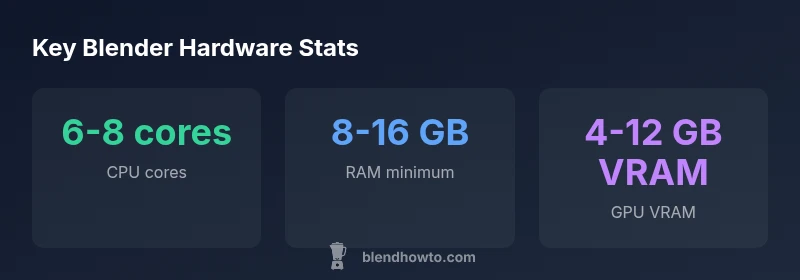
Look for at least 6-8 cores with strong single-thread performance; newer mid-range CPUs across recent generations provide better efficiency and speed.
Aim for a 6- to 8-core CPU with good single-core speed.
How much SSD speed matters for Blender?
Faster storage reduces load times and swap performance, but it’s less critical than RAM or VRAM for most tasks. It helps with large assets and project loading.
SSD speed helps with load times but isn’t the bottleneck for most tasks.
“For most Blender workflows, a capable GPU and enough RAM deliver the biggest gains; CPU power matters, but bottlenecks often sit in VRAM and driver optimization.”
What to Remember
- Start with mid-range hardware for most tasks
- Balance RAM and GPU VRAM before chasing core counts
- GPU rendering often provides the largest gains
- Upgrade RAM/VRAM first, then CPU cores
- Optimize workflows to maximize viewport performance