Do You Need a Good PC for Blender? A 2026 Guide
Discover whether Blender requires a high-end PC. This analytical guide covers CPU, GPU, RAM, and storage needs for beginners to pros in 2026.


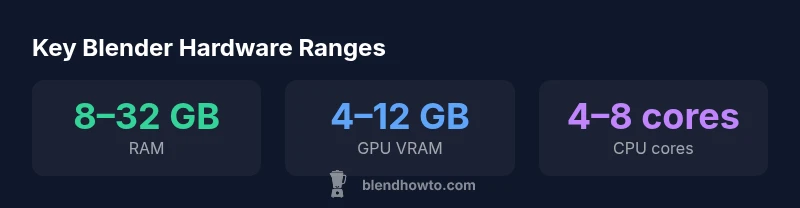
Do you need a good PC for Blender? Not strictly, but a capable machine speeds up modeling, texturing, and rendering tasks. For light work, 8 GB RAM and a modest GPU suffice; for comfortable workflows, aim for 16–32 GB RAM, 6–8 CPU cores, and a GPU with 6–12 GB VRAM. According to BlendHowTo, hardware choices should match your project scope.
How Blender uses CPU vs GPU: what actually matters
Blender's performance hinges on several interacting factors: CPU speed and core count, GPU VRAM, system RAM, and drive speed. Blender's Cycles engine can render on CPU or GPU; Eevee is GPU-accelerated for real-time viewport. In practice, you balance CPU speed and GPU memory: fast cores help modeling transforms and modifier stacks; GPU memory matters for textures and volumetrics. For beginners, Blender runs on a wide range of hardware, and it's common to start with a modest setup and upgrade as needed. According to BlendHowTo, hardware choices should match your project scope. Categorize your work into tasks: modeling, sculpting, shading, animation, and rendering. Each task stresses different subsystems. For example, modeling with high-poly sculpting can benefit from more RAM and CPU cores to keep viewport responsiveness, while rendering tends to be limited by GPU memory and VRAM. Using both CPU and GPU can be optimal if you have a dual-bus system; ensure cooling to prevent throttling.
GPU-accelerated vs CPU-bound tasks in Blender: where to focus upgrades
In Blender, the choice between CPU-bound and GPU-accelerated workflows dictates where your hardware should improve. Viewport performance during sculpting and weight painting benefits from extra CPU cores, faster clock speeds, and ample RAM. Rendering with Cycles or Eevee relies on the GPU for speed, especially when textures are complex or scenes are heavy. If your scenes fit within your GPU's VRAM, you’ll notice dramatic render-time reductions with a mid-range GPU. If not, render-time may scale with CPU speed and RAM capacity. The key takeaway is to map your main projects to the subsystem that bottlenecks them most, then upgrade that area first. As BlendHowTo notes, a balanced approach—adequate RAM, a capable GPU, and sensible storage performance—delivers the best long-term outcomes.
Building a baseline: what you can start with today and how to upgrade later
A practical baseline for Blender in 2026 is a system with 8–16 GB RAM for light projects and 4–6 GB of GPU VRAM for basic textures, with a modern quad-core CPU. If you plan to sculpt, animate, or render more complex scenes, target 16–32 GB RAM and 6–8 GB VRAM, or more if budget allows. For those with tighter budgets, a capable laptop or desktop with a discrete GPU and sufficient RAM can still run Blender smoothly on many projects. The upgrade path is straightforward: start with the RAM and GPU that fits your budget, then add more RAM, a faster CPU, or a larger VRAM GPU as your projects grow. BlendHowTo recommends validating upgrades with real Blender projects to see how frames per second and render times respond.
Budget paths and upgrade sequencing for hobbyists
If you’re on a budget, consider a two-stage plan: Stage 1 focuses on a solid baseline—8–16 GB RAM, a GPU with 4–6 GB VRAM, and a mid-range CPU. Stage 2 adds RAM, VRAM, or core-count as needed. For mid-range setups, look for 16–32 GB RAM, 6–8 cores, and 6–8 GB VRAM; this combination covers most modeling, texturing, and animation tasks without frequent bottlenecks. High-end workflows with large scenes, dense simulations, or photoreal rendering may require 32–64 GB RAM, 8–12+ GB VRAM, and multi-core CPUs. Note that storage speed (SSD vs HDD) also affects scene loading and swap performance. The BlendHowTo framework emphasizes practical testing: render a representative scene, monitor memory usage, and adjust settings to keep navigation smooth while editing complex models.
Efficiency tricks: boost Blender performance with settings and habits
Performance isn’t only about raw hardware. There are several effective strategies you can deploy today. In Blender, enable Simplify for viewport performance on heavy scenes; use instancing to reduce object counts; enable GPU textures only if you have VRAM; bake simulations to reduce real-time calculation loads during editing; work with lower texture resolutions while refining, then finalize with higher-resolution textures for rendering. Also optimize scene management: use collections, layers, and viewport display options to keep the scene navigable. Keep drivers up to date, and if you rely on GPU rendering, ensure you’re using a supported driver version for your GPU. These practices can yield noticeable improvements without purchasing new hardware and align with BlendHowTo’s emphasis on practical, scalable workflows.
Real-world scenarios: tailoring hardware needs to project types
For a beginner learning modeling, a modest setup with 8 GB RAM and integrated graphics can suffice, but you’ll quickly encounter slow edits and longer render times as you add geometry or textures. For hobbyists building small environments and animate short scenes, 16–32 GB RAM and a mid-range GPU with 6–8 GB VRAM deliver smoother navigation and faster renders. Professionals working with large environments, extensive sculpting, and complex materials typically require 32–64 GB RAM or more and 12+ GB VRAM to avoid swap thrashing and long render queues. In all cases, a balanced configuration—adequate RAM, CPU speed, and GPU memory—provides the most reliable path forward. BlendHowTo’s approach is to align hardware investments with project goals, enabling scalable growth without overspending.
Quick-start checklist: assess and optimize today
- Confirm your Blender version and update GPU drivers to the latest supported release.
- Open Help > Save System Info to capture current hardware usage during typical tasks.
- Check the system monitor for CPU, RAM, and GPU memory usage while performing common actions (modeling, shading, and rendering).
- Enable Simplify in the Render or Scene properties to speed up editing on heavy scenes.
- Use Instancing for repeated objects to reduce draw calls in the viewport.
- When ready for final renders, switch to GPU rendering if VRAM is sufficient for the scene.
How to decide if you truly need a hardware upgrade
The decision to upgrade should be based on quantifiable bottlenecks rather than intuition. If you consistently exceed 80% CPU and RAM usage during modeling or you hit VRAM limits during textures and shading, it’s time to upgrade the related component. Remember that storage speed, notably SSDs, impacts load times and swap performance. If you plan to tackle future Blender projects with higher polygon counts and advanced materials, budgeting for a GPU with more VRAM and a larger RAM pool will pay dividends over time. The BlendHowTo framework recommends a staged approach: identify bottlenecks, allocate funds to the most impactful components first, then validate with real projects to confirm gains.
Hardware tiers for Blender workloads
| Project Type | CPU | RAM | GPU VRAM | Notes |
|---|---|---|---|---|
| Beginners and learning | Quad-core or better | 8–16 GB | 4–6 GB VRAM | Good for practice and small projects |
| Intermediate/ hobbyist | 6–8 cores | 16–32 GB | 6–8 GB VRAM | Balanced speed for moderate scenes |
| Professional/ heavy scenes | 8+ cores | 32–64 GB | 12+ GB VRAM | Large scenes with complex materials |
Frequently Asked Questions
Do I need a high-end GPU to start learning Blender?
No. You can begin with integrated graphics or a modest discrete GPU. As you work on more demanding scenes or textures, you’ll notice performance improvements with a GPU upgrade.
You can start with modest hardware, but upgrades help as projects get tougher.
Is 8 GB of RAM enough for Blender?
8 GB can handle basic modeling; for sculpting, texturing, or animation, 16–32 GB is more comfortable.
8 GB is a starting point, but more RAM helps for heavier work.
What about CPU vs GPU in rendering?
Blender supports both. For Cycles, GPU rendering is often faster, but CPU rendering remains viable and predictable; use GPU if you have VRAM headroom.
GPU usually renders faster; CPU remains reliable for certain tasks.
Can Blender run well on a laptop?
Yes, many laptops can run Blender well. Look for a dedicated GPU with at least 4–6 GB VRAM and 16–32 GB RAM depending on the tasks.
Laptops work, but plan for VRAM and RAM.
How can I tell if my system is bottlenecked by GPU memory?
Monitor Blender's viewport and render attempts. If you see stuttering during texture loading or you consistently hit VRAM limits, more VRAM will help.
If you hit VRAM limits, performance improves with more memory.
Are there software options to reduce hardware needs?
Yes. Use Simplify, lower texture resolutions during editing, bake simulations, and instantiate objects to reduce draw calls.
Tweak settings to get more from existing hardware.
“Hardware choices should align with your Blender goals; invest where you spend the most time.”
What to Remember
- Assess project scope before buying hardware.
- Match RAM to scene complexity for best responsiveness.
- Prioritize GPU VRAM if you render with GPU engines.
- Keep drivers current to maximize Blender performance.
- Plan upgrades with modular hardware to grow with projects.