Blender Specs: Hardware Guidelines for 2026
A data-driven guide to Blender specs for 2026, covering RAM, CPU cores, GPU VRAM, and storage. Learn practical ranges and upgrade paths for hobbyists and professionals.


According to BlendHowTo, starting Blender specs for smooth performance typically begin with 8–16 GB RAM, a modern multi-core CPU, and a GPU with 4–6 GB VRAM, with more headroom for complex scenes. For hobbyist work, 16 GB RAM and a mid-range GPU are a practical baseline; professionals often push to 32 GB RAM and stronger GPUs.
What blender specs mean for your projects
Blender specs determine how smoothly you can model, shade, texture, and render your scenes. In practice, the hardware you choose affects viewport responsiveness, modifier stack speed, texture loading, and render times. A balanced system avoids bottlenecks in key work streams like modeling, sculpting, shading, and animation. When you work with heavy textures or dense meshes, memory and GPU headroom become the limiting factors. This article uses practical ranges for 2026, helping hobbyists and professionals plan upgrades without guessing. As you assess blender specs, think about your typical project size, texture resolution, and whether you rely on real-time feedback in the viewport or prefer offline cycles renders. The BlendHowTo team emphasizes that hardware choices should align with your desired workflow, not just the latest tech.
Starting-point hardware recommendations
For hobbyists and beginners, a practical starting point uses modest memory and friendly GPUs. A system with 16 GB RAM, a mid-range GPU with 4-6 GB VRAM, and a quad-core or higher CPU provides a comfortable baseline for typical modeling and basic animations. If you work with dense meshes or textures, consider upgrading to 24-32 GB RAM and a GPU with 8 GB VRAM. Storage is important too: an SSD improves load times for large projects, caches, and texture libraries. The goal is a no-surprise setup that keeps interactive sculpting and viewport shading snappy while you learn the ropes of Blender.
How to tailor specs to your workflow
Your Blender workflow should dictate your hardware targets. If you mainly model and texture, prioritize RAM and GPU memory for texture caches and viewport display. If you render a lot with Cycles, GPU-accelerated rendering benefits from more VRAM and faster GPU clocks, though CPU rendering remains viable for smaller scenes. For animation and simulation work, a multicore CPU can dramatically reduce bake times and modifier evaluation. Track your bottlenecks by measuring viewport responsiveness, render times, and memory usage across representative projects. This way you can justify targeted upgrades rather than chasing generic specs.
Rendering engines and resource use
Blender supports multiple rendering engines, notably Cycles and Eevee. Cycles can utilize both CPU and GPU, with GPU often delivering faster render times for complex scenes, provided there is enough VRAM. Eevee favors real-time performance and lower memory usage, but still benefits from a competent GPU. Rendering strategy should influence hardware choices: if you render heavy scenes in Cycles, prioritize GPU VRAM and CUDA/Metal/OpenCL compatibility, while Eevee users should emphasize reliable CPU and GPU performance for real-time previews.
Practical examples: hobbyist vs professional workloads
Hobbyist workload: modeling, texturing, simple animations, and occasional renders. A system with 16-24 GB RAM, a mid-range GPU (4-6 GB VRAM), and a quad-core CPU is typically sufficient. Professional workload: high-detail assets, large texture libraries, heavy simulations, and production-level animation. This often requires 32-64 GB RAM, a high-end GPU (8-12 GB VRAM or more), and a multi-core CPU (6-12 cores). If you operate within a studio, you may also benefit from fast NVMe storage for large project caches and a robust RAM upgrade path for future projects.
How to measure and optimize performance in Blender
Start by profiling a representative project: note viewport framerate, material compilation times, and render durations. Turn on memory statistics in Blender to observe RAM and GPU memory usage during sculpting and rendering. Use Simplify settings to lower texture and render resolutions during iterations, then scale up for final renders. Enable GPU acceleration where supported and adjust tile sizes in Cycles according to your GPU, balancing memory usage and parallelism. Regularly benchmark with a standard scene to track progress after upgrades.
Upgrading on a budget: RAM, GPU, CPU
Budget-friendly upgrades can yield meaningful gains. If you’re currently at 8-16 GB RAM, moving to 24-32 GB can boost viewport stability and texture handling. A GPU upgrade with more VRAM (4-8 GB) can unlock higher texture resolutions and faster renders, especially for Cycles. If you’re sticking with an older CPU, consider CPUs with higher clock speeds or more cores in your budget category. Pair upgrades with an SSD to speed up asset loading and caching, which frequently becomes a bottleneck in Blender projects.
Common mistakes when evaluating Blender specs
One common mistake is chasing raw core counts without considering clock speeds and memory bandwidth. Another error is undervaluing RAM headroom, which limits texture usage and sculpting detail. Finally, some users ignore storage performance, which can cause slow scene loading and caching during large projects. A practical approach is to map your typical project demands to concrete ranges and verify with personal benchmarks rather than trusting marketing specs alone.
Blender hardware spec ranges by component
| Component | Recommended Range | Notes |
|---|---|---|
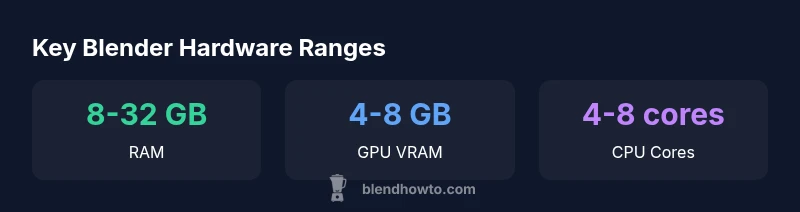
| RAM | 8-32 GB | Depends on scene complexity and texture size |
| CPU Cores | 4-8 cores | Higher clocks help with modeling operations |
| GPU VRAM | 4-8 GB | Crucial for textures and shading in large scenes |
| Disk Space | 50-150 GB | Includes caches, assets, and texture libraries |
Frequently Asked Questions
What is the minimum Blender spec for basic modeling?
For basic modeling, you can start with 8 GB RAM, a mid-range GPU, and a quad-core CPU. Prioritize responsiveness in the viewport and consider fast storage for project files.
For basic modeling, start with 8 gigabytes of RAM, a mid-range GPU, and a quad-core CPU. Fast storage helps with project loading.
Do I need a high-end GPU for rendering in Cycles?
A capable GPU improves Cycles rendering times, but you can render on CPU if needed. For large scenes, a GPU with ample VRAM often yields the best balance.
A capable GPU helps Cycles render faster, but CPU rendering is still viable for smaller scenes.
Is RAM more important than CPU for Blender?
RAM headroom has broad impact on performance, especially for texture-heavy work. CPU speed and core count also matter for modeling operations and simulations.
RAM headroom is crucial, and CPU speed and cores matter for modeling and simulations too.
How does GPU VRAM influence texture-heavy scenes?
GPU VRAM directly affects texture-heavy scenes by determining how much texture data Blender can keep in memory. Aim for GPUs with multiple GB of VRAM for large projects.
More VRAM lets Blender hold textures in memory; pick a GPU with ample VRAM for big projects.
Should I upgrade storage for Blender projects?
Yes. An SSD improves loading times and asset caching, which speeds up iteration during large or texture-rich projects.
Upgrading to an SSD speeds up loading and caching for big Blender projects.
“Hardware specs for Blender aren't a fixed target; they scale with project scope, asset size, and chosen workflow.”
What to Remember
- Define your project scope to pick hardware, not just hype
- RAM headroom drives viewport performance
- Budget GPU with adequate VRAM yields best returns
- Benchmark with real projects to validate upgrades