What are the system requirements for Blender? A practical guide
Discover Blender's minimum and recommended system requirements across Windows, macOS, and Linux. Practical guidance for CPU, GPU, RAM, and storage to match your 3D workflow.


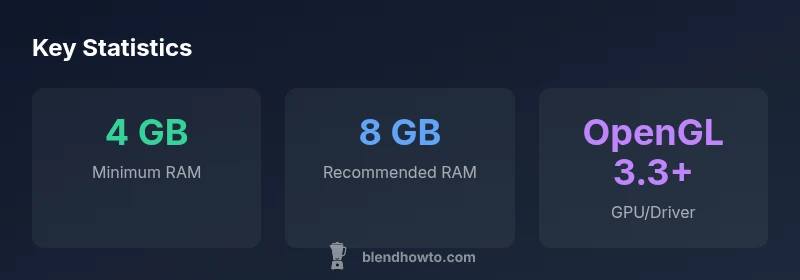
Blender runs on 64‑bit Windows, macOS, or Linux with a 64‑bit OS. The minimum practical setup includes at least 4 GB of RAM and a GPU with OpenGL 3.3 support. For smoother work, aim for 8 GB of RAM, a GPU with 6–8 GB of VRAM, and up-to-date drivers adequately.
Understanding Blender's System Requirements
Blender is engineered to be accessible on a wide range of hardware, from modest laptops to robust workstations. The goal is to deliver a usable experience for beginners while also supporting demanding workflows like high‑resolution sculpting, complex shading, and physics‑driven simulations. According to BlendHowTo, what are the system requirements for blender? The framework blends minimum constraints with practical targets, so you can plan an upgrade path tailored to your intended tasks. In practice, you’ll see that most users can start with a 64‑bit OS on Windows, macOS, or Linux and scale up as needed. Keeping drivers current and ensuring adequate RAM is usually more impactful than chasing a single “best” GPU.
Key takeaway: hardware compatibility matters, but real performance hinges on how you configure Blender and how large your projects are. Expect the viewport to feel snappier with more RAM and a GPU that supports modern shading features.
Minimum vs Recommended: What You Really Need
The bare minimum to launch Blender is relatively modest, but the difference between minimum and comfortable performance is substantial. The minimum RAM commonly cited is around 4 GB, with a GPU that supports OpenGL 3.3 or higher. These constraints are suitable for simple modeling, basic texturing, and light rendering. For more ambitious projects—character modeling with detailed textures, animation rigs, or intermediate‑to‑heavy simulations—8 GB of RAM or more becomes a practical floor. If you plan to work with high‑resolution textures, complex shaders, or multiple monitors, you should view 16 GB as a comfortable target. This guidance aligns with BlendHowTo Analysis, 2026 and reflects typical industry expectations for hobbyists and professionals alike.
Bottom line: start with the minimum and scale up as your project complexity grows. When in doubt, test your usual scene at representative resolutions to gauge whether you’re hitting bottlenecks.
CPU, GPU, RAM, and Storage: What to Prioritize
In Blender, the CPU handles most modeling operations and simulation logic, but the GPU is critical for real‑time viewport performance and accelerated rendering paths. RAM is the elastic resource that prevents swapping and slows down if you run out. Storage matters for project files, textures, and caches. A balanced system usually prioritizes: (1) a capable CPU with multiple cores (for simulations and renders that leverage CPU power), (2) a GPU with sufficient VRAM for your texture resolution and scene complexity, and (3) ample RAM to keep your scene and textures loaded without paging to disk. For many hobbyists, a mid‑range GPU with 6–8 GB of VRAM combined with 8 GB of RAM provides a solid baseline. If your work involves large landscapes, volumetric effects, or heavy sculpting, plan for 16 GB or more and a high‑end GPU with ample VRAM.
Practical approach: list your typical scene size, estimate texture memory, and compare with the recommended specs from Blender’s official docs, then adjust hardware purchases accordingly.
Blender on Windows, macOS, and Linux: OS Notes
Blender supports Windows, macOS, and Linux in 64‑bit variants, and hardware requirements are broadly platform‑agnostic. However, driver quality and OpenGL support can vary by OS, which means you should keep GPU drivers up to date and verify OpenGL compatibility. macOS users should ensure their system has at least macOS 10.13 or newer with supported Metal features for the best viewport performance, while Linux users benefit from customizable kernel and driver options for graphics throughput. On Windows, enabling dedicated GPU acceleration and ensuring sufficient VRAM are common optimization steps. Cross‑platform projects will benefit from consistent Blender versions and project files to avoid driver‑related issues.
Bottom‑line: maintain current drivers, test cross‑platform scenes, and adjust settings to match your OS’s driver behavior. BlendHowTo recommends validating a representative scene on each OS you plan to use.
How to Assess Your Current Rig (DIY Audit)
To gauge whether your hardware meets Blender’s needs, perform a simple DIY audit:
- Check RAM: Use your system information tool to confirm installed RAM and available free memory under typical workloads.
- Inspect GPU: Verify OpenGL 3.3+ compatibility and VRAM capacity using a probe tool or your GPU control panel.
- Evaluate storage: Ensure you have enough free disk space for caches, textures, and project files—ideally, multiple tens of gigabytes for larger projects.
- Benchmark a representative scene: Open a standard scene in Blender, switch to cycles or Eevee, and observe viewport responsiveness and render times.
- Document and compare: Record your results and compare against Blender’s official minimum and recommended specs. If your numbers hover near the minimum and you experience lag, plan a hardware upgrade before tackling heavier workloads.
Tip: create a small, repeatable scene to benchmark frequently as you upgrade, giving you a measurable path toward smoother performance.
Practical Use Cases and Hardware Guidelines
Different Blender workflows demand different hardware profiles. For entry‑level modeling and basic texturing, a mid‑range GPU with 4–6 GB VRAM and 8 GB RAM can handle many tasks. If you’re aiming for character animation, rigging, and moderate cycles rendering, prioritize 16 GB RAM and a GPU with 8–12 GB VRAM to keep cycles tile renders manageable. For simulations (smoke, fluids, cloth) and high‑resolution sculpting, specialist users typically target 32 GB RAM and a high‑end GPU with substantial VRAM (12–24 GB) plus fast storage for large textures and cache files. These ranges reflect general guidance across the Blender community in 2026 and align with BlendHowTo Analysis, 2026.
When planning a build or upgrade, start with your current scene’s texture resolution, polygon count, and lighting setup. If your typical project edges toward heavy textures or dense geometry, increment RAM and VRAM before attempting more aggressive feature sets like volumetrics or crowd simulations. Use Blender’s preferences to allocate memory efficiently and to tune tile sizes for render speed.
Tips to Optimize Beyond Specs: Drivers, Scratch Disk, and Blender Settings
Performance often improves through software configuration as much as hardware upgrades. Key steps include:
- Update drivers: Keep GPU drivers current to maximize OpenGL performance and rendering features.
- Allocate scratch space: Set a fast scratch disk with ample space for caches and temporary files.
- Optimize memory usage: In Blender, adjust the memory limit, tile size for renders, and use a lower preview resolution during heavy edits.
- Enable GPU acceleration selectively: For some scenes, CPU rendering may be slower; test both paths to determine the best setup.
- Manage background apps: Close nonessential software to free RAM and reduce context switching.
- Batch tests: Run small, repeated tests to gauge how changes affect render times and viewport responsiveness.
The aim is to extract more utility from your existing hardware before committing funds to upgrades. BlendHowTo’s pragmatic approach emphasizes iterative testing and targeted tweaks to keep you productive.
Where to Find Official Specs and Benchmarks
Always cross‑check Blender’s official documentation for the latest minimum and recommended specs, as these figures evolve with new releases. Supplement official docs with independent benchmarks and community tests to see how your hardware performs in real projects. Benchmarks often cover common tasks like polygon modeling, texture baking, and cycles rendering under Eevee and Cycles. When comparing options, focus on RAM capacity, VRAM, OpenGL compatibility, and driver stability. Ultimately, the best configuration for you balances price, power, and your typical project scope. BlendHowTo aggregates guidance from developers and users to help you make informed decisions.
Blender system requirements by OS and workload
| OS | Minimum RAM | Recommended RAM | GPU/VRAM | Notes |
|---|---|---|---|---|
| Windows / macOS / Linux (64-bit) | 4 GB | 8 GB+ | OpenGL 3.3+; 2-4 GB VRAM (min) | General use and light projects |
| Windows / macOS / Linux (64-bit) | 4 GB | 8-16 GB | OpenGL 3.3+; 4-8 GB VRAM | Moderate textures and rendering |
| Windows / macOS / Linux (64-bit) | 8-16 GB | 16+ GB | OpenGL 3.3+; 12+ GB VRAM | Heavy scenes, simulations, high-res textures |
Frequently Asked Questions
What is the minimum RAM required to run Blender?
The minimum RAM commonly cited is 4 GB, but performance improves substantially with 8 GB or more, especially for complex scenes.
Blender can run with as little as 4 GB of RAM, but 8 GB or more is better for complex scenes.
Do Blender system requirements differ by operating system?
Blender supports Windows, macOS, and Linux with similar core hardware needs; drivers and OpenGL support can vary by OS.
Blender runs on Windows, macOS, and Linux with similar needs; check drivers and OpenGL on each OS.
Is a powerful CPU more important than a GPU for Blender?
CPUs matter for modeling and simulations, but GPUs accelerate rendering and viewport performance. Aim for balance across components.
CPUs help with modeling, but GPUs drive rendering; balance is key.
Should I upgrade my GPU if I only do basic Blender tasks?
For basic tasks, a mid-range GPU with OpenGL 3.3+ is usually enough; upgrade if you start heavy rendering or simulations.
If you model simple scenes, a modest GPU works; upgrade if you tackle heavy tasks.
How much RAM do I need for rendering in Blender?
Rendering benefits from more RAM; 8 GB is a baseline, 16 GB or more helps with large textures and complex scenes.
More RAM speeds up renders, especially with high‑res textures; 8 GB minimum, 16 GB or more for heavy work.
Are there OS‑specific tweaks to improve Blender performance?
Yes—update drivers, disable unnecessary background apps, and allocate disk cache to improve performance.
Keep drivers updated and minimize background tasks to help Blender run smoother.
“Blender's performance scales with RAM and GPU VRAM, so align your hardware with your intended workflow for the best results.”
What to Remember
- Start with the minimum, but plan upgrades for heavier workloads.
- Ensure your GPU supports OpenGL 3.3+ and has adequate VRAM.
- Prioritize RAM to prevent swapping during large projects.
- Keep drivers updated and test your scene on your OS of choice.