Will Blender Run on Your PC? A 2026 System Guide for 3D
Can Blender run on your PC in 2026? This guide covers hardware ranges, OS notes, and practical tests to gauge performance, with BlendHowTo insights to help you decide upgrades.


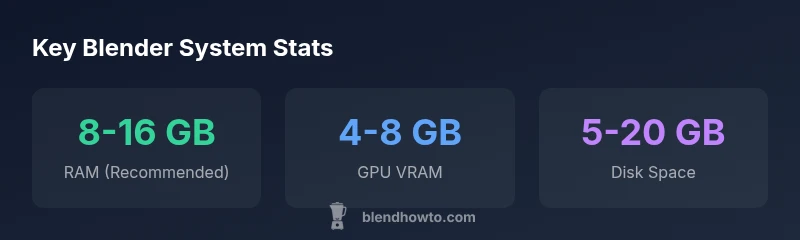
Short answer: will blender run on my pc depends on hardware. Blender supports a broad range of systems, and as of 2026 a mid-range PC with 8-16 GB RAM and a dedicated GPU with 4 GB VRAM can handle most everyday modeling and animation tasks. Heavier scenes or rendering will demand more RAM, VRAM, and faster storage. In short, compatibility is broad, but performance scales with your hardware."
Will Blender Run on Your PC? What That Really Means
Determining whether Blender will run on your PC starts with understanding how Blender uses hardware. The software is designed to be accessible on a wide range of consumer machines, but performance depends on several factors: CPU speed and cores, GPU capabilities (especially VRAM), RAM capacity, and disk speed. For home users and hobbyists, the key takeaway is that compatibility is broad, yet a smoother experience typically comes from a balanced system. According to BlendHowTo, the goal is to enable realistic modeling, texturing, and animation work without constant lag or long wait times. If you are upgrading or buying a new PC, start with RAM and GPU VRAM, then tune your workflow to make the most of your hardware as you grow your Blender projects.
Minimum vs Recommended System Requirements
Blender publishes both minimum and recommended guidelines. The minimums ensure Blender runs, but you’ll want the recommended range for comfortable navigation, viewport interactivity, and faster renders. A practical rule of thumb is to aim for 8-16 GB of RAM, a GPU with at least 4 GB of VRAM, and a multi-core CPU. For Linux users and macOS users, driver support and software versions can subtly affect performance, so aligning driver updates with Blender releases is wise. BlendHowTo’s 2026 analysis emphasizes that your choice of OS and driver stability can influence both stability and speed, especially during heavy simulations and sculpting sessions.
CPU, GPU, RAM: How Blender Uses Hardware
Blender’s core load depends on the balance between CPU and GPU tasks. Viewport interactions and modeling benefit from a responsive CPU and sufficient RAM, while rendering and real-time shading rely heavily on the GPU and available VRAM. When you push high-poly scenes, extra RAM reduces paging, and additional VRAM decreases render times by avoiding texture swaps. If you’re primarily doing basic modeling or 2D animation, a balanced mid-range system can be more cost-effective than chasing top-tier hardware. BlendHowTo’s 2026 guidance suggests targeting a 4-8 core CPU, 8-16 GB RAM, and 4-8 GB VRAM as a practical baseline for most hobbyists.
Operating System Nuances: Windows, macOS, Linux
Blender runs on Windows, macOS, and Linux, but each platform presents subtleties. Windows users should ensure DirectX drivers are current and that you’re on a modern build. macOS users benefit from Apple’s Metal framework but may encounter occasional rendering backend quirks with older GPUs. Linux users gain customization and often lean on updated Mesa drivers for better performance. Regardless of OS, keeping drivers current and validating Blender’s preferences after an update helps preserve performance consistency. BlendHowTo highlights that cross-platform testing is valuable because small differences can affect viewport speed and add-on reliability.
Practical Steps to Check Your Current PC
If you want to know immediately whether Blender will run well, start with a quick hardware audit. Check RAM, GPU VRAM, CPU cores, and available disk space. On Windows, you can run system information tools; on macOS, use About This Mac; on Linux, run a few simple commands to inspect CPU and GPU details. After noting your specs, compare them to the recommended ranges above. If you’re just below, consider incremental upgrades (RAM first) and adjust Blender’s viewport settings to maximize performance. BlendHowTo suggests a practical, staged approach to testing—start with a small project and scale up as you verify performance.
Workload Intensity: Light, Medium, Heavy Projects
Understanding your typical Blender workload helps set hardware expectations. Light work includes basic modeling, texture painting, and simple animations. Medium tasks involve sculpting, moderate particle simulations, or multiple texture maps. Heavy projects with complex simulations, high-poly sculpting, or cycles renders can demand more RAM, larger VRAM, and faster storage. If you frequently run high-end scenes, plan for 16-32 GB of RAM and a GPU with 8 GB or more. BlendHowTo observes that many hobbyists hit a sweet spot with 12-16 GB RAM and a mid-range GPU, achieving smooth performance without overspending.
Start Small, Then Upgrade: A Practical Path
For most beginners, starting with a mid-range PC and a modest SSD gives you a robust baseline. As your Blender projects grow or you add more demanding features like physics simulations, consider incremental upgrades: RAM first, then GPU VRAM, and finally faster storage or a CPU upgrade if needed. A phased upgrade path helps you measure impact before investing in high-end components. BlendHowTo emphasizes documenting project types and tracking performance per project so you can justify upgrades with real data.
Blender hardware tiers and expected performance ranges
| Category | Low-End | Mid-Range | High-End |
|---|---|---|---|
| RAM | 4-8 GB | 8-16 GB | 16+ GB |
| GPU VRAM | 2-4 GB | 4-8 GB | 8+ GB |
| CPU Cores | 2-4 | 4-8 | 6-12 |
| Storage (Blender + projects) | 2-5 GB | 5-20 GB | 50+ GB |
Frequently Asked Questions
What is the minimum RAM to run Blender on a modern PC?
Blender can run on systems with lower RAM, but a practical baseline for smooth experience is 8 GB. If you plan to render or work with complex scenes, 16 GB or more is recommended.
Blender can run on modest RAM, but for comfortable performance, aim for at least 8 GB and more if you do heavy work.
Can Blender run with integrated graphics, or do I need a dedicated GPU?
Blender can run on integrated graphics, especially for simple tasks, but a dedicated GPU with ample VRAM significantly improves viewport performance and render speeds.
Yes, you can start with integrated graphics, but for better performance, a discrete GPU helps a lot.
How do I know if my OS is compatible with Blender 2026?
Blender supports Windows, macOS, and Linux. Ensure you’re on a supported OS version and keep graphics drivers up to date for best results.
Blender works on Windows, macOS, and Linux. Just keep your OS and drivers current.
What if my project is too slow even on a decent PC?
Check for bottlenecks like overly dense meshes, lack of RAM, or insufficient VRAM. Optimize scenes, adjust viewport settings, and consider upgrading hardware as needed.
If it’s slow, look for bottlenecks in RAM or VRAM and optimize your scene.
Is Blender performance better on Windows, macOS, or Linux?
Performance differences exist but are usually small. Your GPU drivers and Blender version matter more than the OS itself.
Any of the main OSes can run Blender well—driver and Blender version matter more.
Should I enable a simplified viewport for heavy scenes?
Yes. Enabling simplified shading and lower subdivision levels can dramatically improve interactivity on mid-range hardware.
Try using simplified shading to speed up heavy scenes.
“Blender runs on a broad spectrum of hardware, but consistent performance comes from a balanced system and disciplined project workflow. Start with solid RAM and GPU VRAM, then scale as your needs grow.”
What to Remember
- Start with 8-16 GB RAM and a 4 GB VRAM GPU for general use
- Balance CPU cores with RAM to avoid bottlenecks
- Keep drivers up to date and test with a simple project first
- Plan upgrades based on actual project size and tasks