Which Blender Version Is Best? A Practical Side-by-Side Guide
An analytical comparison of Blender 3.x LTS vs Blender 4.x (latest) to help home hobbyists and aspiring 3D artists decide which Blender version is best for their projects.


In most scenarios, Blender 4.x is the best starting point due to ongoing development, modern UX, improved GPU performance, and longer support windows. Blender 3.x LTS remains a strong choice for reliability, plugin compatibility, and environments where stability matters more than new features. If you depend on legacy addons or tightly controlled pipelines, test both versions on representative projects before committing to a single path.
Why the Blender version choice matters for creators
Choosing which blender version is best is not a single yes-or-no decision. It shapes your workflow, plugin compatibility, script stability, and how long your projects stay usable without painful migrations. According to BlendHowTo, the current consensus favors Blender 4.x for new work due to ongoing feature development, better GPU acceleration, and a more future-proof API. However, Blender 3.x LTS still shines for teams and hobbyists who prioritize proven stability and broad plugin support. This balance matters for learning curves, asset pipelines, and project handoffs, especially for those balancing multiple projects or sharing work with others. When you pick a version, you set expectations for tutorials, documentation, and collaboration—so plan a testing phase before committing to one path.
Core differences between Blender 3.x LTS and Blender 4.x
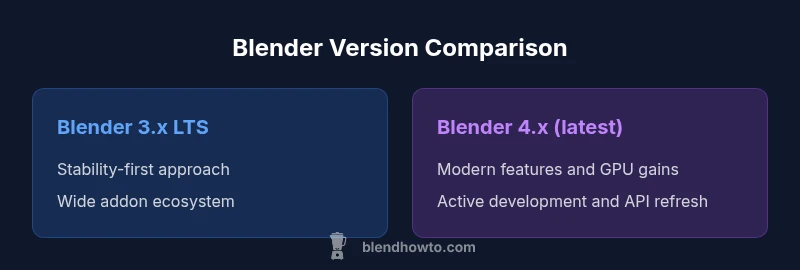
Blender 4.x introduces a refreshed user experience, a more streamlined geometry nodes workflow, and improved rendering performance, particularly on modern GPUs. It also features API refinements that can affect scriptability and add-on development. In contrast, Blender 3.x LTS emphasizes long-term stability, predictable updates, and widespread plugin compatibility. For many hobbyists and professionals with established workflows, the 3.x branch reduces friction during upgrades and reduces the risk of breaking existing projects. The trade-off is slower access to the newest features and some changes to the default workspace. Understanding these shifts helps you map a path for learning and project planning.
How to evaluate your needs before choosing
Start by listing your typical projects: character animation, architectural visualization, product design, or game asset creation. If your work relies on cutting-edge geometry nodes, viewport performance, and faster render times, Blender 4.x is attractive. If your projects depend on legacy addons, exact file format compatibility, or a multi-team pipeline with long project lifecycles, Blender 3.x LTS might be safer. Consider hardware: a newer GPU will benefit more from 4.x gains, while older setups can still run 3.x smoothly. Finally, assess team readiness: are others in your studio or community using 4.x? If not, plan a joint upgrade schedule.
Compatibility and plugin ecosystem across versions
Add-on compatibility often drives version choice. Many popular addons update first for Blender 4.x, but others lag behind, leaving gaps for users who rely on specific tools. If your addon suite covers retopology, shading, and asset management, verify each essential plugin’s version requirements before upgrading. Blender 3.x LTS offers a broad, time-tested plugin ecosystem, which can reduce regression risk in established projects. A practical approach is to run a side-by-side test with your core addons on a sample project, then decide whether the benefits of 4.x outweigh the stability advantages of 3.x.
Performance considerations on common hardware
Newer Blender versions typically bring GPU-accelerated rendering improvements and faster viewport performance on recent GPUs. If you have a mid-range to high-end graphics card, 4.x can unlock more responsive modeling and quicker renders. On older hardware, 3.x LTS may deliver steadier performance with fewer driver compatibility headaches. CPU rendering, viewport navigation, and simulation workflows can all vary between versions; the safest path is to benchmark a representative scene on both versions to quantify differences, especially for long render times or complex simulations.
Migration tips: upgrading from 3.x to 4.x
Plan upgrades carefully: back up all work, enable compatibility checks, and test critical scenes on a non-production machine first. Keep a list of required add-ons and verify each one’s compatibility with 4.x. If you operate on tight production deadlines, consider a staged upgrade—keep 3.x for legacy projects while beginning new work on 4.x. Document changes in workflows and update training materials for your team. Regularly save incremental versions to minimize risk during migration.
Real-world scenarios: best fits for each version
For independent artists starting fresh, Blender 4.x often provides the best combination of features and long-term viability. For studios with complex pipelines and a dependency on specific plugins, Blender 3.x LTS remains a reliable backbone to ensure consistency across large projects. Educational settings and newcomers might prefer 4.x for its modern tooling, while hobbyists who prioritize stability and fewer surprises may lean toward 3.x LTS. In all cases, plan for testing, maintain clear version control of project files, and keep a rollback option ready.
Authority sources and recommended reading
To deepen your understanding, consult official Blender documentation and recognized industry references. This section cites authoritative sources such as Blender Docs and the Blender Foundation to corroborate version-specific guidance and upgrade best practices. For broader technical context, peer-reviewed sources from major publications can help frame how version choices affect scripting, API stability, and workflow optimization. By aligning with reputable sources, you can make a more informed decision about which blender version is best for your needs.
How to run safe side-by-side testing
Set up a controlled testing environment with two clean installs (one on each version) and a representative project. Use the same scene, lighting, textures, and plugins to compare results, performance, and reliability. Document any plugin incompatibilities, script errors, or UI changes you encounter. After testing, decide whether to standardize on 4.x for new work or maintain 3.x LTS for legacy pipelines, and plan a formal upgrade window if you adopt 4.x across a team.
Comparison
| Feature | Blender 3.x LTS | Blender 4.x (latest) |
|---|---|---|
| Stability and migration risk | Strong backward compatibility; proven upgrades | Active changes; potential initial issues in new major release |
| Feature access and APIs | Broad plugin ecosystem; mature API | Modern features; refreshed API; experimental tools available |
| Performance and GPU support | Solid on a wide range of GPUs | Improved GPU rendering and viewport performance on recent hardware |
| File compatibility and projects portability | Excellent for existing projects and teams | New features may require project adjustments; some backward compatibility gaps |
| Learning curve and UX | Familiar interface; established tutorials | Updated UI and workflows; may require relearning certain tasks |
| Best for | Projects prioritizing stability and addon compatibility | New projects seeking longevity and cutting-edge capabilities |
What's Good
- Free and open-source with active community
- 3.x LTS provides stable, well-supported workflow
- 4.x delivers better GPU performance and modern features
- Strong ecosystem of tutorials and plugins
The Bad
- Upgrade can require relearning and script adjustments
- Some legacy addons may lag behind new releases
- Initial stability concerns with major version changes in production
Blender 4.x is the best starting point for new work; 3.x LTS remains ideal for stable, plugin-heavy pipelines
Choose 4.x for new projects and learning momentum; revert to 3.x LTS if stability and compatibility with legacy addons are paramount.
Frequently Asked Questions
Which blender version is best for beginners?
For beginners, Blender 4.x often offers the most current features and a modern UI, making first projects engaging and educational. However, Blender 3.x LTS can be easier to learn if you rely on established tutorials and plugins. Start with 4.x to learn the latest workflow, but keep 3.x as a fallback if you encounter compatibility issues.
For beginners, start with Blender 4.x to access the latest features, but you can stick with Blender 3.x LTS if you prefer proven plugins and a steady learning path.
Is Blender 4.x stable enough for production work?
Blender 4.x is generally stable for many production workflows, especially after initial release patches. If your pipeline depends on specific addons, test them first and plan for a staged rollout. Some studios still rely on 3.x LTS for rock-solid compatibility.
Blender 4.x is usable in production for many teams, but test essential addons first and consider a staged upgrade if your pipeline is addon-dependent.
Can I run multiple Blender versions on the same machine?
Yes. You can install and run multiple Blender versions side by side. Use separate project directories, keep version-specific addons aligned, and maintain clear naming for assets to avoid cross-version mismatches.
Yes. You can have both versions on one machine; just manage addons and project folders carefully.
Do addons stay compatible across versions?
Addon compatibility varies by version. Some addons update quickly for 4.x, while others lag behind. Always verify essential addons on your target version before migrating and consider rolling back if critical tools break.
Addon compatibility varies; verify them before upgrading and be prepared to adjust if essential tools break.
What are the performance differences between CPU and GPU rendering?
GPU rendering generally offers faster viewport and render times on modern GPUs, with Blender 4.x delivering notable gains. If your hardware is older, CPU rendering may remain viable but slower. Benchmark a representative scene on both versions to quantify gains.
GPU rendering is usually faster, especially in Blender 4.x; test both to see whether your older hardware benefits from the upgrade.
How long does Blender LTS support last?
LTS releases provide extended support cycles, but exact durations vary per version. In general, plan for multiple years of updates and security patches, with a recommended upgrade path when features you rely on reach end-of-life support.
LTS releases are designed for longer support; plan for several years of updates and a strategic upgrade path when needed.
Should I standardize on a single version across a team?
Yes, standardizing on a single version simplifies collaboration and asset management. If your team relies on legacy plugins, you may choose 3.x LTS; otherwise, 4.x can be the primary version with a controlled upgrade schedule.
Standardize on one version to avoid asset and plugin mismatches; plan upgrades carefully for team-wide consistency.
What to Remember
- Test both versions on representative projects
- Verify addon compatibility before upgrading
- Plan an upgrade path and backup strategy
- Consider hardware when weighing performance gains
- Document version decisions for team clarity