Blender Visual Effects: Practical Workflows for VFX in Blender
Learn practical Blender visual effects workflows, from planning and scene setup to rendering and compositing. This guide covers motion blur, lighting, particle and fluid sims, shading, and color grading for accessible, studio-quality results.


This guide helps you build convincing Blender visual effects, from planning and scene setup to rendering and compositing. You’ll learn practical techniques for motion blur, lighting, particle sims, fluid effects, and color grading, with step-by-step workflows you can apply to home projects. Basic Blender familiarity is assumed: animations, nodes, and basic shader setup.
Foundations of Blender Visual Effects
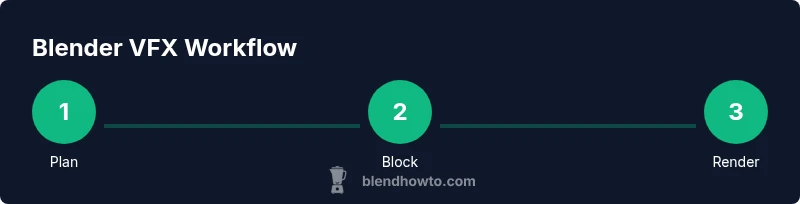
In the world of Blender visual effects (VFX), a project’s success hinges on a clear plan, disciplined asset management, and a repeatable workflow. The BlendHowTo team emphasizes that practical VFX workflows help home artists achieve studio-like results by using explicit steps, reusable templates, and non-destructive editing. Begin with a concise brief: what shot are you delivering, what passes will you render, and what is the final look or mood. Gather reference imagery, camera angles, and lighting cues. Create a blocking pass to validate composition and timing before diving into heavy simulations. This foundation reduces drift between iterations and keeps the project aligned with the target aesthetic.
Core Techniques in Blender VFX
Blender offers a robust set of techniques that form the backbone of most VFX scenes. Start with a clean scene layout, then layer in motion blur, depth of field, and bloom to add cinematic feel without overpowering the shot. Choose Eevee for fast previews and Cycles for final renders with higher realism. Build non-destructive shader trees using the Node editor and standardize color management across all passes. Separate lighting, reflections, and roughness into distinct passes so you can fine-tune in composite without re-rendering. The modular approach keeps your workflow flexible and scalable as scenes grow in complexity.
Working with Simulations: Particles, Fluids, and Smoke
Simulations are often the strongest VFX tools in Blender, but they can also derail a project if not managed carefully. Use particle systems for dust, sparks, or debris, and reserve fluid or smoke sims for elements that interact meaningfully with the scene. Always bake or cache sims to disk so you can scrub timelines smoothly and avoid re-simulating. Start with low resolution to iterate the look, then progressively raise resolution on final renders. Keep domain objects well-organized in the outliner and use collections to separate sim assets from the main scene for easier control and comping.
Shading, Materials, and Color Grading
Materials in Blender are the bridge between the 3D world and your final VFX look. Build clean, reusable shader networks for common elements (glass, metal, skin) and use texture maps to control micro-details. For post-production, set up color management with consistent LUTs and lookup tables across passes. In compositing, grade the beauty pass and then apply color corrections to passes like diffuse, specular, and ambient occlusion. This separation gives you flexibility to tweak mood, contrast, and saturation without re-rendering.
Compositing and Render Passes
Compositing is where the magic happens. Route your renders through a well-organized node graph to combine passes, correct exposure, and integrate with live-action plates if needed. Use a dedicated pre-mcomp for effects like glow, motion blur, and depth data (Z-depth) to control depth-based fog and atmospheric effects. A disciplined approach to render passes—diffuse, normals, albedo, roughness, emissive, and depth—enables precise color grading and composite corrections without re-rendering. Save your node groups as templates to speed up future projects.
Building a Reusable VFX Pipeline
A repeatable pipeline is a superpower for VFX artists. Start by creating project templates that include scene setups, node trees, and render layer configurations. Build a library of stock assets (textures, HDRIs, light rigs) you can plug into new shots with minimal tweaks. Document your process and maintain a checklist for planning, caching, and post-processing. A consistent pipeline reduces cognitive load, accelerates iteration, and improves results across multiple shots or scenes.
Troubleshooting Common Pitfalls
Memory bloat and long bake times are common pain points. Always cache simulations to disk and use lower-resolution previews during iteration. If a render looks noisy, adjust sampling, enable denoising, and verify that passes are correctly connected in the compositor. Shader graphs can grow complex fast; modularize them with groups and comments to keep the workflow readable. When things go off track, revert to a known-good snapshot from the template and rebuild gradually to locate the failure point.
Real-World Project Example: Short Scene
Imagine a 6–8 second sci-fi alley shot where a drone passes by, emitters create subtle dust, and a reflective chrome wall reacts to a passing light. Start with blocking to position the drone, then add a low-res particle dust pass and a fluid spill for mood. Use a simple glass wall with HDRI lighting and a blue-cyan color grade to evoke a cool, cinematic tone. Render in passes: diffuse, emission, specular, normal, depth. Composite in sequence, adjust color balance, and apply a gentle global glow for atmosphere.
Tools, Resources, and Learning Path
Beyond Blender’s built-in tools, practical resources include community tutorials, official manuals, and sample projects. Practice with small, self-contained scenes before tackling full-shot projects. Maintain a habit of versioning your files, storing cache data, and documenting settings for each pass. As you grow, incorporate addons and plugins that fit your workflow, but always prioritize non-destructive, reusable node setups over one-off hacks. Your learning path should balance hands-on projects with review and reflection.
Tools & Materials
- Blender software (latest stable release)(Download from blender.org; configure Render Properties for Eevee and/or Cycles; set color management (Filmic).)
- Powerful workstation(A GPU with ample VRAM and a multicore CPU helps with heavy sims and denoising; ensure adequate RAM (16 GB+ as a baseline).)
- Reference imagery(Collect concept art, mood boards, and shot references to guide composition and lighting.)
- Color-calibrated monitor(Critical for accurate grading and consistent look across passes.)
- HDRI environment maps(Useful for realistic lighting and reflections; sample set recommended.)
- External hard drive or cloud storage(Cache data, sims, and large textures; helps keep project organized.)
- Graphics tablet (optional)(Helpful for painting textures or fine-tuning curves in shading nodes.)
- Tracking markers/greenscreen assets (optional)(Useful for plate integration and camera tracking in live-action composites.)
- Color checker/gray card (optional)(Assists with reference lighting during setup and grading.)
- Add-ons/plugins for Blender (optional)(Only adopt those that fit your pipeline; prefer non-destructive, reusable workflows.)
Steps
Estimated time: Total time varies by project; typically several hours to days for a complete short scene.
- 1
Define shot brief
Clarify the goal, mood, and required passes. Create a shot list and a simple storyboard to align your team (even if solo). This minimizes backtracking.
Tip: Document constraints early; a clear brief saves rework later. - 2
Block the scene in Blender
Set up camera, placeholders, and basic geometry to confirm composition and timing. Verify scale, focal length, and blocking before heavy sims.
Tip: Block with low-poly proxies first to speed iteration. - 3
Create base materials
Build simple materials for major elements (walls, characters, vehicles). Keep shaders non-destructive and modular for quick swaps.
Tip: Name nodes and collections clearly to maintain readability. - 4
Set up lighting and camera
Establish a lighting rig that supports your mood; place key, fill, and rim lights. Configure camera motion for smooth, cinematic movement.
Tip: Use a subtle color temperature shift to enhance mood. - 5
Bake simulations at low resolution
Create particle, fluid, or smoke sims at low resolution to test timing and interaction with the environment.
Tip: Cache sims to disk early to avoid re-simulating during edits. - 6
Develop shading and textures
Expand materials, plug in texture maps, and refine roughness and metallic values for realism.
Tip: Use texture maps to control micro-details rather than large geometry changes. - 7
Composite passes in Blender
Assemble passes in the compositor; connect diffusion, specular, ambient occlusion, and depth passes for flexible grading.
Tip: Group common node setups for reuse across shots. - 8
Final render and denoise
Render at final resolution, apply denoising, and verify consistency across passes before export.
Tip: Evaluate denoising in small test renders to balance sharpness and noise. - 9
Color grading and polish
Apply global grade, color balance, and contrast to unify the shot. Fine-tune atmospheric effects like glow or fog if needed.
Tip: Avoid over-saturation; aim for cinematic realism. - 10
Publish and archive
Export final sequences and organize assets with versioning and clear metadata for future reuse.
Tip: Keep a readme file with settings and decisions for future projects.
Frequently Asked Questions
What is Blender visual effects?
Blender visual effects (VFX) involve creating or enhancing imagery within Blender through simulations, shading, lighting, and compositing. It combines 3D work with post-processing to produce cinematic results, often using a pipeline of planning, blocking, sim, render, and composite.
Blender VFX is about creating and refining imagery inside Blender using simulations, shading, lighting, and compositing.
Do I need an external render engine for VFX?
Blender includes both Cycles and Eevee, which cover most VFX needs. Cycles offers more realism at the cost of render time, while Eevee provides faster previews. Depending on your shot, you may use both in a hybrid workflow.
You can achieve most VFX in Blender with Cycles or Eevee; choose Cycles for realism and Eevee for quick previews.
Can Blender handle real-time VFX?
Blender supports real-time workflows through Eevee and viewport effects, enabling near-instant feedback for shading, lighting, and basic particle effects. For heavy simulations, bake caches and switch to offline rendering for final frames.
Blender can do real-time preview with Eevee, but heavy simulations still benefit from offline rendering.
What file formats should I export/import for VFX?
Common choices include FBX and OBJ for geometry, PNG or EXR for image passes, and MOV or MP4 for final video. Maintain a consistent pipeline by keeping intermediate files in a dedicated cache or sequence folder.
Use FBX or OBJ for models and EXR for passes; keep a dedicated cache folder for intermediates.
Where can I find beginner-friendly VFX resources?
Look for official Blender tutorials, community channels, and beginner-friendly courses. Practice with small projects and use templates to reinforce learning. Always augment practice with critiques from peers to accelerate improvement.
Seek official Blender tutorials and beginner courses, then practice with small projects and seek feedback.
How long does it take to learn Blender VFX?
Learning Blender VFX varies by commitment and project scope. Start with fundamentals in modeling, shading, and compositing, then progressively tackle simple simulations and color grading. Regular practice accelerates proficiency.
With steady practice, you’ll build fluency in basics first and expand to simulations and compositing over time.
Watch Video
What to Remember
- Plan first; a clear brief speeds up VFX work
- Build modular, non-destructive node setups
- Cache sims to disk to keep workflows responsive
- Render passes enable flexible compositing
- Create reusable templates for future shots