Does Blender Need a Graphics Card? A Practical Guide
Explore whether Blender requires a graphics card, how GPU affects rendering and viewport performance, and practical hardware guidelines for hobbyists and professionals in 2026.


Does Blender need a graphics card? In practice, Blender benefits from a graphics card for most tasks, especially viewport performance and GPU rendering, but it's not strictly required for basic tasks. A GPU speeds up shading, real-time previews, and Cycles/EEVEE rendering, while the CPU handles many modeling and simulation operations. For many workflows, a mid-range GPU with adequate VRAM provides the best balance between performance and cost.
How Blender uses graphics cards
Blender operates with a mix of CPU- and GPU-accelerated paths. The GPU shines in viewport responsiveness, real-time shading, and GPU-based rendering options in Cycles and Eevee. In modeling, sculpting, and many simulations, the CPU remains essential, especially when the work relies on CPU-bound operations or plugins that don’t leverage GPU acceleration. The optimal system balances CPU power for data processing with a capable GPU to render and preview scenes smoothly. For someone asking does blender need graphics card, the core takeaway is that a GPU provides meaningful benefits for most workflows, but entry-level tasks can run on modest hardware. In 2026, most hobbyists and professionals alike will gain the most value from a balanced build that prioritizes VRAM and driver stability as well as CPU core performance.
GPU rendering engines: Cycles vs Eevee
Blender’s two primary rendering engines have different GPU characteristics. Eevee is real-time, heavily GPU-dependent, and benefits from fast texture fetches and shader processing. Cycles, traditionally path-traced, uses GPU compute for photorealistic rendering, but performance gains depend on device compute capability and drivers. If you plan to render final scenes with Cycles, a modern NVIDIA or AMD card with ample CUDA/OpenCL/ART work is advantageous. For real-time previews and non-photorealistic work, Eevee’s speed can be enjoyed even on mid-range GPUs. In both cases, enabling GPU acceleration via Preferences > System ensures Blender utilizes the available hardware.
VRAM and memory considerations
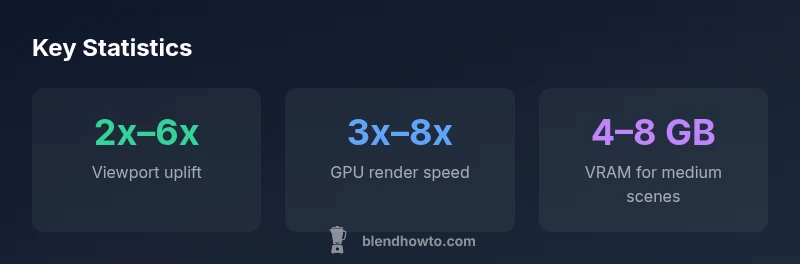
VRAM is a critical bottleneck in Blender workflows. Large textures, high-resolution shading, and complex particle systems consume VRAM quickly. A GPU with 6–8 GB VRAM handles many mid-sized projects, but very large scenes or long animation renders may require 10–16 GB or more. If your projects routinely approach or exceed your VRAM limit, you’ll notice stuttering in the viewport and longer render times as Blender serializes data to main memory. Planning around VRAM, texture sizes, and scene optimization (level of detail, instancing, and asset reuse) will provide the most reliable performance gains. Balance between GPU memory and available system RAM to prevent bottlenecks.
When CPU-only makes sense
There are scenarios where a CPU-only setup is acceptable. For simple, static scenes, or when you’re learning the interface and performing light modeling, CPU-only rendering can work, albeit slowly. For laptops or compact builds with limited GPU options, you can still use Blender effectively by restricting texture resolution and simplifying scenes. However, as soon as you start animating, lighting, or applying high-fidelity materials, a GPU becomes increasingly valuable. If portability is paramount, consider a lightweight GPU that offers shared memory usage, then scale up to a discrete card when desktop time allows.
Practical guidelines for choosing hardware
When choosing hardware for Blender, start with your typical workflow. If you mostly model and animate medium-sized scenes, aim for a mid-range GPU with 6–8 GB VRAM and at least 16 GB system RAM. If you render heavy scenes in Cycles, prefer GPUs with higher compute performance and more VRAM; current generation cards with 10–16 GB are common targets. For Eevee-heavy work, you can get away with slightly less VRAM, but ensure you have robust drivers and a supported OS. Don’t overlook CPU cores and clock speed; Blender benefits from higher thread counts for simulations and non-GPU tasks. Finally, factor in power, thermals, and noise—cool, efficient cooling helps sustained performance in long sessions.
Software and driver considerations
Keeping drivers up to date is critical for Blender stability and performance. Blender’s development cadence often includes GPU driver optimizations and bug fixes that affect rendering and viewport. If you switch between OSes or driver branches (e.g., studio driver vs game-ready), test Blender’s performance to avoid regressions. NVIDIA and AMD offer profiling tools that help you tune settings for your specific scene, while Blender’s preferences expose GPU-specific toggles for texture caches and render devices. In short, a current driver + properly configured Blender settings yields the most reliable results.
Real-world scenarios and setups
A typical home workstation for Blender hobbyists might pair a mid-range GPU with 6–8 GB VRAM, 16 GB RAM, and a modern multi-core CPU. This balance supports comfortable viewport interaction and efficient renders for many projects. For professional work, systems with 16–32 GB RAM and GPUs with 12–16 GB VRAM or more are common. For mobile or portable needs, ensure the laptop’s GPU supports Blender’s compute path, and be mindful of thermal throttling during long sessions. Finally, always tailor your settings to your scene: lower texture sizes, enable denoising early, and use viewport sampling appropriate to your hardware to maintain interactive workflow.
Final thoughts on does blender need graphics card
Bottom line: you’ll see tangible gains with a GPU for most Blender tasks, especially in rendering and viewport performance. The degree of improvement depends on scene size, texture resolution, and the engine you choose. If your budget allows, a modern discrete GPU with ample VRAM paired with a solid CPU makes Blender feel significantly faster and more responsive. If budget is tight, start with a capable CPU and a modest GPU, then upgrade as needed, focusing on VRAM and driver reliability as your guiding metrics.
Blender hardware guidance: GPU vs CPU impact
| Aspect | Impact (GPU vs CPU) | Recommendation |
|---|---|---|
| Viewport responsiveness | GPU dramatically improves interactivity | Aim for a mid-range GPU with 6–8 GB VRAM |
| Rendering speed (Cycles/EEVEE) | GPU rendering is substantially faster | Use GPU when possible; prefer CUDA/OpenCL/ROCm support |
| Memory usage (VRAM) | VRAM matters more than system RAM for textures | Monitor VRAM usage per scene and optimize textures |
| Drivers and stability | GPU drivers affect Blender stability | Keep drivers updated and test Blender on new driver releases |
Frequently Asked Questions
Does Blender run without a graphics card?
Yes, Blender can run without a dedicated graphics card, but performance will be limited. You may experience slower viewport interactions and longer render times, especially for complex scenes. For beginners or simple projects, CPU-only setups are workable, but upgrading to a GPU improves the workflow dramatically.
Yes, you can run Blender without a dedicated GPU, but expect slower performance on complex scenes. A GPU upgrade makes modeling, shading, and rendering much smoother.
Is integrated graphics enough for Blender?
Integrated graphics can handle basic Blender tasks, but they typically struggle with heavy scenes and GPU rendering. If you’re planning to render or work with detailed textures, a discrete GPU is strongly recommended to avoid bottlenecks.
Integrated graphics can work for simple tasks, but for heavy scenes, a discrete GPU is advised.
What GPU memory do I need for Cycles?
Cycles benefits from GPUs with more VRAM, especially for high-resolution textures and large scenes. Aim for at least 6–8 GB VRAM for moderate projects; 10–16 GB or more is common for complex, professional work.
More VRAM helps Cycles render larger scenes faster; 6–8 GB is a good starting point.
Can I render with CPU only?
CPU-only rendering is possible but slower, particularly for complex lighting, materials, and denoising passes. It can be sufficient for learning or small projects, but GPU rendering is usually worth enabling for efficiency.
Yes, you can render with CPU only, but it will be slow for big scenes.
Does Eevee require a GPU?
Eevee benefits from a GPU for real-time display and shading, though it can run on weaker GPUs. For consistent interactive performance, a capable GPU is recommended.
Eevee runs best with a good GPU, but can work on modest hardware with some compromises.
Should I buy a primary GPU for Blender?
If your budget allows, investing in a modern GPU with adequate VRAM is a wise choice for Blender work. It improves rendering and viewport performance and scales with more demanding projects.
If possible, prioritize a modern GPU with enough VRAM for smoother Blender workflows.
“"A balanced workstation—strong CPU for data processing and a capable GPU for rendering and viewport performance—yields the best Blender experience for most users."”
What to Remember
- Prioritize a GPU with sufficient VRAM for your scene complexity
- GPU acceleration boosts viewport speed and GPU renders significantly
- Balance CPU power with GPU capabilities for best workflow
- Monitor VRAM and texture sizes to avoid bottlenecks
- Keep GPU drivers up to date for stability and performance