How to Rendering in Blender: A Practical Step-by-Step Guide
Master rendering in Blender with a practical, step-by-step workflow—from engine choice to lighting, materials, and final output. Ideal for beginners and hobbyists seeking reliable, repeatable results.


how to rendering in blender is a common goal for artists who want fast, photoreal results. This guide covers choosing a render engine, setting up lights, materials, and camera, then exporting a final image. You’ll learn a practical workflow for Eevee and Cycles, plus tips to avoid common bottlenecks in Blender’s rendering pipeline.
What rendering in Blender really means and why it matters
Rendering in Blender is the process of turning a 3D scene into a 2D image or animation by calculating light, textures, shadows, and reflections. Understanding this workflow helps you predict how scenes will look in real life lighting, reduces wasted renders, and speeds up iterations. In the realm of Blender, you’ll juggle engines, sampling, denoising, color management, and output settings. For readers of BlendHowTo, this section frames the practical steps you’ll follow to produce consistent results across projects. The phrase how to rendering in blender captures a common goal among home cooks of visuals and hobbyists who want professional-looking renders without an overcomplicated pipeline. As you proceed, keep in mind that consistency is built through a repeatable setup rather than one-off tricks.
Rendering engines: Eevee vs Cycles
Blender ships with two primary render engines, each with strengths and trade-offs. Eevee is fast, great for real-time previews and stylized looks. Cycles produces physically-based results with accurate lighting but can be slower. Choosing between them depends on your project: use Eevee for quick iterations, product visuals, or game assets; switch to Cycles for realism, accurate subsurface scattering, and high-quality shadows. BlendHowTo recommends testing both on a small frame, comparing noise, lighting, and materials to decide which engine best suit your scene. If you’re learning how to rendering in blender, start with Eevee for speed, then migrate to Cycles for final passes when time allows.
Setting up your scene: scale, units, and camera
A solid render starts with a reliable setup. Start by defining the unit scale in Scene Properties to match your real-world measurements. Place the camera with a clean focal length that suits your subject, and lock the camera to frame your key elements. Use the grid and snapping to align objects, and enable safe margins for title-safe or crop-safe areas if you’re rendering for video. This foundation reduces post-production headaches and makes your renders reproducible across projects, which is critical for consistent Blender workflows and learning how to rendering in blender.
Lighting strategies for realism
Lighting is the most impactful factor in how a render reads. Start with a three-point lighting setup as a baseline, then add environment lights or HDRIs to create soft shadows and natural color casts. Use area lights for soft, realistic highlights and adjust intensity, color temperature, and falloff to mimic real-world conditions. For regions that require dramatic mood, leverage rim lighting or subtle backlights to separate subjects from the background. Balanced lighting reduces noise and makes textures read more clearly, a key step in mastering how to rendering in blender.
Materials and shaders: basics you need
Materials define how surfaces interact with light. Begin with principled shaders as a baseline, then tweak roughness, metallic, specular, and clearcoat to achieve your look. Use texture maps for albedo, roughness, normal, and height to add detail without increasing polygon count. Pay attention to color management: ensure textures are sRGB where appropriate and linear for light calculations. As you build your library of materials, maintain a naming convention and save presets to speed up subsequent renders. This practice embodies the core idea behind how to rendering in blender: repeatable, physically plausible results with efficient asset management.
Textures, UVs, and mapping tips
Texture mapping breathes life into a scene. Unwrap UVs cleanly, avoid stretched textures by using correct packing, and leverage tiling textures for large surfaces to save memory. Use normal maps for micro-details and Bump maps for subtle depth without extra geometry. When textures are heavy, consider using texture atlases and compressed formats like JPEG for diffuse maps and PNG for transparency. Proper mapping reduces shading artifacts and improves render times, which is essential when you’re practicing how to rendering in blender.
Camera, resolution, sampling, and denoising
Resolution choice drives memory and render time. For stills, 1920x1080 is a solid baseline; for prints use 300 DPI equivalents in pixels, not inches. Sampling controls noise: start with a moderate samples value, then enable denoising for clean results. In Cycles, use adaptive sampling to focus compute where noise is highest; in Eevee, enable post-processing denoising. Tuning these settings is a core skill for producing consistent, high-quality renders and is central to learning how to rendering in blender.
Render settings and optimization workflow
Optimization is about balancing quality and speed. Enable denoising after a test render, use clamp values to reduce fireflies, and set motion blur only when needed. Cache lighting in Cycles to reuse lighting information across frames, and consider tile-based rendering for large scenes. Profiling tools can help you identify bottlenecks in the render pipeline. Tracking these steps helps you become proficient in how to rendering in blender and ensures repeatable performance across projects.
Post-processing, color management, and outputs
Post-processing is where your render meets your final look. Use the Compositor to adjust color balance, exposure, and contrast without altering the original data. Color management should be consistent: set display device to sRGB, set view transform to Standard or Filmmic for a cinematic look. Save outputs in multiple formats (PNG for transparency, EXR for HDR workflows) and create a master render with lossless settings for archiving. This approach aligns with best practices for how to rendering in blender and helps you produce ready-to-publish results.
Troubleshooting common rendering issues
If noise or blotchy shadows appear, increase sampling or adjust light bounces. If objects appear washed out, check color management and exposure. Artifacts near geometry often mean overlapping faces or shading glitches in UVs. For performance issues, reduce texture resolution, simplify lighting, or switch to Eevee for previews. By building a solid debugging checklist, you’ll improve reliability in how to rendering in blender.
Tools & Materials
- Blender software (latest stable release)(Download from blender.org; ensure you’re set for your OS)
- A capable computer (CPU/GPU)(Prefer a GPU-accelerated setup for faster renders)
- Sample project files or a blank scene(Have a simple object to start; add textures later)
- HDRI lighting textures or light sources(Optional but highly recommended for realism)
- Texture libraries or image assets(Useful for PBR materials)
Steps
Estimated time: Total time: 60-120 minutes depending on scene complexity
- 1
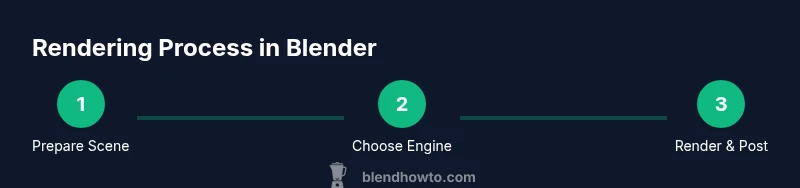
Prepare your scene
Open Blender, load your model, and set the scene scale to match real-world dimensions. Frame your shot in a way that supports your story and ensures the subject is clearly visible.
Tip: Use a reference image to guide composition and keep track of scale. - 2
Choose a render engine
Decide between Eevee for speed or Cycles for realism. Toggle the engine in the Render Properties and run a quick test render.
Tip: Start with Eevee to iterate quickly; switch to Cycles for final passes. - 3
Set up camera and resolution
Position the camera, set focal length, and choose the target resolution. Lock camera to frame important elements.
Tip: Enable composition guides to aid rule-of-thirds framing. - 4
Lighting placement
Add key, fill, and rim lights. Use an HDRI for realistic environment lighting and adjust color temperature to your scene.
Tip: Use soft shadows with area lights for a natural look. - 5
Materials and shading
Apply principled shaders, attach textures, and fine-tune roughness and metallic values to achieve your desired surface.
Tip: Keep a material library of frequently used setups for speed. - 6
Texture mapping
Unwrap UVs, assign textures, and verify tiling and seam placement. Redo unwraps if you see stretching.
Tip: Use a texture atlas to minimize draw calls in large scenes. - 7
Render test and adjust
Render a low-sample draft. Tweak lighting, exposure, and denoising settings to balance speed and quality.
Tip: Keep a test render log to track changes. - 8
Final render and export
Increase samples for the final render. Save in multiple formats and consider a denoised EXR for post-processing work.
Tip: Save a master file with all layers intact for future edits.
Frequently Asked Questions
What is the difference between Eevee and Cycles in Blender?
Eevee is a real-time render engine best for quick previews and game-ready assets. Cycles is physically based and produces higher fidelity lighting and shadows, ideal for final renders.
Eevee is fast for previews, Cycles gives you more realism for final renders.
How do I reduce render times without sacrificing quality?
Use lower samples for drafts, enable denoising, optimize light bounces, and consider using Eevee for previews. Switch to Cycles with higher samples only for final renders.
Try fewer samples in drafts and turn on denoising to keep quality up while saving time.
What should I check if my textures look stretched?
Inspect UV maps in Edit Mode, ensure proper unwrapping, and adjust seam placement. Recalculate UVs if needed and verify texture coordinates.
Check UV mapping and seams if textures appear stretched or misaligned.
Which output format is best for post-processing?
Save as EXR to preserve color data and enable post-processing, and as PNG for quick previews with transparency.
Use EXR for post-processing; PNGs are good for quick previews.
How can I learn rendering in Blender effectively?
Practice with small, repeatable scenes, compare Eevee and Cycles on the same setup, and build a personal material library for reuse.
Practice with small scenes and compare engines to learn fastest.
Do I need a powerful GPU to render in Blender?
A capable GPU speeds up renders, but you can render with CPU if needed. Optimize scenes to maximize use of available hardware.
A good GPU helps, but you can render with CPU and still learn effectively.
Watch Video
What to Remember
- Plan scene scale and camera before rendering.
- Choose engine based on realism vs. speed.
- Balance lighting and textures for consistent results.
- Use denoising and adaptive sampling to optimize renders.
- Save master files with all layers for future edits.