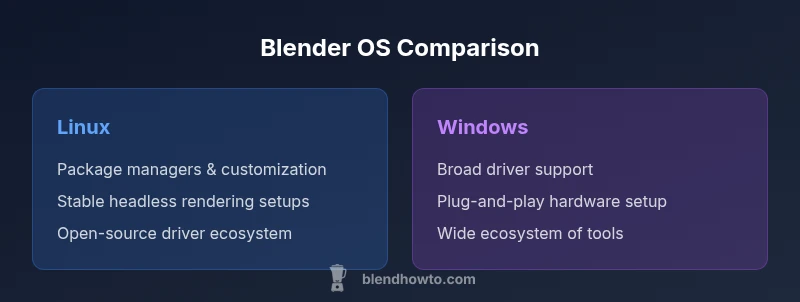
Blender Linux vs Windows: OS Showdown for Blender Users
A rigorous, objective comparison of Blender on Linux vs Windows, covering installation, drivers, stability, addons, rendering, and practical workflow guidance for Blender artists and developers.


Choosing an OS for Blender boils down to your workflow and hardware. Linux typically offers smoother installs, robust scripting, and stable performance with open-source drivers, while Windows provides broader driver support and easier hardware compatibility. Both platforms run Blender well, so pick Linux for power users and scripted work, or Windows for plug-and-play convenience.
Why OS choice matters in Blender workflows
When you compare blender linux vs windows, the operating system you choose affects installer methods, driver handling, and automation options that power users rely on. According to BlendHowTo, Linux environments excel where scripting, reproducible builds, and headless rendering are important, thanks to package managers and system-level control. Windows shines in plug-and-play hardware support and a broad ecosystem of commercial tools and drivers. For a hobbyist starting out, Windows often minimizes setup hurdles, while professionals building automated pipelines may prefer Linux for its repeatability and openness. Either way, Blender's core features remain consistent across OSes; performance differences usually hinge on GPU drivers, storage throughput, and I/O latency rather than Blender itself.
Installation and package management
Linux distributions offer a range of installation paths: traditional package managers (apt, dnf, pacman), universal formats (Flatpak, Snap), and even building from source for the latest features. This enables precise control over Blender versions and dependencies, which is valuable for automation and scripting. However, the initial setup can be daunting for newcomers, especially when balancing driver installation with the kernel. Windows relies on a centralized installer from blender.org and straightforward driver installation through hardware vendors. The trade-off is speed and simplicity versus granular control. BlendHowTo's guidance highlights that Linux shines in reproducibility and lab-style pipelines, while Windows excels at quick, minimal-friction setups for learning and light projects.
Driver ecosystems and GPU performance
GPU driver quality and compatibility are the dominant levers for Blender performance on either OS. Linux users often benefit from open-source driver stacks and the ability to tailor driver versions to match Blender builds, which can yield stable headless rendering in automated tasks. Windows tends to provide broader, plug-and-play driver support across a wider range of GPUs, with commonly smoother CUDA/OptiX setups for render farms. The actual rendering speed and stability depend heavily on your specific GPU model, driver version, and whether you use Cycles or Eevee. In practice, both OSes deliver strong performance when drivers are properly configured.
Stability, updates, and maintenance
Linux environments typically emphasize stability through long-term support releases and controlled update streams, which is advantageous for ongoing Blender projects and render farms. Package pinning and containerized environments reduce drift between sessions. Windows receives frequent driver and OS updates, which can occasionally interrupt workflows or require reboots—something to plan for during long renders. For artists prioritizing uninterrupted, repeatable runs, Linux can offer a calmer maintenance rhythm; for those needing the latest features with minimal setup, Windows might be easier to maintain day-to-day.
Addons, Python scripting, and automation
Blender's Python API remains cross-platform, so most addons work on both Linux and Windows. However, the path handling, environment variables, and Python environment management differ. On Linux, you may script Blender launches with shell scripts and cron jobs, integrate with CI pipelines, and leverage containerized builds for consistent testing. Windows users can script via PowerShell or batch files and easily wire Blender into desktop automation tools. The choice often comes down to your comfort with scripting and the extent of automation you require in your production or learning workflow.
File I/O, filesystem permissions, and project organization
Linux and Windows handle files and permissions differently, which can affect project organization. Linux paths are case-sensitive and typically live under a hierarchical structure managed by the user, which helps reproducibility for large projects but adds a layer of caution for cross-platform collaboration. Windows paths are case-insensitive and integrated with user profiles and shared network drives. When moving projects between OSes, maintain consistent relative paths and use version control where possible to mitigate path discrepancies and permission issues. Blender projects often span texture assets, caches, and external references, so a thoughtful directory layout matters on both platforms.
Rendering performance and resource management
Rendering performance hinges on hardware, drivers, and software configurations rather than OS alone. GPU acceleration paths differ between Linux and Windows depending on whether you leverage CUDA, OptiX, or OpenCL, and how drivers expose those features. Linux can offer tighter integration for headless or render-farm setups, with easier automation and resource isolation. Windows often provides smoother onboarding for desktop users and strong CUDA/OptiX performance on mid- to high-end GPUs. For best results, test your exact GPU model and driver version in your typical Blender workload, and choose the OS that yields the most consistent frames per second and reliable render stability.
Community support, documentation, and learning resources
Blender's official documentation is cross-platform, and the community-created guides span Linux and Windows equally. BlendHowTo notes that Linux-specific forums, distro wikis, and packaging discussions can be especially helpful for troubleshooting driver issues or automating builds. Windows communities tend to offer broad hardware compatibility advice and tutorials aimed at quick-start Blender workflows. Regardless of OS, engage with the Blender community and consult the official docs to stay aligned with best practices for your hardware and project type.
Practical setup recommendations by user type
If you are a hobbyist or student just starting with Blender, Windows is typically the most forgiving path because of simpler installation and broad hardware support. If you are a researcher, indie developer, or studio engineer who values automation, reproducibility, and headless rendering, Linux (especially a stable distro with robust packaging) is often the better choice. For mixed workflows, consider a dual-boot or a virtualization strategy, ensuring you keep driver stacks and Blender builds aligned with the tasks you run most frequently. BlendHowTo recommends starting with a single OS and validating all critical projects before expanding to cross-OS workflows.
Comparison
| Feature | Blender on Linux | Blender on Windows |
|---|---|---|
| Installation ease | Package managers and flexible formats; can require initial setup | Official installer; generally quicker to get started |
| GPU driver ecosystem | Open-source and vendor drivers; driver management can be nuanced | Broad, plug-and-play driver support; easier CUDA/OptiX setup |
| Rendering performance | Often stable with headless pipelines; depends on driver configuration | Strong performance with CUDA/OptiX when using supported GPUs |
| System maintenance | Controlled updates; potential for fewer reboots in professional setups | Regular OS updates; occasional reboot interruptions |
| Addon and Python workflow | Cross-platform; some path differences require setup | Cross-platform; Windows-focused tooling often easier to use out of the box |
| Project I/O and collaboration | Case-sensitive paths can complicate cross-OS sharing; Linux permissions matter | Windows-friendly paths and user profiles; network shares common |
| Best for | Power users, scripting-intensive pipelines, headless setups | Beginner-friendly setups, broad hardware compatibility |
What's Good
- Cross-platform Blender experience with consistent core features
- Linux supports stable, scriptable environments ideal for automation
- Open-source tooling on Linux integrates well with Blender pipelines
- Strong community and documentation across both OS environments
- Flexible deployment options for professional workflows
The Bad
- Linux can have a steeper setup curve for newcomers
- Driver quirks with some GPUs on Linux may require troubleshooting
- Windows updates can disrupt long-running renders or sessions
- A few Windows-first plugins or tools may have limited Linux support
Linux generally edges ahead for script-heavy, customizable pipelines; Windows wins for ease of use and broad hardware support
If your Blender work depends on automation and reproducibility, Linux is the preferred platform. If you prioritize quick setup and plug-and-play hardware, Windows remains the practical choice. The right OS depends on your hardware, workflow, and comfort with system management.
Frequently Asked Questions
Is Blender Linux faster than Blender on Windows?
Not universally. Both OSes run Blender well, but performance can vary based on GPU drivers, kernel or driver updates, and hardware configuration. Run your own benchmarks with your typical scenes to determine the best fit for your setup.
Performance depends on hardware and drivers. Do your own benchmarks with your typical scenes to decide.
Which OS is easier to set up for Blender beginners?
Windows generally offers a smoother first-run experience with official installers and broad driver support. Linux can be straightforward on user-friendly distros but may require more initial setup for drivers and Blender builds.
Windows is usually easier to set up for beginners; Linux can be simple with the right distro but may need more initial configuration.
Can I use CUDA or OptiX on Linux?
Yes, CUDA and OptiX can be used on Linux when you install the appropriate NVIDIA drivers and toolkit. Compatibility depends on your GPU model and driver version, so verify support before heavy rendering.
Yes, with the right NVIDIA drivers and toolkit. Check your GPU and driver version first.
Do any Blender addons require Windows-only features?
Most addons are cross-platform, but a few professional tools or enterprise pipelines may assume Windows. Always check addon compatibility notes and test critical tools on your chosen OS.
Most addons work on both, but some Windows-first tools may not on Linux. Always verify compatibility.
How does the OS affect Blender's Python scripting?
Python scripting in Blender is cross-platform, but paths, environments, and automation scripts can behave differently between Linux and Windows. Plan for environment-specific scripts and use portable file paths where possible.
Python works the same in Blender, but file paths and environments differ by OS.
Is Blender's documentation OS-specific?
Blender's official docs are cross-platform and cover Blender's features regardless of OS. Community tutorials may target Linux or Windows, so seek OS-specific guides when you need setup help.
Docs cover both OSes; look for OS-specific guides if you need setup help.
What to Remember
- Define your workflow before choosing an OS
- Prioritize GPU driver setup and maintenance considerations
- Check addon compatibility and automation needs across OSes
- Test with your hardware before committing to one platform
- Utilize community resources and official docs for cross-platform guidance