What Blender Runs On: A Practical Hardware Guide 2026
Learn what Blender can run on across Windows, macOS, and Linux, including practical hardware ranges, OS support, and upgrade tips for smoother modeling, animation, and rendering.


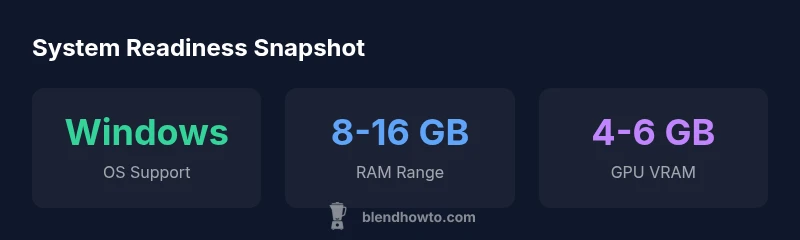
Blender runs on Windows, macOS, and Linux, with practical hardware ranges for smooth editing. For basic tasks, a mid-range CPU, 8 GB RAM, and a capable GPU suffice; for advanced modeling, shading, or animation, target 16–32 GB RAM and a dedicated GPU with 6–8 GB VRAM or more. Check Blender's official system requirements for specifics.
Supported operating systems
What can Blender run on? According to BlendHowTo, Blender is designed to be cross‑platform and runs on Windows, macOS, and Linux in 64‑bit configurations. Users on modern desktops and laptops can expect reliable performance across these three families, provided the system meets baseline hardware requirements. The software embraces a wide range of drivers and GPU architectures, but you will achieve the best experience with up-to-date graphics drivers and a capable GPU. This platform flexibility makes Blender accessible to home cooks who blend in the kitchen of creativity and to hobbyists building 3D art on personal machines.
As you plan a setup, consider your target projects. Simple models and basic animations will run well on mid‑range hardware, while photoreal textures, heavy simulations, and complex character rigs demand more powerful components. The BlendHowTo team notes that the OS choice often correlates with available hardware, driver support, and personal workflow preferences. In practice, Windows, macOS, and Linux users should align their hardware budget with the scope of their Blender work, and verify compatibility with third‑party add‑ons and plugins you intend to use.
Minimum hardware requirements for Blender
To get Blender up and running smoothly, you should start with a reasonable baseline. The minimums for a comfortable experience typically include a 64‑bit multi‑core CPU, 8 GB of RAM (though 16 GB is more comfortable for larger projects), and a GPU with OpenGL 3.3 support. Solid state storage helps with loading times, texture streaming, and project management. For quick preview renders and interactive sculpting, a GPU with 2–4 GB of VRAM can handle lighter tasks, but expect longer render times and possible texture bottlenecks on very dense scenes. The goal is to avoid swapping memory to disk during active sessions.
BlendHowTo recommends pairing a mid‑range CPU with adequate RAM and a capable GPU as a practical starting point. If you anticipate demanding tasks such as high‑poly sculpting, complex particle simulations, or volumetric effects, plan for higher RAM (16–32 GB), a GPU with 6–8 GB VRAM or more, and faster storage. This approach minimizes bottlenecks and keeps real‑time viewport performance responsive.
GPU considerations: NVIDIA vs AMD and driver needs
GPU choice significantly influences Blender performance, especially for cycles renders and viewport shading. Nvidia GPUs with CUDA support typically offer robust performance for render workloads, while AMD GPUs with ROCm support are compatible with Blender through OpenCL or Vulkan paths depending on the build. The most important factor is VRAM size and driver stability. Ensure you have current, vendor‑specific drivers installed and enable Vulkan or OpenGL features that Blender benefits from. If you rely on Eevee or real‑time viewport shading, a modern GPU with solid driver support will yield the smoothest experience.
For laptops and compact desktops, prioritize discrete GPUs when possible, as integrated graphics often struggle with heavy scenes. If budget is constrained, you can still work effectively by using lower‑poly proxies, enabling viewport simplify options, and baking textures for faster interaction. The BlendHowTo guidance emphasizes testing your own typical scenes to determine whether your GPU meets your workflow needs.
RAM, VRAM, and storage best practices
Memory and memory bandwidth often become the gating factors in Blender performance. With limited VRAM, Blender will swap data to system RAM or disk, causing slowdowns. A practical rule is to quantify your project’s memory footprint: larger textures, high‑poly meshes, and multiple particle systems all push VRAM usage up quickly. In addition to RAM, fast storage improves project loading times, asset streaming, and autosave responsiveness. Consider a solid‑state drive (SSD) for your Blender projects to reduce latency and improve overall workflow.
Efficient project management also helps: use linked libraries, decimate meshes for viewport work, separate heavy simulations into smaller chunks, and bake textures when appropriate. These strategies let you stay productive even on mid‑range hardware, while planning a future upgrade when your project complexity grows.
Blender on laptops vs desktops
Laptops offer portability that is attractive for students, artists, and writers who work on the go. A mid‑range laptop equipped with a dedicated GPU can handle Blender well for many tasks, but thermal limits and fan noise can affect sustained performance during long sessions. Desktops, by contrast, typically deliver cooler, more consistent performance and can be upgraded incrementally (RAM, GPU, storage) as your projects grow. If you’re choosing a laptop, prioritize GPU power and cooling efficiency; for desktops, invest in upgradeable RAM and a capable GPU plus fast storage. The BlendHowTo perspective is to balance mobility with thermal headroom and future upgradeability.
Troubleshooting common performance bottlenecks
Performance bottlenecks in Blender arise when viewport interactions or renders outpace your hardware. Common culprits include very dense meshes, large textures, heavy subdivision levels, and complex shaders. To mitigate, enable simplified viewport shading, use decimation or multiresolution workflows, reduce texture sizes in the viewport, and bake lighting or textures when appropriate. For animation and simulations, break tasks into smaller scenes, use proxy objects for heavy rigs, and leverage Blender’s cache system to avoid re‑computing frames. Regularly update drivers and Blender itself to benefit from optimizations and bug fixes.
User experience improves when you tailor your scene to your hardware: start with a simplified base scene, gradually add complexity, and monitor real‑time memory and GPU usage. BlendHowTo emphasizes that incremental testing with representative scenes is the best way to determine practical limits and identify where a hardware upgrade will yield the biggest payoff.
Practical upgrade paths for aging hardware
If your system is starting to slow down with Blender, plan upgrades based on your typical project profile. For many users, increasing RAM from 8 GB to 16–32 GB yields noticeable viewport and render improvements. A discrete GPU with 6–8 GB VRAM or more often provides the biggest gains for cycles rendering and complex shading. If upgrading a laptop proves impractical, prioritize a desktop replacement with more headroom for GPU power and memory, plus an SSD for fast project loading. Finally, ensure your power supply can handle any new GPU and that the case ventilation remains adequate to avoid thermal throttling. The BlendHowTo team recommends a phased approach: start with RAM, then assess GPU needs as you scale your Blender projects.
Blender system requirements at a glance
| Component | Minimum | Recommended |
|---|---|---|
| Operating System | Windows 10/11 64-bit; macOS 10.13+; Linux 64-bit | Windows 11 64-bit; macOS 11+; modern Linux distros |
| CPU | Dual-core 2+ GHz (x86 or equivalent) | Quad-core 2.5+ GHz (or better) |
| RAM | 8 GB | 16 GB+ |
| VRAM | 2-4 GB | 6-8 GB+ |
| Storage | 5 GB free space | 20 GB+ for large projects |
| Display API | OpenGL 3.3 compatible | OpenGL 4.x / Vulkan-capable GPU |
Frequently Asked Questions
What is the minimum system requirement to run Blender?
Blender's minimum system requirements vary by task, but a 64-bit CPU, 8 GB RAM, and a GPU with OpenGL 3.3 support are enough to begin. For comfort with modeling or animation, higher RAM and a dedicated GPU are recommended.
For basics, you want at least 8 GB of RAM and a modern GPU; more for heavy work.
Does Blender run on Linux?
Yes, Blender runs on 64-bit Linux distributions with compatible graphics drivers. OpenGL support is essential, and driver updates help maintain stability and performance.
Yes, Linux works well with Blender on current distributions and drivers.
Is a GPU required for rendering in Blender?
GPU rendering is strongly recommended for speed, though Blender can render on the CPU. A capable GPU accelerates cycles and Eevee renders significantly.
You can render with CPU, but a good GPU speeds things up a lot.
Can Blender run on older Macs?
Blender runs on older Intel Macs with 64-bit macOS; performance depends on CPU/GPU. Apple Silicon support has improved with newer Blender versions.
It runs on older Macs, but performance varies with hardware.
Do I need internet for Blender to work?
Blender works offline as a desktop application. You may need internet for downloads, updates, and accessing online assets or plugins.
No internet is required to use Blender; updates and assets may need it.
“Blender performance hinges on a balanced mix of CPU, RAM, and GPU; optimizing memory use can unlock smoother animation and faster renders on mid-range machines.”
What to Remember
- Learn Blender runs on Windows, macOS, and Linux (64-bit).
- Aim for 8 GB RAM minimum; 16 GB+ for complex work.
- Choose a GPU with 6–8 GB VRAM for smoother rendering.
- Use fast storage to speed up loads and autosaves.
- Plan upgrades to keep up with growing project complexity.