3d Print Blender: Practical Blender Guide for 3D Printing
A comprehensive, step-by-step guide to turning Blender models into printable 3D objects. Learn modeling for print, exporting STL, slicing, and troubleshooting with practical examples and best practices.


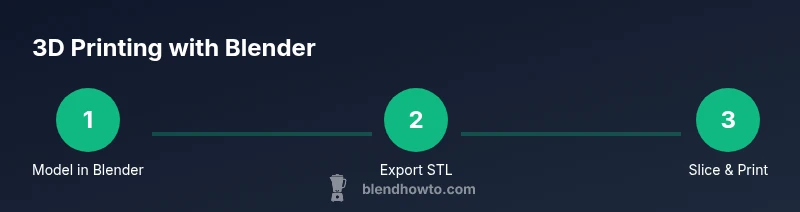
In this guide you will learn how to model in Blender with printable constraints, export STL, and set up a slicer workflow for successful 3d prints. Before starting, ensure Blender is calibrated for metric units, your model is watertight, and you save a clean STL. This article covers practical steps from concept to finished print.
Understanding the 3d print blender workflow
When you commit to turning Blender models into printable objects, you shift from sculpting for visuals to crafting for manufacture. The core idea is to design with real-world constraints in mind: accurate scale, watertight geometry, manufacturable thickness, and predictable surface finish. In Blender, you’ll model with intent, but you’ll validate every decision against what a slicer and printer can actually reproduce. A successful print starts with a clear goal and ends with a reliable file that the slicer can interpret without errors. The keyword of this workflow is iteration: model, inspect, export, slice, and test. As you work, keep your project organized with named collections, clean geometry, and non-destructive history whenever possible. In this article we focus on practical steps to go from a concept in Blender to a printable STL that behaves the way you expect on the printer. Throughout, you’ll learn to balance detail with printability, so your 3d print blender projects are not only beautiful but reliable.
Setting up Blender for 3d printing
Before modeling, configure Blender so measurements and export behave as expected. Start by switching to metric units and setting the scale so that a Blender unit corresponds to a millimeter or centimeter in reality. Enable the 3d Print Toolbox add-on (if not already active) and use its quick checks to gauge solids, non-manifold edges, and thickness consistency. Create a new project template with appropriate render and shading settings that won’t interfere with geometry. These initial choices save time later in the workflow and reduce the risk of surprising failures after export. As you proceed, keep your workspace tidy with named layers and a consistent origin.
Modeling considerations for printable parts
Printable models require clean, closed geometry and predictable geometry flow. In Blender, avoid open holes in critical areas and minimize dangling faces. Use quads when possible for easier subdivision and even wall thickness. Apply modifiers like Mirror for symmetry, Bevel for edge resilience, and Solidify to introduce physical thickness if you’re working with surfaces only. Always check that there are no overlapping faces or internal surfaces that create non-printable geometry. Remember, the goal is to produce a model that slicers can interpret without ambiguity while preserving essential detail.
Preparing for print: checking mesh and repairs
Before export, run mesh integrity checks and repair as needed. Activate non-destructive checks in the 3d Print Toolbox and review flagged items such as non-manifold edges, intersecting faces, or loose vertices. Repair steps might include merging overlapping vertices, removing interior faces, and filling holes with appropriate geometry. It’s crucial to verify normals are consistent and outward; inverted normals can confuse slicers and printers. By addressing these issues early, you reduce wasted prints and post-processing time.
Exporting to STL/OBJ and choosing file formats
Export formats matter. STL is the standard choice for most slicers due to its simplicity and broad compatibility. OBJ can be useful when color, texture, or more complex geometry is required, but it adds data that isn’t always necessary for printing. When exporting, ensure the axis orientation matches your slicer expectations and that the unit scale is preserved. Double-check that the STL exports reflect the final geometry with correct shell thickness and no stray artifacts. A small, clean STL file prints more reliably and is easier to troubleshoot later.
Slicing and print settings: from STL to G-code
The slicer translates STL into printer commands. Orientation, supports, infill, and layer height all influence print success. Start with a conservative orientation that minimizes overhangs, and enable only the supports that are truly required. Use a test slice to inspect toolpaths and identify potential failures such as bridging or warping. While Blender defines the model, the slicer defines the practical print; learn to use slicer previews to anticipate problems before printing. Record your slicer settings for future projects to streamline repeatability.
Practical workflow: example project from start to finish
Consider modeling a small desk accessory—a cable clip. Begin with a clear objective: it should hold a standard-sized cable while remaining unobtrusive on a desk. In Blender, sketch the profile, then extrude to create solid geometry. Ensure walls are thick enough and the inner channel is watertight. Validate with the 3d Print Toolbox, then export as STL. Open your slicer, orient the clip so the base is flat, add minimal supports, and run a preview. If the preview looks solid, export G-code and print a test piece. Adjust if needed and iterate until the fit and finish meet your expectations.
Troubleshooting common issues
Print failures often trace back to geometry problems: non-manifold edges, inverted normals, or insufficient thickness. If a print lifts off the bed or warps, recheck bed adhesion and reorient the part. Complex overhangs benefit from gradual angles or added supports. Slicer artifacting usually points to mesh problems in Blender—revisit the model, re-check normals, and repair any hidden geometry. Finally, always perform a small, initial test print before committing to a full-scale version to catch issues early.
Advanced tips: optimization, modifiers, and textures for visualization
For advanced users, Blender offers powerful modifiers to optimize printable models. Use Mirror and Array to create symmetric or repetitive structures without duplicating work. The Bevel modifier can improve strength at edges, while the Solidify modifier enforces expected thickness without manual sculpting. Textures and colors are not printed directly on most slicers, but they can help you visualize how the final product should look. Use high-contrast shading and clean UVs to preview surface quality, then rely on the physical print for actual texture.”
Exporting to STL/OBJ and choosing file formats (duplicate prevented)
Slicing and print settings: from STL to G-code (duplicate prevented)
Practical workflow: example project from start to finish (duplicate prevented)
Troubleshooting common issues (duplicate prevented)
Advanced tips: optimization, modifiers, and textures for visualization (duplicate prevented)
Final checks before print
Tools & Materials
- Blender software(Install latest stable release, enable 3d Print Toolbox add-on)
- 3d printer(Any FDM printer; ensure bed is level and calibrated)
- Slicing software(Examples: Cura, PrusaSlicer, or equivalent)
- Calipers or ruler(For verifying dimensions and fit)
- Material test filament(PLA or PETG recommended for beginners)
- Backup storage(External drive or cloud storage for versioning)
Steps
Estimated time: 3-6 hours
- 1
Define objective and gather references
Clarify what the printed part must do, target tolerances, and gather reference images or measurements. Create a simple checklist of functional requirements and align them with Blender’s modeling tools.
Tip: Write down required dimensions and use reference sketches to guide geometry. - 2
Set up Blender workspace for printing
Switch to metric units, set a realistic scale, and enable the 3d Print Toolbox. This configuration helps catch non-printable geometry early in the process.
Tip: Turn on rulers and measurement overlays to verify scale during modeling. - 3
Model with printability in mind
Build solid geometry, ensure closed surfaces, and avoid overly complex features that slicers struggle to reproduce. Use symmetry and modifiers to simplify the workflow.
Tip: Prefer clean, continuous surfaces over fragmented details that resemble noise. - 4
Check geometry integrity
Run non-manifold and self-intersection checks with the 3d Print Toolbox. Repair issues by merging vertices, filling holes, and removing hidden faces.
Tip: Address all flagged items before exporting the STL. - 5
Apply thickness and finalize topology
Add or verify wall thickness, assign appropriate fillets where needed, and ensure there are no thin, fragile areas that could break during printing.
Tip: Use the Solidify modifier for consistent thickness without manual edits. - 6
Export to STL with correct orientation
Export the model as STL, ensuring the up-axis and unit scale match your slicer. Inspect the exported file for artifacts before moving to the slicer.
Tip: Always re-check normals after export to avoid shading issues in the slicer. - 7
Slice and review toolpaths
Import the STL into your slicer, choose orientation that minimizes supports, preview toolpaths, and verify that walls, infill, and layers align with your design intent.
Tip: Enable a thin-slice preview to catch overhangs and bridging problems early. - 8
Print and evaluate
Run a test print of a smaller version if possible. Assess dimensional accuracy, fit, and surface finish, then iterate on the Blender model as needed.
Tip: Document any adjustments and re-run the test print to confirm improvements.
Frequently Asked Questions
What is the first step to prep Blender for 3d printing?
Set the scene to metric, enable the 3d Print Toolbox, and confirm the scale aligns with real-world measurements. This groundwork reduces export and slicing errors later.
Start by setting metric units and turning on the 3d Print Toolbox, then verify the scale matches real-world measurements.
Why is watertight geometry important for 3d prints?
Watertight geometry ensures the slicer can generate a valid mesh for printing. Non-manifold edges or holes can cause gaps, failed layers, and weak parts.
A watertight model prints consistently; non-manifold geometry is a common cause of print failures.
What file formats should I export for 3d printing?
Export STL as the standard format for most slicers. OBJ can be used for color or more complex data, but STL remains the norm for prints.
STL is the go-to for most slicers; OBJ is less common for pure prints.
How can I test print quality without wasting material?
Create small-scale prototypes or use a subset of your model to validate fit, tolerances, and geometry before committing to a full-size print.
Make a tiny version first to check fit and form before a larger print.
Can Blender directly generate G-code?
Blender exports models (like STL) and relies on a slicer to generate G-code. Blender itself does not slice or produce printer commands.
Blender isn’t a slicer; you need a slicer to create the printer instructions.
Watch Video
What to Remember
- Model with printability in mind and clean geometry.
- Verify watertight meshes and export reliable STL files.
- Preview slices to catch issues before printing.
- Iterate from concept to test print to finalize design.
- Keep a versioned record of steps for future projects.