Blender 2.9 Guide: Beginner Modeling & Rendering Essentials
A practical, step-by-step guide to Blender 2.9 from setup to rendering. Learn the interface basics, modeling, shading, lighting, and a starter project that gets you building quickly.


With Blender 2.9 you can install the software, learn the core interface, model a simple object, apply materials, place lights and a camera, and render a polished image or short animation using Eevee or Cycles. This quick guide provides the essential steps and setup you need to begin practicing right away.
Blender 2.9: What It Brings to the Table
Blender 2.9 marks a meaningful step forward in the Blender series, emphasizing performance, accessibility, and a refined toolkit for modeling, shading, lighting, and rendering. For home cooks—turned hobbyists and 3D artists—this version streamlines common workflows and improves viewport responsiveness, making it easier to iterate ideas quickly. TheBlendHowTo team highlights how 2.9 builds on years of feature evolution while keeping a friendly, learnable path for beginners. Throughout this guide, we’ll reference practical steps you can try in minutes and extend as you gain confidence with Blender 2.9.
Getting Started with Blender 2.9: Installation and First Run
To begin, download Blender 2.9 from the official Blender website and install it on your computer. The setup process is straightforward: accept the license, choose a destination, and launch the program. On first run, you’ll encounter a splash screen and a default scene. Take a moment to save your work as a new file to avoid overwriting any templates. This initial setup is the doorway to a stable, repeatable workflow in Blender 2.9.
The Updated User Interface: Navigation and Workspaces
Blender 2.9 introduces tweaks to the user interface that streamline common tasks. The layout emphasizes a clean viewport with fewer distractions, while still exposing powerful panels for modeling, shading, and animation. Learn the hotkeys for navigation—pan, orbit, and zoom—and customize your workspace by dragging panels to your preferred positions. Consistent shortcuts, such as G for move, S for scale, and R for rotate, accelerate progress as you model and refine in Blender 2.9.
Core Workflows: Modeling, Sculpting, Texturing
Blender 2.9 brings cohesive tools for modeling, sculpting, and texturing in one environment. Start with basic primitives and use edit mode to shape edges, faces, and vertices. For sculpting, switch to the Sculpt workspace and experiment with brushes to form organic shapes. Texturing relies on the Principled BSDF shader and UV mapping; practice projecting textures and adjusting mapping coordinates to fit your model. Keep iterations small and save frequently to track changes.
Rendering with Eevee and Cycles in 2.9
Rendering is a core capability in Blender 2.9, with Eevee offering real‑time performance and Cycles providing photorealistic outputs. Start in Eevee to quickly preview lighting, shadows, and materials, then switch to Cycles when you want higher realism and more physically based shading. Adjust light types, enable ambient occlusion, and tweak the material roughness to achieve convincing surfaces. Understanding the render engines helps you choose the right tool for your project goals.
Animation Basics: Timeline, Keyframes, and Graphs
Animation in Blender 2.9 uses a timeline to manage keyframes and an editor suite for refining motion curves. Begin with a simple object and set a position keyframe, then move forward in time and alter location or rotation before adding another keyframe. Use the Graph Editor to smooth out motion curves, preventing abrupt changes. This foundational knowledge unlocks more complex animation tasks as you grow comfortable with the interface.
Grease Pencil and 2D Animation Enhancements
Blender 2.9 enhances the 2D animation workflow through Grease Pencil tools, easing the process of creating sketch-like animation within a 3D scene. Explore stroke drawing, shading, and layer organization to compose simple 2D scenes that integrate with 3D elements. This feature is especially useful for storyboarding, concept art, and quick animatics directly inside Blender 2.9.
Import/Export and File Management
Working with Blender 2.9 often means moving assets between projects or importing external models. Learn the standard file formats supported by Blender (OBJ, FBX, STL, etc.) and how to export textures and materials when sharing work with others. Establish a consistent folder structure for projects and backups to avoid asset loss and ensure smooth collaboration across Blender 2.9 projects.
Performance Tips for Large Scenes
Performance matters when working with complex scenes in Blender 2.9. Use optimized viewport shading, simplify geometry where possible, and manage texture sizes. Enable GPU rendering if your hardware supports it, and periodically clear caches that can slow down operations. Keeping drivers up to date and using a clean, organized scene reduces common slowdowns and crashes during production.
Starter Project: A Simple Scene Walkthrough
Create a small desk scene to apply what you’ve learned. Model a basic desk, add a cup, a book, and a small plant, apply simple materials, and light the scene with a soft key light plus a fill light. Place a camera, frame a clean composition, and render a quick preview using Eevee. This starter project demonstrates the core flow from modeling to rendering in Blender 2.9.
Common Pitfalls and Troubleshooting for Blender 2.9
New users frequently encounter issues such as misaligned UV maps, missing textures, or slow renders. When something looks off, check the active render engine, verify texture paths, and confirm object scales. Blender’s console can reveal script errors or driver issues. Most problems have practical fixes that improve stability and learning momentum in Blender 2.9.
Tools & Materials
- Computer or laptop with Blender 2.9 installed(Download from blender.org and install following platform guidelines)
- Mouse with precise scroll wheel(Smooth navigation and accurate selection in the viewport)
- Keyboard shortcuts cheat sheet(Helpful for accelerating modeling and navigation)
- Reference images or mood boards(Guides proportion and design during modeling)
- External storage or cloud backup(Safeguards project files and textures)
- Color-accurate display(Helpful for shading and texture work)
Steps
Estimated time: 2-3 hours
- 1
Install and launch Blender 2.9
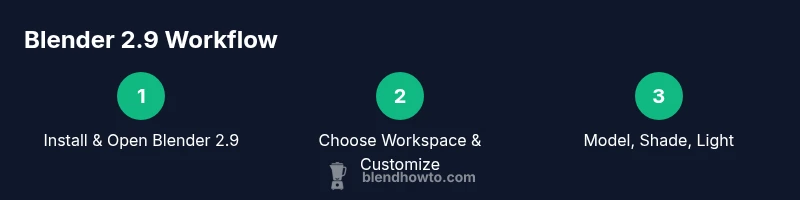
Download Blender 2.9 from blender.org, run the installer, and launch the program. Create a new file to begin practicing, and adjust your preferences for a comfortable workspace. This step lays the foundation for reproducible results.
Tip: Enable Auto Save and set a regular save interval to protect your work. - 2
Choose a workspace and customize layout
Open a Layout workspace suitable for modeling or shading. Move panels to suit your workflow, and enable relevant add-ons from Preferences > Add-ons. A stable, personalized layout speeds up your daily tasks.
Tip: Save your customized startup file to reuse your preferred setup. - 3
Create a starter object and navigate the viewport
Add a basic object (Shift+A) and position it in the scene. Practice panning, orbiting, and zooming the view using the mouse and keyboard shortcuts. Getting comfortable with navigation reduces early modeling friction.
Tip: Use the N panel to toggle rulers and transforms for precision. - 4
Enter Edit Mode and shape with basic tools
Switch to Edit Mode (Tab) and select vertices, edges, or faces. Use extrude (E), scale (S), and rotate (R) to shape your object. Keep iterations small and use multiple sub-steps to refine topology.
Tip: Hold Shift while transforming to nudge with precision. - 5
Apply a simple material with Principled BSDF
Create a new material, choose the Principled BSDF shader, and adjust base color, roughness, and metallic values. Preview in the viewport with material preview shading to validate your look.
Tip: Use quick node setups for common materials to speed up your first renders. - 6
Set up lighting and camera
Add a light (Area or Sun) and position it to illuminate your model. Create a camera, place it in the desired frame, and enable camera view (Numpad 0) to confirm composition. Lighting and framing greatly influence final render mood.
Tip: Experiment with a two-light setup (key and fill) for balanced shadows. - 7
Render a preview with Eevee
Switch the render engine to Eevee, enable essential features like shadows and ambient occlusion, and perform a quick render. Use render results to iterate on materials and lighting quickly.
Tip: Enable denoising for cleaner renders at lower samples. - 8
Try Cycles for realism
If you seek more realism, switch to Cycles and adjust sample counts, light paths, and Ca interreflections. Compare Eevee and Cycles renders to understand each engine’s strengths.
Tip: Use GPU compute if available for faster Cycles renders. - 9
Add textures and UVs
Unwrap UVs for your model, apply textures, and fine-tune mapping. Understand how texture coordinates align with geometry to avoid distortions in final renders.
Tip: Start with simple textures and progressively add detail as you learn. - 10
Animate a basic scene
Create a keyframe at the start, move the object, and set a second keyframe. Open the Graph Editor to smooth motion and adjust timing for natural movement.
Tip: Use hold or bezier interpolation to control pacing precisely. - 11
Save, export, and back up
Save your project in Blender’s native format and consider exporting as FBX or OBJ for collaboration. Back up files to an external drive or cloud storage to prevent data loss.
Tip: Name files consistently by project date to keep revisions orderly.
Frequently Asked Questions
What is Blender 2.9 and what’s new?
Blender 2.9 is a version of the Blender 3D software that introduces performance tweaks, updated Eevee capabilities, and workflow improvements. It continues Blender’s evolution toward a more accessible, all-in-one 3D toolset for modeling, shading, animation, and rendering.
Blender 2.9 is a version of Blender with faster performance and improved tools for modeling, shading, and rendering.
Can I upgrade from an older Blender version to 2.9 safely?
Yes, you can install Blender 2.9 alongside older versions on most systems. Projects created in 2.9 may not always be backward compatible with very old files, so save new work in a separate folder and consider exporting to universal formats when exchanging files.
You can install Blender 2.9 beside older versions, but save separately and export when sharing.
Is Blender 2.9 suitable for beginners?
Yes. Blender 2.9 offers an approachable UI, abundant tutorials, and a unified toolset for modeling, shading, and rendering. It still requires time to build fluency, but the learning curve is manageable with practice.
Definitely suitable for beginners; with practice you’ll pick up modeling, shading, and rendering.
What are the recommended system requirements for Blender 2.9?
Blender 2.9 runs on common desktop operating systems and benefits from a capable GPU, stable drivers, and adequate RAM. Refer to the official documentation for baseline guidance and ensure your drivers are up to date for best performance.
Check the official docs for guidance and keep your GPU drivers current.
Where can I find official Blender 2.9 documentation?
Official Blender 2.9 documentation is available at docs.blender.org, with release notes on blender.org. These resources cover workflows, features, and tutorials to support your learning journey.
See the Blender docs and release notes on the official site for guidance.
Watch Video
What to Remember
- Install Blender 2.9 and start with a simple scene
- Explore the Eevee and Cycles render engines
- Master basic modeling, shading, and lighting workflows
- Practice UV mapping and texture application
- Save often and keep organized backups