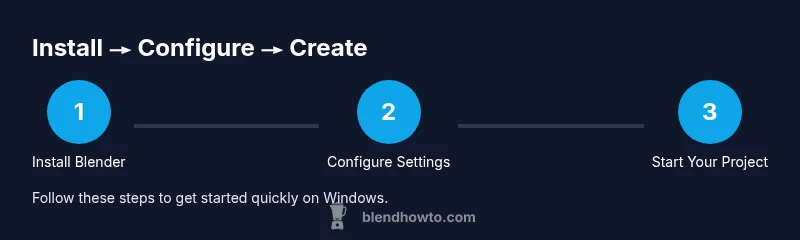
Blender on Windows: Install, Setup & Your First Project
Learn how to install Blender on Windows, configure preferences, navigate the interface, and start your first 3D project. Practical steps, tips, and troubleshooting for beginners to master Blender on Windows.


By the end, you'll have Blender installed on Windows, a properly configured UI, and your first scene ready to explore. You'll verify system compatibility, download Blender from the official site, complete a clean install, and learn essential navigation and saves. This guide uses practical steps and visuals to keep you moving.
Blender windows readiness: system and goals
If you plan to work with blender windows on a Windows PC, start by understanding the basic hardware and software goals. A stable 64-bit Windows environment, a capable graphics driver, and a clean install of Blender from the official source are your foundations. According to BlendHowTo, starting with the official Blender download from blender.org reduces risk and ensures you receive the latest features, fixes, and security updates. In practical terms, focus on setting up a dedicated workspace, ensuring your system is free of conflicting software, and aligning your goals with the type of projects you want to create, whether simple models, animations, or product renders. This clarity helps you choose the right Blender settings later.
Where to download Blender safely
Always download Blender from the official site to avoid tampered builds or missing components. Navigate to blender.org, choose the Windows version, and use the recommended download option for your system. After download, scan the file if you wish, and verify the installer’s integrity if that’s your practice. Keeping installers in a trusted location and avoiding third-party mirrors reduces the risk of bundled software or unwanted addons. This step lays a solid foundation for the rest of your Blender journey on Windows.
Choosing the right installer: installer vs portable
Blender offers more than one distribution method on Windows. An installer provides a centralized location for updates and a streamlined setup, while a portable version avoids system writes in default paths and is handy for testing or education. If you’re new, start with the installer to get automatic updates and a consistent path for projects and addons. If you value portability or school/computer-lab use, consider the portable option and keep a clean folder structure for scenes, textures, and libraries.
Installing Blender on Windows: step-by-step basics
Run the downloaded installer and follow the prompts to install Blender on Windows. Choose a convenient install location, add a desktop shortcut if you like, and let the installer set up the basic files. After installation, launch Blender to confirm the startup process, and select any initial preferences that suit your hardware. This phase is about establishing a stable, accessible workspace on Windows so you can begin modeling without hiccups.
First launch: the Blender workspace on Windows
On first launch, you’ll encounter Blender’s default layout featuring the 3D Viewport, Outliner, Properties, and Timeline. Take a moment to orient yourself with the location of key panels, the top bar, and the user preferences menu. The Windows context also influences how you resize and arrange panels. As you explore, try a few basic actions like rotating the view, adding a Mesh primitive, and saving your first Blender file. This hands-on familiarity is the fastest path to becoming productive on Windows.
Customizing preferences for Windows performance
Blender’s Preferences let you tailor the experience to your Windows setup. Start in Edit > Preferences, then explore the System tab to adjust rendering options, memory usage hints, and the selection of render devices. Enable auto save to minimize data loss and set a stable file path for backups. In Windows environments, you may prefer a light or dark theme, consistent hotkeys, and a predictable autosave interval to align with your workflow.
Basic navigation and modeling basics
Learn the core navigation: middle mouse button to rotate, scroll to zoom, and Shift + middle mouse button to pan. Create a basic mesh like a cube, then practice scaling, rotating, and moving it in the 3D Viewport. You’ll also explore selection methods, the transform gizmo, and the difference between object and edit modes. Mastery of these fundamentals makes it easier to tackle more complex modeling tasks on Windows.
File management and project workflow
Organize projects in a dedicated directory with clear naming for scenes, textures, and exports. Use a consistent project structure: scenes/assets/textures, and save incremental versions to track changes. Set up a personal naming convention and consider a cloud backup strategy for critical files. A disciplined workflow on Windows reduces lost work and simplifies collaboration.
Importing assets and starting a project
Begin with a simple scene: a cube, a plane, and a light. Import textures or external models if you have them, then assign materials and adjust lighting. Save early and often, and create a small render to gauge lighting and camera setup. This practical exercise helps you understand the Blender Windows workflow and builds confidence for larger projects.
Shortcuts and productivity boosters on Windows
Learn essential shortcuts like G for grab, S for scale, R for rotate, and Ctrl + Z for undo. Customize hotkeys in Preferences if you find certain keys clash with other software you use on Windows. Consider enabling pie menus for faster access or creating a small cheat sheet to keep your hands on the keyboard, not the mouse, while you work.
Troubleshooting common Windows issues
If Blender misbehaves on Windows, start with a clean restart and verify system updates. Check driver versions and OpenGL compatibility, then review Blender’s log for hints. Disable conflicting software temporarily and run Blender as an administrator if necessary. These steps cover the most common Windows-specific problems and help you get back to work quickly.
Next steps and learning resources
With the basics in place, explore official Blender documentation, beginner tutorials, and practical projects to solidify your skills. Practice regularly, join community forums, and consult reliable guides to expand your capabilities in modeling, shading, and animation. BlendHowTo’s resources emphasize practical, project-based learning, helping you grow from a Windows setup to advanced Blender workflows.
Quick-start checklist for blender windows
- Download Blender from blender.org and install on Windows.
- Launch to confirm the UI loads and basic navigation works.
- Create a simple scene and save; enable autosave.
- Customize preferences for performance and workflow.
- Practice essential modeling basics and file management.
toolNotes
Tools & Materials
- Windows PC or laptop (64-bit)(Ensure you meet basic compatibility and have administrative access for installations.)
- Stable internet connection(Needed to download Blender and access official docs.)
- Blender.org installer (Windows)(Download the Windows installer from the official site.)
- Graphics driver up-to-date(Ensure your GPU drivers support OpenGL features Blender uses.)
- Backup storage (local or cloud)(Optional but recommended for project backups.)
- Keyboard/mouse with middle-click(Essential for navigation in the Blender UI.)
- Dedicated project folder on PC(Helps organize scenes, textures, and exports.)
- External monitor (optional)(Useful for multitasking and larger viewports.)
Steps
Estimated time: 60-75 minutes
- 1
Verify system readiness
Confirm you’re on a 64-bit Windows system and that your graphics drivers are current. This reduces installation issues and ensures Blender runs smoothly from first launch.
Tip: Check for Windows updates and GPU driver updates before installing. - 2
Download Blender from the official site
Visit Blender.org and download the Windows version. Use the installer option for a standard setup and automatic updates.
Tip: Avoid third-party mirrors to prevent tampered files. - 3
Choose the installer type
Decide between the installer and portable version. The installer is easier for ongoing work; portable is handy for testing or shared machines.
Tip: If new, start with the installer for simplicity. - 4
Run the installer
Execute the downloaded file and follow prompts to install. Choose a convenient install path and create a desktop shortcut if desired.
Tip: Install in a simple path like C: Blender to keep things organized. - 5
Launch Blender and configure basics
Open Blender and adjust initial preferences such as theme, autosave, and the default render device. This sets a comfortable starting point for Windows use.
Tip: Set autosave to a frequent interval to protect work. - 6
Create your first scene
Add a basic mesh (e.g., cube), manipulate it with move/scale/rotate, and set up a simple light. This confirms the UI is responsive on Windows.
Tip: Practice basic transforms to build muscle memory. - 7
Save and organize your project
Save the file in your dedicated folder and create a subfolder for textures and exports. Establish a naming convention for future files.
Tip: Use incremental saves to track progress safely. - 8
Practice navigation and shortcodes
Spend time navigating the viewport, using zoom, pan, and rotate, and try a few common hotkeys to speed up workflows.
Tip: Consistency in shortcuts accelerates learning.
Frequently Asked Questions
Is Blender available on Windows for free?
Yes. Blender is open-source and free to download and use on Windows. You can also access official documentation and tutorials from Blender’s site.
Blender on Windows is free and well-documented; just download from the official site.
Should I use the installer or portable version on Windows?
For beginners, the installer is usually best because it handles setup and updates. Portable versions are useful for testing or shared environments but require manual organization.
Installers are simpler for new users; portable versions are great for testing.
How do I update Blender on Windows after installation?
Updates are typically delivered through the Blender installer. Download the latest version from blender.org and run the installer to replace your current version.
Update Blender by downloading the new installer from the official site and running it.
Can Blender run on systems with integrated graphics on Windows?
Blender supports a range of GPUs, including integrated graphics. Performance varies with task complexity; for heavier projects, a compatible dedicated GPU helps.
Yes, it can run on integrated graphics, but performance depends on the task.
Where should I save Blender projects on Windows?
Choose a stable folder (e.g., Documents/Blender) and keep separate subfolders for scenes, textures, and renders. Consistent paths simplify backups and collaboration.
Save your files in a stable folder with clear subfolders for organization.
What common Windows issues should I expect with Blender?
Issues often involve driver compatibility, OpenGL features, or permissions. Check for updates, run as administrator if needed, and review Blender’s console for error messages.
Driver or permission issues are the usual suspects; check updates and run Blender with proper permissions.
Watch Video
What to Remember
- Install Blender from the official site for safety.
- Configure preferences to match your Windows setup.
- Learn core navigation and basic modeling early.
- Save often and organize projects with a clear structure.