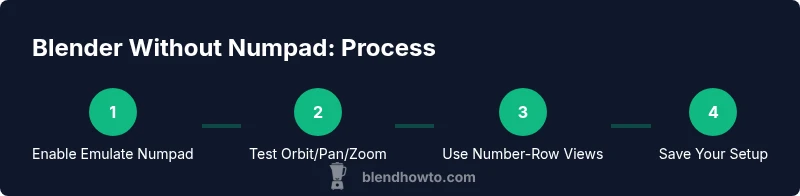
Blender Without Numpad: Master 3D Navigation Without a Numeric Pad
Learn practical replacements for the Blender numpad to navigate 3D space, orbit, pan, and zoom without a numeric keypad. Includes shortcuts, UI tweaks, Emulate Numpad setup, and tips for laptop users.


You can master Blender navigation without a numpad by enabling Emulate Numpad and using the standard viewport controls (orbit with MMB, pan with Shift+MMB, and zoom with the mouse wheel). This quick setup keeps all essential views accessible on a laptop or non-numpad keyboard. No external hardware needed, and you can customize shortcuts.
Why navigating in Blender without a numpad matters
For many Blender users, especially on laptops or compact keyboards, the lack of a dedicated numeric keypad isn't a deal-breaker. The keyword blender without numpad captures a common scenario: you want to access quick views and precise viewport control without reaching for a separate pad. The BlendHowTo team has explored practical workarounds that preserve speed and precision while reducing clutter. In this section we explain the core reasons this setup makes sense and how it fits into everyday projects, whether you're modeling, texturing, or animating.
Enable Emulate Numpad and basic setup
The most reliable way to use numpad-like views on a non-numpad keyboard is to enable Emulate Numpad in Blender's Preferences. Go to Edit > Preferences > Input and check Emulate Numpad. This maps the 1-9 keys on the top row to the classic Numpad views, so you can press broader keys without a physical pad. After enabling, try switching to front, side, and top views to verify the mapping. Save your preferences so the setting sticks across sessions. If you work on a laptop, you may also want to consider enabling a quick toggle for Emulate Numpad on startup.
Core viewport navigation without Numpad
With Emulate Numpad enabled, you can rely on standard Blender navigation: Orbit with Middle Mouse Button (MMB), Pan with Shift+MMB, and Zoom with the mouse wheel. You can also dolly (move the camera forward/back) by Ctrl+MMB or simply use the wheel for zoom. The key is to practice smooth, small movements; quick, jerky motions can cause disorientation. We walk through a few practice routes: orbit around a model, switch to a side view, and return to the default perspective without ever touching a physical numpad.
Using the number row as stand-in for numpad
In practice, the top-row numbers become your stand-ins for 1,3,7,9 and the 0 key toggles the camera view. Press 1 for Front view, 3 for Right view, 7 for Top view, and 9 for Back view. 0 will switch to camera view, and 5 toggles perspective versus orthographic. If you need the exact view, you can swap between perspectives using the View menu as well. This strategy works well for precise alignment without a pad and benefits laptop users who often work on tight desks.
Fly/Walk navigation and camera tricks
For freeform movement, use the Fly/Walk tool (Shift+F) to move through the scene with WASD controls. This is particularly helpful when you want to orbit around an invisible center or inspect a model from unusual angles. Combine Fly with a keyboard-based view fix (Emulate Numpad) to maintain orientation. You can also use the camera view (0) and orbit around it to draft camera paths, which is invaluable for quick scene exploration and layout planning.
Save, share, and future-proof your setup
Once you have Emulate Numpad enabled, spend a moment saving your configuration so you don't have to redo it each session. Go to File > Defaults > Save Startup File to keep your workspace layout consistent. Consider exporting your preferences or making a backup of your .blend file, especially if you customize multiple keyboard shortcuts. This helps you recover quickly after updates or if you switch machines.
Troubleshooting common issues and quick fixes
If Emulate Numpad stops working, double-check that you are editing preferences in Blender (not an external application) and that you haven't switched to a different input profile. Some laptops feature hardware function keys that could override number keys; ensure the Num Lock state behaves as expected. If keys feel laggy, test in a new Blender workspace or reset to default settings and re-enable Emulate Numpad. External keyboards often resolve stubborn mappings.
Quick practice checklist for daily use
- Open a simple scene and confirm orbit/pan/zoom respond naturally. - Try 1-3-7-9 for quick views. - Toggle camera with 0 and check perspective with 5. - Save startup file and test in a new Blender session. - Keep a cheatsheet handy for reference during long sessions.
Tools & Materials
- Blender software installed(Any current version that supports Emulate Numpad.)
- Keyboard (including laptop keyboards)(Any keyboard; no numpad required.)
- Mouse with scroll wheel(Essential for orbit/zoom.)
- External numeric keypad (optional)(Helpful if you frequently switch views with dedicated keys.)
- Cheatsheet or quick-reference guide(Optional but recommended for new users.)
Steps
Estimated time: 25-40 minutes
- 1
Open Preferences and enable Emulate Numpad
In Blender, go to Edit > Preferences > Input. Check the Emulate Numpad option. This maps the top-row number keys to Numpad views so you can press broader keys without a physical pad. Pro tip: enable Auto Save Preferences if you forget to save.
Tip: Verify the mapping by pressing 1/3/7/9 to switch views. - 2
Test basic orbit/pan/zoom
In a 3D Viewport, orbit with the Middle Mouse Button (MMB), pan with Shift+MMB, and zoom with the mouse wheel. If you feel resistance, adjust sensitivity in Preferences > Interface. Pro tip: customize the zoom speed for comfortable control.
Tip: Practice small, slow movements to build spatial awareness. - 3
Practice top/front/side views with number-row
With Emulate Numpad enabled, press 1, 3, 7 to switch between standard orthographic views. Use 0 to enter Camera view and 5 to toggle perspective. Pro tip: combine with Ctrl+Space to maximize the viewport for precise work.
Tip: Use these views to align objects precisely. - 4
Use Fly/Walk for free movement
Enter Fly/Walk mode with Shift+F and move with WASD keys. Use Q/E to move vertically. Pro tip: exit Fly mode with Esc or left-click to confirm movement.
Tip: Fly mode helps you explore complex models quickly. - 5
Save your setup for future sessions
After you confirm Emulate Numpad works and you’re happy with controls, save your defaults: File > Defaults > Save Startup File. Pro tip: consider exporting preferences for machine-to-machine consistency.
Tip: Always test in a new session after saving. - 6
Customize shortcuts if needed
Open Edit > Preferences > Keymap and adjust mappings that feel natural on your keyboard. Pro tip: avoid conflicting shortcuts that Blender uses for essential actions.
Tip: Document changes to avoid confusion later. - 7
Optional: Connect an external keypad
If you frequently rely on numpad-like inputs, an external keypad can reduce strain. Pro tip: ensure the keypad uses a standard HID driver for plug-and-play use.
Tip: A keypad is convenient but not required.
Frequently Asked Questions
Can I use Blender without a numpad on a Mac laptop?
Yes. Enabling Emulate Numpad and using the top-row number keys provides the same navigation options without a physical numpad.
Yes, you can. Enable Emulate Numpad and use the top-row numbers for views.
Where is Emulate Numpad located in Blender?
You can find it in Edit > Preferences > Input. Check Emulate Numpad to enable numpad-like navigation.
In Blender, go to Edit Preferences Input and enable Emulate Numpad.
What if my keyboard or OS conflicts with keys?
Check your OS keyboard shortcuts and Blender keymap to avoid overlaps. You can customize mappings in Preferences > Keymap.
If keys conflict, adjust Blender defaults in Keymap.
Is an external numpad required?
No. Emulate Numpad plus standard navigation works well; an external keypad is optional for heavy numpad use.
Not required, but an external keypad can help if you rely heavily on numpad views.
How do I return to normal navigation after using Fly mode?
Exit Fly mode by pressing Esc or left-click to confirm movement; you can then continue with Orbit/Pan/Zoom.
Exit Fly mode with Esc or click to return to regular navigation.
Watch Video
What to Remember
- Enable Emulate Numpad to map number keys to Numpad views
- Orbit/pan/zoom work with MMB, Shift+MMB, and wheel
- Use 1/3/7/9 and 0 for quick views
- Fly/Walk (Shift+F) for free movement
- Save startup file to preserve settings