Master UV Unwrap in Blender: A Step-by-Step Guide
Learn practical UV unwrapping in Blender, from seam placement to texture packing. A thorough, beginner-friendly guide by BlendHowTo for clean textures and accurate painting.


In this guide you’ll learn how to UV unwrap a Blender model from seam placement to texture packing. You’ll need a Blender project with a mesh and a basic texture, plus a willingness to practice the basics. We’ll walk through a clear, step-by-step workflow to improve texture fidelity using uv unwrap blender.
What UV Unwrap Means in Blender
According to BlendHowTo, UV unwrapping is the bridge between a 3D model and its textures. In Blender, the UV space is a 2D coordinate grid that tells Blender how to place an image on each polygon. The goal is to minimize distortion while keeping texels evenly distributed. A good unwrap results in textures that paint cleanly and align across seams, regardless of camera angle. When you unwrap, you create UV islands—individual contiguous patches on the 2D map corresponding to separated parts of your model. You’ll often start with simple shapes to learn the technique, then apply the same logic to complex characters. Mastery comes from understanding how seams define where to cut the surface and how to arrange islands to maximize texture space and minimize wasted texture area. Throughout this guide, uv unwrap blender will be the skill you practice repeatedly to improve your texturing workflow.
description_format_type_ignored_for_json_compatibility_only_for_readers_see_notes_for_more_words.
Tools & Materials
- Blender software (2.8x or newer)(Use the UV Editing workspace to access the UV Editor and Seams tools.)
- Clean, manifold 3D mesh(Apply scale (Ctrl-A) and ensure no non-manifold edges before unwrap.)
- Seam marking workflow(Mark seams with clear edges that define texture layout.)
- Checker or reference textures(A checker texture helps verify distortion and texel density.)
- Image editor or texture painting tools(Optional for painting directly on UV maps.)
Steps
Estimated time: 30-60 minutes
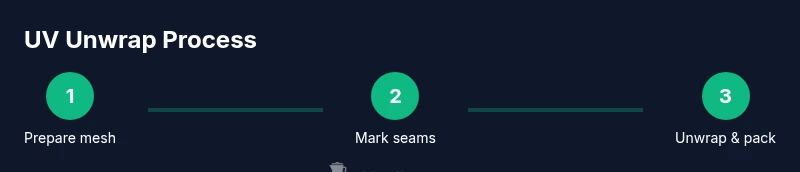
- 1
Prepare your mesh
Open your Blender project and select the model you will unwrap. Ensure the mesh is clean, with applied scale (Ctrl-A) and no duplicate vertices. Normalize normals if needed and switch to a non-destructive, edit-friendly workflow so you can revert changes easily.
Tip: Apply scale first to ensure texel density is consistent across the unwrap. - 2
Mark seams on logical edges
Identify natural cut lines on your model, such as garment seams or panel edges. Use the Edge select mode to highlight the seam lines, then press Ctrl-E and choose Mark Seam. This creates the boundary that guides the unwrap.
Tip: Place seams to minimize visible texture seams on the final render. - 3
Unwrap the model
With seams marked, switch to the UV Editing layout and select all faces. Press U to bring up the unwrap menu and choose Unwrap. Blender computes a 2D layout that maps 3D geometry to a flat image space.
Tip: If the result looks distorted, try tweaking seam placement or using a different unwrap method (e.g., Unwrap vs Smart UV Project). - 4
Check distortion in the UV Editor
Inspect the UV map in the UV Editor for stretched or compressed texels. Use the Stretch display or highlight texel density to identify problem areas. Adjust island placement to balance spacing.
Tip: Aim for uniform texel density across islands to avoid painting inconsistencies. - 5
Pack UVs efficiently
Once you’re satisfied with the unwrap, pack the UV islands to maximize texture space. Enable Pack Islands and set appropriate margin to prevent texture bleeding between islands.
Tip: Use a texture atlas approach when working with multiple objects to save texture space. - 6
Save and export textures
Save the UV-mapped texture layout as an image file (e.g., PNG) and ensure your material references match the new atlas. Maintain backups of the original texture to revert if needed.
Tip: Keep a copy of your unwrapped UV layout for future edits or tweaks.
Frequently Asked Questions
What is UV unwrapping in Blender?
UV unwrapping is the process of flattening a 3D model’s surface onto a 2D plane so textures can be accurately painted and applied. Blender uses UV coordinates to map each polygon to a pixel on an image. This creates a readable texture layout for painting, baking, and rendering.
UV unwrapping flattens 3D surfaces to 2D textures for accurate painting and baking.
Do I always need to unwrap to texture a model?
Most texturing workflows require an unwrap to paint or bake textures correctly. Without a proper unwrap, textures can stretch or distort across the model, especially on curved surfaces.
Yes, unwrap is usually essential for clean textures.
How should I place seams for a character?
Place seams along natural, less visible edges such as along the side of limbs or under clothing folds. Avoid seams across prominent facial features or features that will be highly visible in camera shots.
Place seams where they won’t be highly noticeable and will define the texture map cleanly.
What causes texture stretching after unwrap?
Stretching happens when texel density isn’t balanced or when islands are scaled unevenly. Checking the UV Editor’s density and alignment helps identify and fix stretching.
Stretch is caused by unbalanced texel density and uneven island sizes.
When should I use Smart UV Project?
Smart UV Project is fast for boxy, non-organic shapes or when you need a quick layout. For organic models with lots of detail, manual unwraps yield better control and fewer distortion issues.
Smart UV Project is quick but not always precise; manual unwraps are better for detail.
How do I pack UVs efficiently for multiple textures?
Pack islands tightly with adequate margins to prevent bleeding. Use consistent texel density and consider a texture atlas approach for many objects to save texture space.
Pack islands tightly with margins to avoid bleeding and keep texel density consistent.
Watch Video
What to Remember
- Unwrap maps 3D surfaces to 2D textures for clean painting.
- Place seams strategically to minimize visible texture seams.
- Pack UVs efficiently to maximize texture space and keep texel density balanced.
- Regularly check for distortions and adjust islands before final export.
- Save textures with consistent margins to prevent bleeding between islands.